The Spanish version is the authoritative reference. View in Spanish
Colombia: Method to query purchaser data (GetAccount)
This method allows you to query the "Name or Business Name" and "Email" data of a purchaser or buyer, in the service of the Dirección de Impuestos y Aduanas Nacionales (DIAN, National Directorate of Taxes and Customs), specifying the document type and number through the GET GetAccount method.
DIAN provides the information according to the purchasers' updated records from 2023 and 2024 onward.
To connect to this functionality, you will need to enter the URL according to the environment you want to use:
https://developers.gosocket.net/api/v1/Account/GetAccounthttps://developers-sbx.gosocket.net/api/v1/Account/GetAccountHow does the GetAccount method work?
It is important to note that this method must be enabled by Gosocket in order to use it.
Request access from the Gosocket sales team.
To make the request, the method has the following parameters with the following structure:
GetAccount (request)
| Parameter | Type | Description | Allowed values |
|---|---|---|---|
| AccountCode* | String | Tax ID of the company making the query. Required to verify that the company can use the service. | See the Tax ID Structure table |
| identificationType* | String | Type of identification document of the purchaser to query | See the Document types table |
| receiverCode* | String | Identification number of the purchaser to query | See the Tax ID Structure table |
| countryId* | String | Country code of the company making the query | co |
* All parameters are required
Document types
| Code | Description |
|---|---|
| 11 | Civil registry |
| 12 | Identity card |
| 13 | Citizenship ID card |
| 21 | Foreigner's ID card |
| 22 | Foreigner's citizenship card |
| 31 | NIT |
| 41 | Passport |
| 42 | Foreign identification document |
| 47 | PEP (Special Permanence Permit) |
| 48 | PPT (Temporary Protection Permit) |
| 50 | NIT from another country |
| 91 | NUIP |
Request example
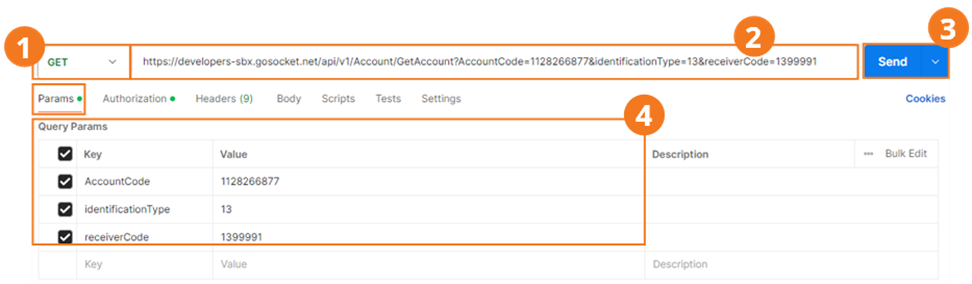
Remember that before using the method, you must authenticate within the Authorization tab.
For this method, we use the Postman Params tab.
- Select the method type. In this case, you must select GET.
- Enter the method's URL.
- Enter the parameters shown in the table above with their corresponding values.
- Press Send.
Response examples
{
  "ErrorMessage": null,
  "IsValid": false,
  "StatusCode": "500",
  "StatusDescription": "Empresa no activa para utilizar el evento GetAccount",
  "StatusMessage": "Empresa no activa para utilizar el evento GetAccount",
  "XmlBase64Bytes": null,
  "XmlBytes": null,
  "XmlDocumentKey": null,
  "XmlFileName": null,
  "ResponseType": null,
  "OtherData": null,
  "GlobalDocumentId": "00000000-0000-0000-0000-000000000000",
  "Timestamp": null,
  "Response": null,
  "TaxDocument": null,
  "PrinterXml": null
}
To properly interpret this response, take into account the following parameters:
GetAccount (response)
| Parameter | Type | Description | Allowed values |
|---|---|---|---|
| errorMessage | String | code | description as applicable, returned error messages | - null - [ "404 Adquiriente no existe" ] - [ "Error al consultar Compliance", "A task was canceled." ] |
| isValid | Boolean | Request result: - true when the purchaser exists - false when the purchaser does not exist | - True - False |
| statusCode | String | Response code | - 404 - 200 - 500 |
| statusDescription | String | Description of the code | - 404: Adquiriente no existe - 200: Adquiriente encontrado - 500: Error al consultar Compliance |
| xmlBase64Bytes | String | Base64-encoded XML of the response returned by DIAN when the purchaser exists. | - null - Base64-encoded XML |
| xmlBytes | String | null | |
| XmlDocumentKey | String | null | |
| XmlFileName | String | null | |
| ResponseType | String | Response type against the DIAN service: synchronous | Sync |
| OtherData | String | Only when the query has completed successfully and the purchaser has been found is it returned with the 2 parameters below: - ReceiverName - ReceiverMail | - null - { "ReceiverName": "Nombre Cédula de ciudadanía 1", "ReceiverEmail": " [ Mail@dominio.com ] " } |
| ReceiverName | String | Name or business name of the queried purchaser | "CLIENT NAME" |
| ReceiverMail | String | Email address of the queried purchaser | Example: "mail@dominio.com" |
| GlobalDocumentId | String | 00000000-0000-0000-0000-000000000000 | 00000000-0000-0000-0000-000000000000 |
| Timestamp | String | Query date-time | 2025-05-02T21:50:31.7268377Z |
| Response | String | null | |
| TaxDocument | String | null | |
| PrinterXml | String | null |