The Spanish version is the authoritative reference. View in Spanish
How Reconciliation Works in Chile
To access Reconciliation, we provide you with the following instructions:
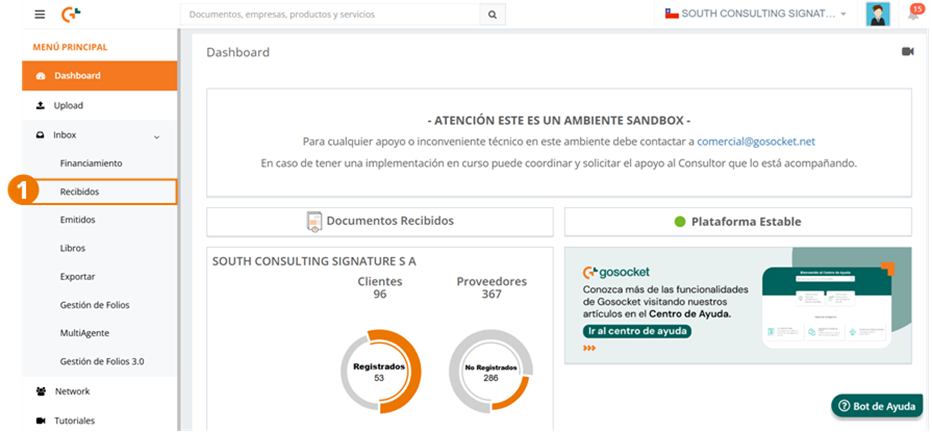
- Go to Received from the side menu.
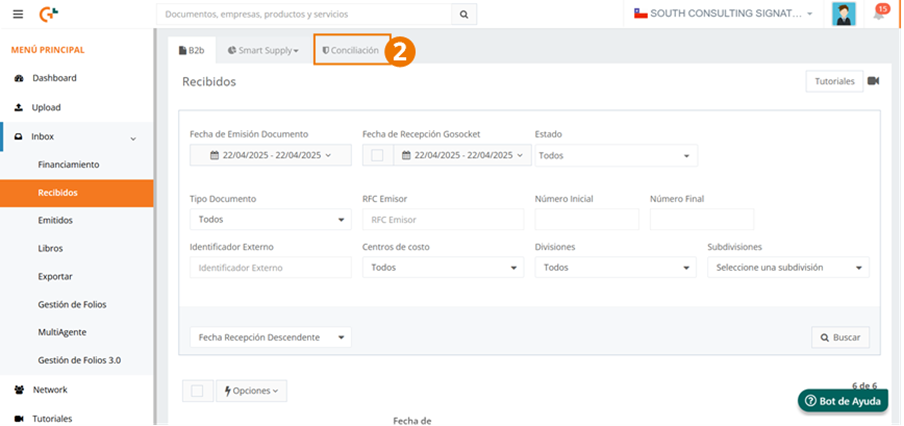
- Go to the Reconciliation tab.
Reconciliation query
Once inside the feature, the following screen will be displayed, from which you can request the reconciliation as shown below:
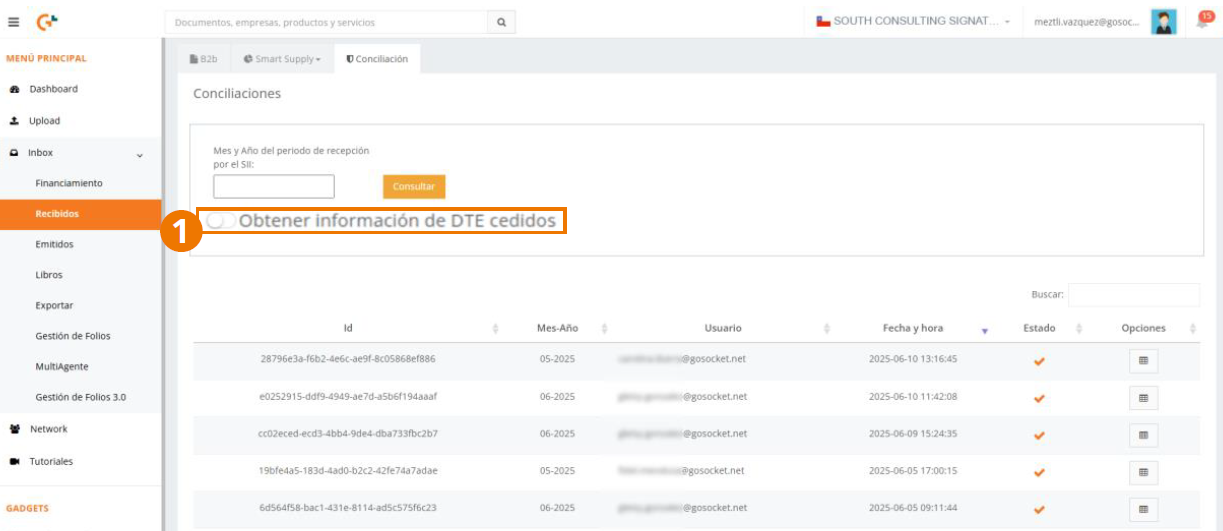
1. Get information on assigned DTE: this is checked when you need to obtain the assignment date and assignee's RUT of the documents that appear as assigned at the SII.
-
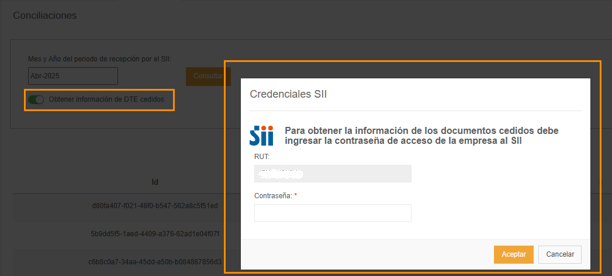
When you select it, a window will appear requesting the company's SII access password. This password will not be stored in our system.
-
If the credentials are incorrect or it is not possible to access the information due to problems with the SII site, the reconciliation will be generated anyway. However, the "Assignee RUT" and "Assignment Date" columns in the grid will appear empty, as will the Excel report.
-
If the option is not selected, no SII credentials will be requested and no attempt will be made to obtain the assignment data.
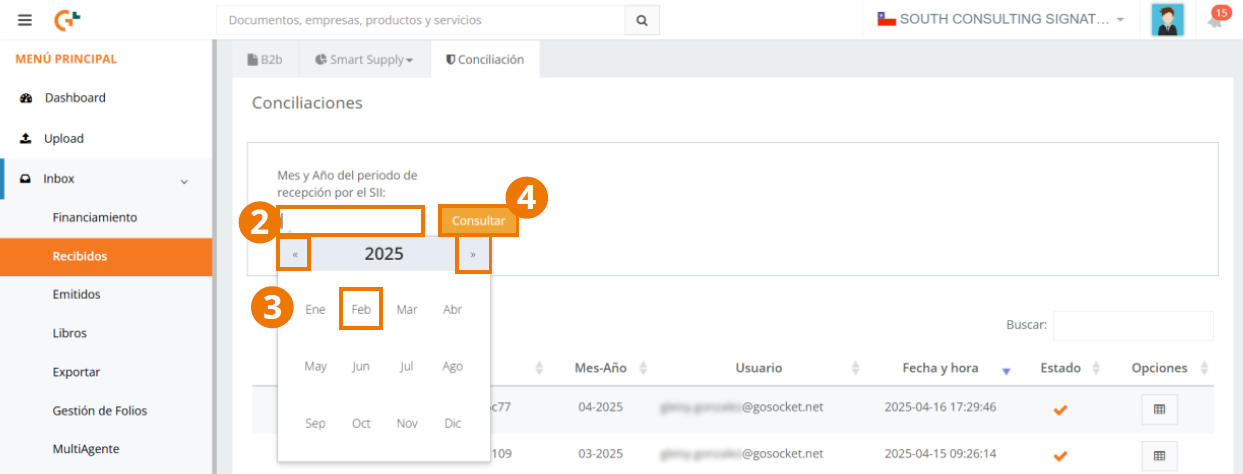
- 2. Click inside the Month and Year of the reception period by the SII field.
- 3. Using the calendar, select the month and year to query.
- 4. Press Query.
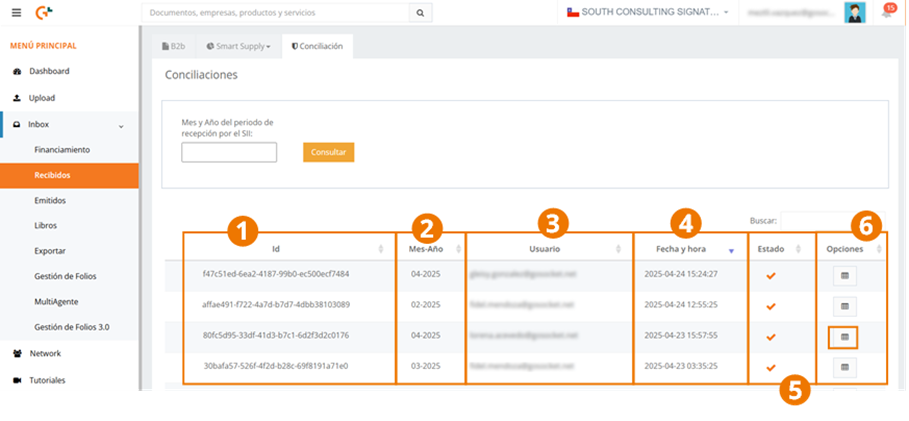
Additionally, from this same screen you will be able to view the process status and the reconciliation history, where you will find the following information:
-
Id: identifier of the reconciliation request.
-
Month-Year: period selected in the reconciliation.
-
User: who requested the reconciliation.
-
Date and time: when the reconciliation was requested.
-
Status: corresponds to the processing status of the requested reconciliation. (Processing, Ready, Error).
-
Options. The buttons shown in this column are conditioned by the reconciliation status, as we see below:
a. View information: when the status is Error, the information regarding the error is shown.
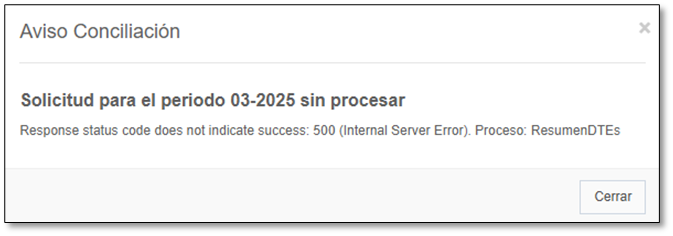
b. Delete record: when the status is Error, you are allowed to delete the request record.
c. View result: shows the detail of the reconciliation performed. This option is shown for reconciliations with the Ready status. Once the query finishes loading, go to View the result shown within the Options column.
Reconciliation view
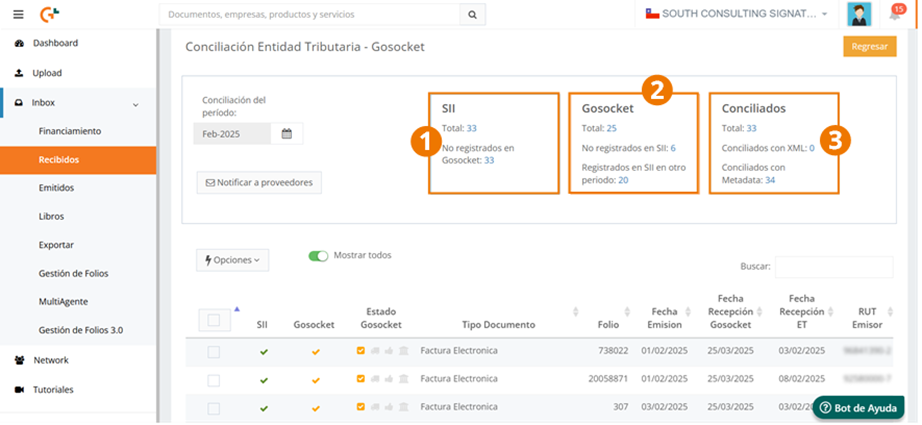
The results screen according to the search performed, where we can filter the documents, is displayed as follows:
-
SII: shows the documents that were found at the SII in the selected period and how many of the total found are not registered in Gosocket. The documents are obtained by their reception date at the SII.
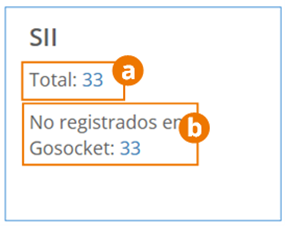
a. Total: Number of documents found at the SII in the selected month and year, which were received by that entity in that period.
b. Not registered in Gosocket: number of documents out of the total found at the SII that are not received in Gosocket.
-
Gosocket: documents found in Gosocket with an issue date in the selected period and how many of the total found are not registered at the SII.
The date by which documents are obtained in Gosocket is the DTE issue date that matches the selected period.
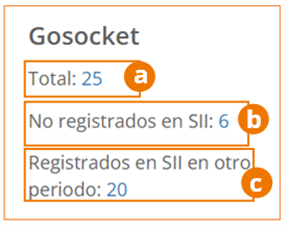
a. Total: documents registered in Gosocket with an issue date corresponding to the selected month and year.
b. Not registered at SII: number of documents that are in Gosocket but not at the SII.
c. Registered at SII in another period: number of documents that are in Gosocket with a valid status before the Tax Entity, but in a period different from the selected one, that is, they are not in the list downloaded from the SII.
-
Reconciled: these are the documents found in both (SII and Gosocket) in the selected period. It also shows which ones were reconciled through their metadata and those found in Gosocket with their XML.
Metadata is the relevant information of the document downloaded from the SII during reconciliation and stored in the document in Gosocket.
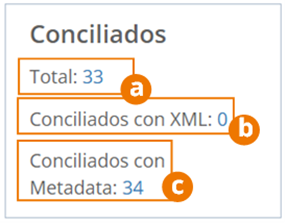
a. Total: reconciled documents, that is, those found at the SII and in Gosocket in the selected period.
b. Reconciled with XML: documents registered in Gosocket and at the SII, whose XML was received in Inbox.
c. Reconciled with Metadata: documents found in Gosocket and at the SII, but the document in Gosocket is available with its metadata, that is, its XML has not yet been received.
To filter the results according to your interest, click on the figure whose documents you are going to query.

Notify suppliers
Use this button to notify suppliers about issued documents that are already registered at the SII, but have not yet been received on the Gosocket platform, thereby facilitating their tracking and management.
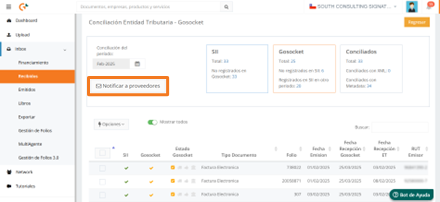
When you press this button, the following form is displayed:
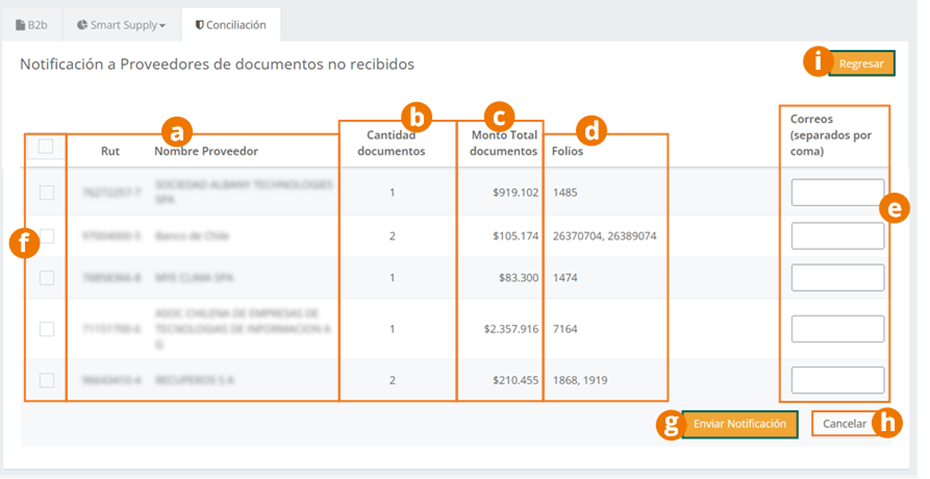
a. Supplier identification data.
b. Number of documents registered at the SII but not yet received in Gosocket.
c. Sum of the amounts of the documents.
d. Folios of the documents registered at the SII but not yet received in Gosocket.
e. Contact emails of the supplier to which the notification will be sent. The emails of the contacts already registered for the supplier are shown, and if another email needs to be entered, it is added following a comma (,) or directly the email, if it is only one.
f. Selection checkboxes for the suppliers to which the notification will be sent.
g. When finished, press Send Notification.
h. To discard the process, press Cancel.
i. Press Back to return to the Reconciliation screen.
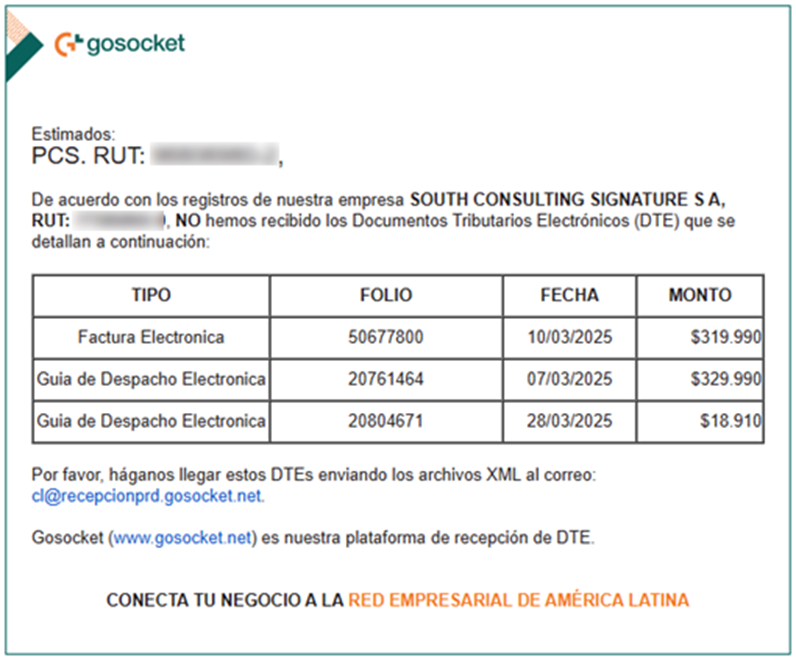
The suppliers will receive an email notification like the one shown below:
Options within Reconciliation
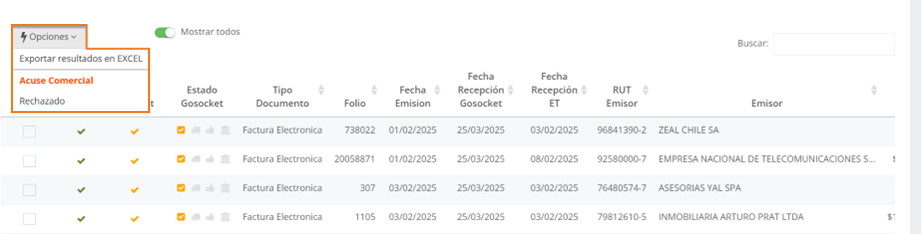
When you press the Options button shown on the Reconciliation screen, two options are displayed; let's see how they work.
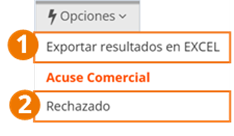
- Download the Reconciliation results in an Excel-format file.
Appendix: What do we find in the reconciliation report? - Perform the commercial rejection (Claim) of the DTE, even if the XML has not been received in Gosocket. That is, you will be able to reject documents that only have metadata. Rejection will not be allowed on documents with event description Cash/free, Assigned, or Claimed.
Query fields
Within the Reconciliation query, we find the following information:
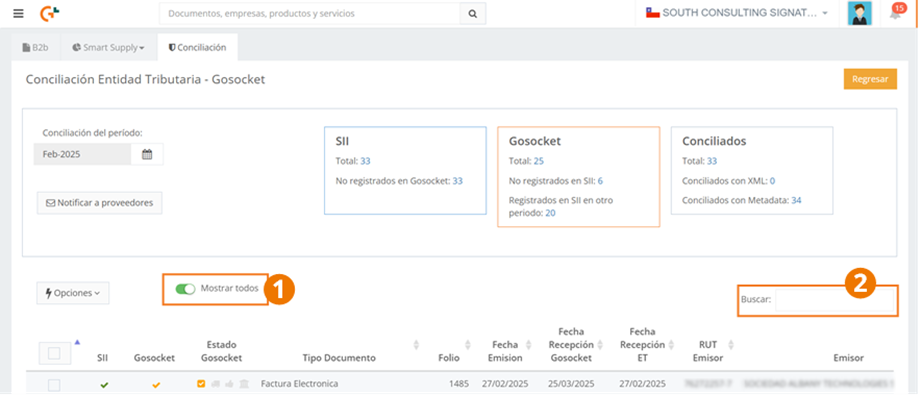
- The Show all switch allows you to view all records in this submodule without filtering the documents in any way.
- To locate any document, you can use the Search field.
Below, we find the list of DTE located, with the following data:
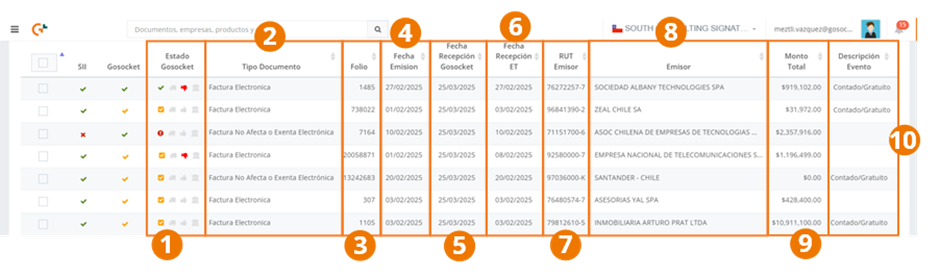
- Status of the document in the Gosocket Inbox. Here we can check whether the document was assigned, whether it has commercial acknowledgments, and its status according to its validation before the SII. The assigned icon is shown in green when the reconciliation with the SII shows that the document was assigned. This icon will be shown in the received documents query in Inbox.
- Type of reconciled document.
- DTE folio.
- Document issue date.
- Reception date in Gosocket.
- Reception date at the SII.
- RUT of the supplier that issues the document.
- Name of the issuer.
- Document value.
- Last registered event of the document.

- The Assignee RUT and Assignment date columns are shown if the "Get Information on Assigned DTE" option was checked and if the document in the "Event Description" column has the value Assigned. If there was an error obtaining this information from the SII, it will show them all empty regardless of whether the DTE is assigned.
Relationship between SII and Gosocket columns
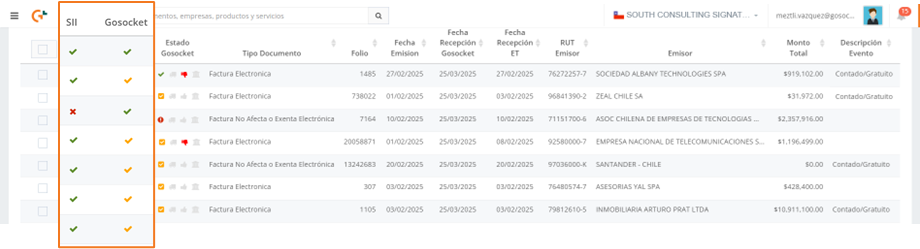
-
Within the SII column, we find that the icon indicates that the document was issued and received by the SII. Otherwise, we will see the icon.
-
On the other hand, the Gosocket column indicates that the document was received in Gosocket when we see the icon. If not, we will find the icon. When a document was stored in Gosocket with its metadata, obtained from the SII during reconciliation and its XML has not yet been received, the icon is shown.
Then, the results are interpreted as follows:
| SII | Gosocket | Description |
|---|---|---|
| ✅ | ❌ | DTE received by the SII, not received in Gosocket |
| ❌ | ✅ | DTE registered in Gosocket, not registered at the SII |
| ✅ | ✅ | DTE registered in Gosocket and at the SII |
| ✅ | ✅ | DTE with a record at the SII, reconciled with metadata in Gosocket (does not have XML) |
Characteristics of documents with metadata
Documents with metadata are those that do not have their tax XML in Gosocket; only the relevant information of the DTE obtained from the SII during reconciliation and stored in the document in Gosocket is available.
-
These documents are shown with the Reconciled status on the received documents query screen in Inbox, with the following icon and label:

-
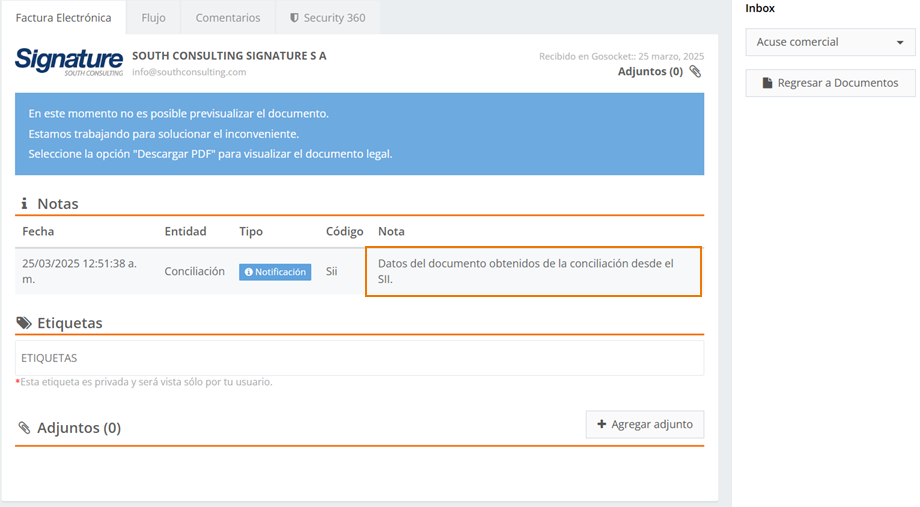
Within the document preview, in the Notes section, it is indicated that the document was obtained through reconciliation from the SII.
-
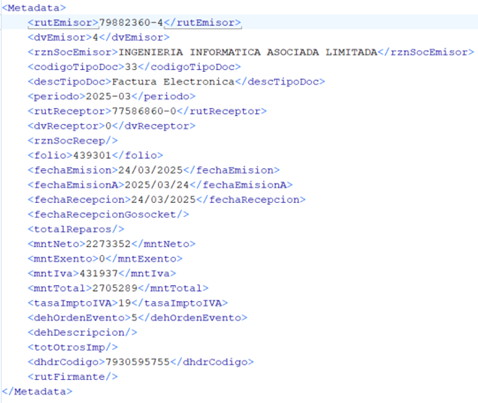
The XML of a document reconciled with Metadata contains this field as shown below:
-
Documents with metadata can have commercial acknowledgments of acceptance or rejection performed on them.
When the issuer sends the tax XML document, the document in Inbox will be updated following the normal reception flow and keeping the commercial acknowledgments that were made while it had metadata.
Assigned documents
During the reconciliation process, the DTE that present the Assignment event (Assigned) at the SII are automatically identified. These documents are distinguished by the following icon in the Inbox document list:

Additionally, when requesting the reconciliation, if the "Get Information on Assigned DTE" option is enabled and the query completes successfully, the assigned documents will show the assignment information in Inbox > Received.
To view it, you just need to position the cursor over the Issuer, where the Assignment Date and the Assignee's RUT will be displayed. This data will also be recorded in the document's Notes for later reference.
