The Spanish version is the authoritative reference. View in Spanish
How Reconciliation Works in Colombia
The duration of the reconciliation process depends directly on the number of Electronic Tax Documents (DTE) to process. In cases of high volumes, this procedure can take several minutes or even hours, also due to the DIAN's response times.
To improve the user experience, a specific screen was developed that allows you to start the reconciliation without needing to stay on the same page during the entire process. This optimizes the use of time and avoids unnecessary interruptions.
Additionally, the screen shows the process status in real time, allowing continuous visibility over the progress. Thanks to this feature, users can continue with other tasks within the system while the reconciliation is carried out in the background.
To access Reconciliation, we provide you with the following instructions:
-
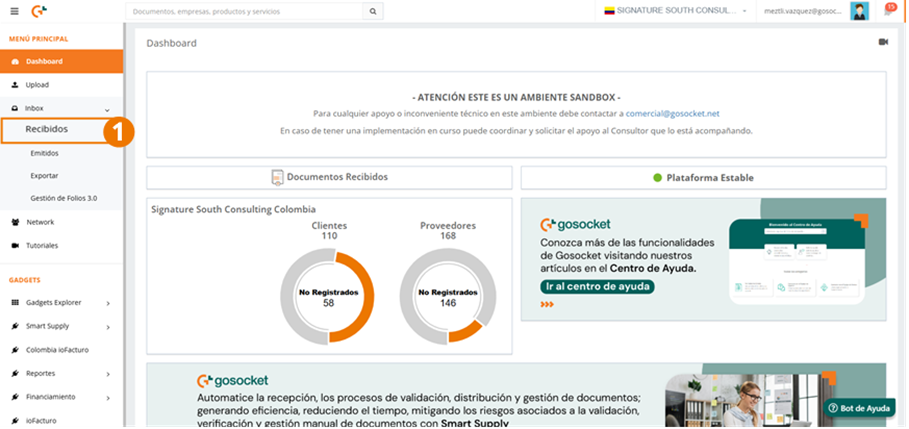
Go to Received from the side menu.
-
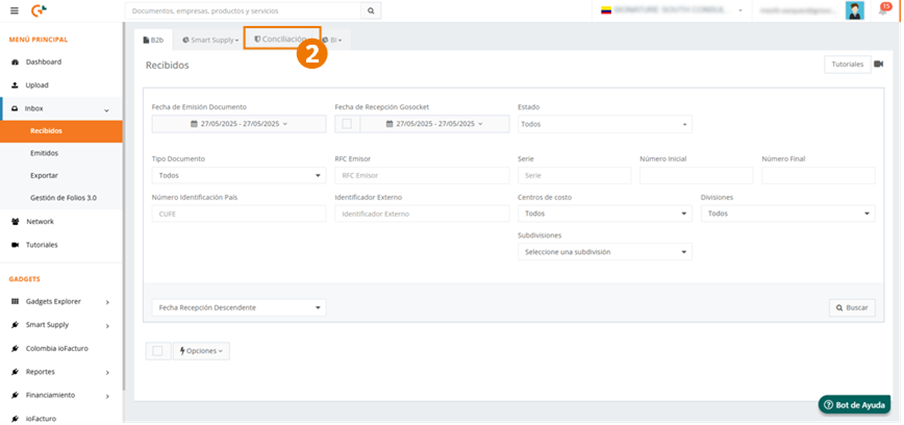
Go to the Reconciliation tab.
Reconciliation query
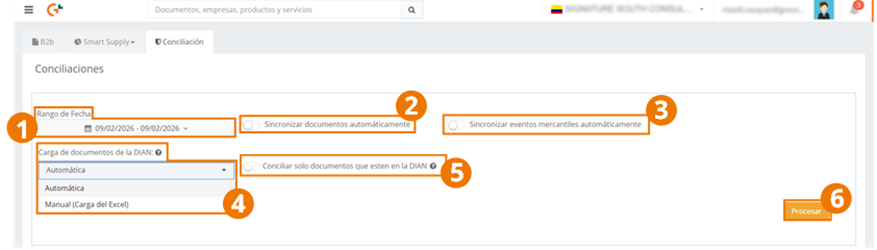
Once inside the Reconciliation tab, the following screen will be displayed, from which you can make the request as shown below:
-
Select the date range of the reconciliation. This refers to the issue date of the DTE.
-
To automatically synchronize the DTE that are not in Gosocket, turn on the Synchronize documents automatically toggle.
-
Synchronize commercial events automatically serves to synchronize the commercial events of the synchronized DTE and the commercial events within the uploaded Excel.
-
If this field is shown, select one of the options:
a. Automatic: to connect directly to the DIAN website and obtain the list of documents in Excel (requires having the digital certificate and legal representative configured as shown here).
b. Manual (Excel upload): if you prefer to upload the Excel report previously downloaded from the DIAN with the DTE information. To download it, follow the steps shown in:
Manual report download from the DIAN. -
Select this option so that the system processes only the DTE registered in the DIAN, whether they were uploaded manually or automatically, excluding those that are in Gosocket but not in the DIAN. This alternative speeds up processing, so it is ideal when handling large volumes of received documents.
-
Press Process to start the reconciliation with the selected data.
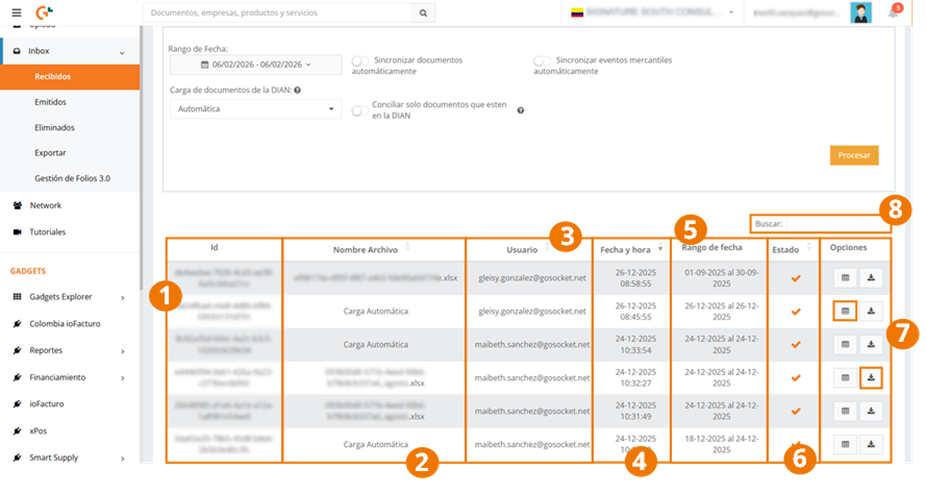
Additionally, from this same screen you will be able to view the process status and the reconciliation history, where you will find the following information:
-
Id: Unique identifier of the reconciliation.
-
File name: name of the Excel file uploaded manually. In cases where the automatic DIAN upload was selected, it is shown with the name Automatic upload.
-
User: who requested the reconciliation.
-
Date and time: when the reconciliation was requested.
-
Date range: period selected in the reconciliation.
-
Status: corresponds to the processing status of the requested reconciliation. (Processing, Ready, Error).
-
Options. The buttons shown in this column are conditioned by the reconciliation status, as we see below:
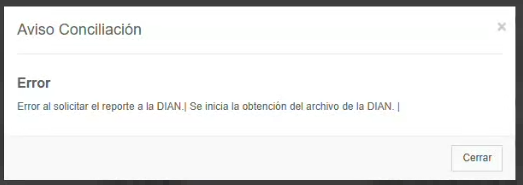
a. View information : when the status is Error, the information regarding the error is shown.
b. Delete record : when the status is Error, you are allowed to delete the request record.
c. Download : allows you to download the reconciliation. This option is shown for reconciliations with the Ready status.
d. View result : shows the detail of the reconciliation performed. This option is shown for reconciliations with the Ready status. Once the query finishes loading, go to View the result shown within the Options column.
-
Using the search bar, you can locate a reconciliation file by entering keywords.
Validation of the uploaded Excel format
The validation of the uploaded file considers the following characteristics:
-
Excel type: .xls and .xlsx extension
-
Maximum size: 35 MB.
-
The columns must be the expected ones and in the correct order.
-
The date formats must be the allowed ones.
-
The allowed decimal separators are the period (.) and the comma (,) without a thousands separator.
- It is recommended to upload the Excel file exactly as it was downloaded from the DIAN, without modifying its content. If you want to reconcile only a specific set of documents, you can delete the records you do not need to process from the file, which will help speed up the reconciliation.
- When working with a high volume of documents, it is recommended to perform the reconciliation over shorter date periods, segmenting the process into several executions. This will allow you to obtain better response times and will reduce the risk of issues during processing. Additionally, if the report is obtained automatically from the DIAN, you must consider that this entity sets limits on the number of records it can generate per request.
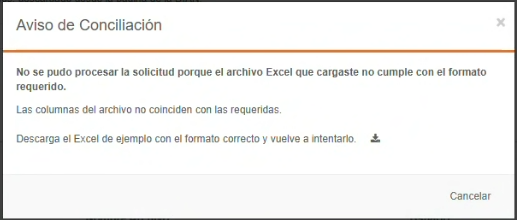
If an error is found during the validations, a message with the information and the option to download an example of the expected Excel format will be shown.
Reconciliation results
When you press on a previously processed reconciliation request, the results screen is displayed according to the reconciliation performed, where we can filter the documents as follows:
-
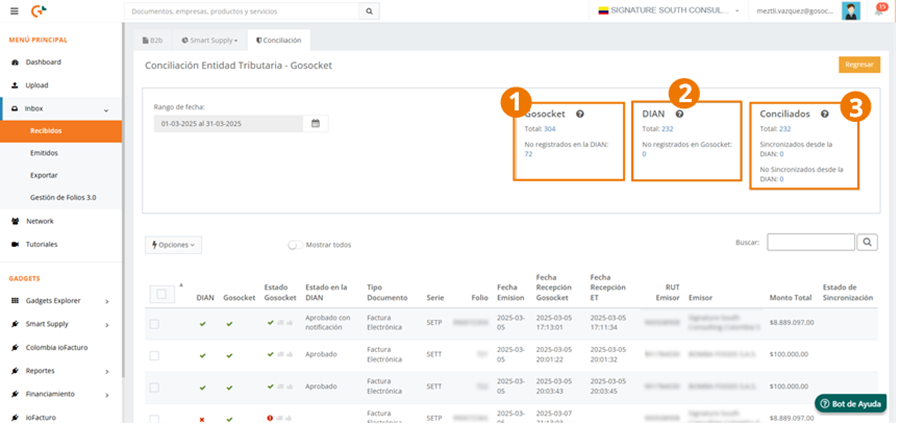
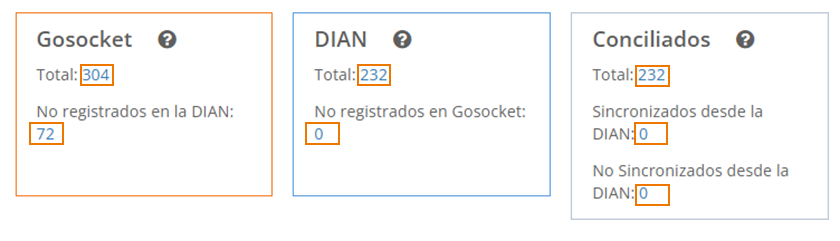
Gosocket: documents found in Gosocket with an issue date in the selected period and how many of the total found are not registered in the DIAN.
The date by which documents are obtained in Gosocket is the DTE issue date that matches the selected period.
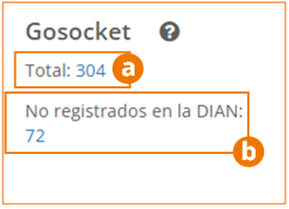
a. Total: documents registered in Gosocket with an issue date corresponding to the selected period.
b. Not registered in the DIAN: number of documents that are in Gosocket but not in the DIAN.
-
DIAN: The documents registered in the DIAN within the selected date range are shown, and it determines how many of them are not registered in Gosocket relative to the total found. The data is based on the set of documents that are in the DIAN (whether uploaded via Excel or obtained automatically) and on those that are in Gosocket and have been validated by the DIAN. Document filtering is done by issue date.
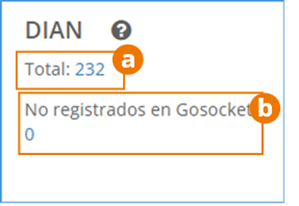
a. Total: total number of documents that are in the DIAN that were issued in the selected date range.
b. Not registered in Gosocket: number of documents out of the total found in the DIAN that are not received in Gosocket.
-
Reconciled: these are the documents found in both (DIAN and Gosocket) in the selected period. It also shows which ones were reconciled through synchronization from the DIAN.
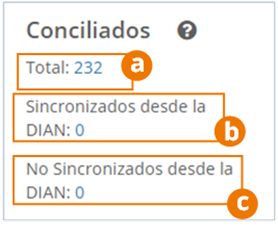
a. Total: reconciled documents, that is, those found in the DIAN and in Gosocket in the selected date range.
b. Synchronized from the DIAN: documents registered in Gosocket and in the DIAN, whose XML was synchronized from the DIAN successfully. The synchronization was performed because:
- The document existed in both Gosocket and the DIAN, but had differences in its status between the two platforms.
- The document existed in the DIAN, but was not registered in Gosocket.
c. Not synchronized from the DIAN: corresponds to documents whose synchronization with the DIAN was not completed successfully, that is, their XML could not be obtained.
It may be that the document is reconciled, that is, in Gosocket and in the SAT, but the statuses differ.
To filter the results according to your interest, click on the figure whose documents you are going to query.
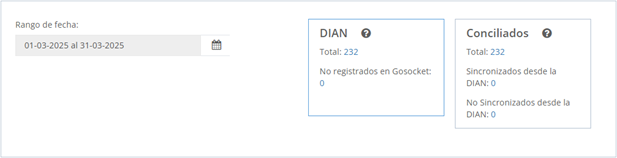
If, when requesting the reconciliation, you selected the Only Excel documents option, only the panels DIAN and Reconciled will be shown.
Options within Reconciliation
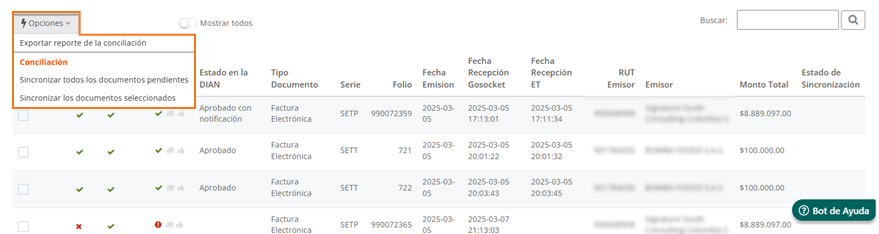
When you press the Options button shown on the Reconciliation screen, three options are displayed; let's see how they work.
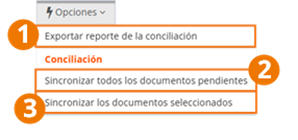
- Export reconciliation report: Export in a comma-separated .csv, compressed in a .zip, the report of the reconciliation performed.
Appendix: What do we find in the reconciliation report? - Synchronize all pending documents: This action allows you to synchronize from the DIAN all documents that are not in Gosocket or that have a status other than Validated or Voided in Inbox.
- Synchronize the selected documents: Action that allows you to synchronize only the documents selected in the table.
Query fields
Within the Reconciliation query, we find the following information:
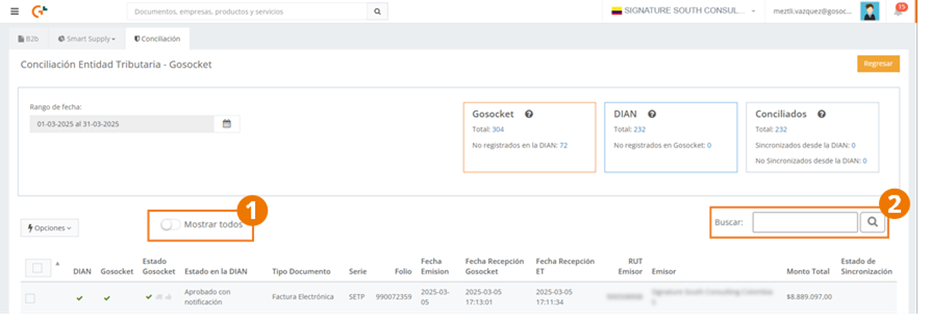
- The Show all switch allows you to view all records in this submodule without filtering the documents in any way.
- To locate any document, you can use the Search field.
Below, we find the list of DTE located, with the following data:
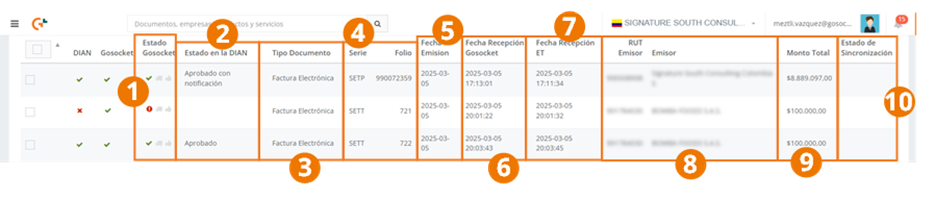
- Status of the document in the Gosocket Inbox. Here we can check whether the document was validated, whether it has commercial acknowledgments, and whether it was accepted by the customer.
- Status of the document in the DIAN.
- Document type of the record.
- Series and folio of the DTE.
- Document issue date.
- Reception date in Gosocket.
- Reception date in the DIAN.
- RUT and name of the supplier that issues the document.
- Document value.
- Indicates whether the document was synchronized from the DIAN in that reconciliation or if it could not be synchronized due to some problem, if the synchronization of the DTE was requested.
Relationship between DIAN and Gosocket columns

-
Within the DIAN column, we find that the icon indicates that the document was issued and received by the DIAN. Otherwise, we will see the ❌ icon.
-
On the other hand, the Gosocket column indicates that the document was received in Gosocket when we see the icon . If not, we will find the ❌ icon. Then, the results are interpreted as follows:
DIAN Gosocket Description ✅ ❌ DTE received by the DIAN, not received in Gosocket ❌ ✅ DTE registered in Gosocket, not registered in the DIAN ✅ ✅ DTE registered in Gosocket and in the DIAN
The icon in the Gosocket column only indicates that the document is registered on the platform; it does not mean it has been approved. To know the approval status of the document, you must check the Gosocket Status column.