The Spanish version is the authoritative reference. View in Spanish
How Reconciliation Works in México
The process begins from the Reconciliation tab, where you can request the reconciliation of documents. It is important to note that:
- The duration of the process depends on the number of CFDI to process.
- It can take several minutes, especially with high volumes of documents and due to the SAT's response time.
- For a better user experience, this screen was implemented, which:
- Allows you to start the reconciliation without waiting on the same page.
- Shows the process status in real time, so the user can keep working while it is completed.
To access Reconciliation, we provide you with the following instructions:
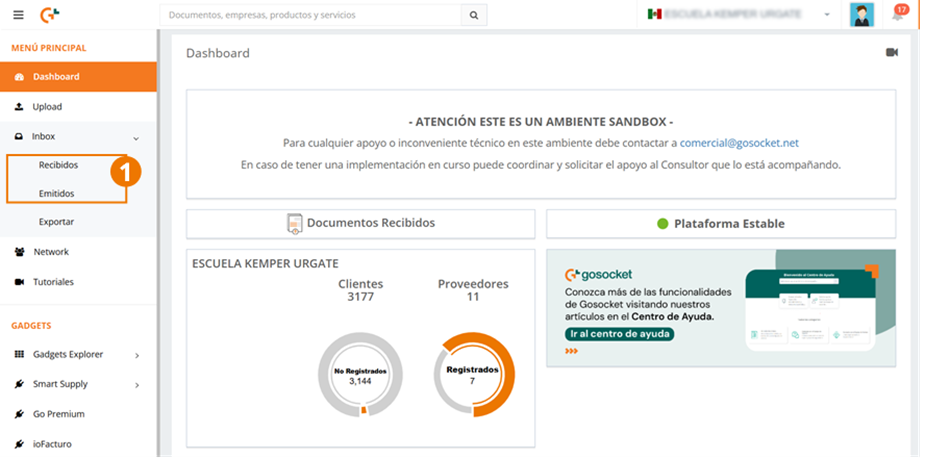
- Go to Received or Issued from the side menu.
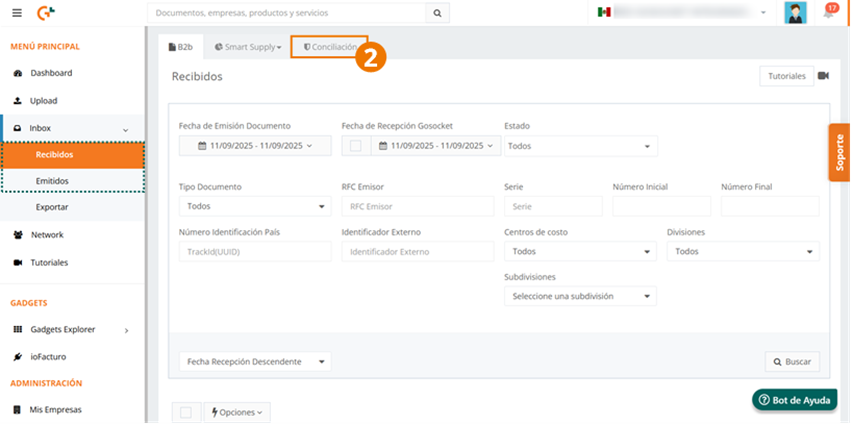
- Go to the Reconciliation tab.
When Payroll Reconciliation is activated, the user will need to have access to the CFDI of this type for this option to be shown within the Reconciliation tab found in the Issued submodule. We can identify this type of reconciliation with the text Payroll Reconciliations as shown in the following image.
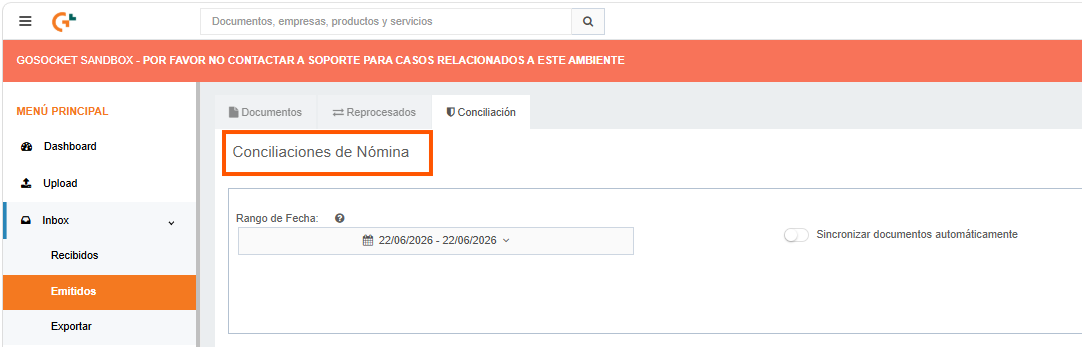
Reconciliation query
Let's see how to request a reconciliation.
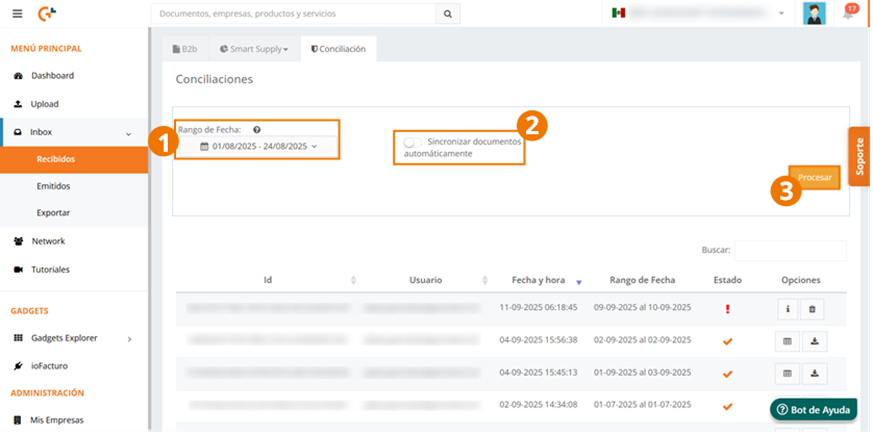
-
Select the date range of the reconciliation. This refers to the stamping date of the CFDI.
Date restrictions:
-
The start date must be equal to or later than the date configured when enabling the reconciliation.
-
Both the start date and the end date must be earlier than the current day.
-
The maximum range is 31 days.
-
-
Check the option if you want to automatically synchronize the CFDI.
-
Press Process so that the reconciliation runs with the selected data.
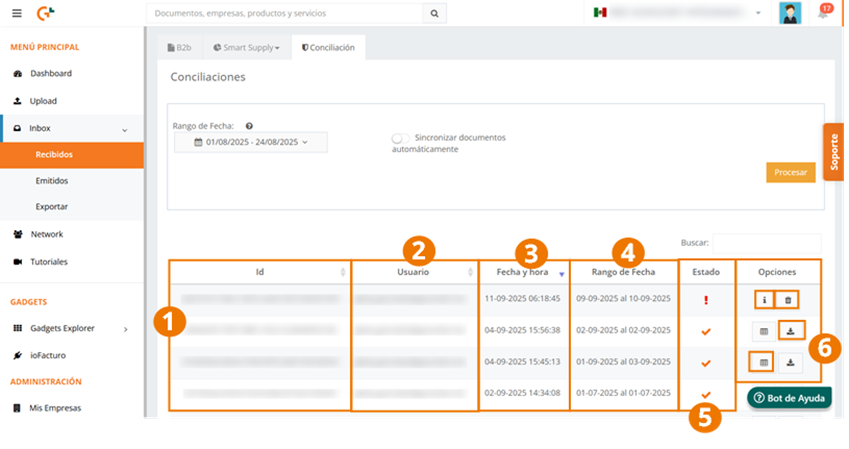
Additionally, from this same screen you will be able to view the process status and the reconciliation history, where you will find the following information:
-
Id: Unique identifier of the reconciliation.
-
User: who requested the reconciliation.
-
Date and time: when the reconciliation was requested.
-
Date range: period selected in the reconciliation.
-
Status: corresponds to the processing status of the requested reconciliation. (Processing, Ready, Error).
-
Options. The buttons shown in this column are conditioned by the reconciliation status, as we see below:
a. View information: when the status is Error, the information regarding the error is shown.
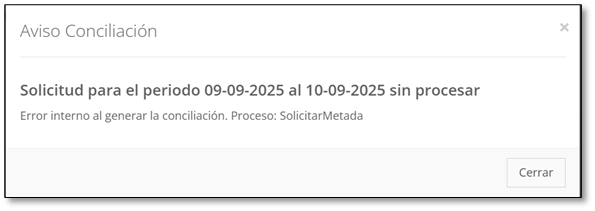
b. Delete record: when the status is Error, you are allowed to delete the request record.
c. Download: allows you to download the reconciliation. This option is shown for reconciliations with the Ready status.
d. View result: shows the detail of the reconciliation performed. This option is shown for reconciliations with the Ready status. Once the query finishes loading, go to "View the result" shown within the Options column.
The reconciliation history is shown with the data that was reconciled at that moment; when accessing it, it is not updated with what is currently available, but is shown with the data from the moment it was requested.
Reconciliation results
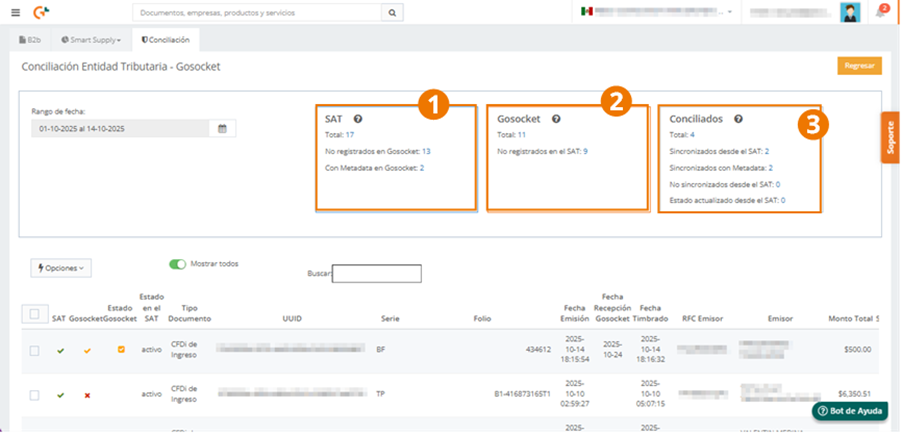
When you press the "View result" action on a previously processed reconciliation request, the results screen is displayed according to the reconciliation performed:
-
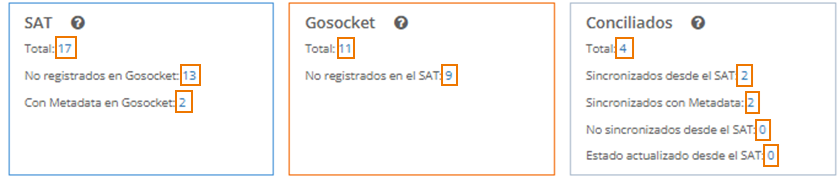
SAT: shows the documents that are at the SAT in the selected date range and verifies how many of the total found are not registered in Gosocket. This information is from the universe of documents in the list obtained from the SAT.
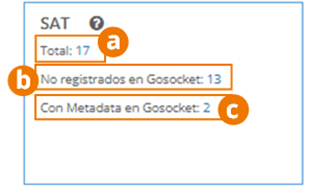
The documents are filtered by the stamping date.
a. Total: total number of documents that are at the SAT that were stamped in the selected date range.
b. Not registered in Gosocket: number of documents out of the total found that are not in Gosocket.
c. With Metadata in Gosocket: documents with metadata whose XML is not yet available. They may be documents synchronized with their metadata in another reconciliation and/or in this one.
By clicking on the amounts shown, the documents in that set will be displayed in the grid.
-
Gosocket: documents found in Gosocket with a stamping date in the selected period (in case the document is not stamped, the reception date in Gosocket is taken) and shows how many of the total found are not registered at the SAT.
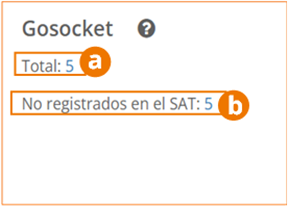
a. Total: total number of documents registered in Gosocket with a stamping date corresponding to the selected date range.
b. Not registered at the SAT: number of documents out of the total that are in Gosocket that are not at the SAT.
-
Reconciled: the goal of this information is to show the documents found in both (SAT and Gosocket) in the selected date range, show which ones were reconciled through synchronization from the SAT, and how many had their status updated.
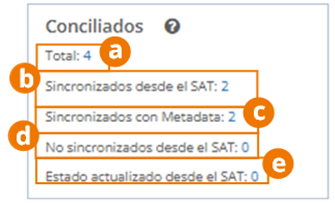
a. Total: total number of reconciled documents, that is, those found at the SAT and in Gosocket in the selected period.
b. Synchronized from the SAT: number of documents whose XML was synchronized successfully.
c. Synchronized with metadata: number of documents whose metadata was synchronized because it was not possible to obtain the XML file. These documents are shown in Inbox with the Reconciled status when they are validated, and with the Voided status when they are canceled. In both cases, they appear with the metadata label in the portal.
d. Not synchronized from the SAT: number of documents whose XML synchronization was attempted but the process was not successful.
e. Status updated from the SAT: number of documents that only had their status updated.
It may be that the document is reconciled, that is, in Gosocket and at the SAT, but the statuses differ.
To filter the results according to your interest, click on the figure whose documents you are going to query.
Options within Reconciliation
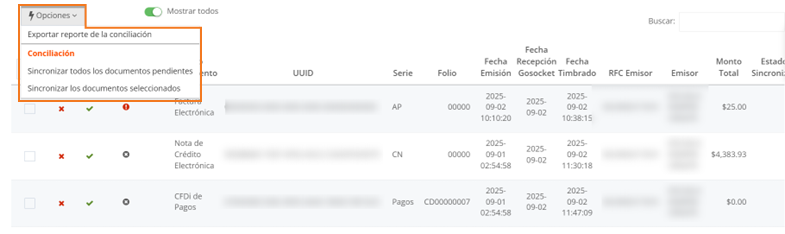
When you press the Options button shown on the Reconciliation screen, three options are displayed; let's see how they work.
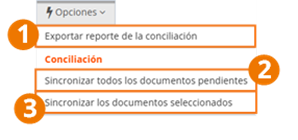
- Export reconciliation report: Export in a comma-separated .csv, compressed in a .zip, the report of the reconciliation performed.
Appendix: What do we find in the reconciliation report? - Synchronize all pending documents: This action allows you to synchronize from the SAT all documents that are not in Gosocket or that have a status other than Validated or Voided in Inbox.
- Synchronize the selected documents: Action that allows you to synchronize only the documents selected in the table.
Query fields
Within the Reconciliation query, we find the following information:
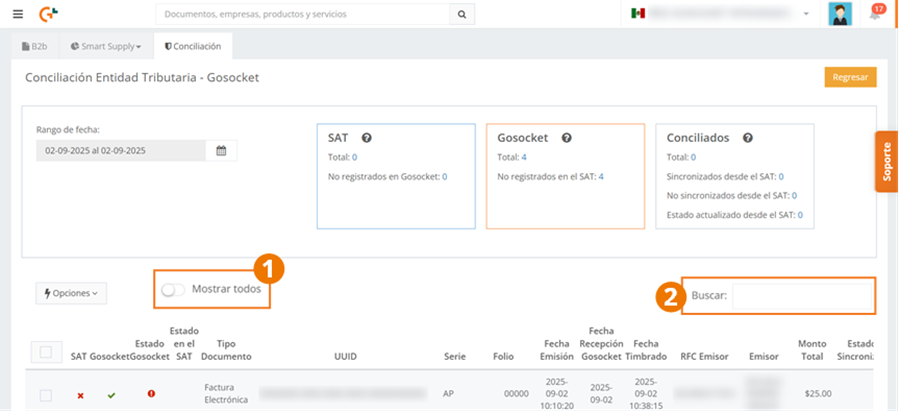
- The Show all switch allows you to view all records in this submodule without filtering the documents in any way.
- To locate any document, you can use the Search field.
Below, we find the list of CFDI located, with the following data:
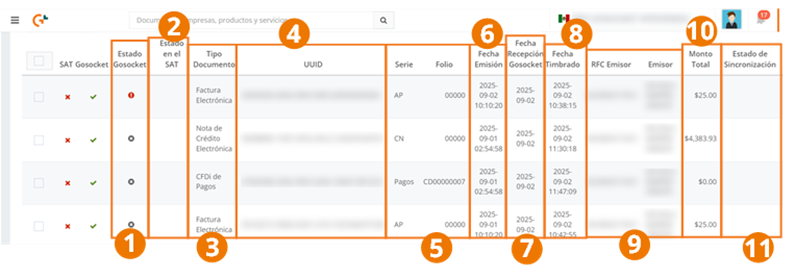
- Status of the document in the Gosocket Inbox according to its validation before the SAT.
- Status of the document at the SAT.
- Document type of the record.
- UUID: Universal identifier of the document.
- Series and folio of the CFDI.
- Issue date of the document.
- Reception date in Gosocket.
- Date the CFDI was stamped.
- RFC and trade name of the issuer of the document in the case of received documents and the receiver in the case of issued documents.
- Total amount: Value of the document.
- Synchronization status: Indicates whether the document was synchronized from the SAT in that reconciliation or if it could not be synchronized due to some problem, if the synchronization of the CFDI was requested.
Relationship between SAT and Gosocket columns
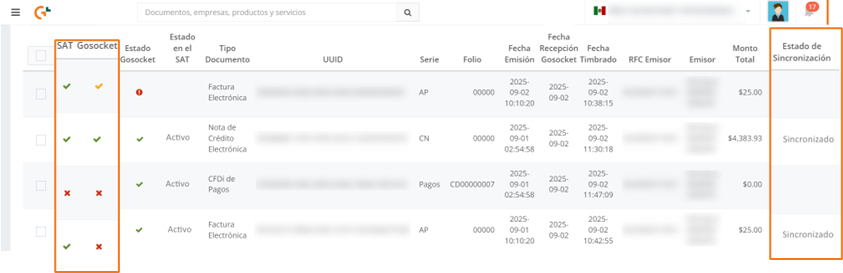
- Within the SAT column, we find that the indicates that the document was issued and received by the SAT. Otherwise, we will see ❌.
- On the other hand, the Gosocket column indicates that the document was received in Gosocket when we see the . When a document was stored in Gosocket with its metadata, obtained from the SAT during reconciliation and its XML has not yet been received, the is shown. If not, we will find ❌. Then, the results are interpreted as follows:
| SAT | Gosocket | Description |
|---|---|---|
| ❌ | CFDI registered at the SAT, not received in Gosocket | |
| ❌ | CFDI registered in Gosocket, not registered at the SAT | |
| CFDI registered in Gosocket and at the SAT (Does not indicate they have the same status) | ||
| CFDI with a record at the SAT, reconciled with metadata in Gosocket (does not have XML) |
Characteristics of documents with metadata
Documents with metadata are those that do not have their tax XML in Gosocket; only the relevant information of the CFDI obtained from the SAT during reconciliation and stored in the document in Gosocket is available.
-
They are shown in Inbox with the reconciled icon, in case they are validated by the SAT, and with the voided icon, when they are canceled. In both cases, they appear with the metadata label.

-
Within the XML of the document with metadata, only the following fields are shown:
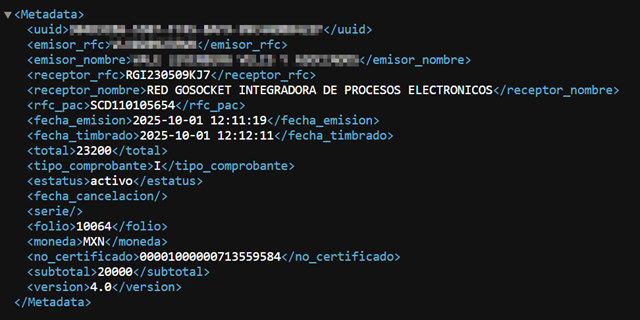
-
These documents can be synchronized again through the reconciliation process to try to obtain the XML again.
-
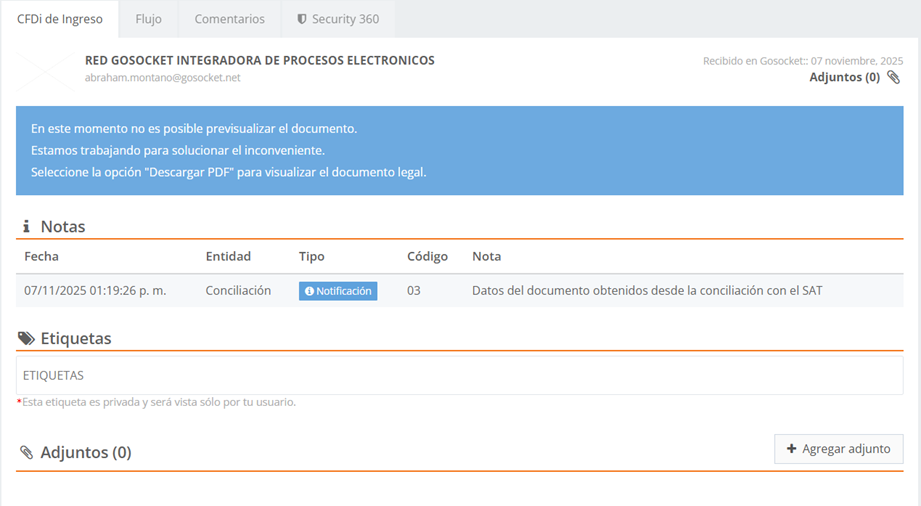
When accessing their view, a note is shown indicating that the document data was obtained through reconciliation from the SAT. In addition, only the options shown in the image below will be displayed:
Once the tax XML document reaches the platform, the document in Inbox will be updated following the normal issuance or reception flow, as appropriate.