The Spanish version is the authoritative reference. View in Spanish
Invoices
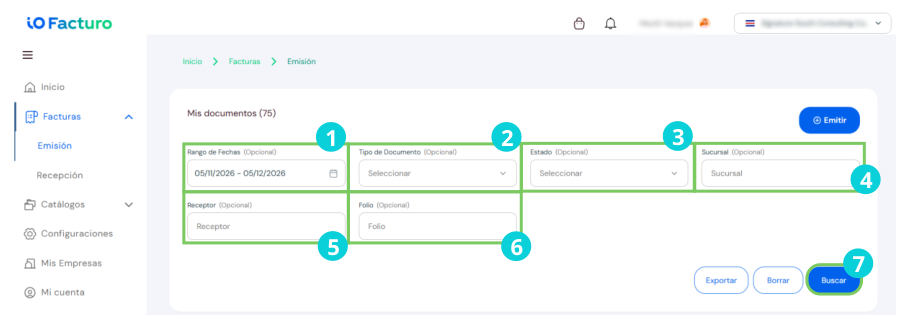
From the Invoices module you can view issued or received documents, start issuing a new document, export documents and search the history.
Document lookup
Within the Issuing and Reception submodules you will find filters to locate documents:
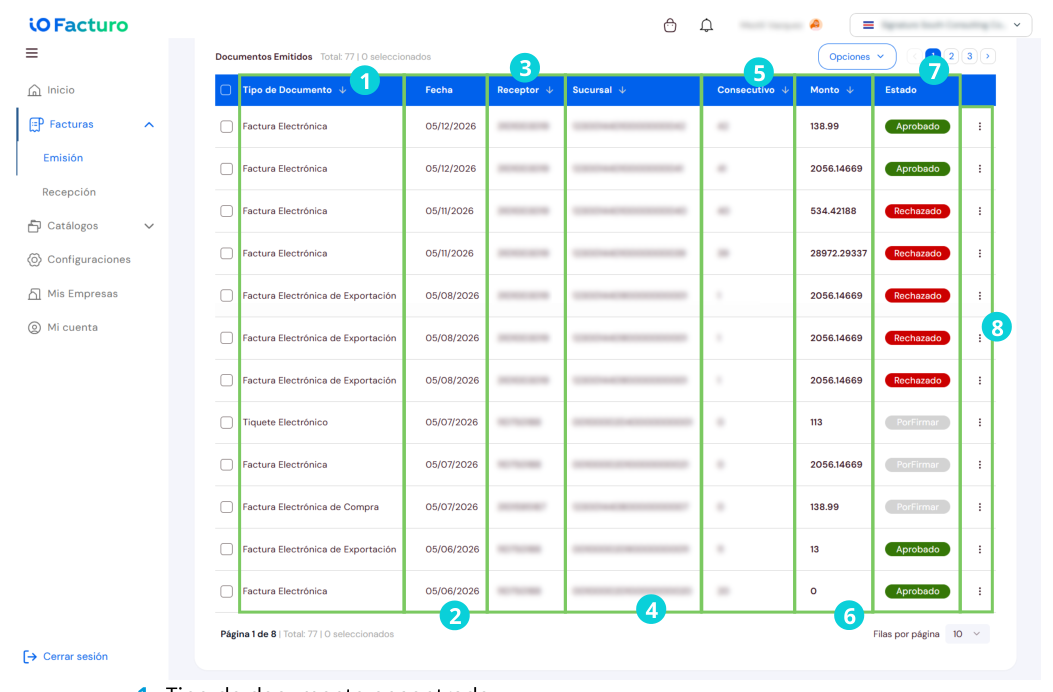
The results show the documents that match the selected criteria:
Issue a document
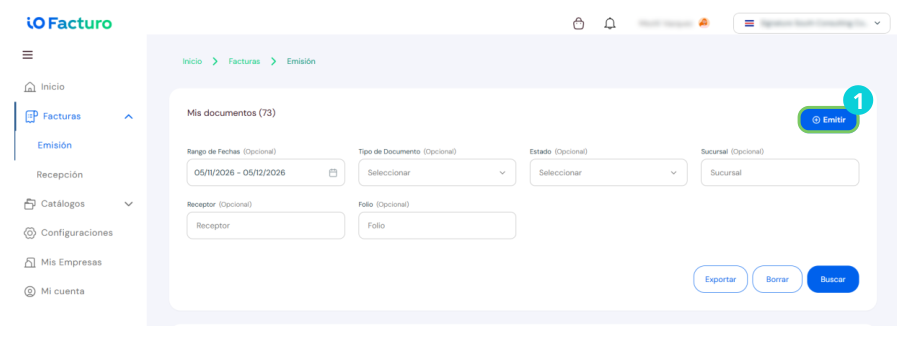
From the Issuing tab within the Invoices module:
- Click Issue to start the issuing process.
Basic information
Complete the general data of the issuance:

- a. Select the type of document to issue.
- b. Using the calendar, choose the document issue date.
- c. Select the currency in which the document will be paid.
- d. If you selected a currency other than colones, the exchange rate field will be enabled, where you must enter the equivalent in colones.
- e. The condition under which the sale will be paid. That is, whether it is a cash payment, on credit, on consignment, etc.
If Sale condition for others is selected:
- i. The specific condition of the sale used must be described.
- ii. Validation: It must contain a minimum of 5 characters and a maximum of 100.
- iii. Conditional for all document types (sale condition "Others").
- f. Branch from which the document is issued.
- g. The terminal number from which the sale is made.
Payment methods

- Select the method by which the document will be settled.
- You can enter whether the payment will be completed through another method.
- Enter the amount that will be paid with the resources previously entered.
- If you need to enter another payment method, click Add payment method.
- To delete a payment method row, click the delete icon.
Issuer
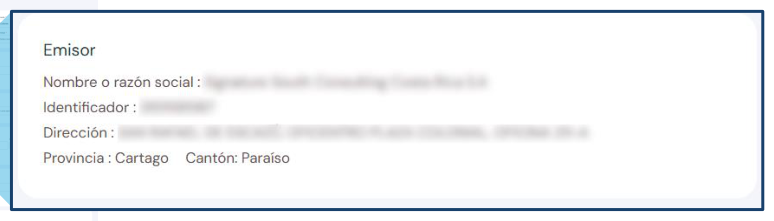
When you complete your company's information in Gosocket, the data in this section will be filled in automatically in the boxes for greater convenience. That is why it is important to enter all the requested information within the Registration. Verify your data as an issuer.
Receiver
Select the receiver of the document. When you click the Select an option… button, the list of customers loaded so far will be shown to select the receiver of the document.
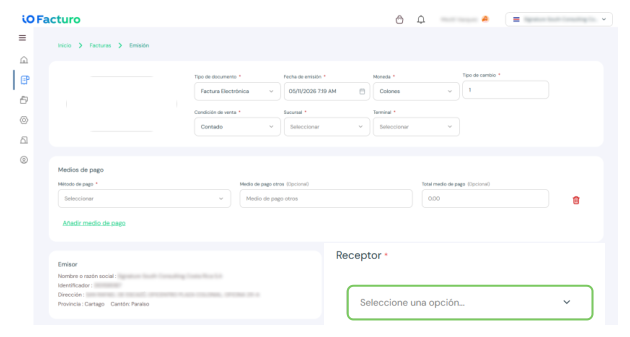
Once selected, their data will be shown in the form:
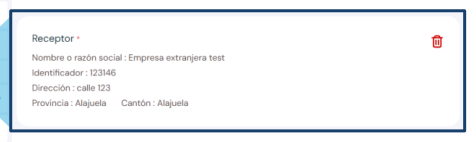
According to the Ministry of Finance, customer information is mandatory for Invoice type documents. If you need to issue a document without receiver data, use Electronic Ticket.
Item detail
Within this section you can load the items you want to invoice. You can use the search filter or load the product or service into the database within the Configuration / Product menu.
Enter and select the data of the product or products the document is about. To add details about the product, click the button shown to the right of the delete icon.

When expanding an item, additional fields are shown:
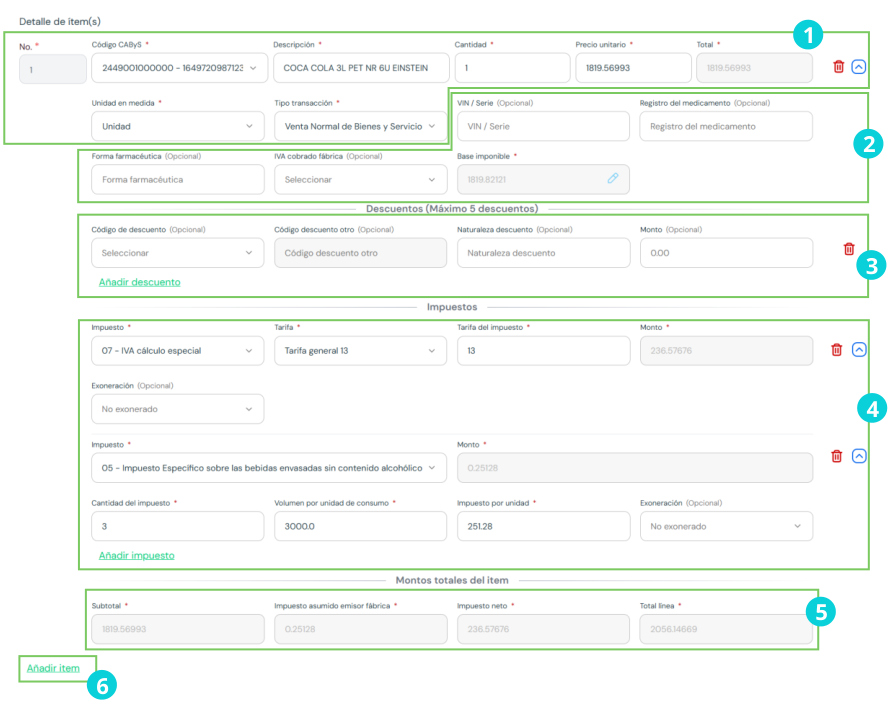
- The values corresponding to the product selected for sale will be shown. You can modify the number of units to sell of the same product.
- Fill in the fields shown after clicking the expansion button according to the data applicable to the product being sold.
- Enter the discounts applicable to the sale of the product. If you need to apply more than one discount, click Add discount.
- The system calculates the taxes applicable to the product according to its prior registration in the catalogs.
- The breakdown of the product's total amounts is shown according to the previous sections.
- To enter another product, select Add item.
Other charges
Add extra charges such as additional taxes or other items applicable to the sale. Click Add Charge to add more charges.

References
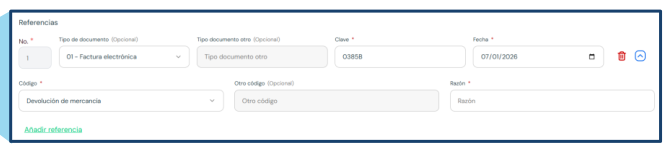
To link this document with another reference document, select the type of referenced document and enter its data. Click Add Reference to add more reference documents.
Additional data
Enter additional fields previously registered in Catalogs / Custom fields. Edit the Value field as appropriate.

Totals and issuance
The system shows the sum of taxes, discounts and the total value of the document.
- When you finish filling in the data, select Validate and Preview to issue the document.
- To exit without issuing the document, click Cancel.
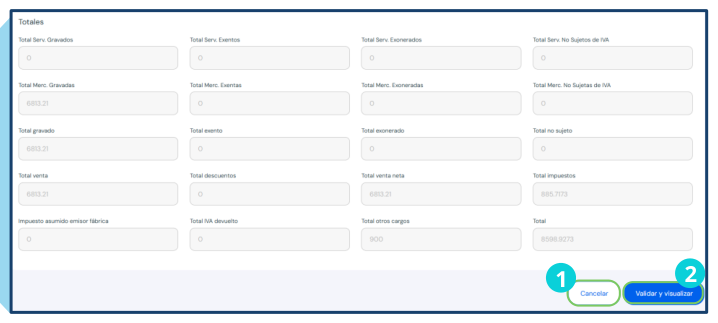
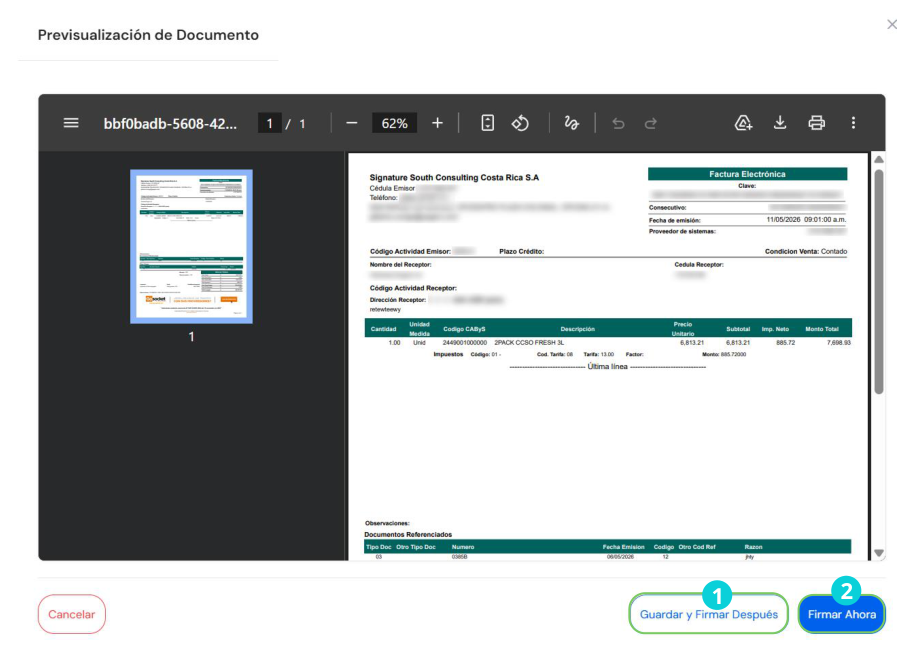
When you click Validate and Preview, a preview of the document is shown:
- Save and sign later — stores the document without issuing it.
- Sign now — issues the document to the receiver immediately.
Make sure you have registered your customers in Catalogs → Customers and your products in Catalogs → Products to speed up the issuance process.
Credit and debit notes
When issuing a document, you can select Credit or debit note in the Document type field located in the first section of the document issuing form.
Reference section
Within this section you must select and fill in the data fields of the document that will be taken as reference for the note. Once the documents are issued, you can download them and send them by email to all your customers.
All documents are automatically stored in ioFacturo; your customers and suppliers can view them from there.

Once the corresponding data is entered, validate the information correctly and confirm by clicking the Validate and Preview option.