The Spanish version is the authoritative reference. View in Spanish
Registration and Sign-In
Before you start issuing documents in ioFacturo Costa Rica, you must complete four initial configuration steps with the Ministry of Finance.
Step 1 — Download the Cryptographic Key and Digital Certificate
To issue Electronic Invoices, a Digital Certificate and a Cryptographic Key are required, which guarantee the integrity, authenticity and authorship of the receipts.
- Log in to the Virtual Tax Administration (ATV) portal: https://www.hacienda.go.cr/ATV/login.aspx with your identification number and password.
- Confirm your information with the data from the TIV (Virtual Smart Card) document delivered to the legal representative upon registering as a taxpayer.
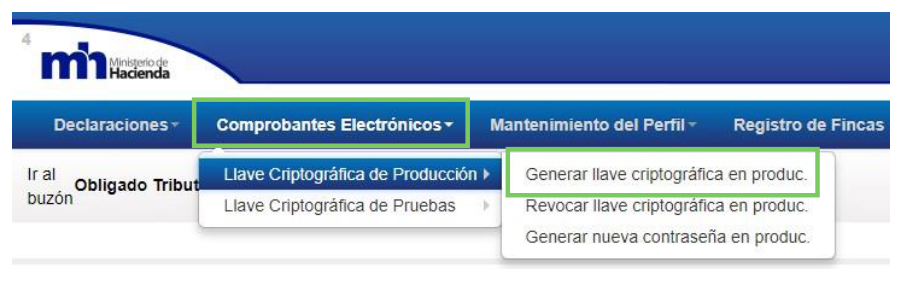
- Click Electronic Receipts in the main bar and then Production Cryptographic Key.
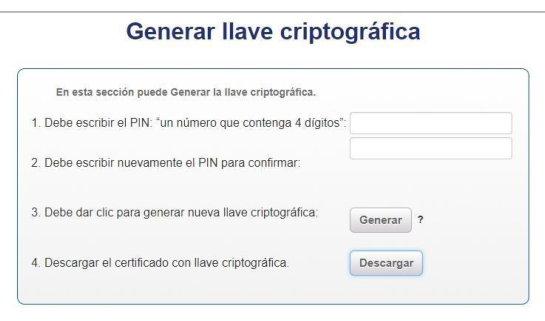
- Enter your PIN number (save it: it will be used as the private key later) and download the certificate.
Do not install the certificate on your computer. Only store it to upload it later into ioFacturo.
Step 2 — Generate a username and password for electronic receipts
Once the file is downloaded, you must generate a username and password to issue receipts.
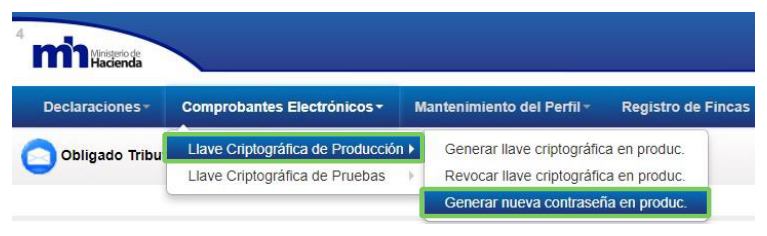
- In the ATV portal, select Electronic Receipts → Generate new password in production.
- Click Accept in the dialog box.
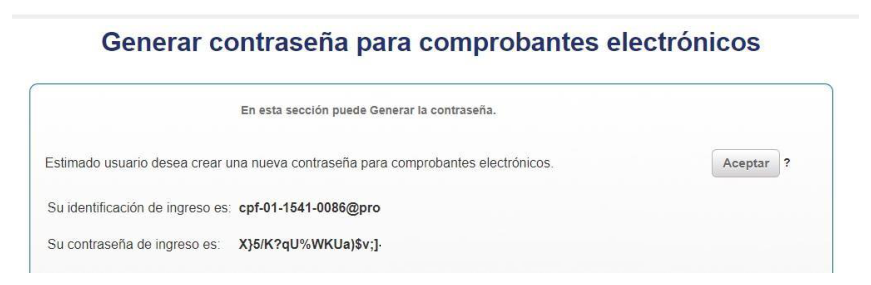
The generated password is used to sign your digital documents. Each time you generate a new one, you must update it in ioFacturo. It is recommended to save it and generate it only once.
Step 3 — Register in ioFacturo
- Go to www.iofacturo.com
- Click Register.
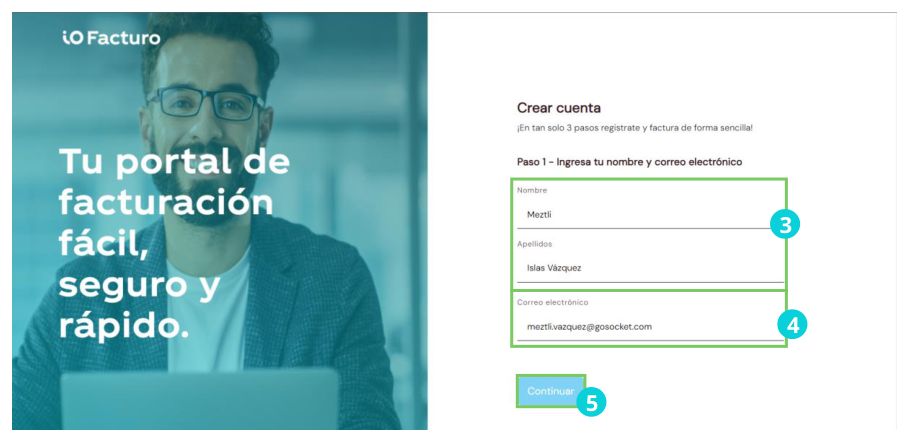
- Enter your first and last name.
- Enter your email address.
- Click Continue.
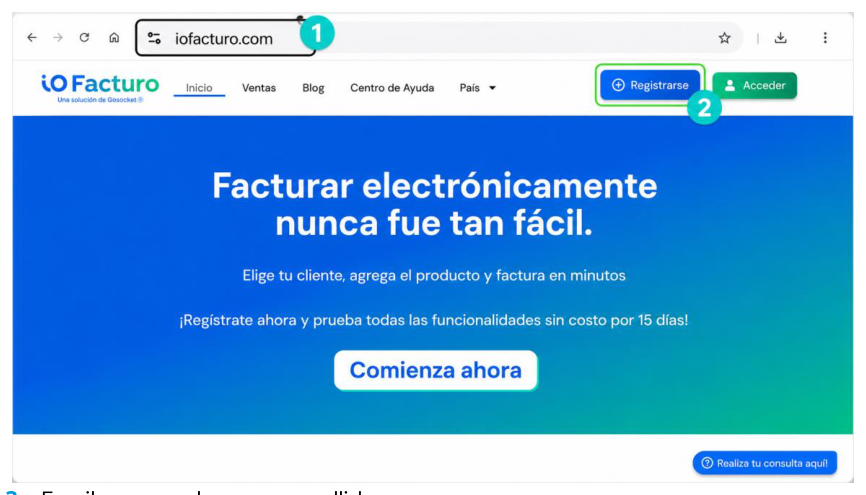
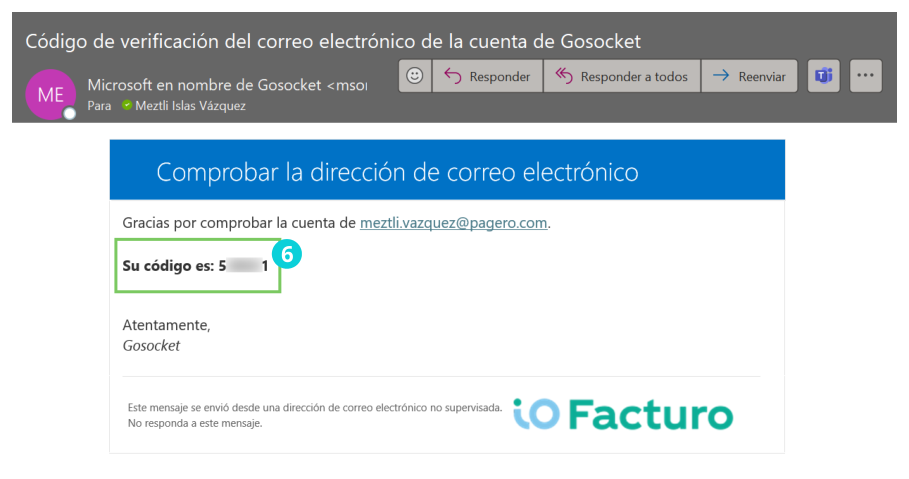
- You will receive an email with a verification code.
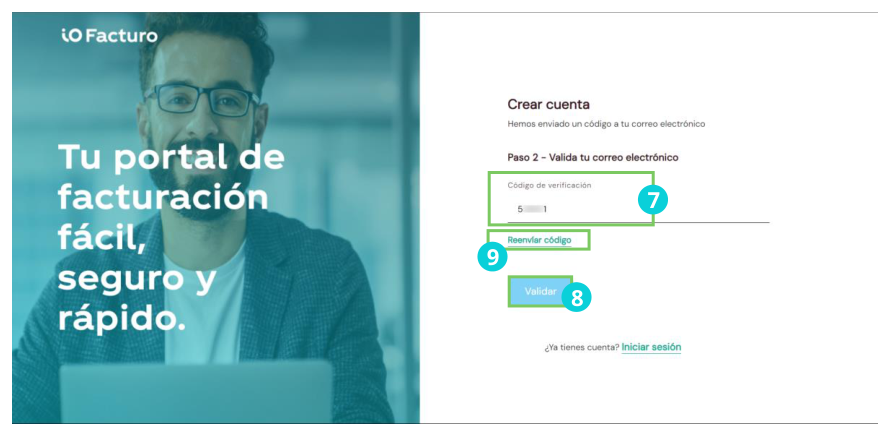
- Enter the verification code in the corresponding field.
- Click Validate.
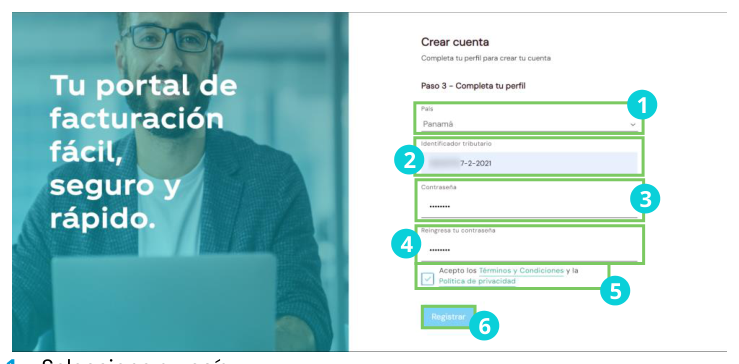
In the form that appears, complete the following data:
Click Register to finish.
Step 4 — Notify the Ministry of Finance
Once ioFacturo is configured, you must notify the Ministry of Finance that you will start with electronic invoicing.
Persons who register their ID as issuer/receiver of the Electronic Invoice must start their invoicing from this moment. If you need to return to the traditional method (paper), you must also notify the Ministry.
- Log in to the ATV portal.
- Select Single Tax Registry → Single Tax Registry Declarations.
- Select the Declaration of Data Modification form and update your data.
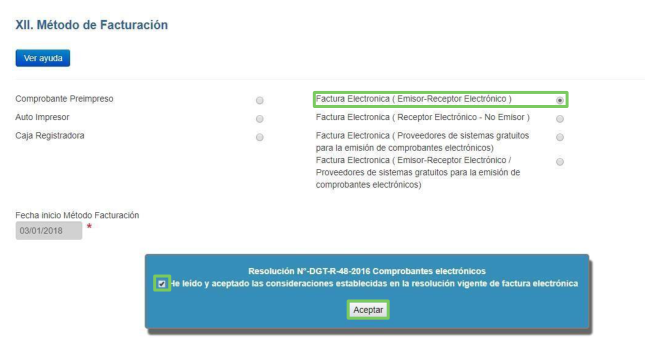
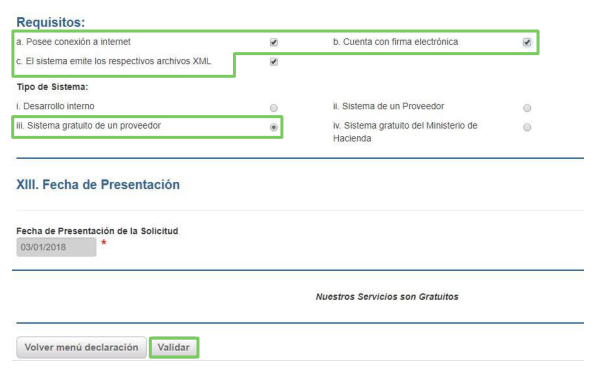
- In section XII. Invoicing Method, select the corresponding options.
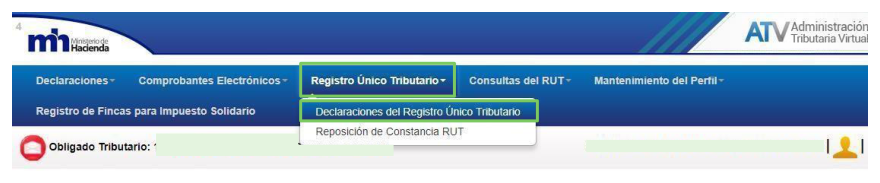
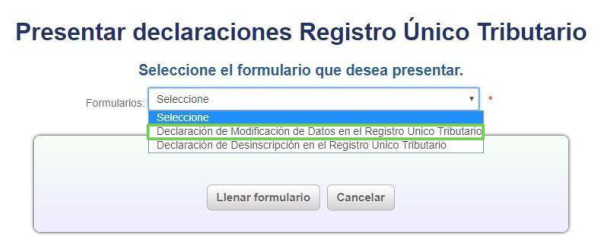
- Validate the information and accept the declaration of Form D140.
Sign-in
If you already have a username and password:
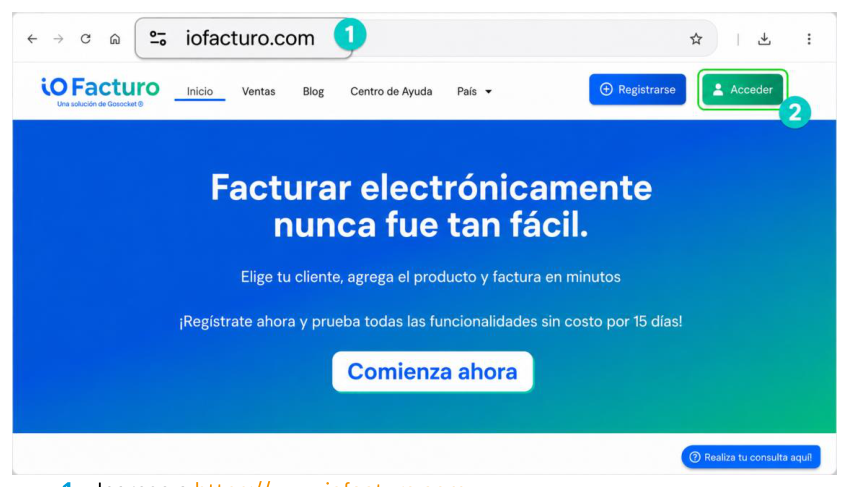
- Go to https://www.iofacturo.com
- Click Access.
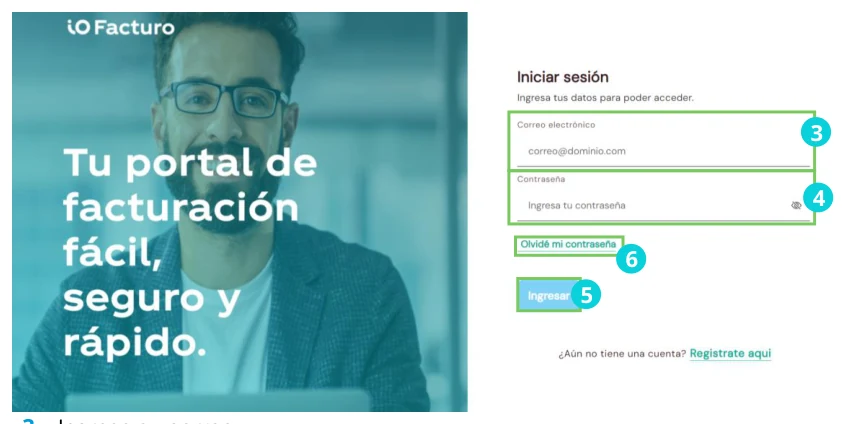
- Enter your email.
- Enter your password.
- Click Sign in.
- If you do not remember your password, click Forgot my password.
Forgot my password
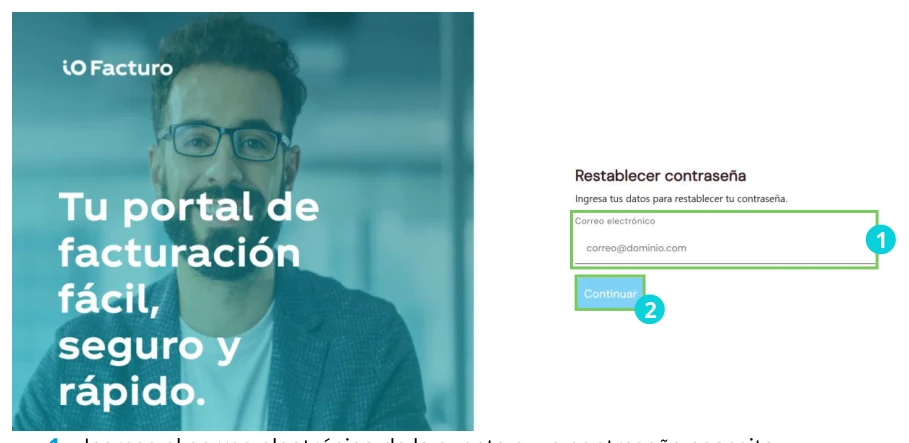
- Enter the email address of the account whose password you need to reset.
- Click Continue.
- You will receive an email with the reset code.
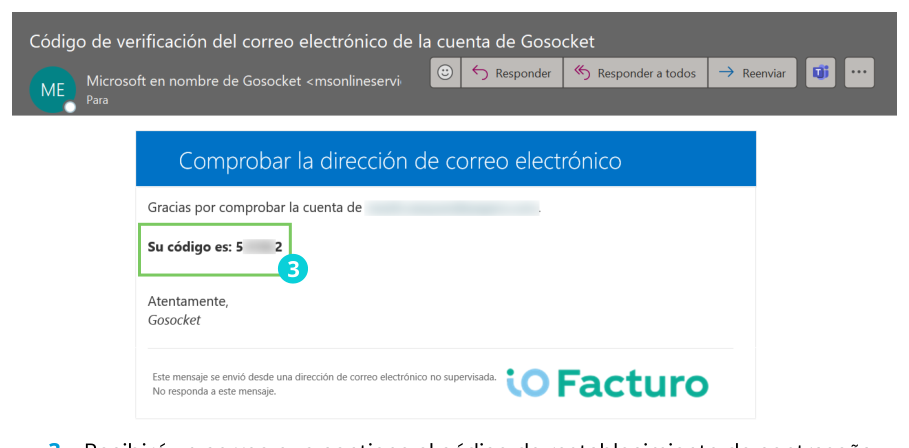
- Return to the sign-in window and enter the verification code.
- Click Validate.
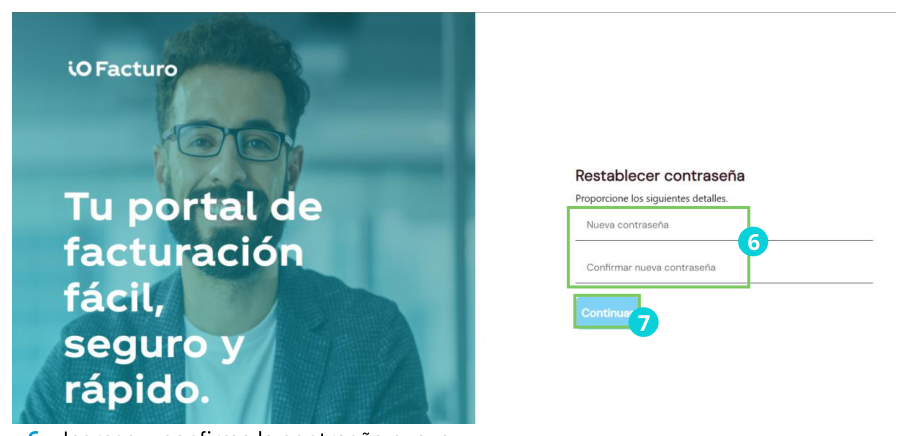
- Enter and confirm the new password.
- Click Continue.
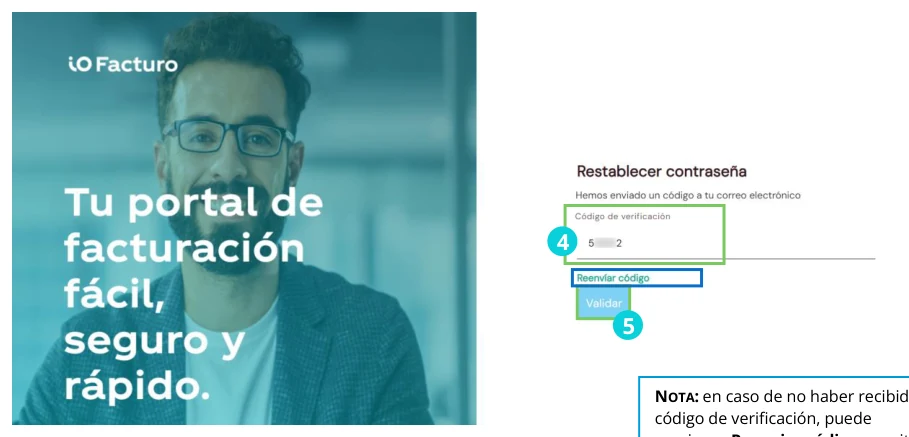
If you did not receive the code, click Resend code and repeat the process from point 1.
Welcome to ioFacturo
When you enter the invoicing tool, you will find the following elements on the home panel:
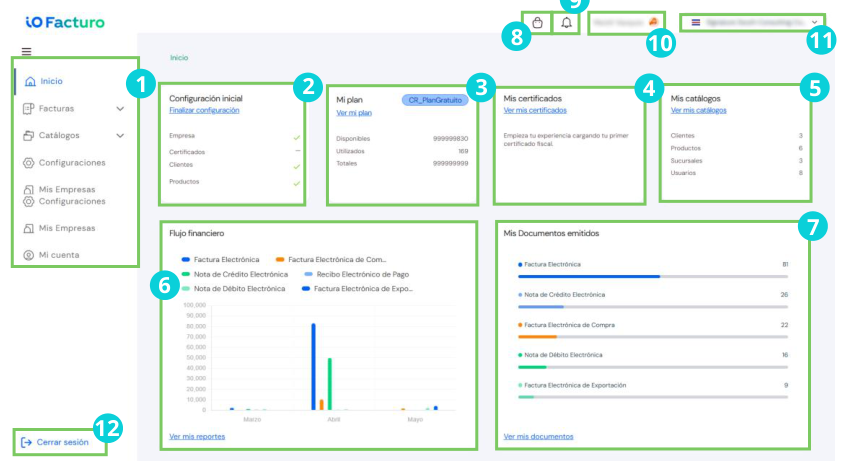
/en/img/iofacturo/costa-rica/img-023.png" alt="Account menu" /> | a. Review your account data. b. Enter the settings module. c. Sign out. |