The Spanish version is the authoritative reference. View in Spanish
Registration and Sign-in
Registration
If you don't yet have an ioFacturo account, follow these steps to create one:
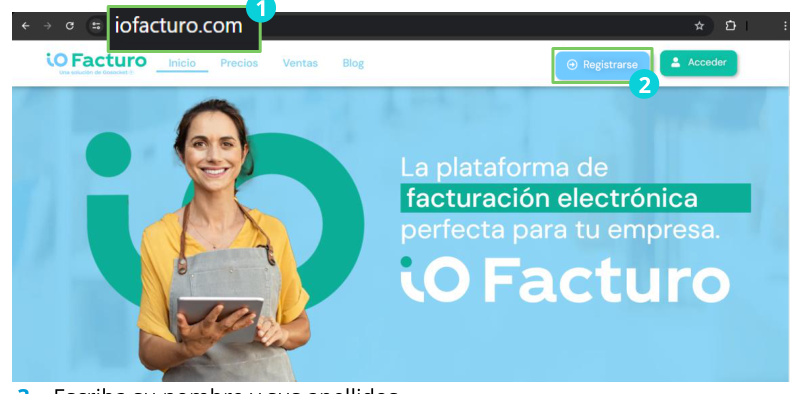
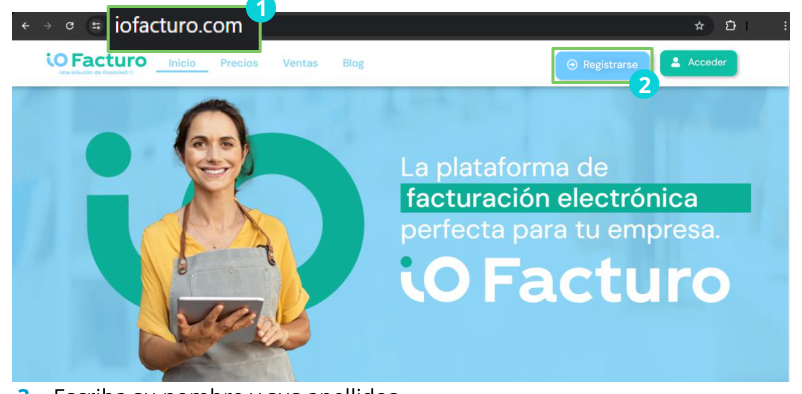
- Go to www.iofacturo.com.
- Press Sign up.
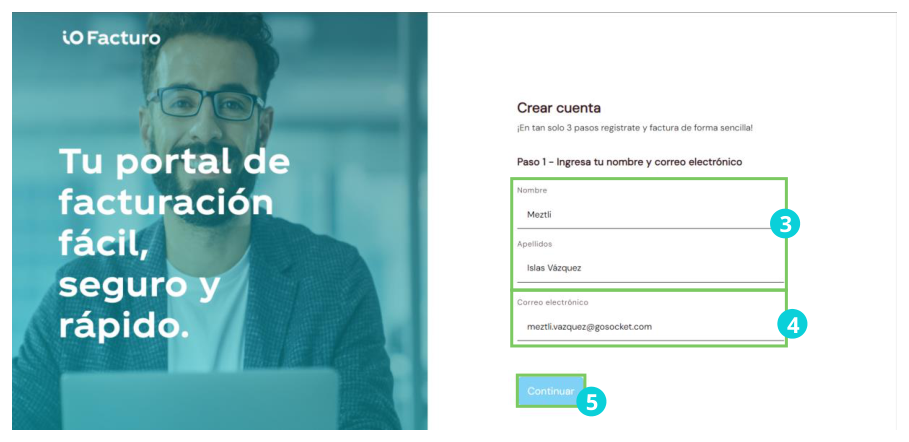
- Enter your first and last name.
- Enter your email address.
- Press Continue.
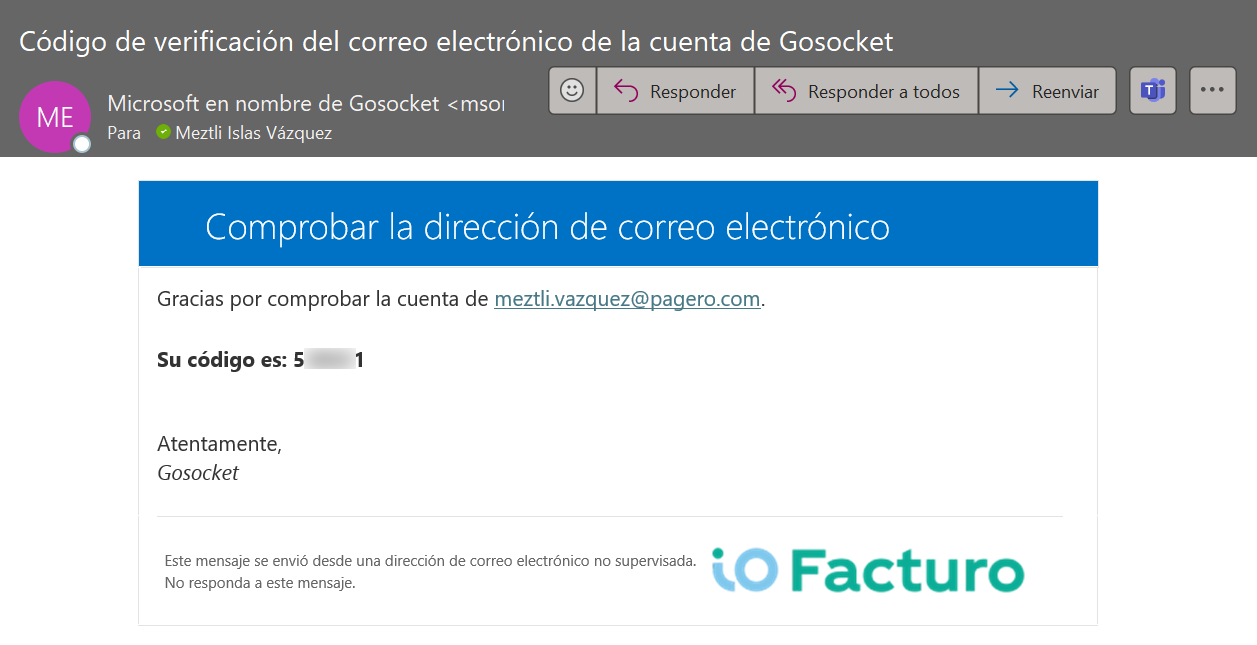
- You will receive an email with a verification code.
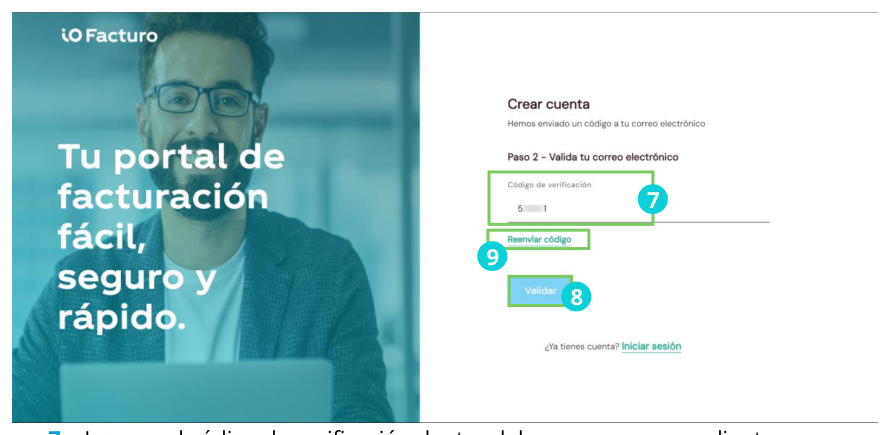
- Enter the code in the corresponding field.
- Press Validate.
Didn't receive the code?
If the verification email didn't arrive, press Resend code and repeat the process from step 7.
A registration form will then be displayed. Complete the following details:
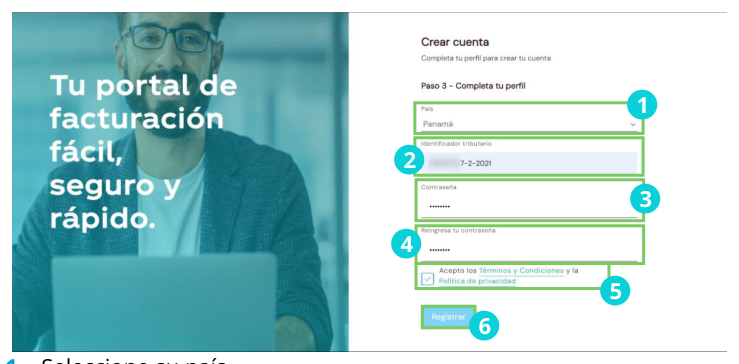
- Select your country.
- Enter your Tax ID.
- Enter the password you will use to sign in.
- Repeat the password to confirm it.
- Accept the Terms and conditions and the Privacy policies.
- Press Register.
Sign-in
If you already have a username and password:
- Go to https://www.iofacturo.com.
- Press Log in.
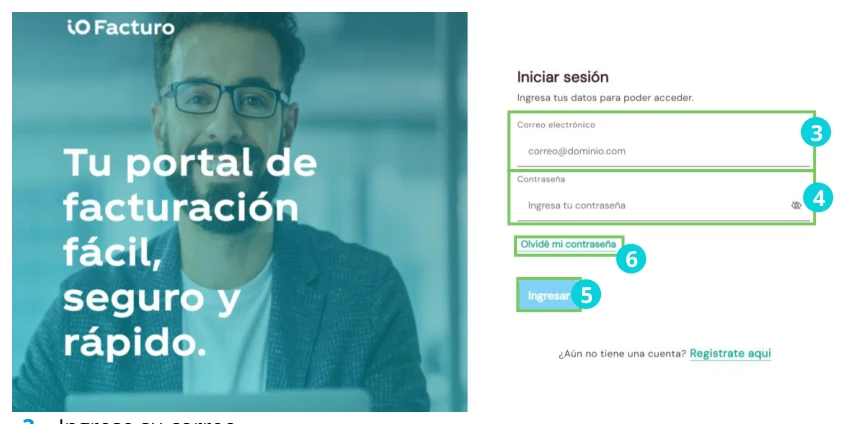
- Enter your email address.
- Enter your password.
- Press Enter.
- If you forgot your password, press I forgot my password.
I forgot my password
If you have forgotten your password and press that button, the following screen will be displayed:
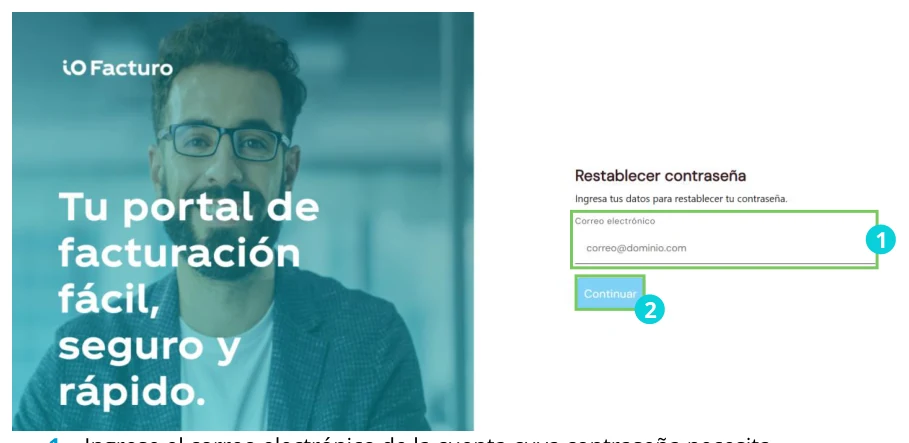
- Enter the email address of the account whose password you need to reset.
- Press Continue.
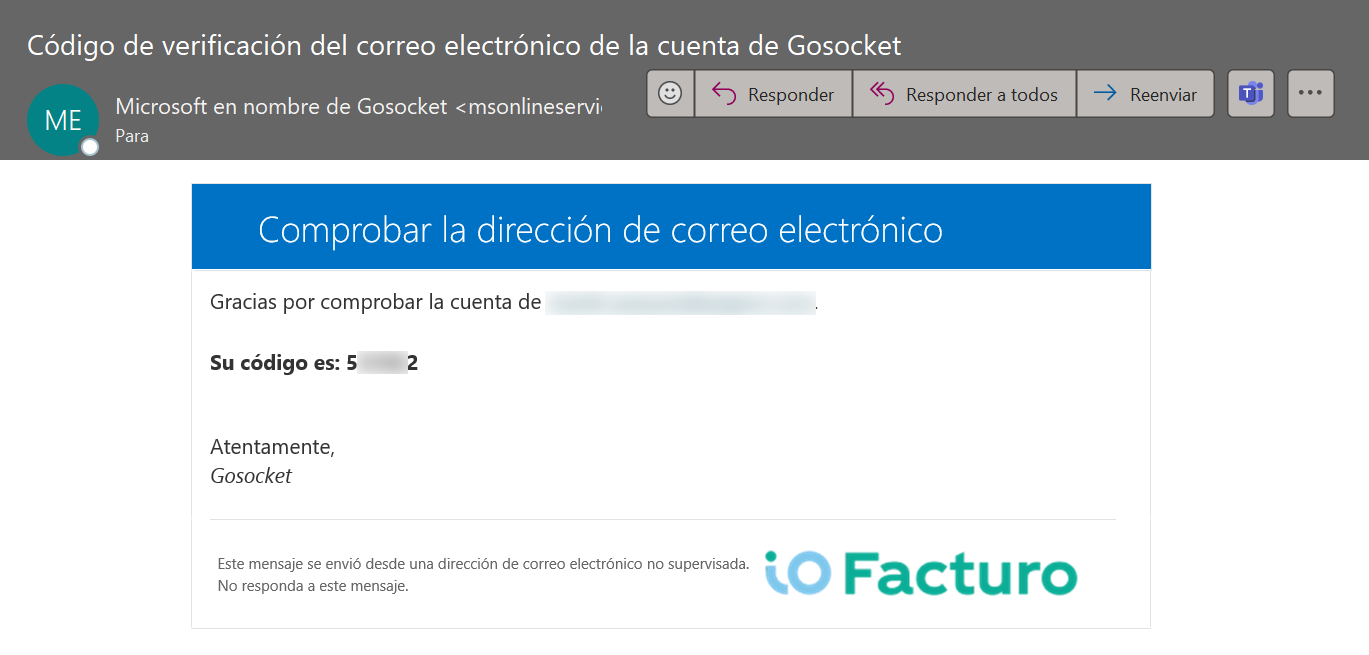
- You will receive an email containing the password reset code.
Return to the sign-in window and the following screen will be displayed:
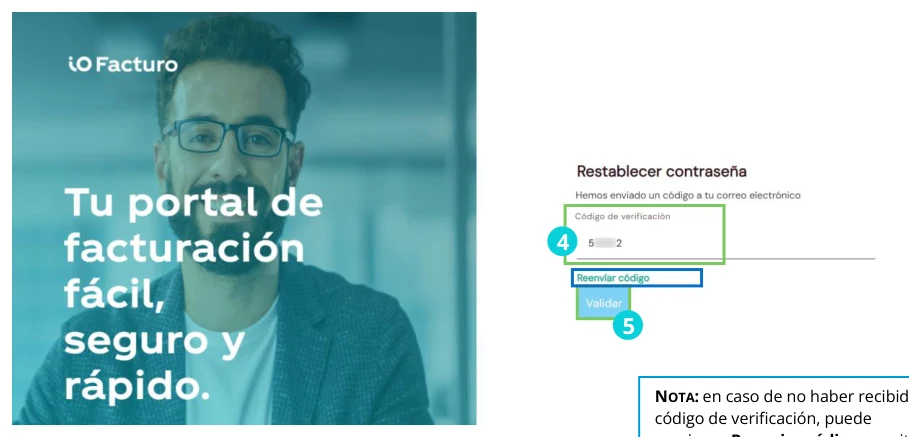
Didn't receive the code?
If you didn't receive the code, you can press Resend code.
- Enter the verification code received earlier.
- Press Validate.
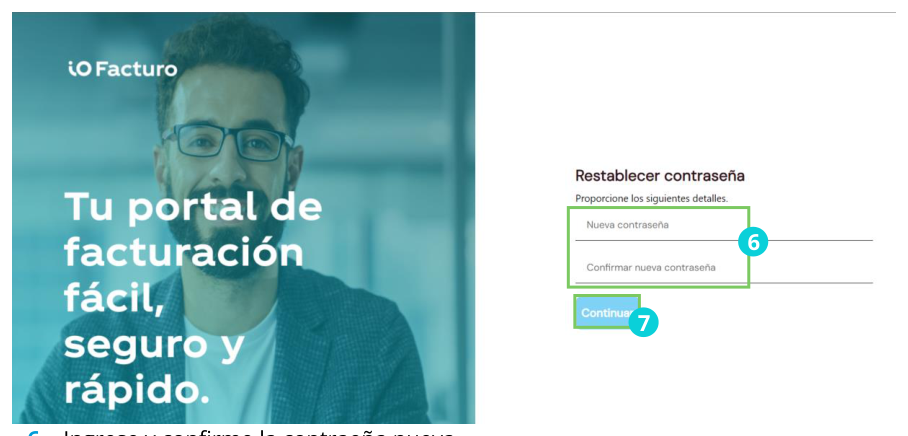
- Enter and confirm your new password.
- Press Continue.