The Spanish version is the authoritative reference. View in Spanish
Invoices
The Invoices module lets you start the document issuing process and query the issued documents.
Document query
On the initial screen of this module you will find the following information:
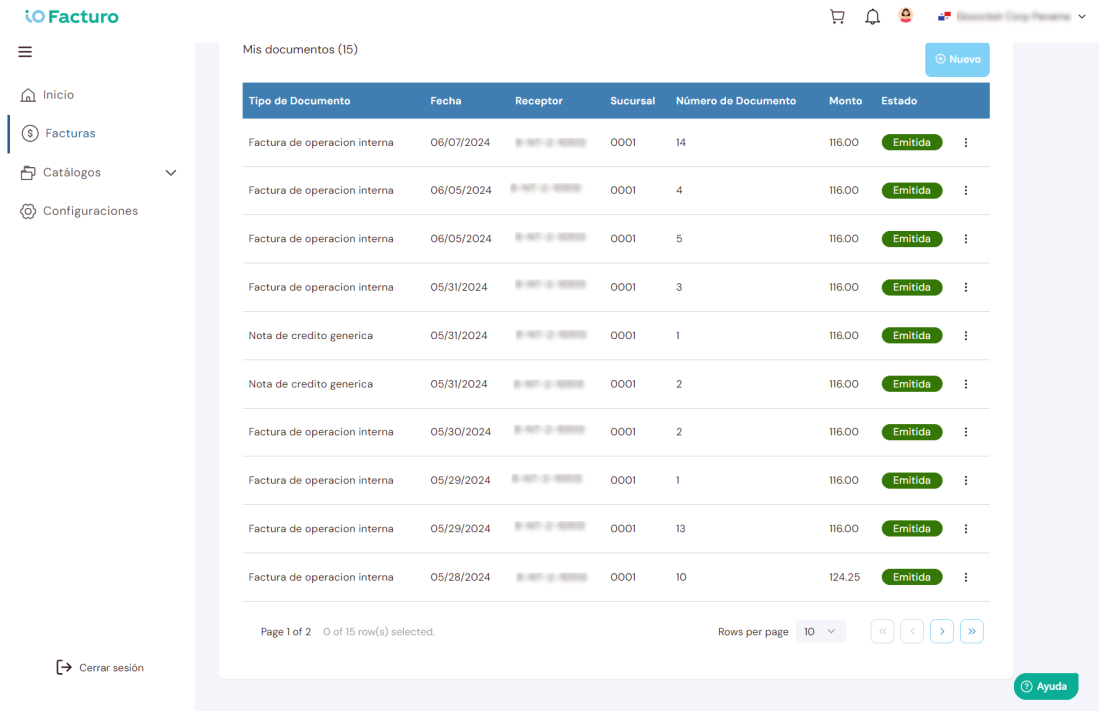
1
Number of documents registered so far.2
Document type.3
Document issue date.4
Receiver to whom the document was issued.5
Branch where the document was issued.6
Number assigned to the document.7
Amount of the document value.8
Document status: issued, pending or rejected.9
From the status column you can download PDF/XML.10
Press New to start issuing a document.Document issuing
Once you have selected the new document button, you will see a form that you must fill in as indicated below:
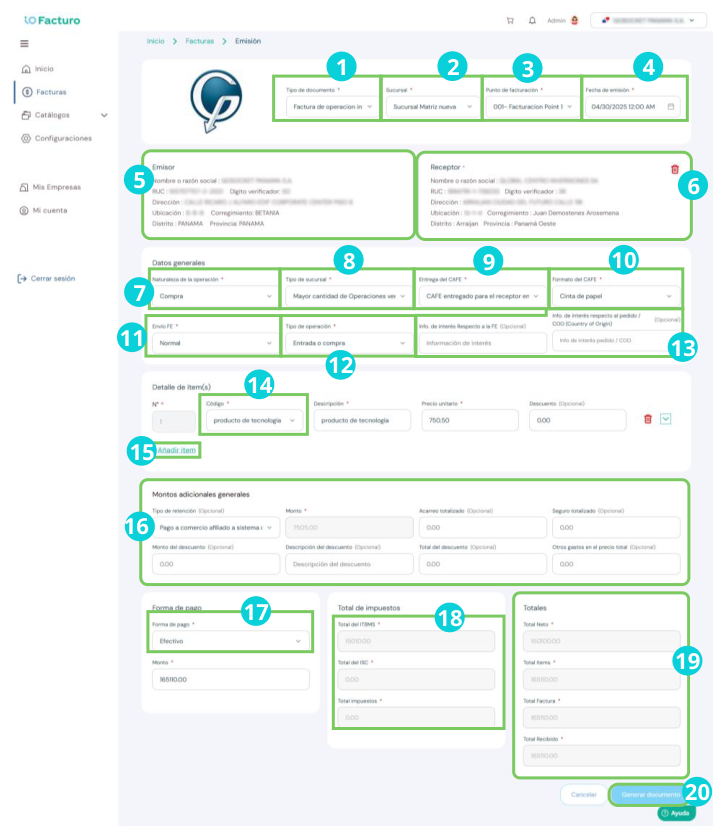
1. Document type
1
Select the type of document to issue. These can be:Export invoice
For sales of goods or services destined abroad.Import invoice
For purchase/sale operations related to importation.Internal operation invoice
For transactions carried out within Panama.Free zone invoice
For operations within free zones or free-trade zones.Generic credit note
Corrects or reverses a fiscal printer or paper invoice.Credit note referring to an EI
Corrects or reverses an Electronic Invoice.Generic debit note
Increases or adjusts values on a fiscal or paper invoice.Debit note referring to an EI
Increases or adjusts values on an Electronic Invoice.Refund
Supports the monetary return to the customer for previous payments.2
Select the branch from which the document is issued.3
If there is more than one point of sale within the branch, select from which one the sale was made.4
With the help of the calendar, press the date on which the document is issued.5
Your name and tax identification data will be shown as the issuer.6
Press within the Receiver field and select one of the customers you previously registered in the customer catalog.7
Press the Nature of the operation field and select the type of operation to document, which can be one of the following:a. Sale: An operation in which a product or service is delivered to someone who needs or wants it, in exchange for money.
b. Export: The process of sending national or nationalized goods for use or consumption abroad.
c. Transfer: An operation by which a natural or legal person (the originator) instructs their bank so that, charged to one of their accounts, it sends a certain amount of money to the account of another person (the beneficiary of the transfer) at the same or another bank.
d. Return: The act of returning an acquired good to its seller. This, requesting in exchange the reimbursement of the amount paid for it.
e. Consignment: A type of agreement by which a seller (consignee) undertakes to offer the public the goods of another agent (called the consignor). This, in exchange for charging a commission.
f. Remittance: The sending of cash, checks or transfers from one country to another.
g. Free delivery: When selecting this option, it only provides proof that the delivery service was provided to the customer at no cost.
h. Purchase: The acquisition of a product or service from a seller in exchange for money or another good or service.
i. Import: A good or service acquired abroad for use in the country, allowing access to global markets.
8
Select the branch type where the document is issued.9
Press the CAFE Delivery field to determine whether the CAFE for this invoice will be provided.10
Choose the CAFE print format.11
Press the way in which the document will be delivered to the receiver.12
Select the type of operation performed.13
You can enter more information regarding the electronic invoice.14
Select the product or service to invoice and then you can modify the quantity of products or services sold. The options displayed in this field are those you previously registered in the product catalog, as shown here.15
To add another product or service to this invoice, press Add item.16
Select the additional amounts to apply if necessary.17
Press the way in which the payment will be made.18
The system will inform you of the tax calculations:a. ITBMS (Tax on the Transfer of Movable Goods and Services) is a collection mechanism consisting of withholding 7% on the value of a sale, payment in kind, contribution to companies, assignment or any other act, contract or agreement that involves or is intended to transfer ownership within the national territory.
b. ISC (Selective Consumption Tax) is a special tax on the importation of certain products, including alcoholic beverages and all tobacco derivatives, as well as the transfer or original sale of these products by local manufacturers. Essentially, it is a tax that must be paid by those who use or consume products that are not among the basic necessities.
c. OTI (Other Tax Rates).
19
The calculation of the totals according to the products captured in the invoice will be displayed.20
When finished, press Generate document.Before issuing
Make sure you have registered your customers in Catalogs → Customers and your products in Catalogs → Products to speed up the issuing process.