The Spanish version is the authoritative reference. View in Spanish
Invoices
The Invoices module lets you start the document issuance process and query the documents issued.
Document query
On the initial screen of this module you will find the following information:
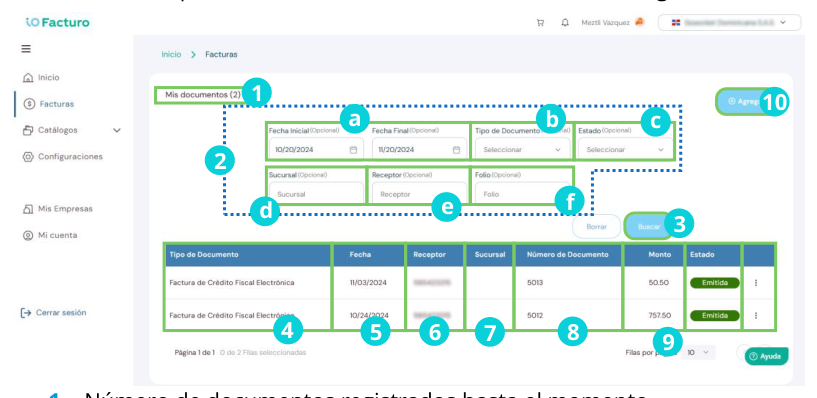
1
Number of documents registered so far.2
The search filters:a. Period in which the document we want to locate was issued.
b. Type of document to search for.
c. Status of the document we are looking for.
d. Branch that issued the document.
e. Receiver to whom the document was issued.
f. Folio of the document.
You can enter one or more data points for the search. However, the more data you have about the document, the more specific the result will be.
3
When you finish filtering, press Search to display the results.4
Type of document issued.5
Document issue date.6
Receiver to whom the document was issued.7
Branch at which the document was issued.8
Number identifying the document.9
Amount of the document value.10
Status of the document. This can be: issued, pending, or rejected.11
To the right of the status column, three dots are shown from which you can choose to download the document PDF or its XML.12
Press Add to start issuing a document.Document issuance
Once you have selected the new document button, you will see a form that you must fill in as indicated below:
1. Document type
Select the document type according to the operation:
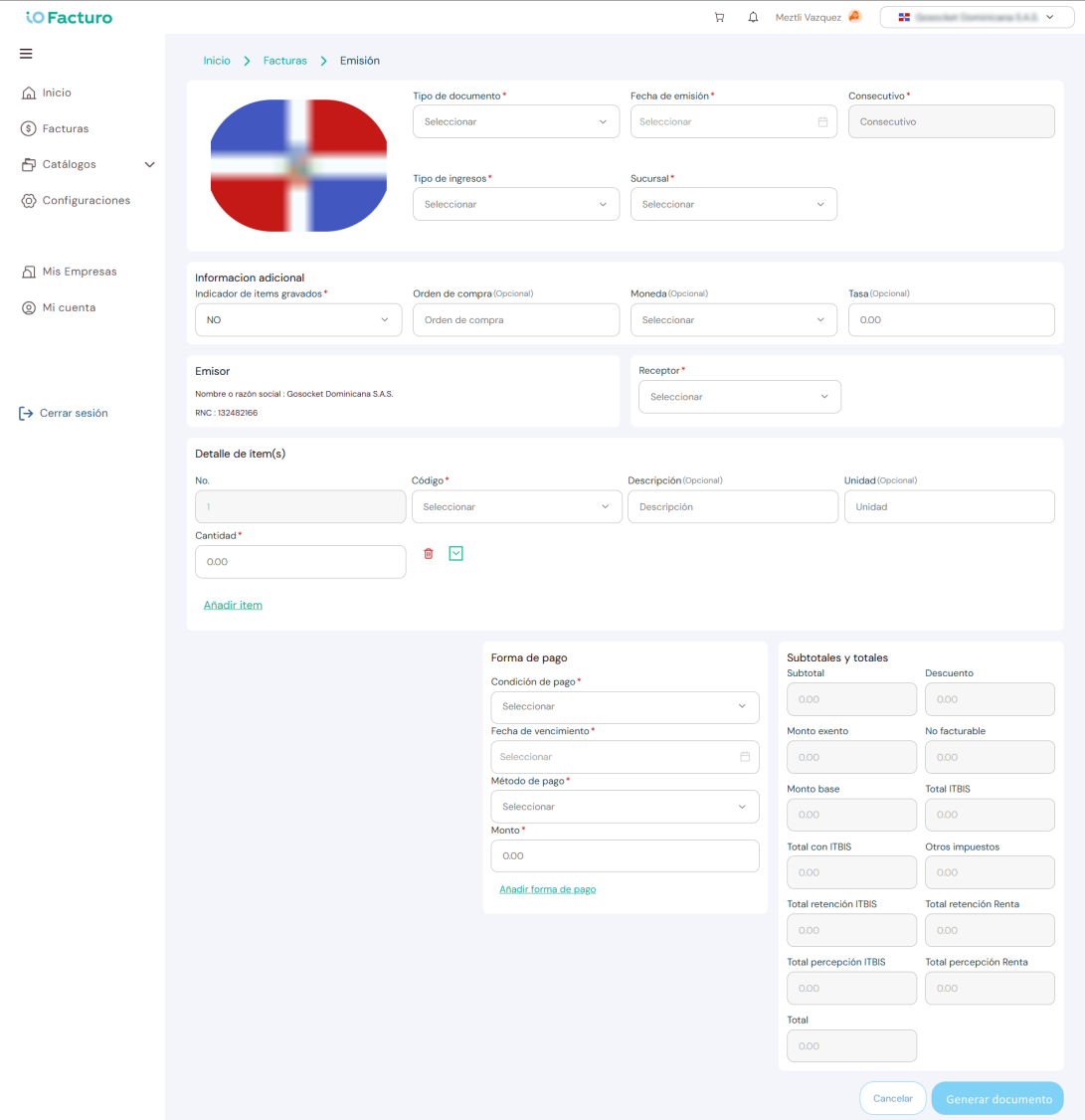
1
Select the type of document to issue. These can be:Electronic Purchases (Electronic Purchases Receipt)
Electronic tax receipts issued by individuals and legal entities when they acquire goods or services from persons not registered as taxpayers.Electronic Export Receipt (Electronic Receipt for Exports)
Electronic tax receipts used to report sales of goods outside the national territory, used by national exporters, free-trade zone companies, and Commercial Free-Trade Zones.Electronic Foreign Payments Receipt (Electronic Receipt for Foreign Payments)
Electronic tax receipts issued for the payment of taxable income from Dominican sources to non-tax-resident individuals or legal entities required to make the total withholding of the Income Tax, in accordance with articles 297 and 305 of the Tax Code.Electronic Consumer Invoice
Electronic tax receipts that certify the transfer of goods, delivery for use, or provision of services to end consumers.Electronic Tax Credit Invoice
Electronic tax receipts that record commercial transactions of purchase and sale of goods and/or services, and allow the receiver or user who requests it to support expenses and costs or tax credit for tax purposes.Electronic Minor Expenses (Electronic Receipt for Minor Expenses)
Electronic receipts issued by individuals or legal entities to support payments made by their staff, whether made in Dominican territory or abroad and in connection with work-related activities, such as: consumables, tickets and public transport, parking fees, and tolls.Electronic Governmental (Electronic Governmental Receipt)
Electronic tax receipts used to invoice the sale of goods or the provision of services to the Central Government, Decentralized and Autonomous Institutions, Social Security Institutions, and any governmental entity that does not carry out a commercial activity.Electronic Credit Note
Electronic receipts issued by sellers of goods and/or service providers for subsequent modifications to the originally agreed sale conditions, that is, to cancel operations, make returns, grant discounts and allowances, correct errors, or similar cases.Electronic Debit Note
Electronic receipts issued by sellers of goods and/or service providers to recover costs and expenses, such as late-payment interest, freight, or others, incurred by the seller after the issuance of tax receipts.Electronic Special Regimes (Electronic Receipt for Special Regimes)
Electronic tax receipts used to invoice transfers of goods or provision of services exempt from ITBIS and/or ISC to individuals or legal entities under special tax regimes through special laws, contracts, or agreements duly ratified by the National Congress.2. Form fields
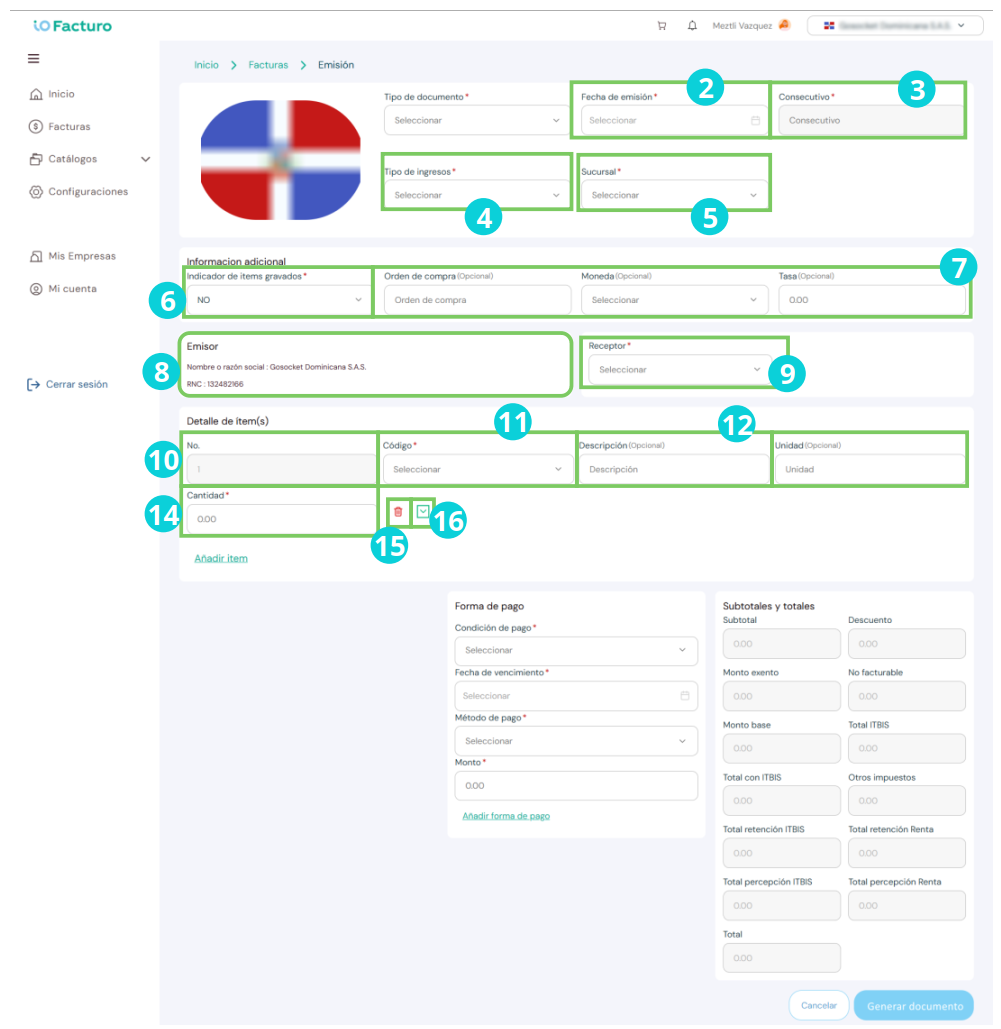
2
With the help of the calendar, select the document issue date.3
The sequential number will be shown automatically, since it is assigned according to the progress in the numbering previously registered in the configuration.4
Choose the type of income that will be charged through the document.5
Select the branch from which the document is issued.6
Select whether any of the items charged on the invoice is subject to taxes or not.7
The following fields are optional:a. Purchase order number to which the issued document responds.
b. Currency in which the transaction will be made.
c. Rate value, in case it applies.
8
The issuer's name and tax identification details will be shown.9
Press within the Receiver field and select one of the customers you previously registered in the customer catalog.10
The sequence of the good or service to be charged within the document is shown.11
Select the code of the good or service to be charged.12
Enter a description of the good or service to be charged.13
Select the unit in which the good or service is counted.14
Enter the quantity of products or services of this item to be charged.15
If you do not need the detail of this item, press the delete icon to remove it from the form.16
By pressing this continuation arrow, you can add details about the item whose data you just entered in the form.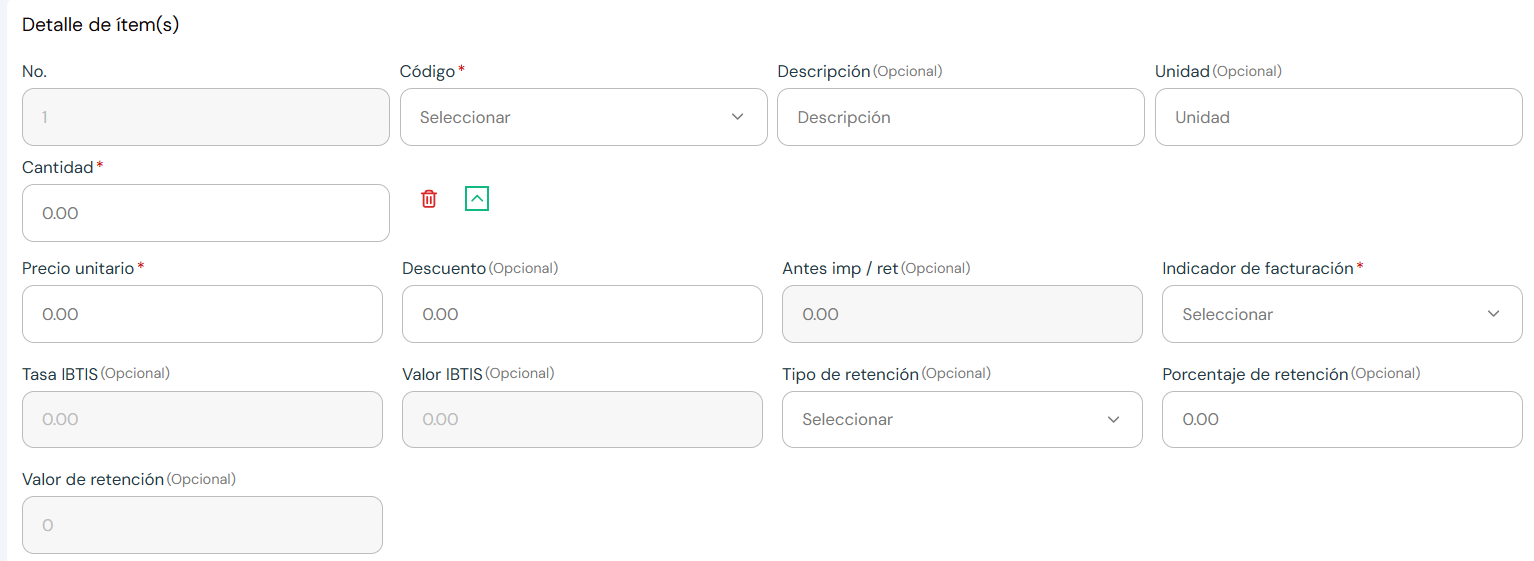
a
The unit price of the good or service will be indicated according to the data you previously entered in the product catalog.b
If applicable, enter the amount to be deducted from the original price.c
The price to be charged before applying any tax or withholding will be shown.d
Select the indicator that applies to the charge for the good or service in the document. These can be:i. ITBIS 1 - item taxed at ITBIS rate 1 (18%).
ii. ITBIS 2 - item taxed at ITBIS rate 2 (16%).
iii. ITBIS 3 - item taxed at ITBIS rate 3 (0%).
e
The system shows the rate information according to the selected indicator.f
You can check the ITBIS value according to what was previously selected.g
Select the applicable type of withholding.h
Indicate the withholding percentage that will be applied.i
The withholding value will be shown according to what was selected in the previous field.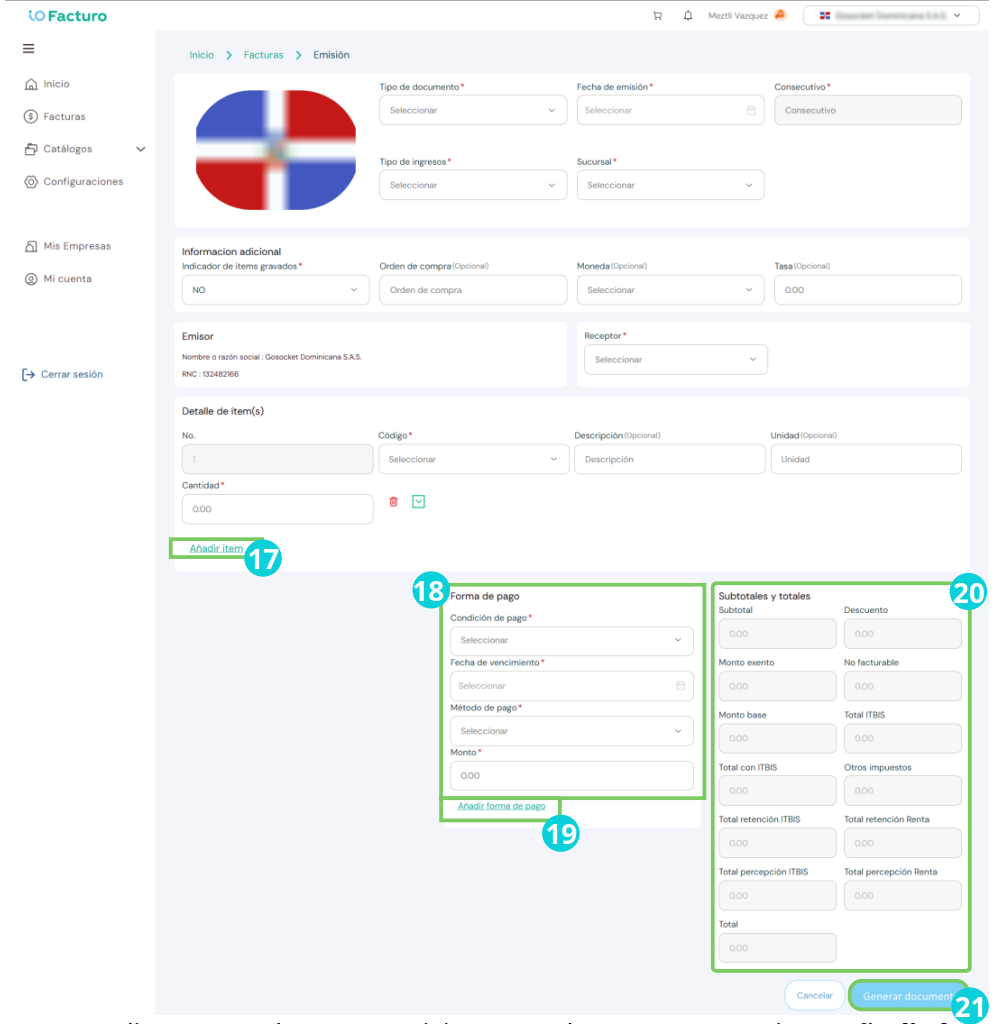
17
To add another product or service to this document, press Add item.18
Choose the way the payment will be made, the document validity date, the payment method for the good or service, and the amount to be paid.19
If two payment methods apply, click Add payment method.20
The system will inform you of the sum calculations between subtotals, discounts, and taxes.21
When finished, press Generate document.Before issuing
Make sure you have registered your customers in Catalogs → Customers and your products in Catalogs → Products to speed up the issuance process.