The Spanish version is the authoritative reference. View in Spanish
Access and Installation
ioFacturo Legacy operates as a gadget within the Gosocket platform. Before issuing documents, sign in to Gosocket and install the gadget if you do not already have it available.
Sign in to Gosocket
- From your browser, go to https://www.gosocket.net/ and access the sign-in option.
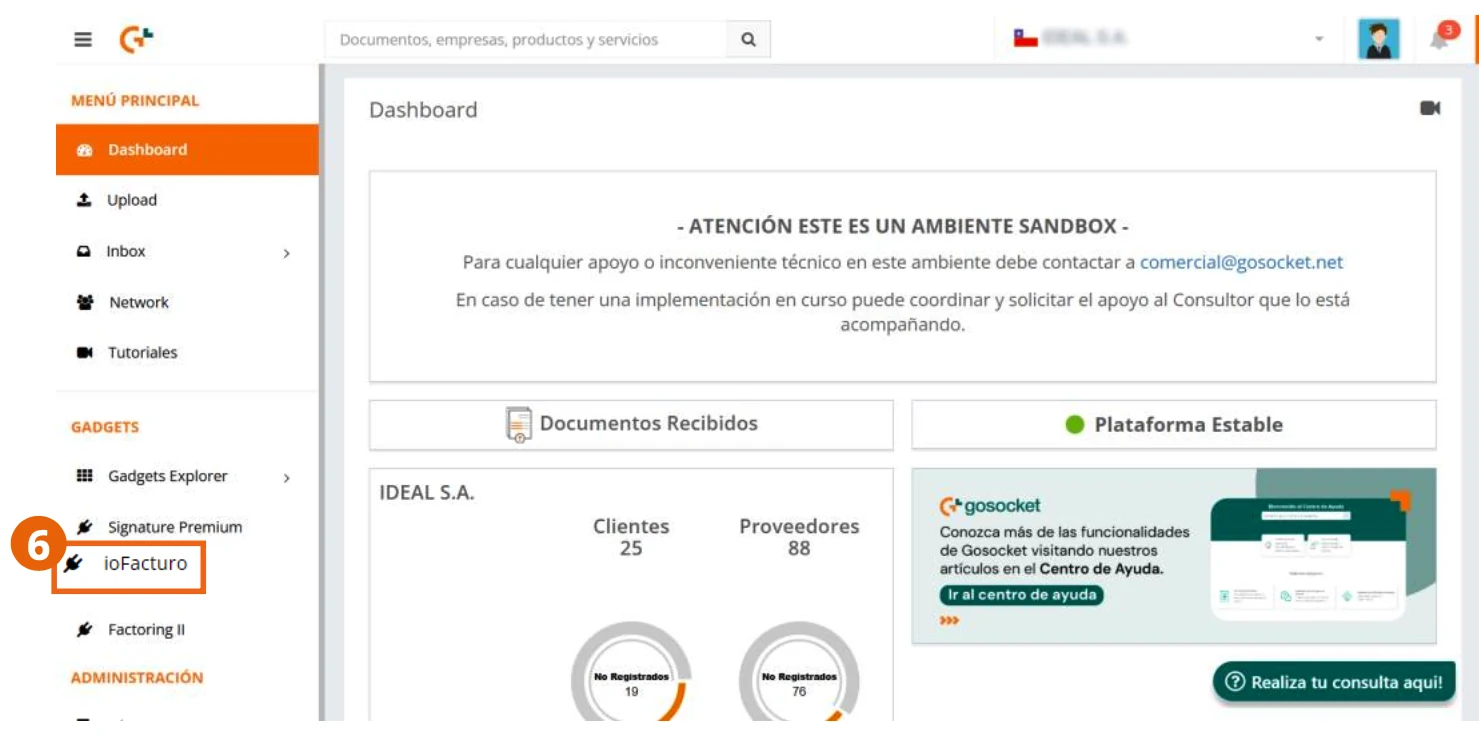
- Enter your username.
- Enter your password.
- Click Enter.
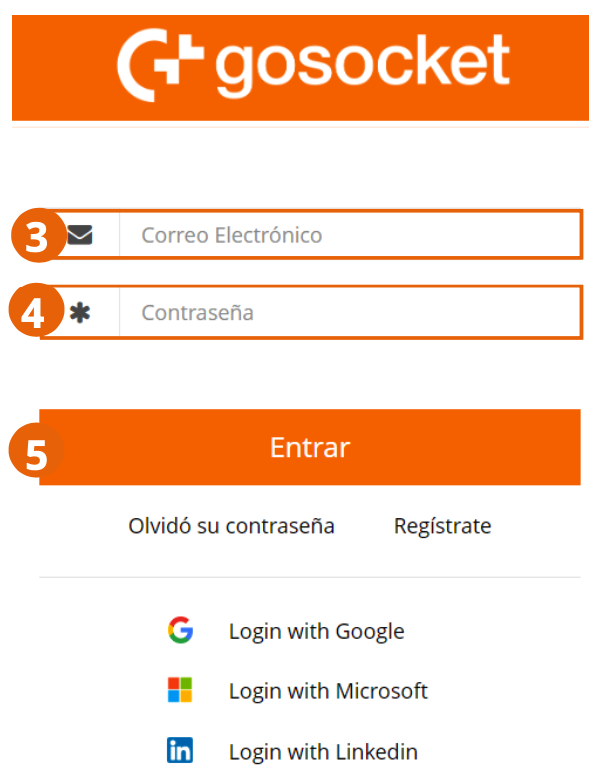
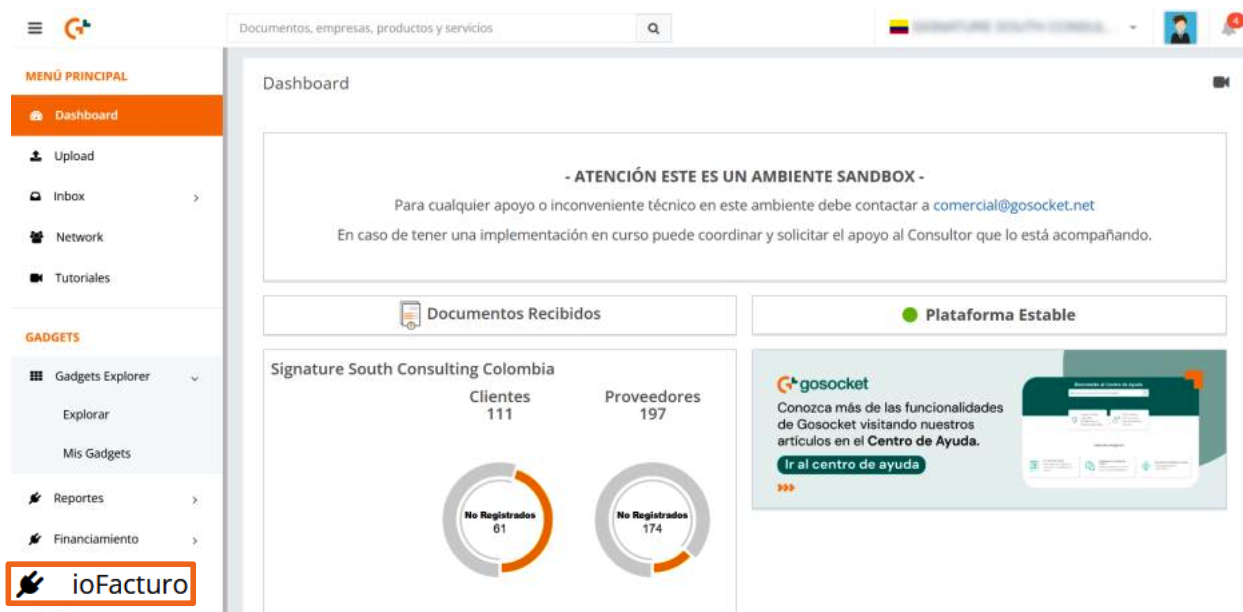
- Once you are in the platform, click ioFacturo within the Gadgets section of the side menu.
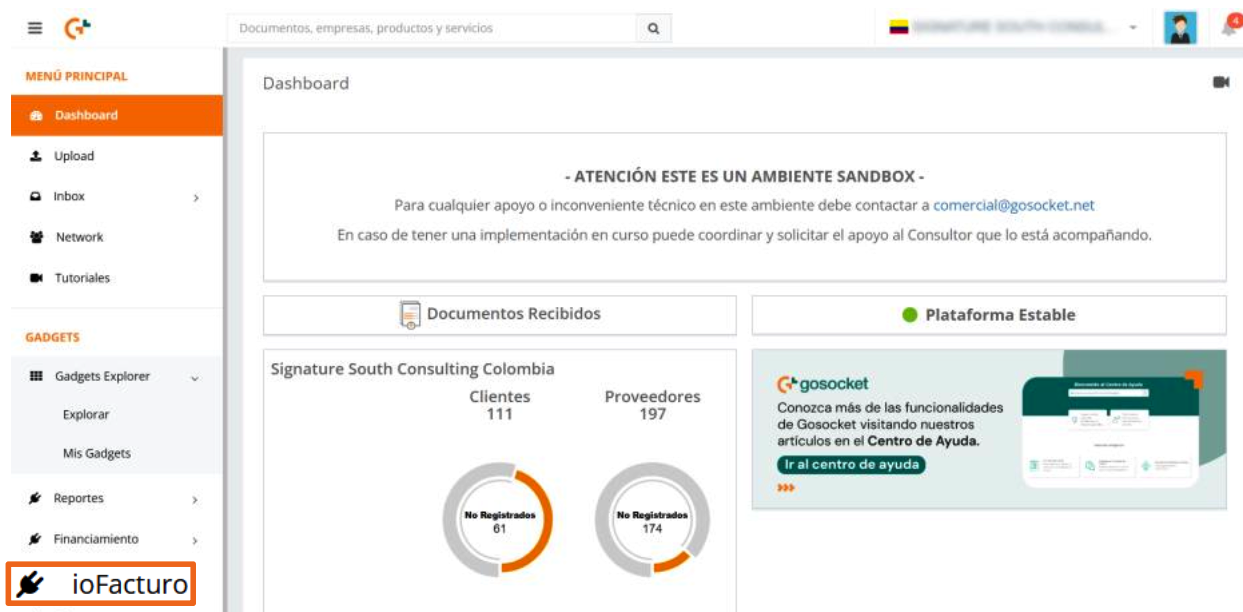
ioFacturo Gadget Installation
If you do not already have the ioFacturo gadget installed, follow the instructions below:
- From the side menu, click Gadgets Explorer.
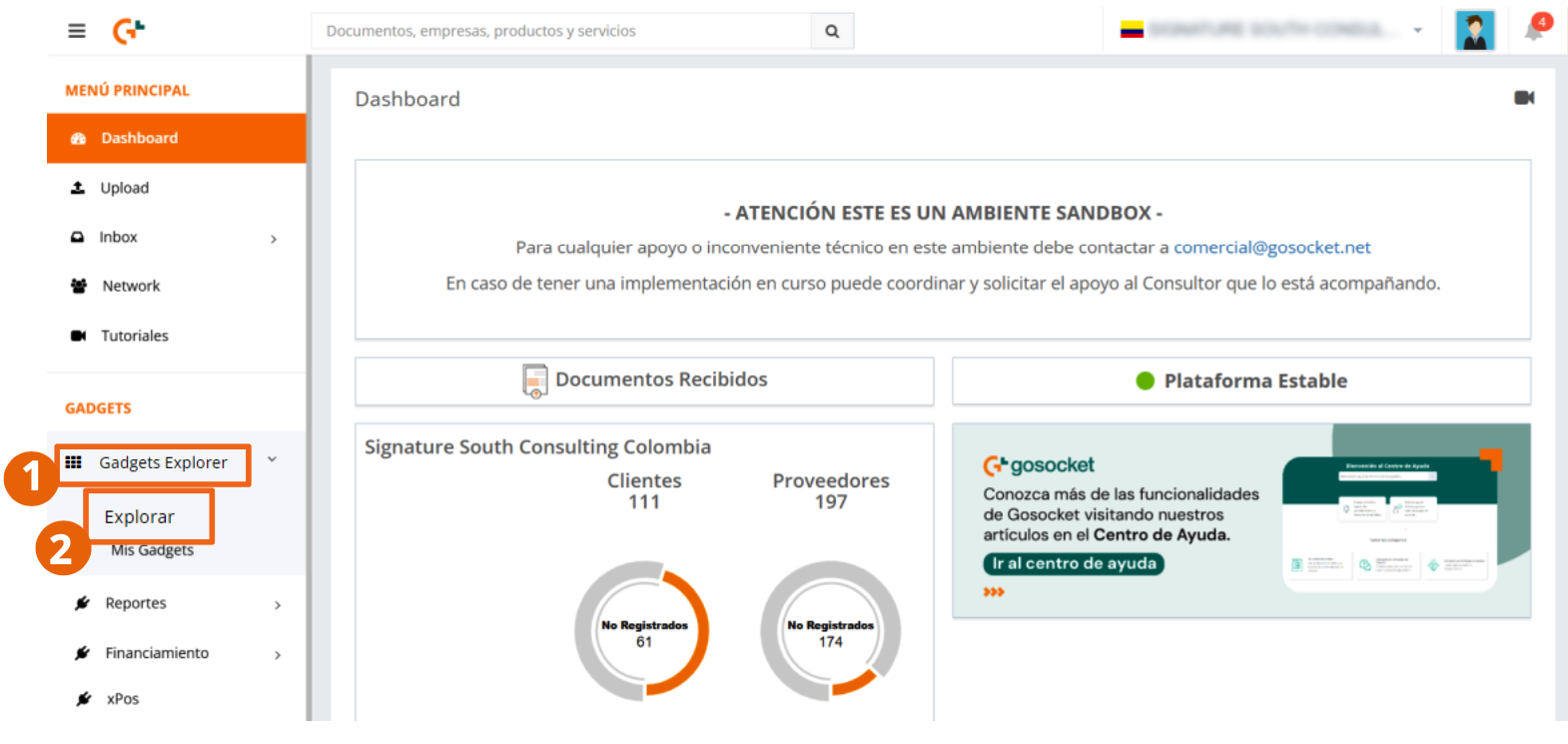
- Locate the ioFacturo gadget within the explorer and click Install.
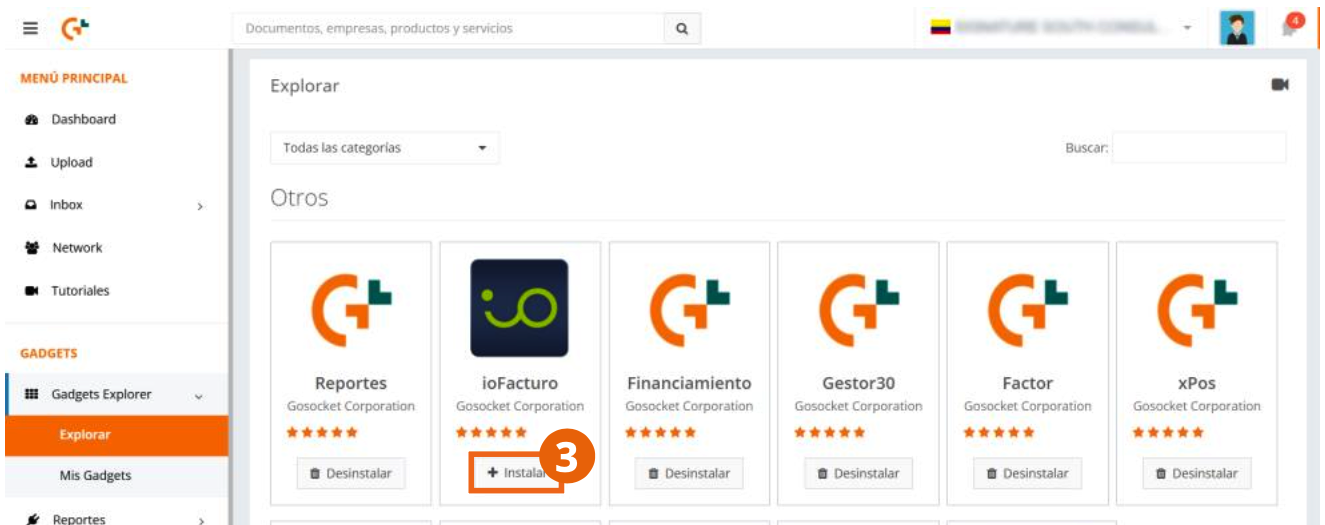
Once the application is installed, you will be able to use it and issue your documents, as well as perform the management tasks they require.
Enter ioFacturo
To start the invoicing process, enter the ioFacturo gadget from the side menu.
The gadget's home screen will then appear, showing your company data and the main menu: Home, Invoicing, Documents, Configuration, and Help.
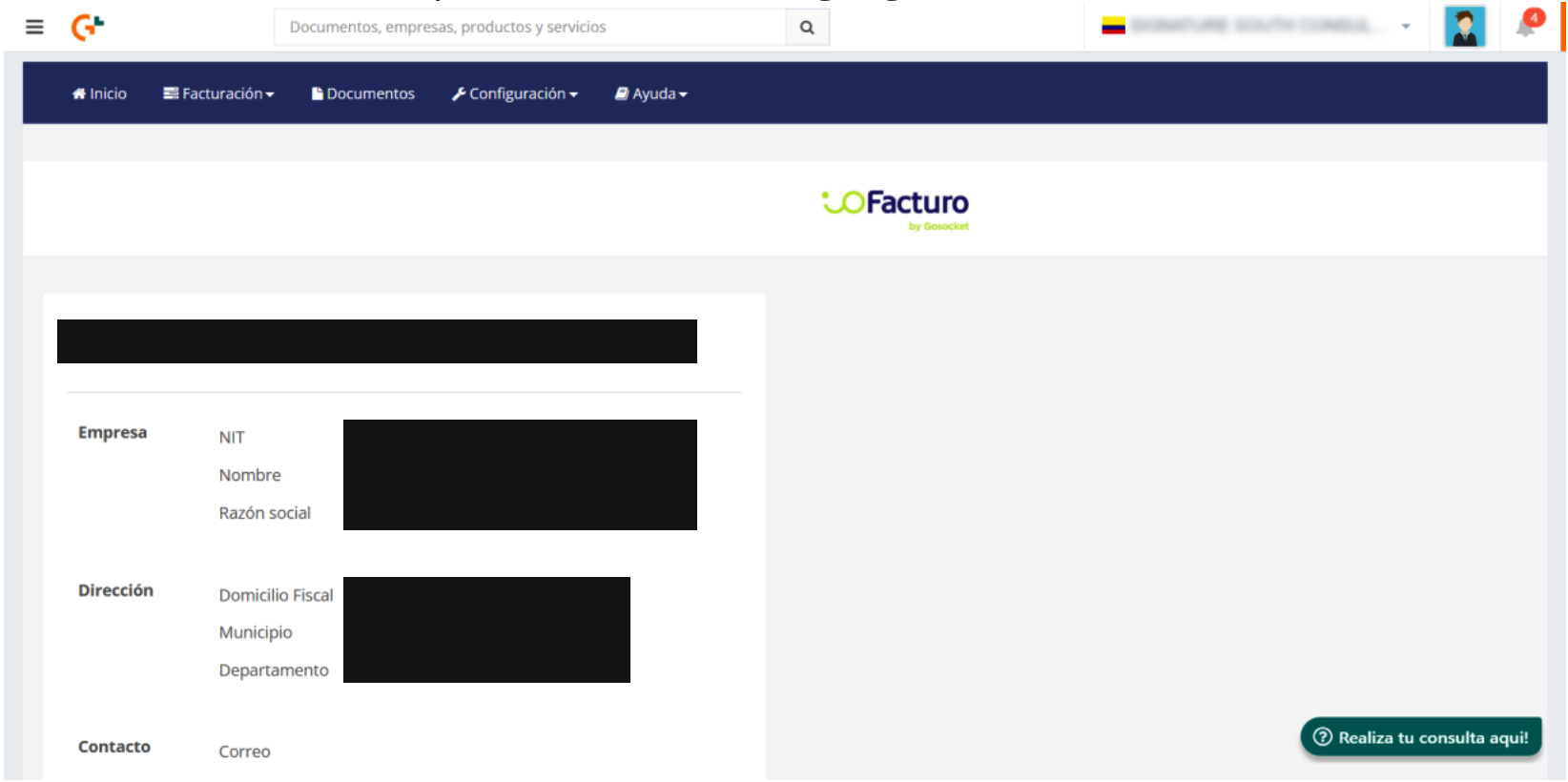
Before issuing your first document, register the numbering ranges authorized by the DIAN from the Configuration menu. See Numbering Ranges.