The Spanish version is the authoritative reference. View in Spanish
Document Issuance — Invoicing Module
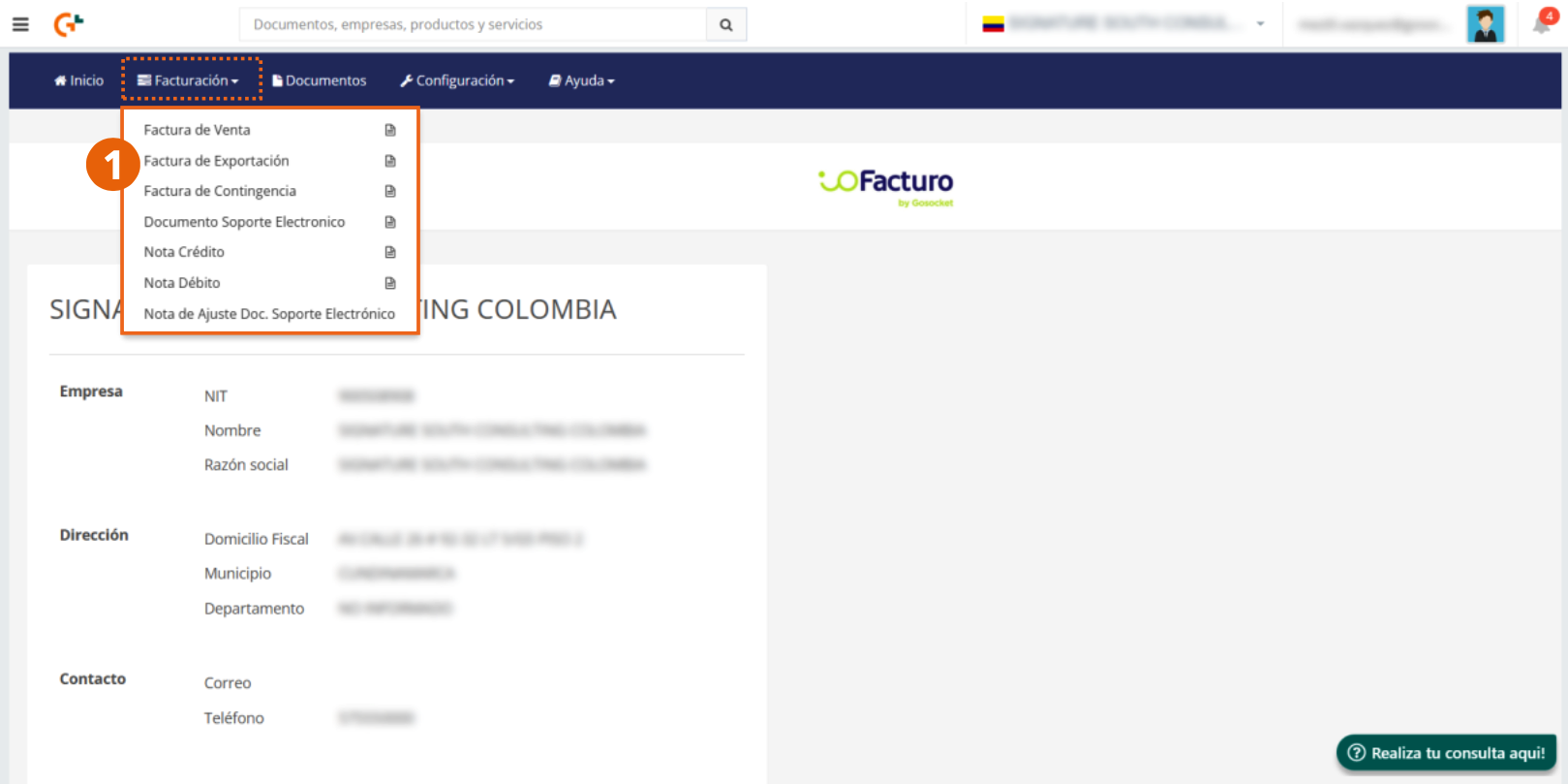
From the Invoicing menu begins the issuance of electronic documents defined by the DIAN.
- From Invoicing, select the type of document you are going to issue.
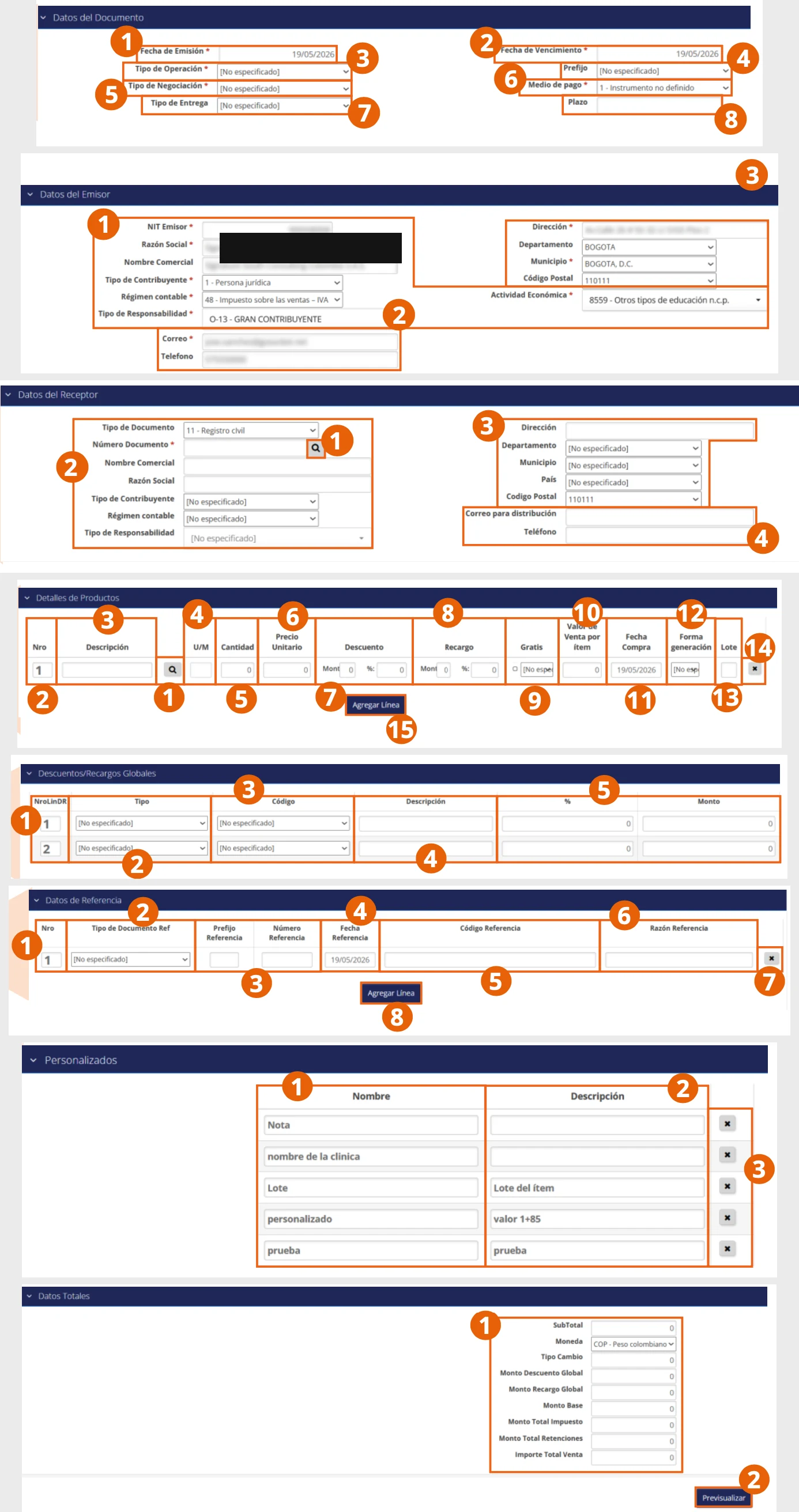
Although it is possible to issue various types of tax documents, the issuance forms contain fields in common; therefore, the process of filling them out is described below section by section.
Document Data
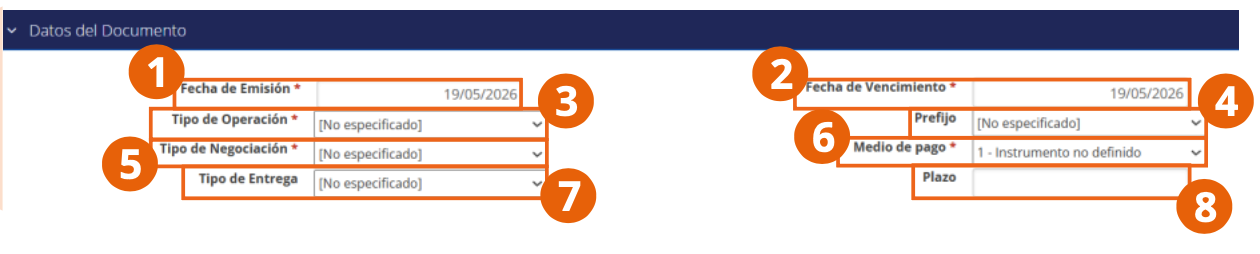
- Using the calendar, select the issuance date of the document to be issued.
- Select the maturity date: the deadline for paying the document.
- Choose the transaction type of the document to be issued.
- Click and select the prefix of the document folio to be used (see Numbering Ranges).
- Select the trading type with which the document will be settled.
- Choose the means of payment by which the document is paid.
- You can enter the details of delivery type.
- If the trading type is on credit, you will need to enter the term for which the document must be paid.
Issuer Data
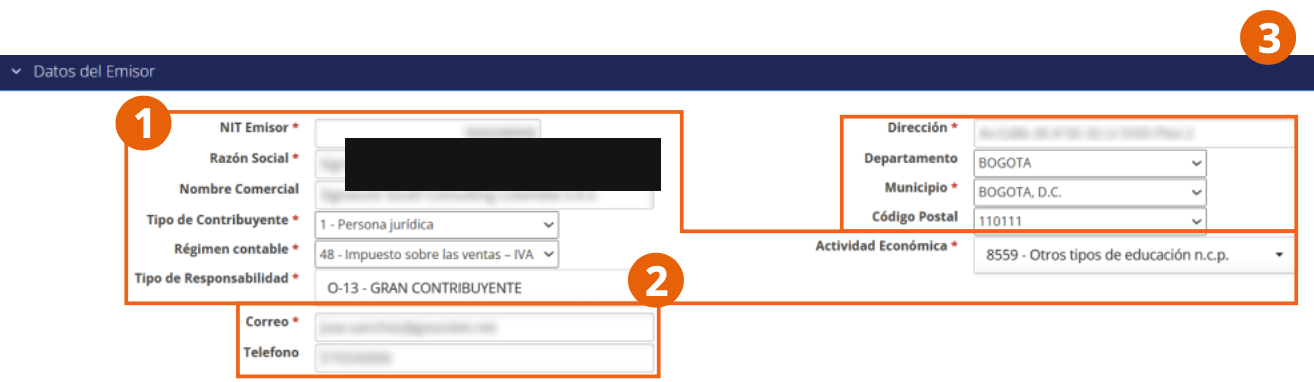
- The tax data of your company as the document issuer will be displayed: the issuer's NIT, legal name, business name, tax regime, and economic activity.
- You will see the contact data fields of the issuer.
- Location data of the company issuing the document.
Receiver Data
In almost all documents to be issued we find this section, where the following data are included:
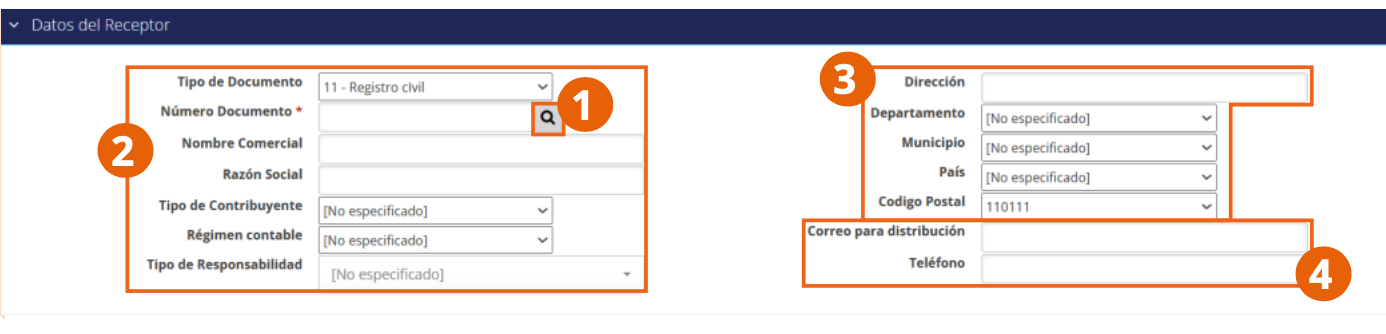
- To locate the receiver according to the customer data previously loaded in the system (see Customers-Buyers), click on the Search icon. This action will automatically display the receiver's data.
- Within the first part of the fields, the tax data of the receiver is displayed.
- We also find the receiver's location data for the document.
- Two fields are shown for the contact data of the document receiver.
Product Details
Within this section the details of the product for which the transaction of the tax document to be issued is entered:
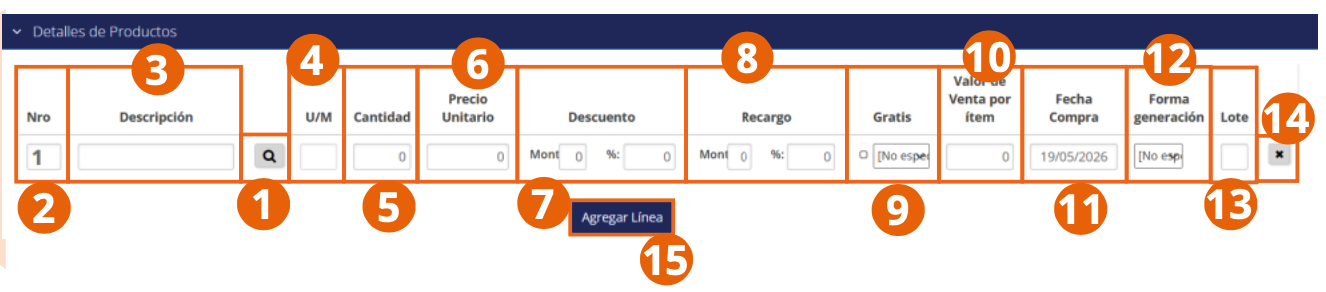
- Select the product for sale from the search button shown in the corresponding row. This selection will release the rest of the product information according to its previously loaded registration (see Products).
- Serial number of the product to be sold.
- Description of the product.
- Unit of measure by which the product is sold.
- Enter the quantity of units being sold in this transaction.
- The unit price of the product will be displayed according to the registration.
- If applicable, enter the amount or percentage of discount on the product value.
- If a charge applies, indicate the amount or percentage of surcharge on the product's monetary value.
- If a courtesy applies, check the Free box to set the product value to 0 (zero). In the available field, you can indicate whether the registered price corresponds to the inventory value, the commercial value, or another type of value.
- The sale value of the product will be displayed according to its registration.
- In the Purchase Date field, select the date on which the product was purchased. This field is only available when issuing Electronic Support Documents and Adjustment Notes for Support Documents.
- In the Generation Method field, indicate whether you are reporting accumulated weekly purchases or those corresponding to a single business transaction. This field is only available when issuing Electronic Support Documents and Adjustment Notes for Support Documents.
- If required, register the batch of the product to be sold or purchased.
- To delete the product line, click the Delete button.
- To add another product to this same document, click Add Line.
Global Discounts/Surcharges

- Serial number of the discount or surcharge.
- Select whether a discount or surcharge will be applied within the Type column.
- If it is a discount, choose whether it is a conditional or non-conditional discount. For cases where a surcharge applies, there is no need to specify it.
- Enter the description of the reduction or additional rate that will be applied to the sale.
- Write the amount or percentage of discount or extra charge applicable to the sale.
Reference Data

- Serial number of the reference document.
- Document type that will be taken as reference.
- Folio of the reference document, comprised of the prefix and its number.
- Code with which the reference is identified.
- Reason for using this reference document.
- To delete the reference document line, click the X.
- Click Add Line to add another reference document.
Custom Fields
The custom fields previously registered (see Custom Fields) that are applicable to the type of document to be issued will be displayed within this section:
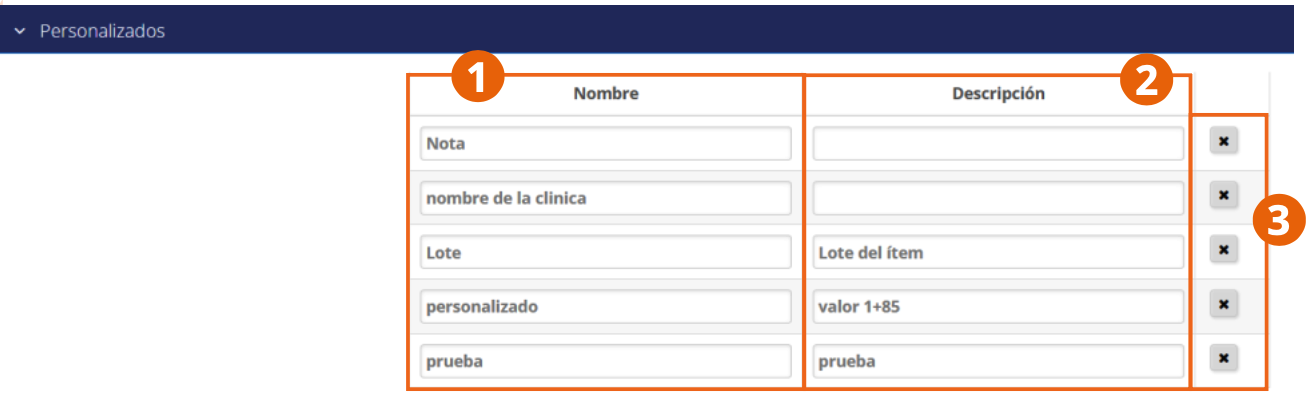
- Name assigned to the custom field according to its registration.
- Description of the custom field according to its registration.
- To remove a custom field from the document, click the X.
Total Data
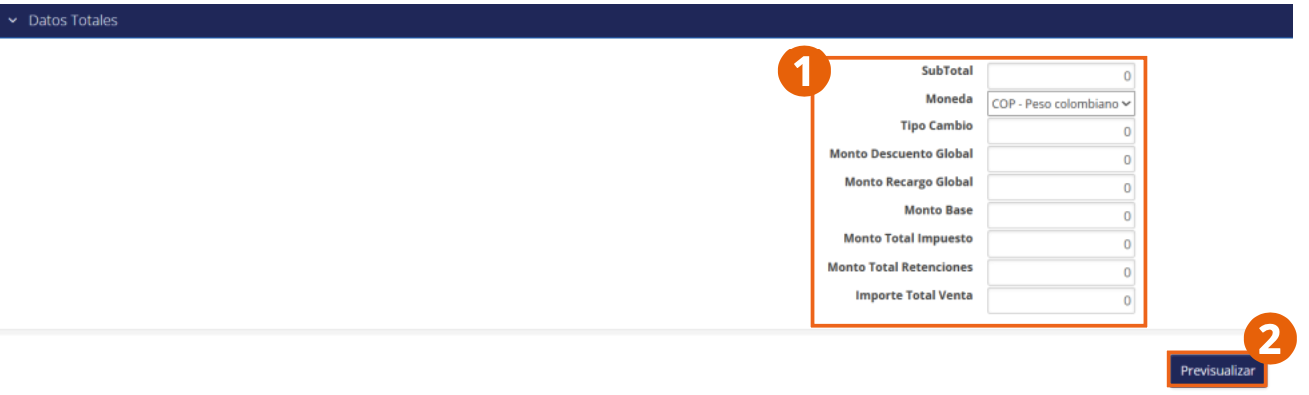
- Summary of amounts included in the document according to previously entered data: subtotal, currency, global discounts and surcharges, base, taxes, withholdings, and total sale amount.
- When finished, click Preview.
Issued documents and their status with the DIAN can be queried from the Documents module. See Documents.