The Spanish version is the authoritative reference. View in Spanish
Document Issuance — Invoice Module
The invoicing process is carried out from the Invoice module.
- From Invoice, select the type of document you are going to issue: Invoice, Credit Note, Debit Note, Withholding Voucher, ATS Withholding Voucher, Delivery Guide, or Purchase Settlement.
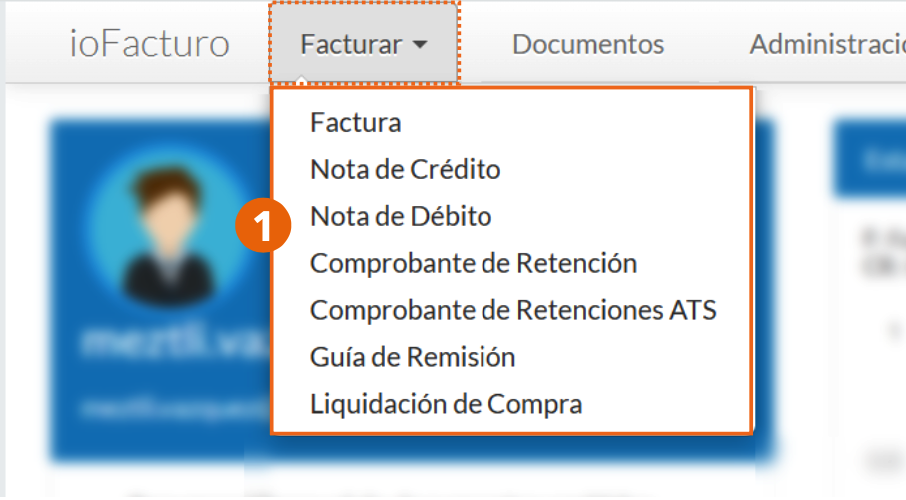
Although it is possible to issue various types of tax documents, the issuance forms contain fields in common; therefore, the process of filling them out for the shared sections is described below, using the invoice form as an example.
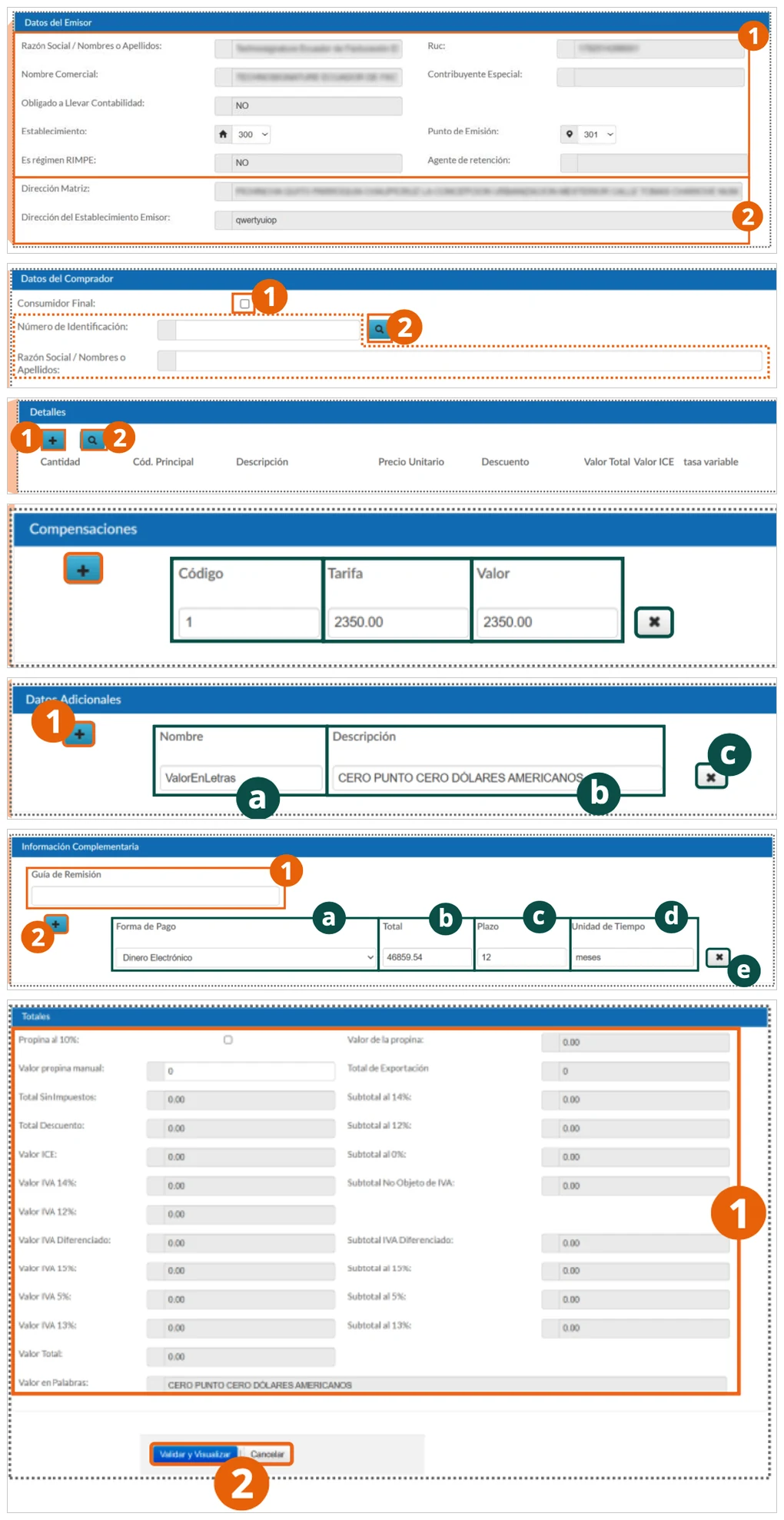
Issuer Data
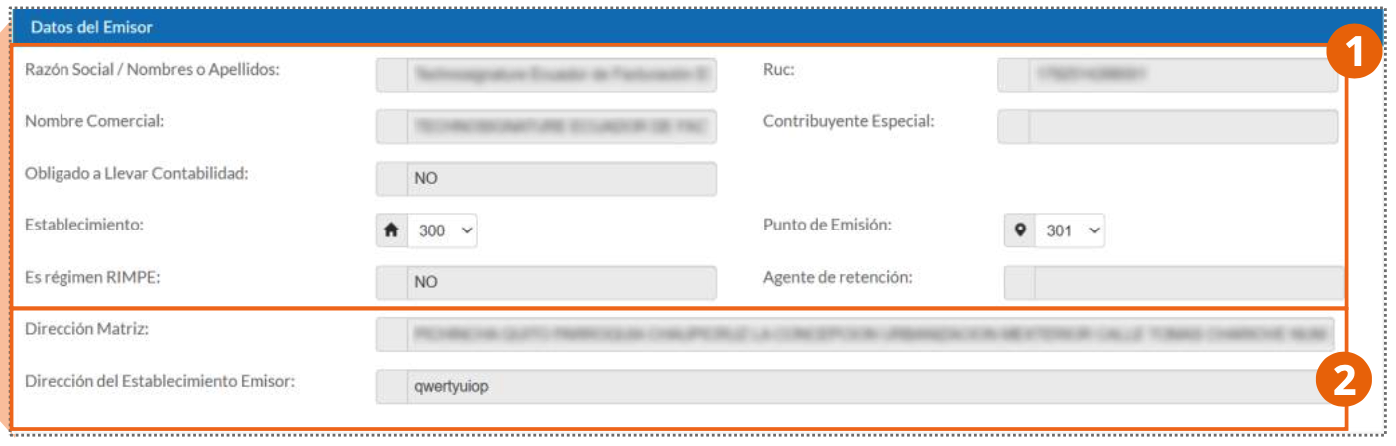
- The tax data of your company will be displayed as the document issuer (legal name, RUC, business name, regime, and obligations).
- You will see the location data fields of the company and can select the establishment and issuance point from which the document is issued.
Voucher Identification

- Issuance Date: date on which the document is issued.
- Access Key: unique identifier of the voucher, which also serves as its official authorization number.
Buyer Data
In invoice, credit note, debit note, and withholding voucher type documents, we find the buyer data section, where the following data must be entered:

- If the buyer is a final consumer of the product or service, click on the Final Consumer field checkbox. This action will automatically fill the Identification Number field with the generic number composed of 9s, and in the Legal Name field, the term FINAL CONSUMER will be displayed.
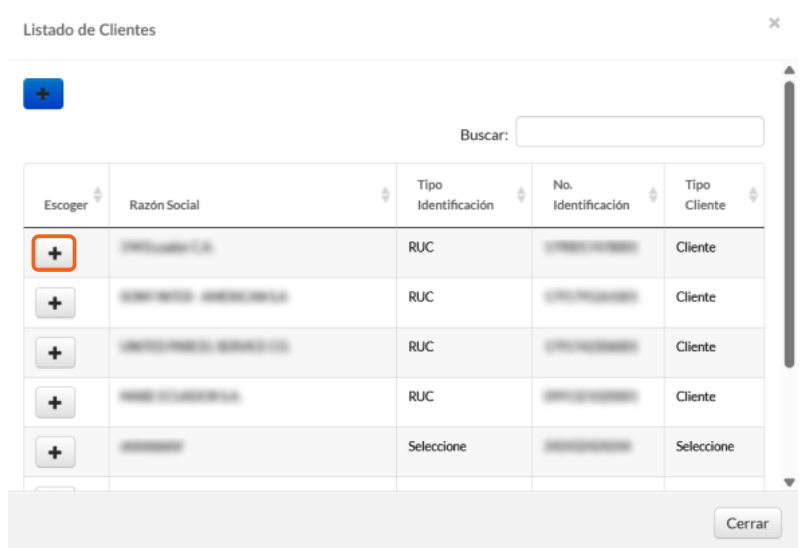
- When the customer is found in system records, click on the search button and select the customer who will be the document receiver with the + button shown in the customer list. This action will automatically fill the remaining receiver fields with the data from the customer record.
Details
We find this form section in invoice, debit note, credit note, and purchase settlement document types.

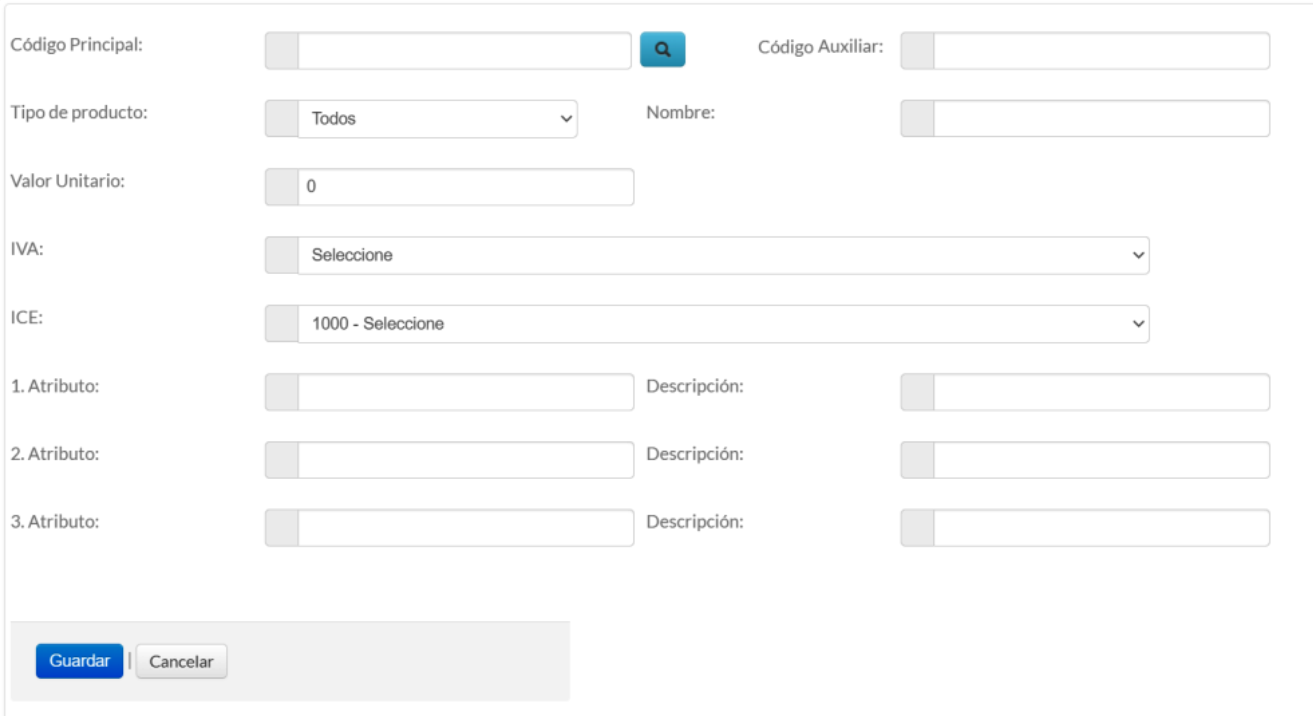
- Click + to add a product that has no prior record. This action will open the product form, where you must fill in the fields with the data of the product or service to sell. When finished, click Save.
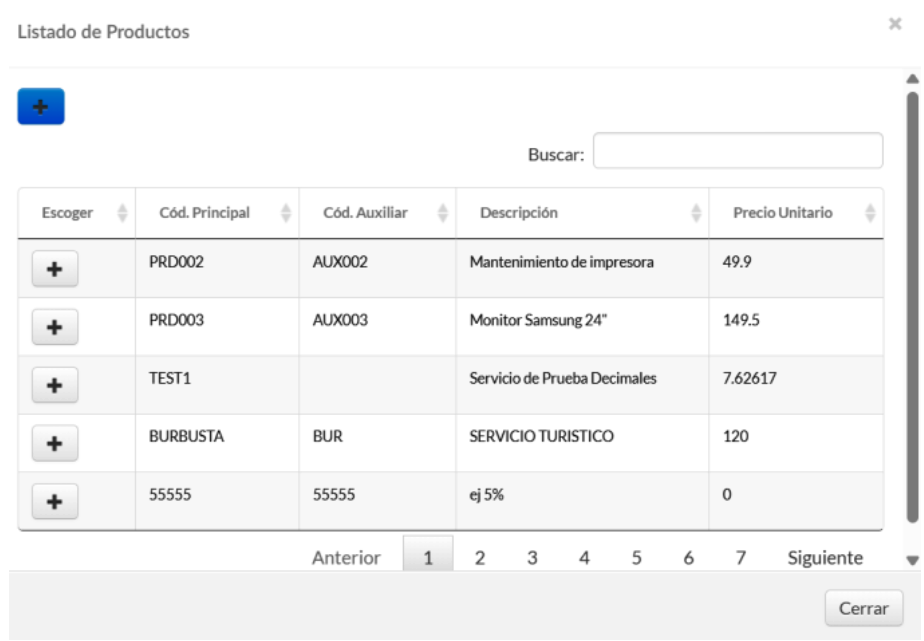
- To add a product that already has a record in the system, click on the search icon. The catalog of registered products will be displayed; click on the + button corresponding to the product or service being sold.
Adjustments
We find this section in invoice and credit note type documents. Here you can enter adjustments applicable to the document according to the products to be sold.
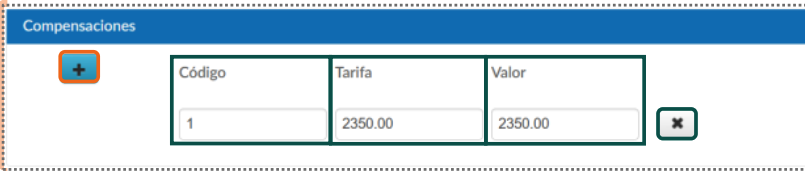
- To add an adjustment, click +. The following fields will be displayed with predefined information:
- Code: enter the adjustment code.
- Rate: enter the adjustment rate.
- Value: write the calculation of the sum corresponding to the adjustment.
- To delete the line, click X.
Refunds
When the voucher includes goods or services billed on behalf of third parties, indicate the document that supports the refund:
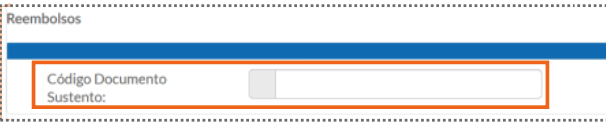
- Supporting Document Code: identifier of the voucher that backs the refunded expense.
Additional Data

- To add additional data, click +.
- Name: write a name to assign to this data.
- Description: enter the additional data.
- To delete the line, click X.
Complementary Information
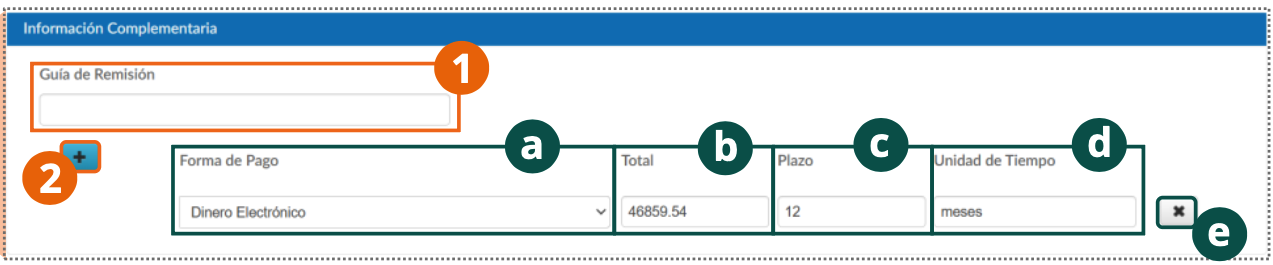
- Delivery Guide: number of the delivery guide corresponding to the invoice.
- To add details about the manner in which the invoice will be paid, click the + button:
- Payment Method: select the type of payment with which the document will be settled.
- Total: enter the total that will be paid in this manner.
- Term: write the deadline that will be given for settlement of the document.
- Time Unit: enter the time unit in which the document will be charged.
- To delete this data, click X.
Negotiable Type
When the voucher can be issued as a negotiable instrument (negotiable invoice), enter the email address that will be notified of the document's negotiability:

- Email: address to which notifications related to the voucher's negotiation will be sent.
Fiscal Printer
If the establishment also invoices through a fiscal printer (máquina fiscal), register its data:

- Brand, Model, and Serial number of the fiscal printer used for issuance.
Totals
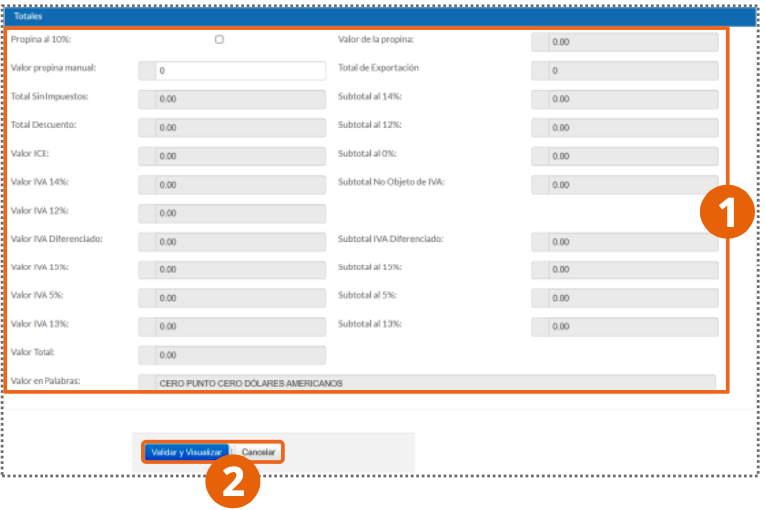
- Verify the calculations displayed in this section (subtotals by VAT rate, discounts, ICE, total value, and value in words).
- When finished, click Validate and Display. To discard the form information, click Cancel.
Sections by document type
In addition to the shared sections described above, some voucher types add their own fields to the issuance form.
Credit Notes and Debit Notes
These documents reference the voucher they modify:

- Voucher No.: number of the original voucher, or click the search button to locate it in the list of issued documents.
- Issuance Date, Document Type, and Reason for the modification.
Withholding Voucher
Includes the Taxes and Withholdings sections, which detail the amounts withheld for each tax type:
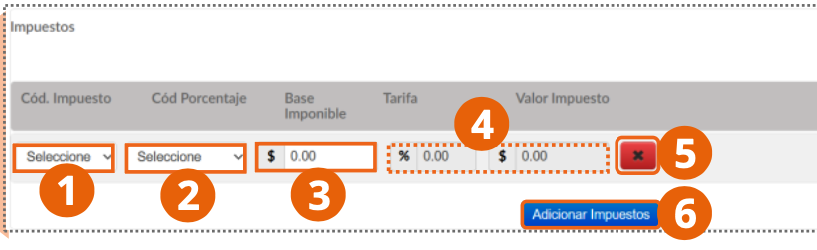
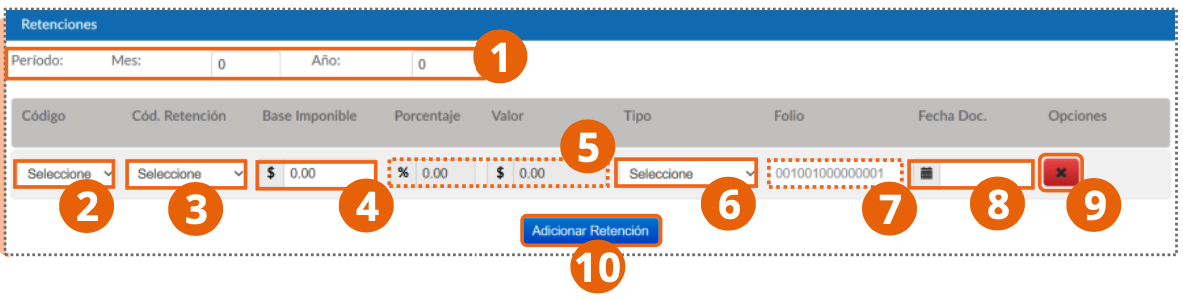
- Select the applicable tax code or withholding code and enter the taxable base; the system calculates the rate and the withheld amount.
- Click Add Taxes or Add Withholdings to add each line.
ATS Withholding Voucher
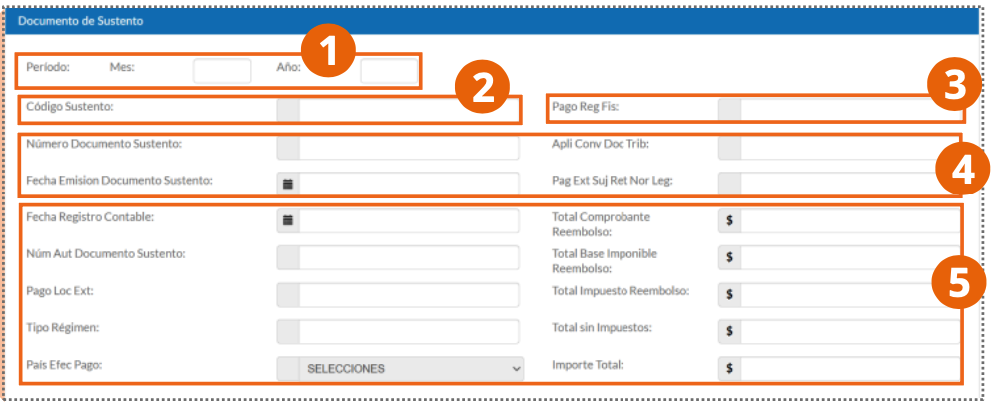
In addition to the withholding fields, this voucher type adds dividend-related fields (payment date, corporate income, fiscal year) and the Supporting Document section:
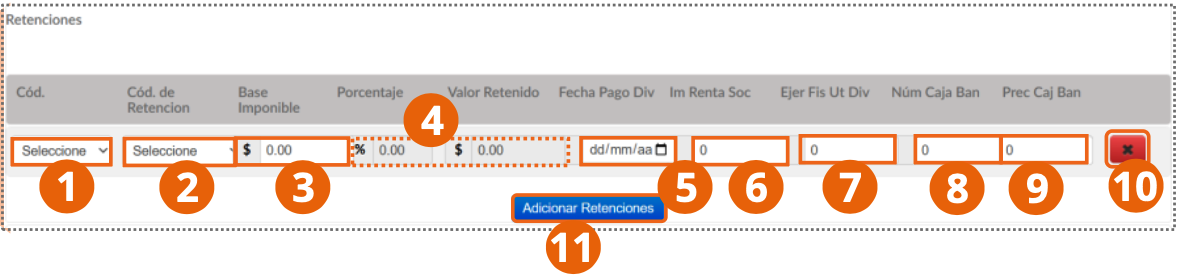
- Fill in the standard withholding fields and, where applicable, the dividend data (payment date, corporate income, fiscal year, bank account number and percentage).
- In Supporting Document, register the period, code, and number of the document that supports the withholding, along with the taxable base and tax totals.
Delivery Guide
Instead of Buyer Data, this document type requests Recipient Data:
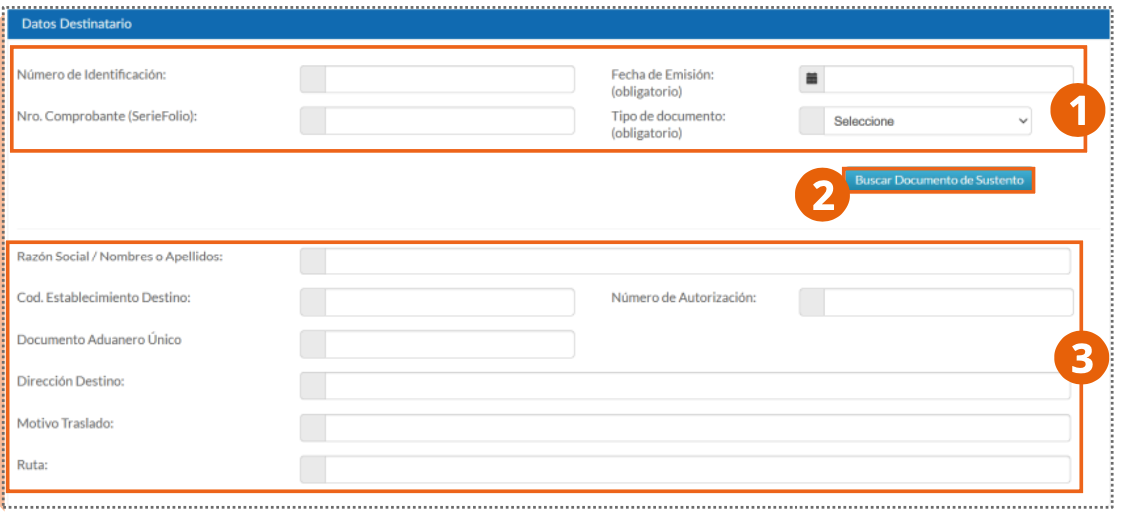
- Enter the identification number, issuance date, and supporting document type for the shipment, or click Search Supporting Document to locate it.
- Fill in the legal name, destination address, reason for transport, and the route the goods will follow.
Purchase Settlement
Like the ATS Withholding Voucher, this document type uses the Supporting Document section (see image above) to reference payments made to suppliers not required to issue vouchers.
Export Invoice
Checking the Export Invoice box within an invoice enables the Export section:
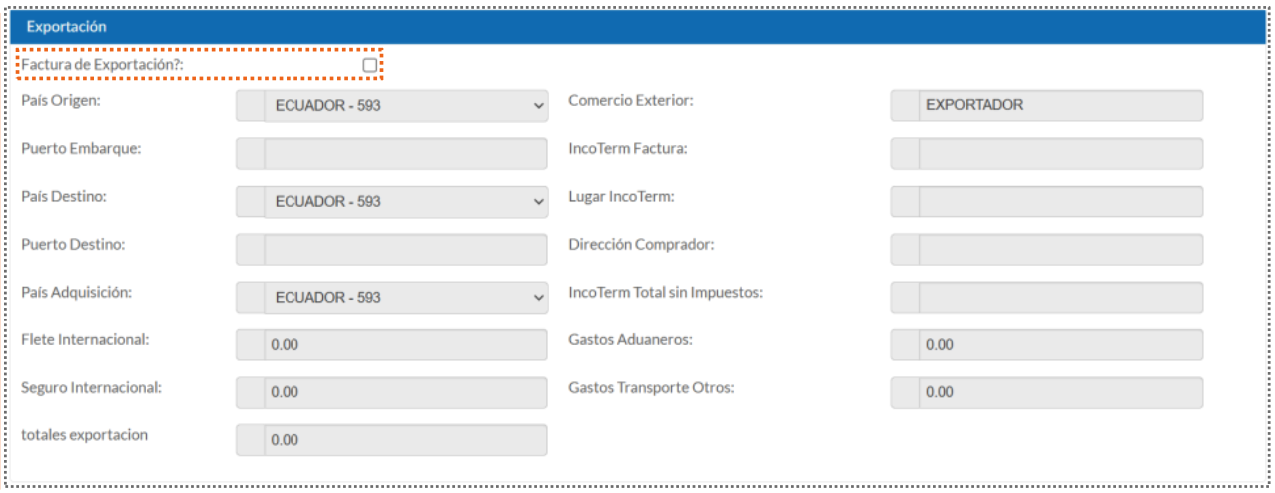
- Enter the country of origin, destination, and acquisition, the ports of shipment and destination, and the foreign trade data (Incoterm, buyer's address, international freight, and insurance).
Querying issued documents
From the Documents module you can locate and track vouchers already issued:
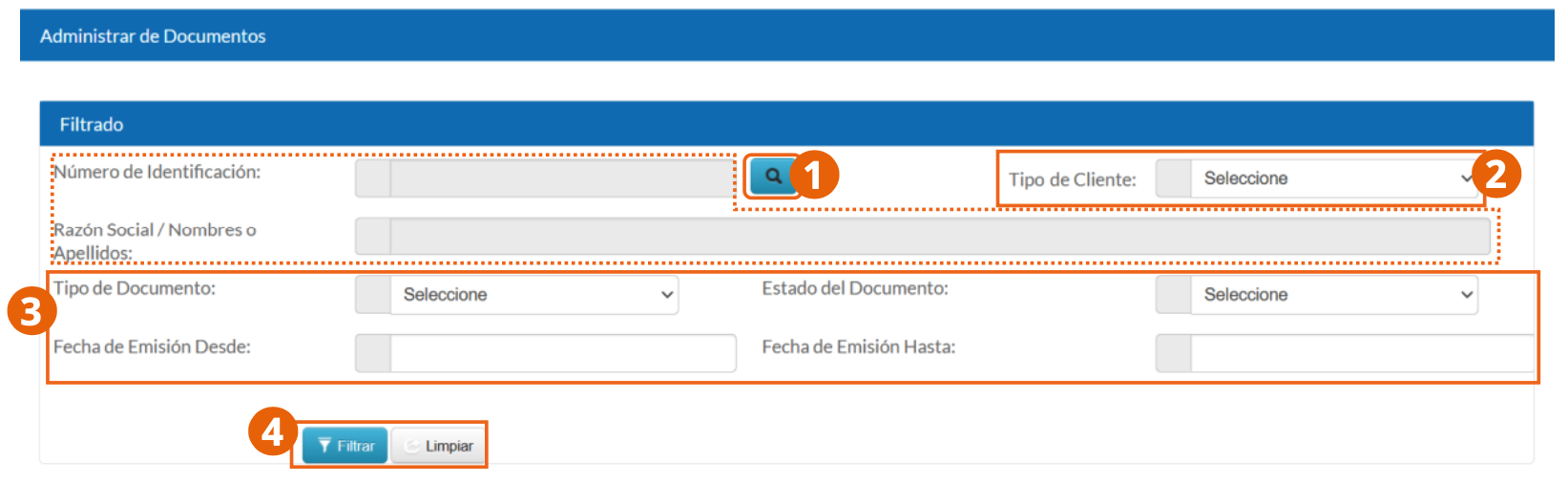
- Filter by identification number, legal name, customer type, document type, document status, or issuance date range, and click Filter.
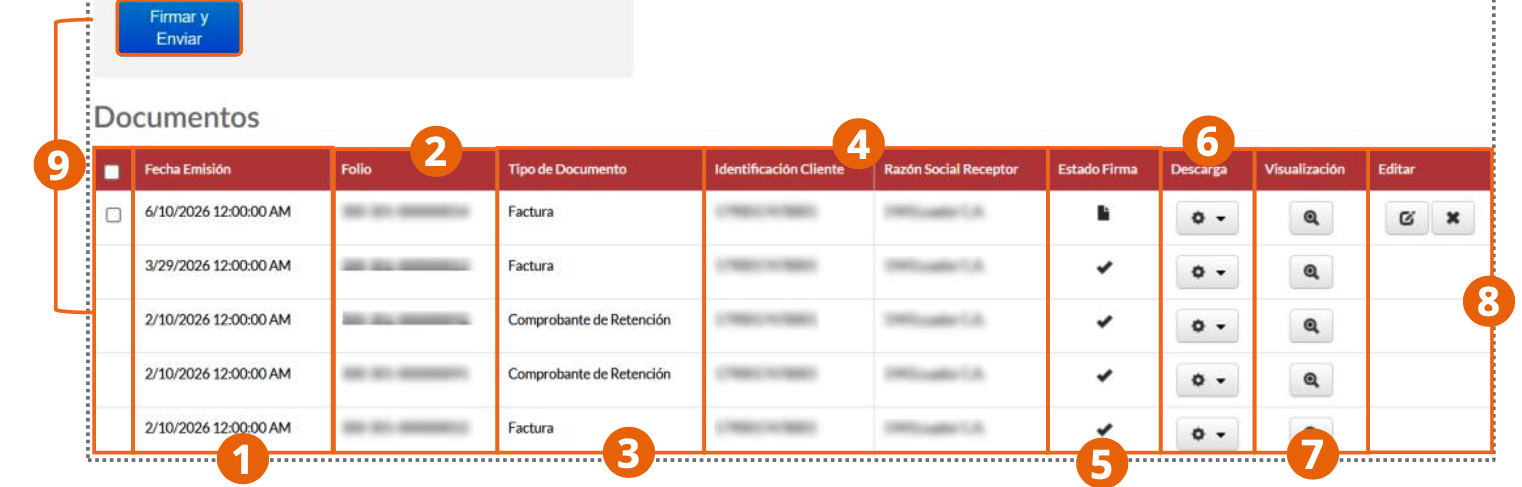
- Select one or more vouchers with the checkbox on the left and click Sign and Send to sign them and send them to the tax authority.
- Use the Download and View columns to obtain or preview the voucher, and Edit to modify or delete documents that still allow it.
After issuing, check the status of your vouchers and sign and send them from the Documents module.