The Spanish version is the authoritative reference. View in Spanish
Electronic Invoice
From the Invoicing module, you can issue the electronic documents you need, of the type you need:
- Electronic Invoice (e-Invoice): digital tax voucher that replaces the traditional physical invoice, with the same legal and tax validity, as long as it is generated and transmitted through the official DNIT system: the National Electronic Invoicing Integration System (SIFEN).
- Electronic Self-Invoice: a document issued by the buyer (purchaser) instead of the seller, when the seller is not required to issue an invoice.
- Electronic Credit Note (e-CN): a tax document used to fully or partially cancel an already issued invoice.
- Electronic Debit Note (e-DN): a complementary document that increases the value of a previously issued invoice.
- Electronic Remittance Note: a tax electronic document that accompanies the physical transfer of goods within the Paraguayan territory.
This page describes the issuance of the electronic invoice, section by section of the form.
Open the Issuance Form
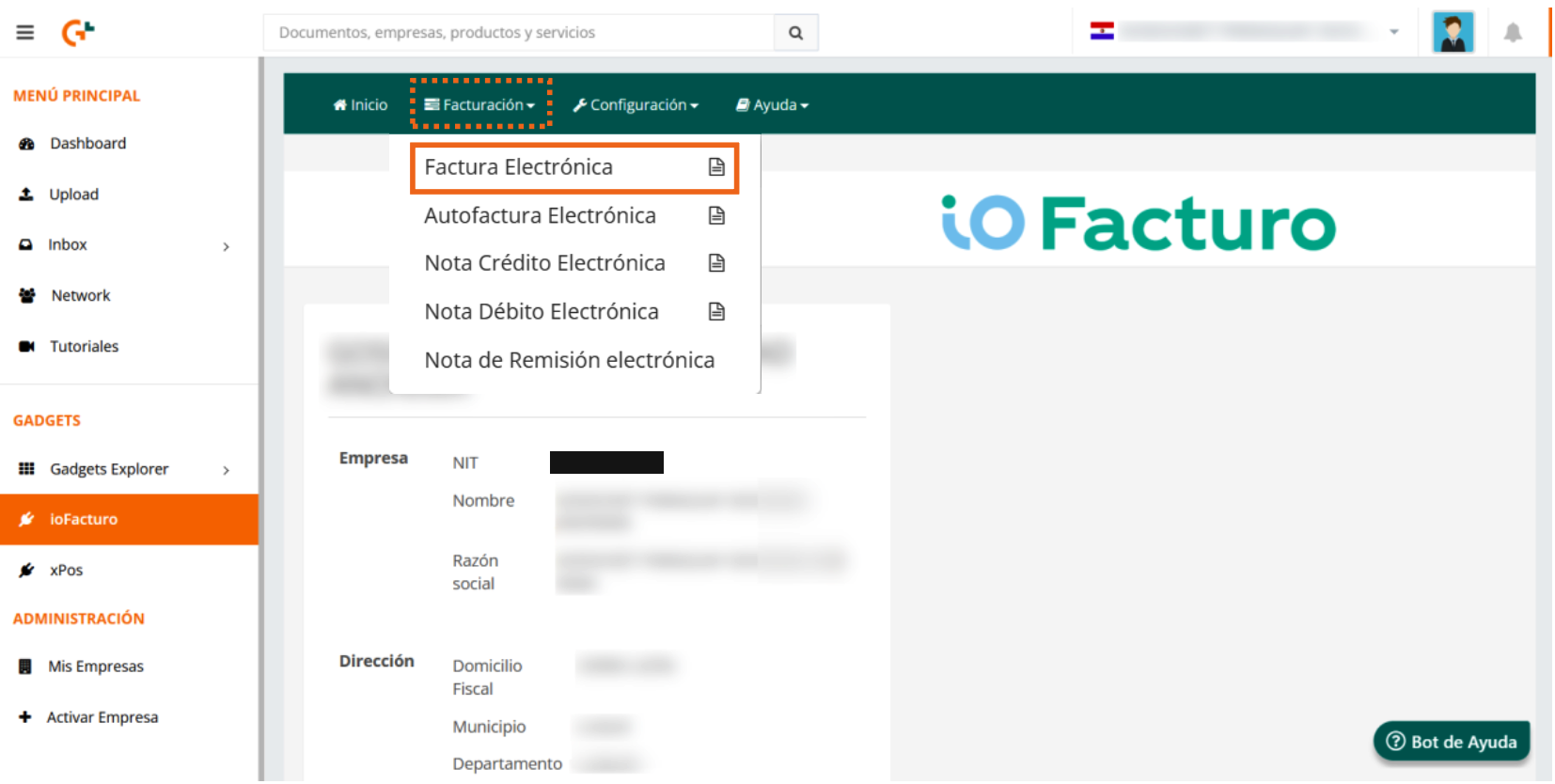
To start issuing an electronic invoice, click Invoicing in the ioFacturo menu and select Electronic invoice.
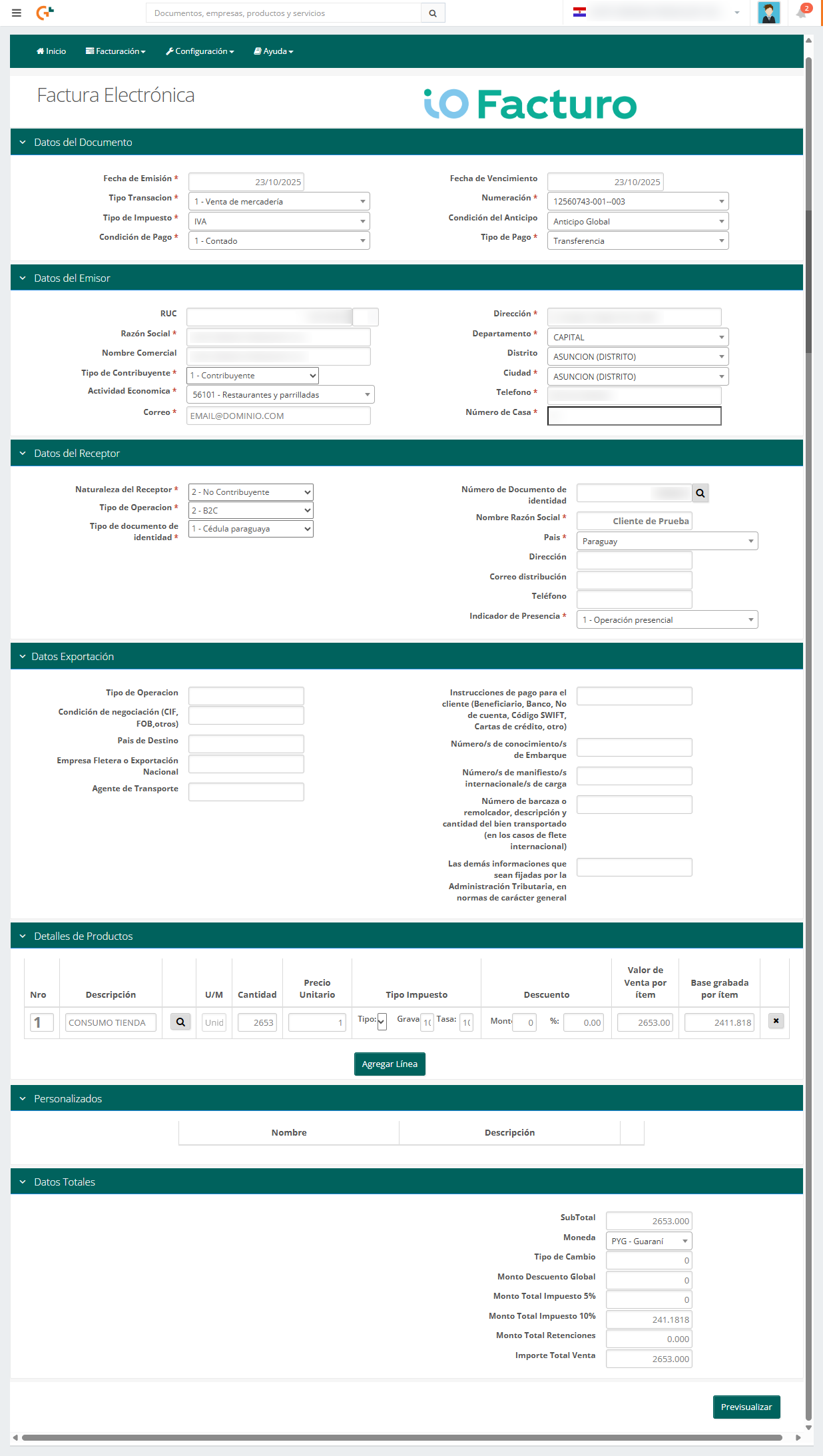
An invoice issuance form will then open as shown below.
Document Data
Enter the data for the document to be issued:

- Issuance Date: the document's issuance date is displayed. You can also modify it as needed.
- Transaction Type: select the type of transaction to which the document corresponds.
- Tax Type: choose the applicable tax.
- Payment Condition: select whether payment will be made in cash or on credit.
- Maturity Date: the system will inform you of the document's maturity date.
- Numbering: you will see the numbering assigned to the document; if you have a previous number, click on the field and enter it.
- Advance Condition: optional field; you can choose the data by clicking in the space, or leave it as shown.
- Payment Type: select the type of payment with which the document will be settled.
Issuer Data
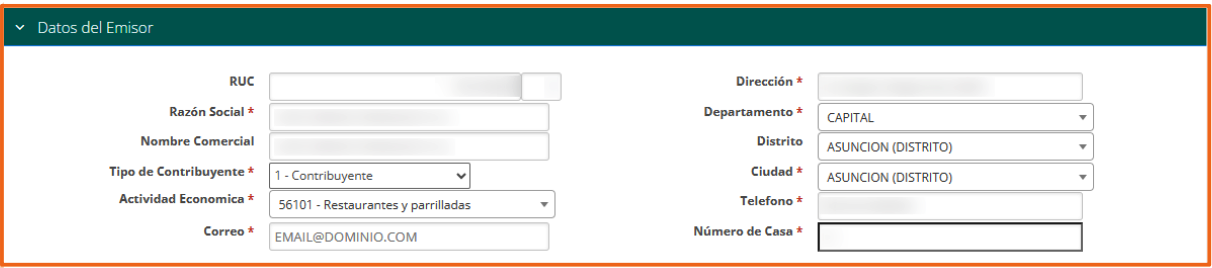
The tax data of your company as the document issuer will be displayed: the RUC, legal name, trade name, type of taxpayer, economic activity, and location and contact data (address, department, district, city, phone, email, and house number).
Receiver Data
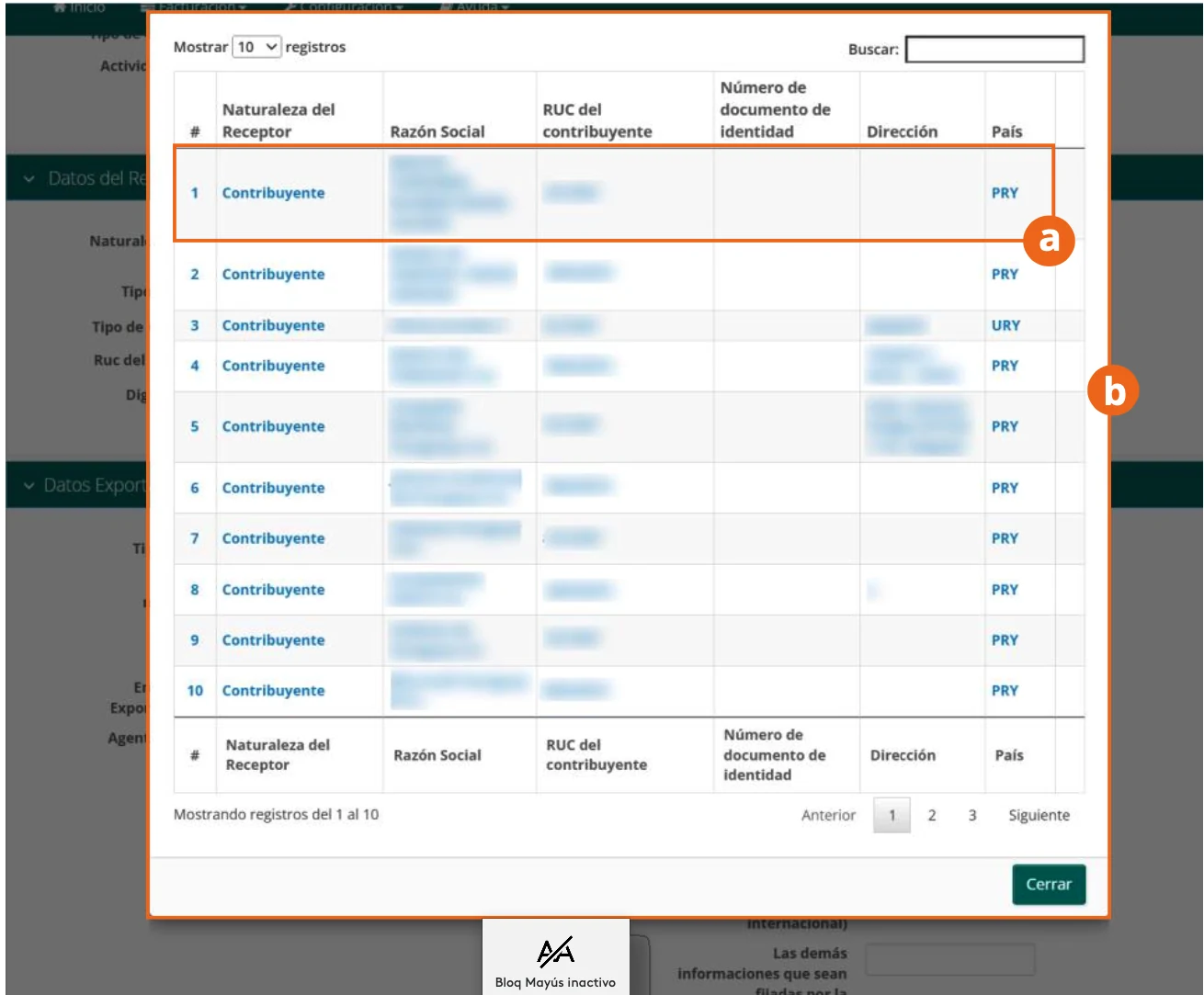
- Click on the search icon next to the Taxpayer RUC field.
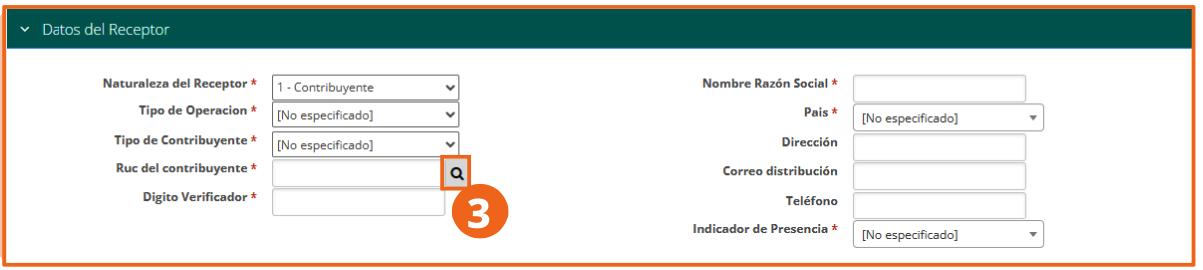
- The list of tax identifiers from previously loaded customer records will open, as shown here. Select the customer that corresponds.
- The receiver data will be loaded into the form.
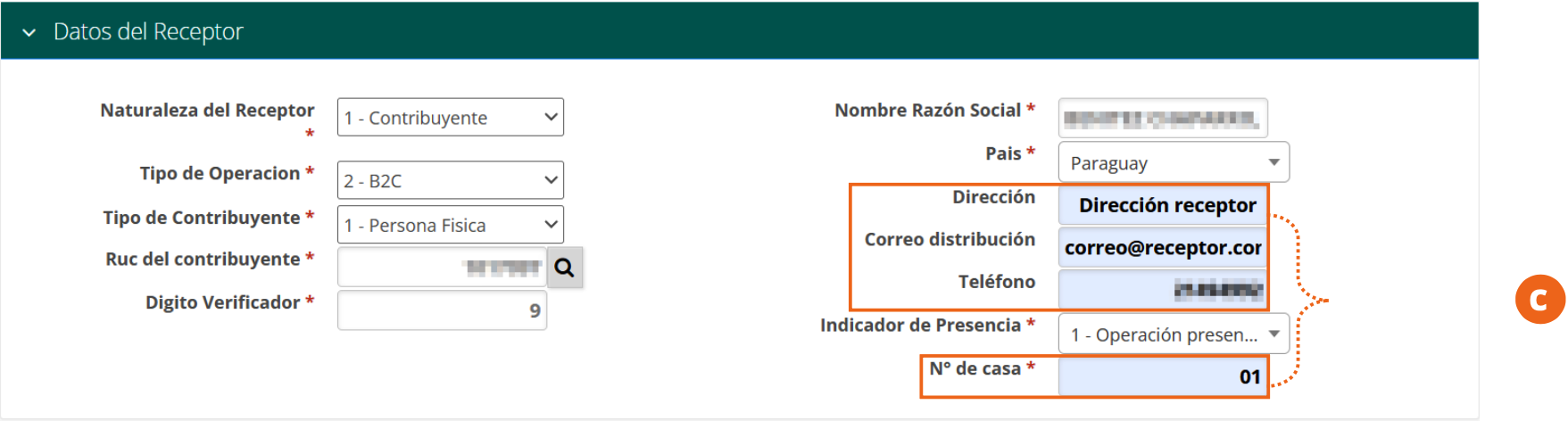
- Address, Distribution email, and Phone: you can fill these in or correct them if the customer record does not already have them loaded.
- Presence Indicator: indicate whether the transaction was in person or not.
- House No.: the house or premises number of the receiver's address.
Customers are previously registered from the Configuration module, in the Customers-Buyers submodule.
Export Data
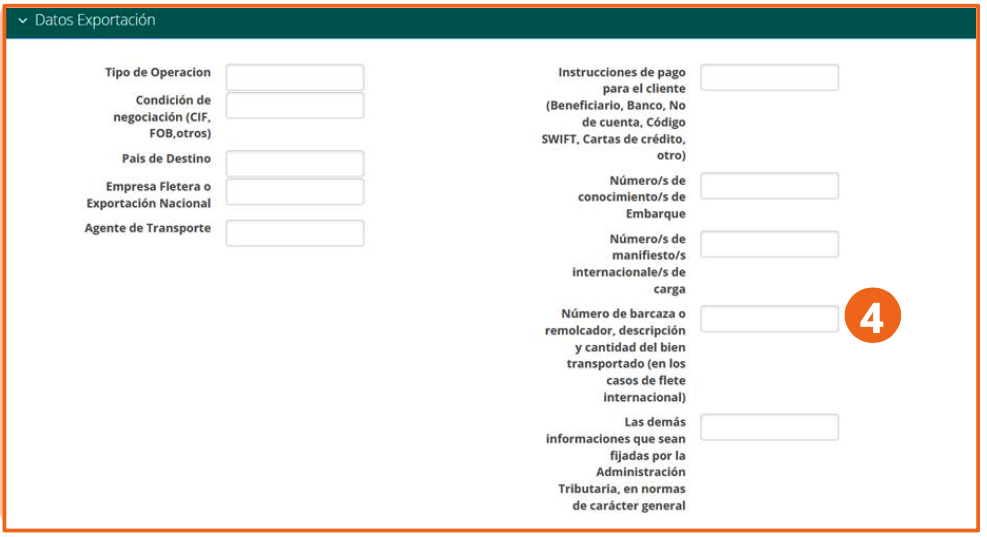
Fill in the fields in the Export Data section according to your requirement: type of operation, trading condition (CIF, FOB, or others), destination country, shipping data, and other information set by the Tax Administration.
Product Details
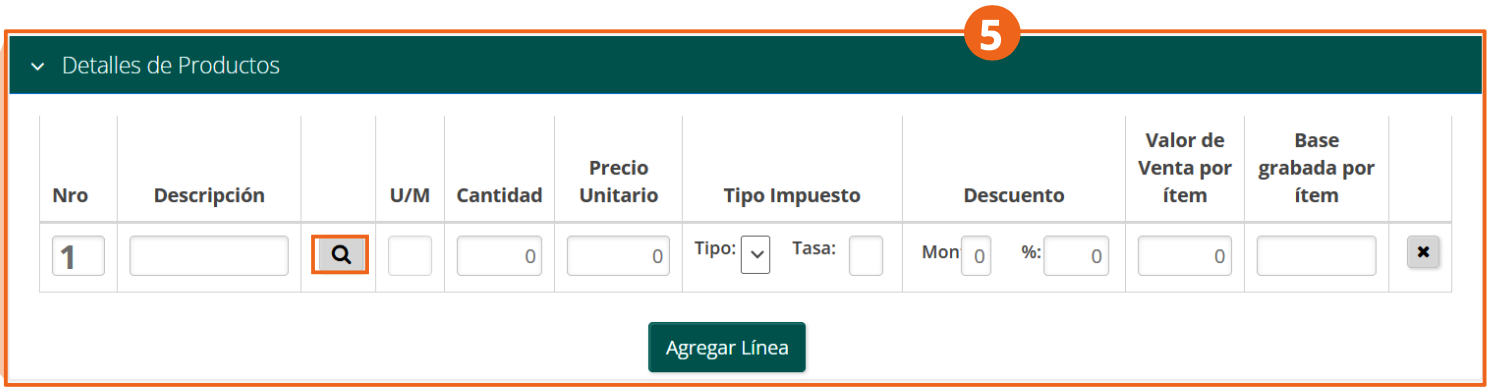
- Click on the search icon in the detail line to choose the product to invoice.
- The list of previously loaded products will be displayed, as shown here. Select the product or service to invoice.
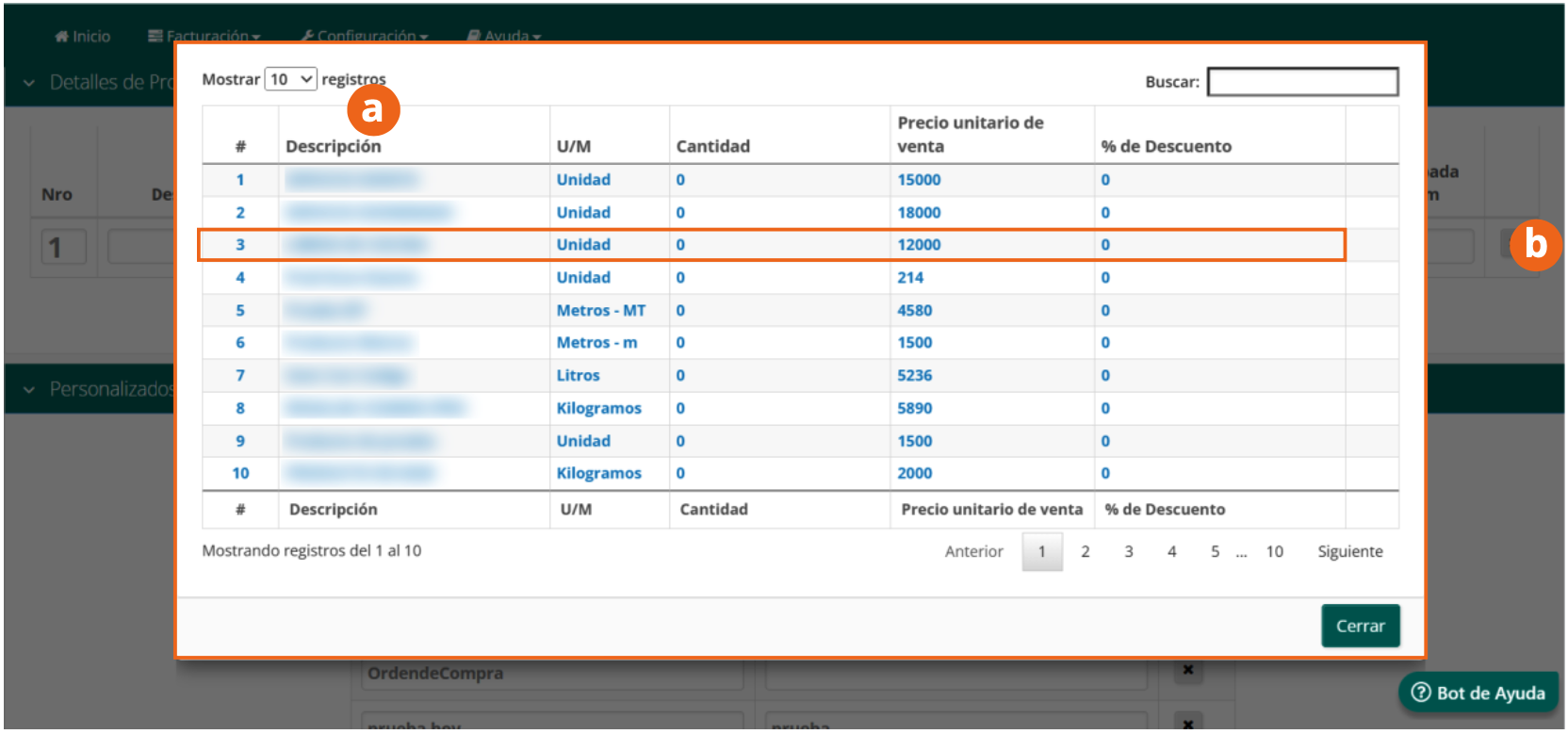
- The product or service data will be displayed in the Product Details section:

- Verify the product loaded in the form.
- Enter the quantity of products to be invoiced.
- Verify or adjust the unit price.
- Select the tax type that applies to the item (taxable, exempt) and its rate.
- If applicable, enter the discount for the item, as an amount or a percentage.
- The sale value per item and the taxable base per item calculated by the system will be displayed.
- To remove the item from the invoice, click the ✕ button on the line.
- To invoice more than one product, click Add Line.
Custom Fields
You can add custom fields that you need through the Custom section. If you see any field that is not necessary, you can delete it with the ✕ button on the line.
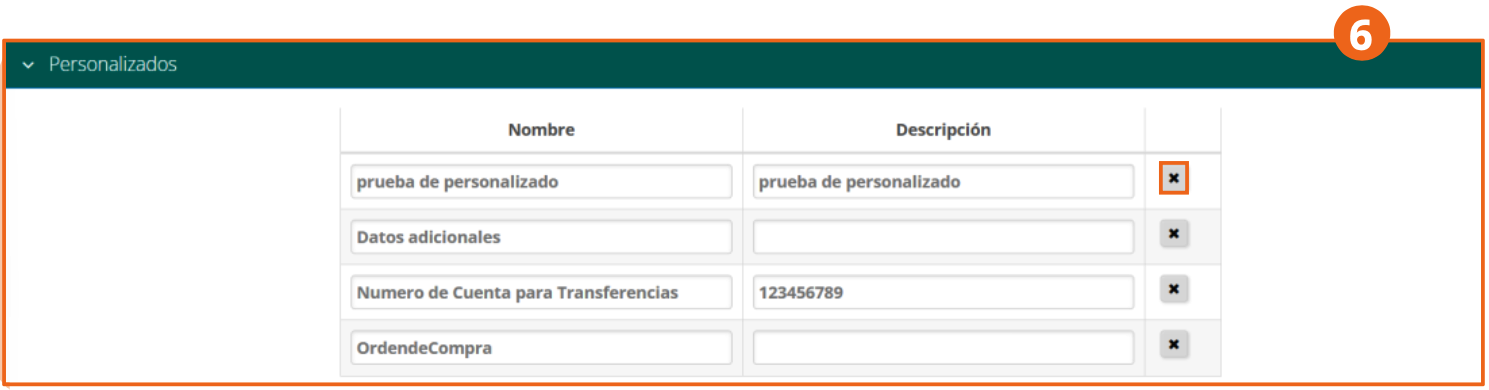
Custom fields are defined from the Configuration module, in the Custom submodule.
Totals Data
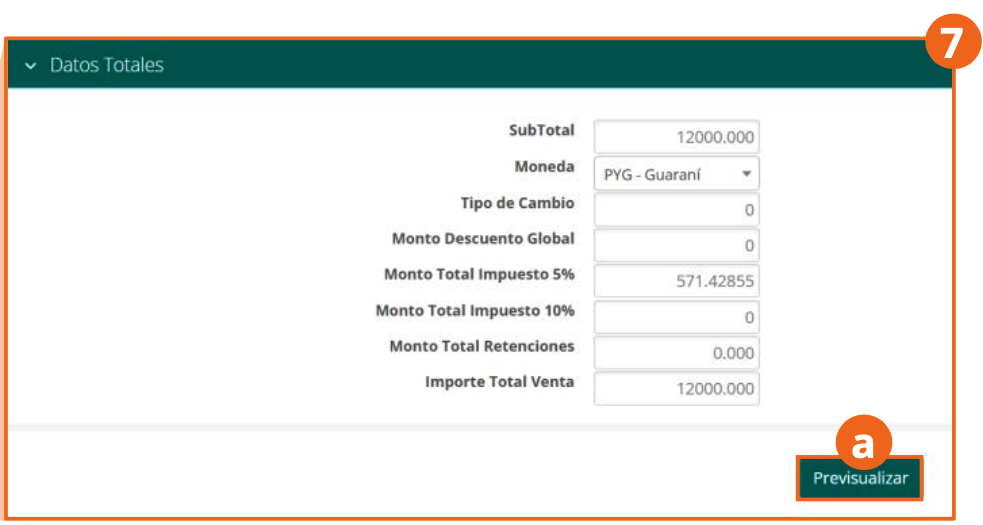
Within the Totals Data section, the calculation of the sum of amounts to be paid on the invoice is shown: subtotal, currency, tax amounts, and the total sale amount. When finished, click Preview.
Preview and Submission
Within the preview we find:
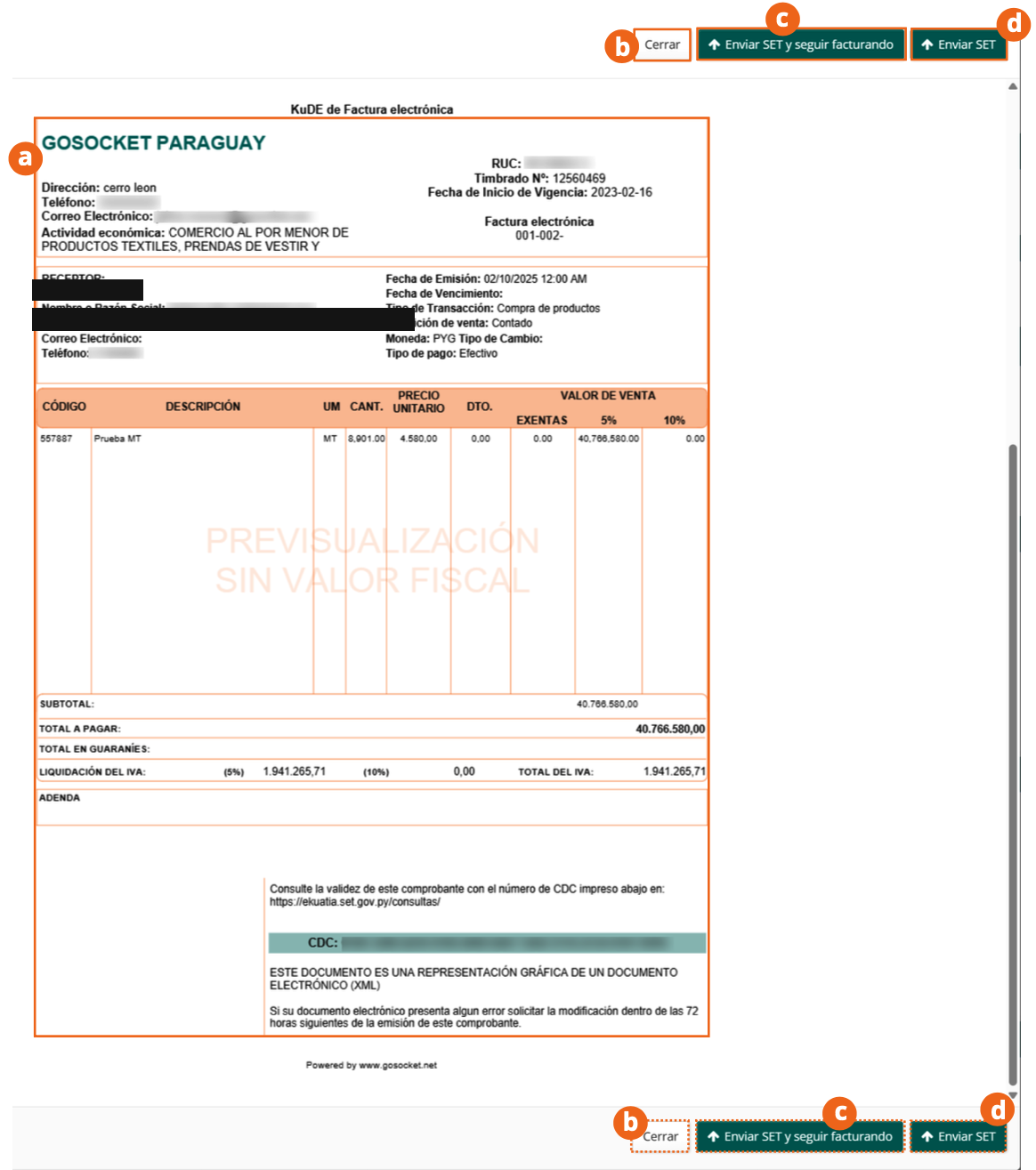
- The invoice information and the elements that will be shown on it once generated (the KuDE graphic representation, with the CDC to verify the voucher's validity).
- To keep editing the document's information, click Close.
- To continue the issuance process and keep invoicing, click Send to SET and keep invoicing.
- To send the document and finish, click Send to SET.
Once submitted, the system will confirm that the document has been successfully transmitted to the tax authority.
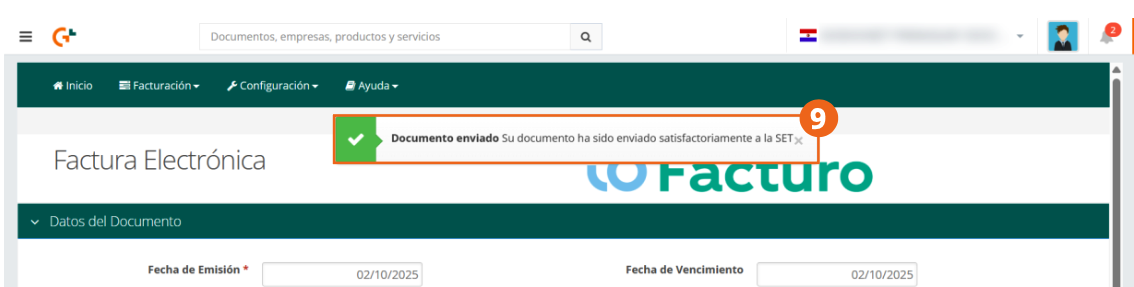
The interface buttons keep the acronym SET (Undersecretariat of State for Taxation), the former name of the current DNIT. Submission is done through the SIFEN system (e-Kuatia), where the voucher's validity can also be checked with its CDC number.