The Spanish version is the authoritative reference. View in Spanish
Electronic Remittance Note
The Electronic Remittance Note is the tax electronic document that accompanies the physical transfer of goods within Paraguayan territory. Unlike sales vouchers, it does not include monetary values: its form focuses on identifying the reason for the transfer, the issuer, the receiver, and the goods being transferred.
Open the Issuance Form
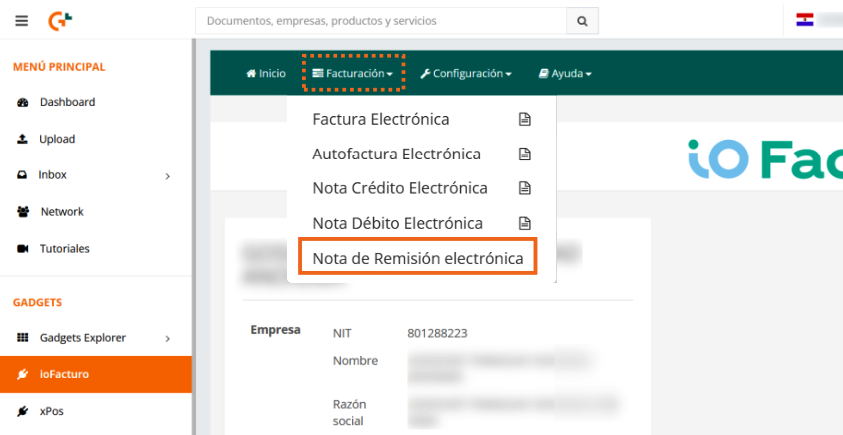
To start issuing an electronic remittance note, click Invoicing in the ioFacturo menu and select Electronic Remittance Note.
Document Data
Enter the data for the document to be issued:

- Issuance Date: the document's issuance date is displayed.
- Information of interest to the Tax Authority regarding the DE: capture any additional data the Tax Administration should know about the document.
- Maturity Date: the document's maturity date is displayed.
- Numbering: you will see the numbering assigned to the document.
Additional Remittance Data
Fill in the data specific to the transfer of goods:

- Future invoice issuance date: if the transfer precedes invoicing, indicate when the corresponding invoice will be issued.
- Party responsible for issuing the Electronic Remittance Note: indicate who initiates the transfer (for example, the issuer or the carrier).
- Issuance reason: select the reason for the transfer (sale, import, export, transfer between warehouses, among others).
- Estimated kilometers traveled: enter the estimated distance of the trip.
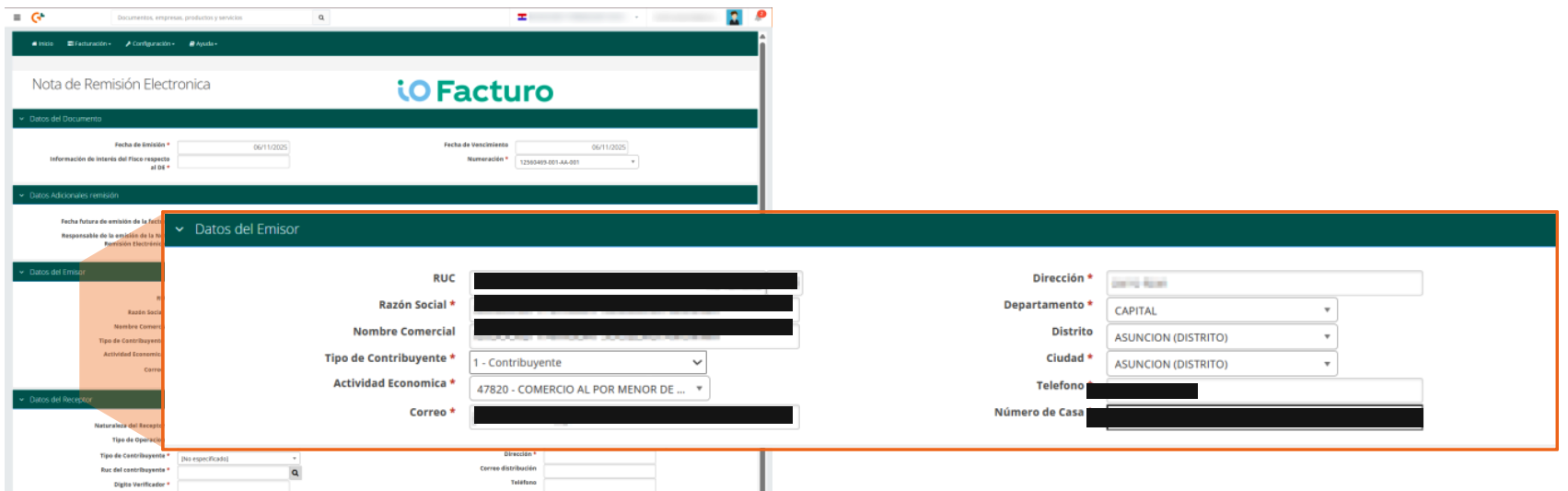
Issuer Data
The tax data of your company as the document's issuer is displayed: the RUC, legal name, trade name, type of taxpayer, economic activity, and email, as well as location and contact data (address, department, district, city, phone, and house number).
Receiver Data
Enter the data of who will receive the transferred goods:
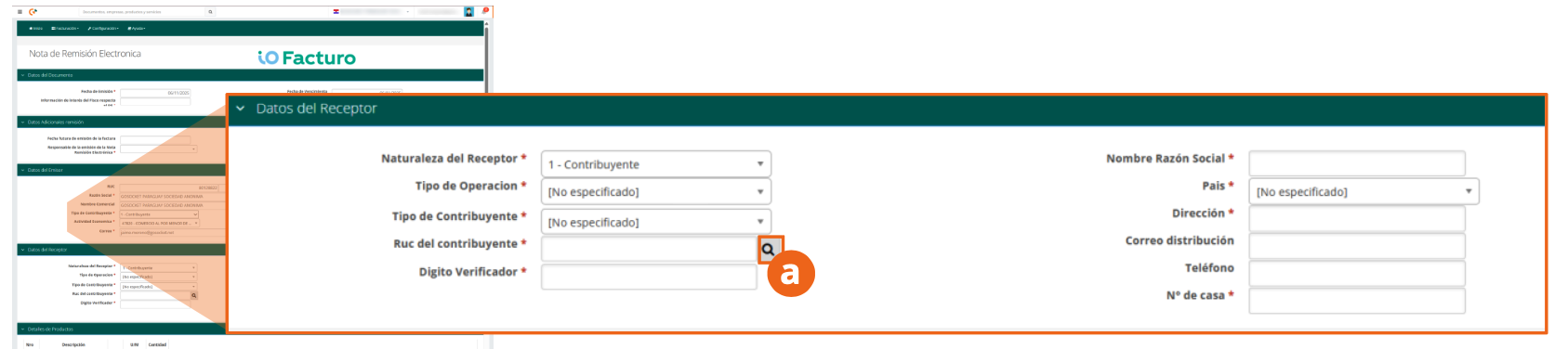
- Receiver's nature: indicate whether they are a taxpayer or non-taxpayer.
- Operation type and, if applicable, taxpayer type.
- Taxpayer's RUC and its check digit: click the search icon to locate an already registered customer.
- Legal name, country, address, distribution email, phone, and house number of the receiver.
Clicking the search icon opens the list of customers previously registered in the system. Select the one that corresponds.
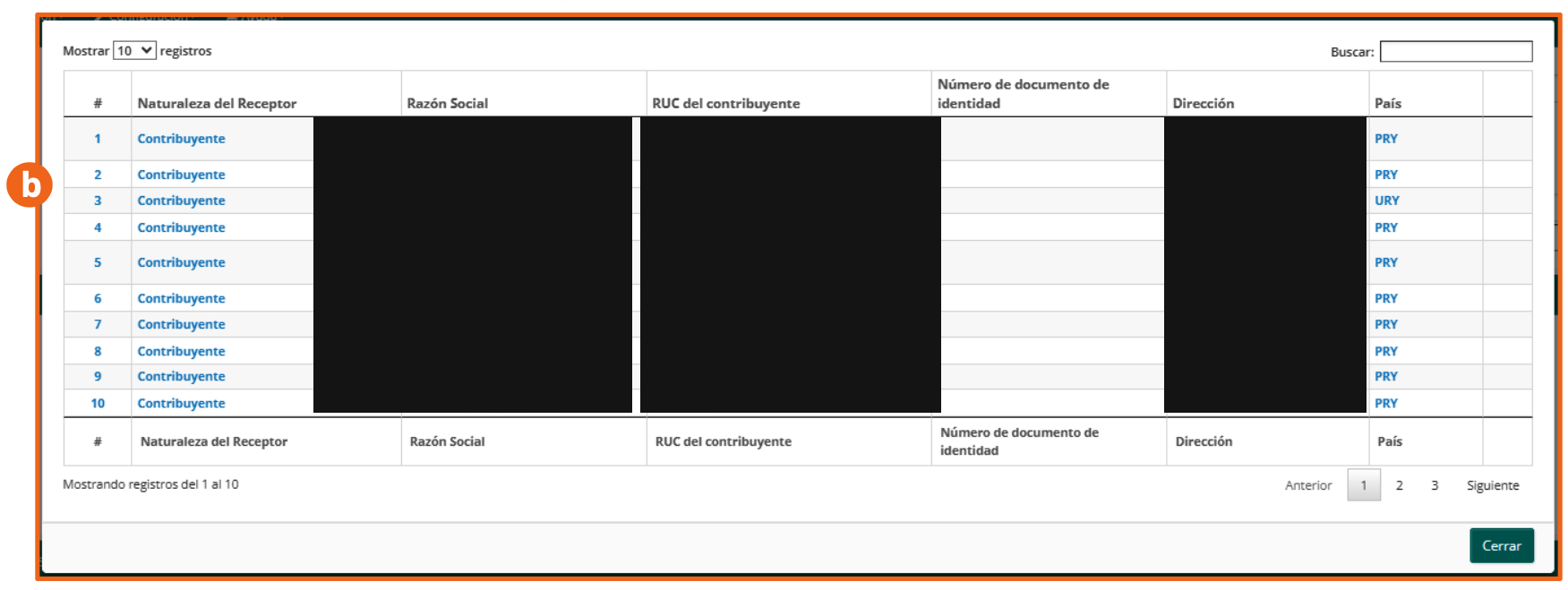
Customers are previously registered from the Configuration module, in the Customers-Buyers submodule.
Product Details
- Click on the search icon in the detail line to choose the product or good to transfer.

- The list of previously loaded products will be displayed. Select the product or service to include in the transfer.
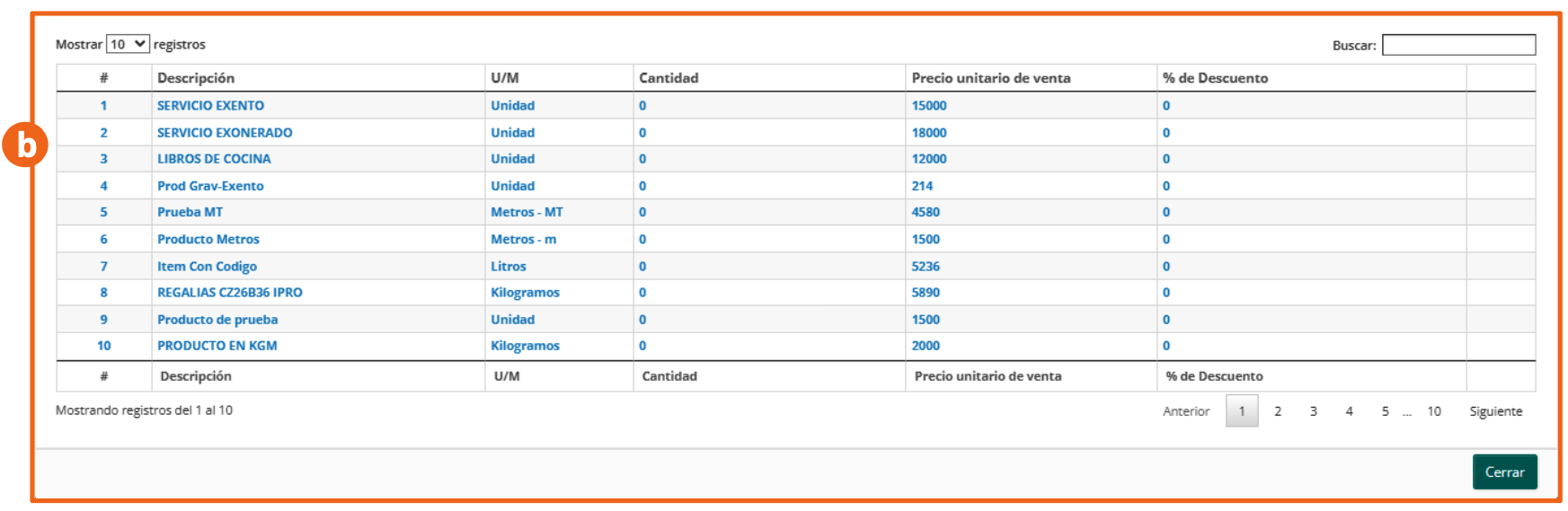
- Verify the description, the unit of measure, and the quantity transferred. To remove the item, click the ✕ button on the line. To include more than one product, click Add Line.
Reference Data
Depending on the Associated Document Type that backs the transfer, the Reference Data section asks for different fields:

Electronic document
When the associated document is Electronic, enter the CDC of the reference voucher and the transfer's Issuance Reason.

Printed document
When the associated document is Printed, capture the data of the pre-printed voucher: Printed document numbering number, Establishment, Issuance Point, Document Number, Printed Document Type, and Issuance Date.

Electronic certificate
When the associated document is an Electronic Certificate, enter the Certificate type, the Certificate number, and the Certificate control number.

To include more than one reference document, click Add Line.
When you finish filling out the form, preview and submit the remittance note with the same Send to SET buttons already known from the "Preview and Submission" section of Electronic Invoice. Since this document does not record amounts, it does not include a Totals Data section.