The Spanish version is the authoritative reference. View in Spanish
Administration
The Administration section is located within the Invoicing submodule and groups the configuration options that ioFacturo uses to issue tax documents.
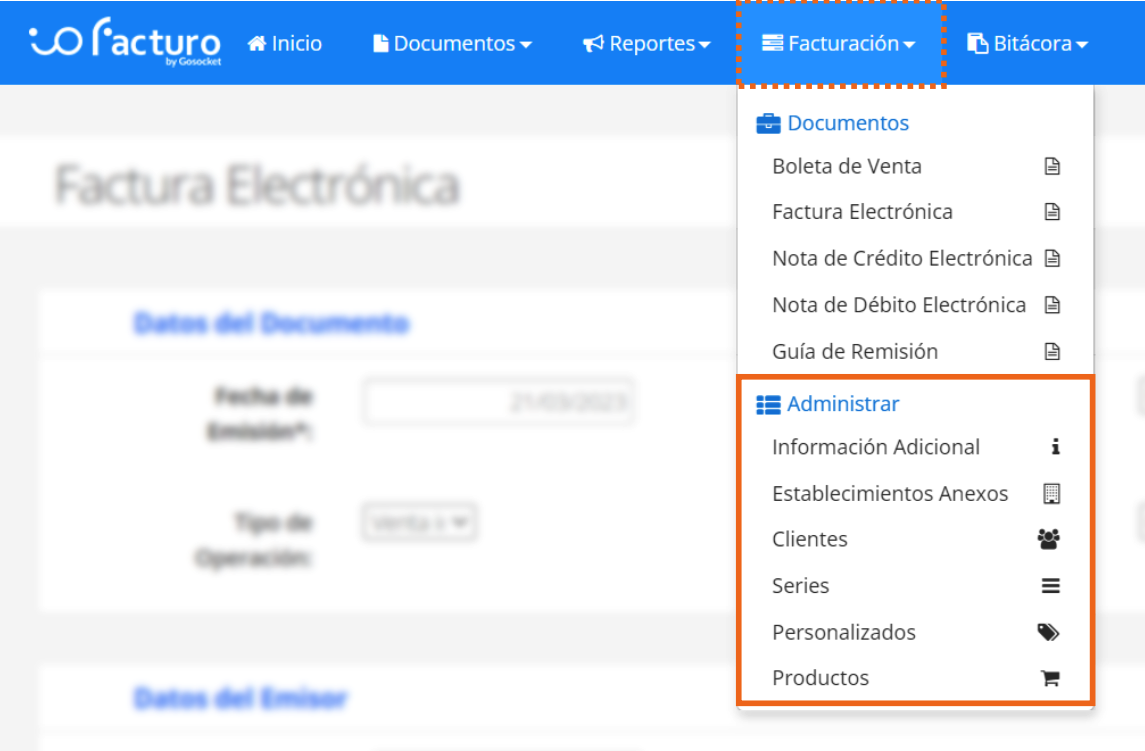
The available options are: Additional Information, Secondary Establishments, Customers, Series, Custom Fields, and Products.
Additional Information
Selecting this option displays the screen where you can enter additional information that will be added to future issued documents:
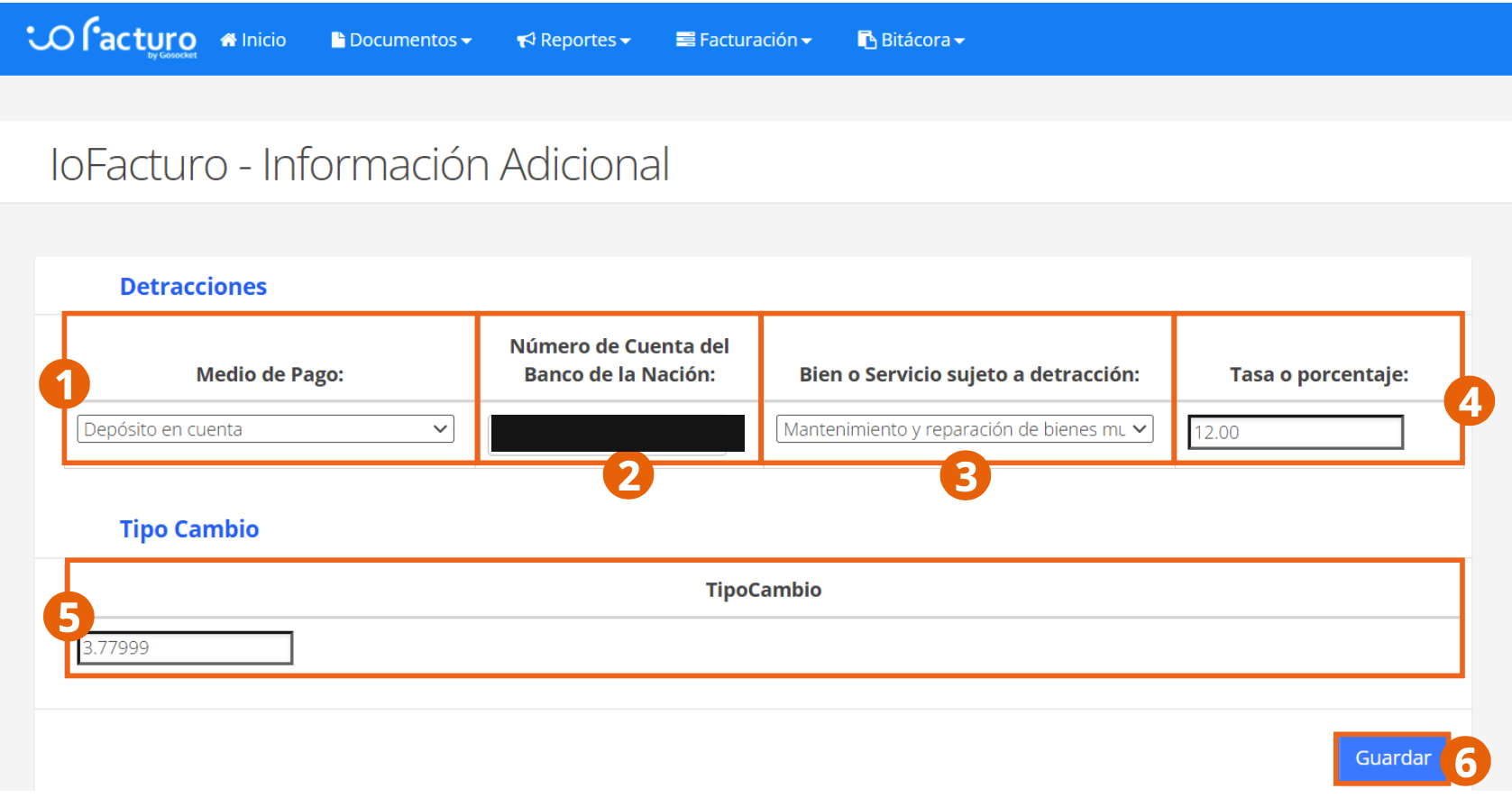
The account number in this screenshot corresponds to a test environment and was covered before publishing this manual.
- Payment Method: select it from the drop-down list.
- Banco de la Nación account number: valid account according to the payment method chosen.
- Good or service subject to detraction: the item to which the payment method will apply.
- Rate or percentage: rate that will be applied to that payment method.
- Exchange Rate: applicable exchange rate for transactions in foreign currency.
Click Save to store the information.
Secondary Establishments
Enter the establishments you have registered with SUNAT that appear on your RUC. You can check the detail of secondary establishments on the SUNAT portal.
When you click this option from Administration, the following screen is displayed:
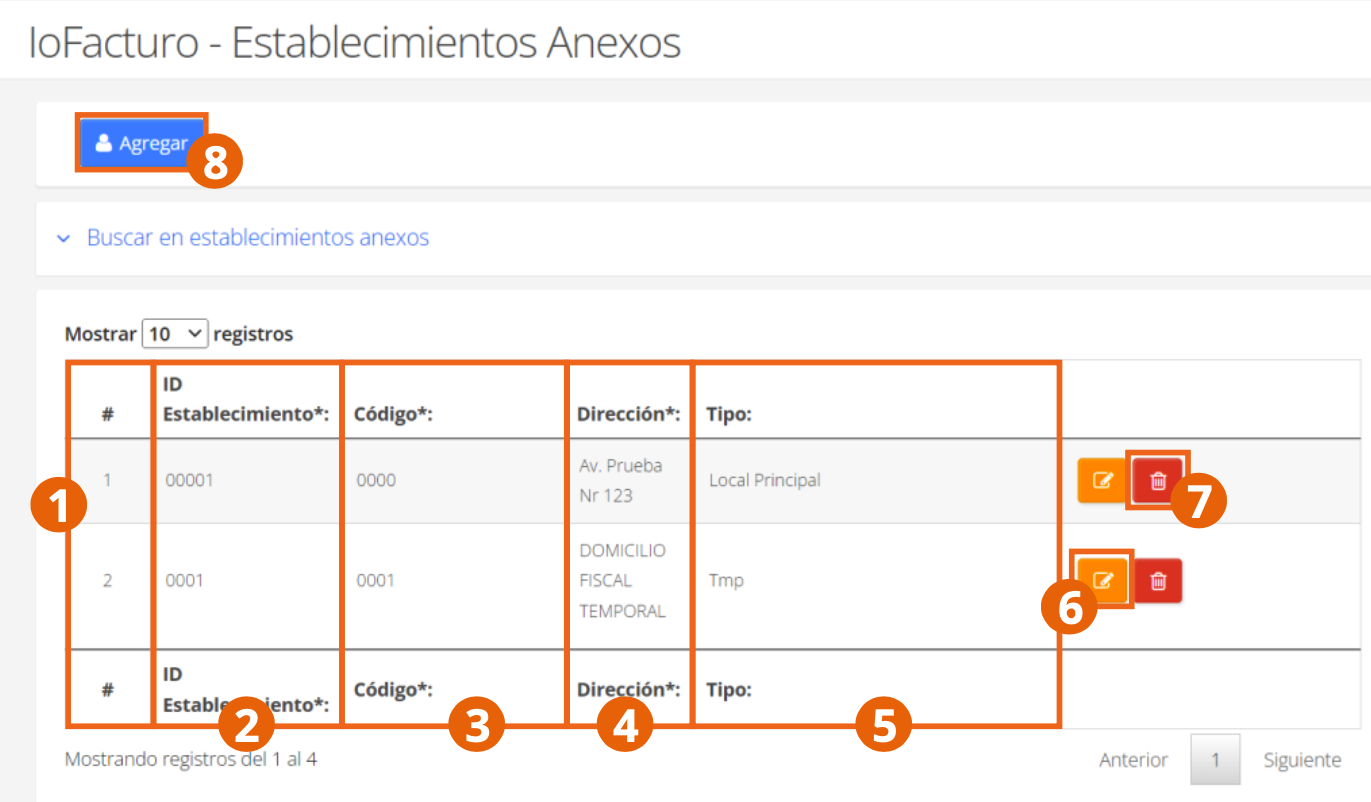
- #: consecutive row number.
- Establishment ID: identifier assigned to the establishment.
- Code: code assigned to the establishment in the row.
- Address: address of the registered establishment.
- Type: type of establishment it was registered as.
- Edit and Delete: to modify or remove the row's record.
- Add: to register a new secondary establishment.
When you click Add, the registration form is displayed:
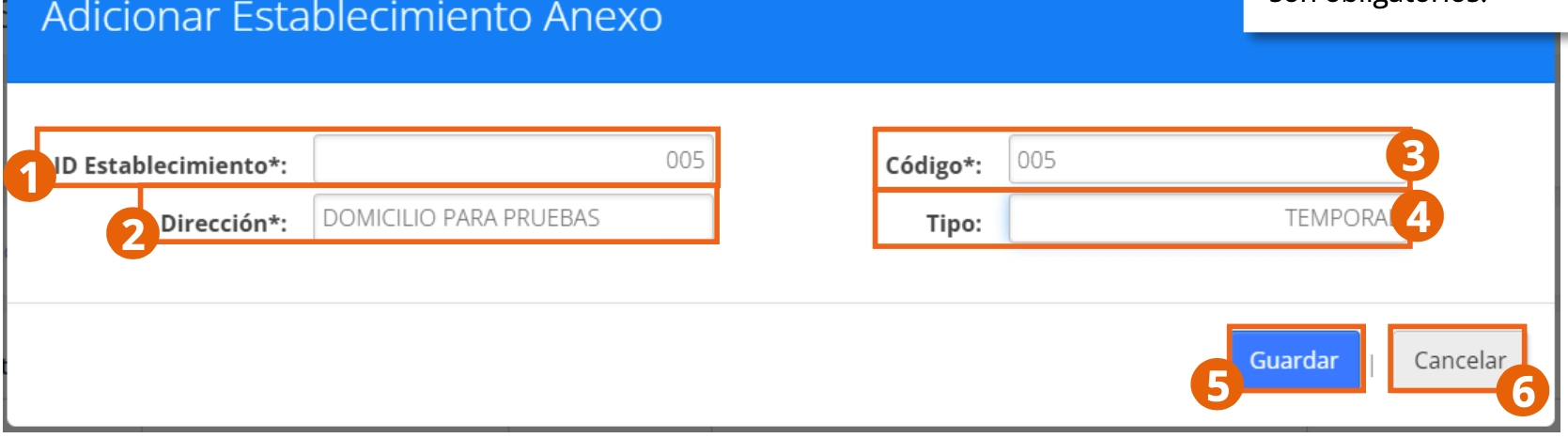
- Establishment ID: internal identifier used by the ioFacturo platform.
- Address: exactly as it appears registered on the RUC.
- Code: code of the Secondary Establishment exactly as it appears on the RUC.
- Type: type of establishment you are adding.
Click Save to store the information so the establishment becomes available when issuing documents, or Cancel to discard it.
Customers
The Customers submodule helps keep track of the customers registered in ioFacturo. From here you can enter the data of the customers to whom you issue documents, so that — based on the Receiver Document Number you enter when issuing — the receiver's information is completed automatically. When you select this option from the menu, the following screen is displayed:
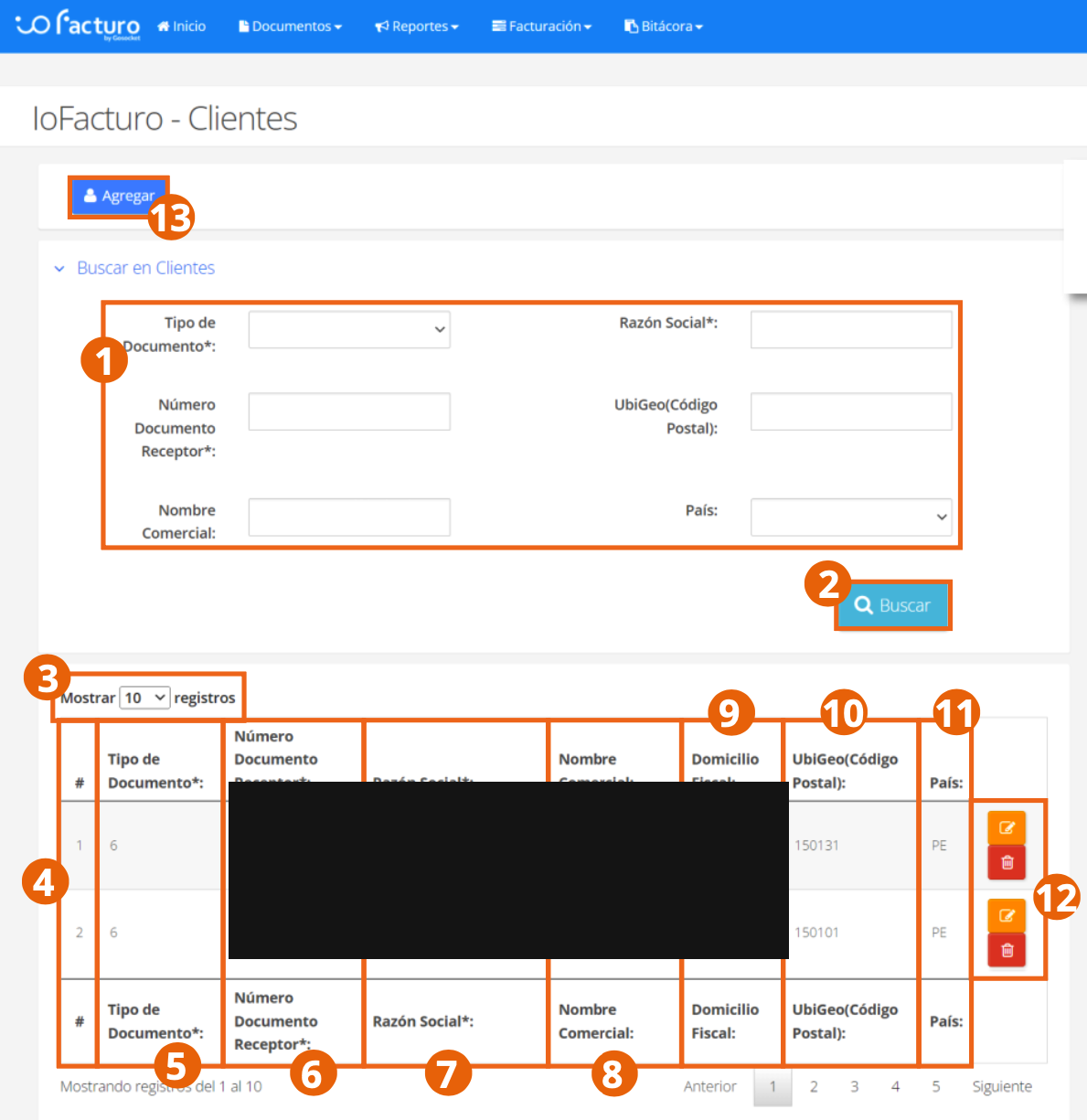
The customer records in this screenshot belong to a test environment and were covered before publishing this manual — they are not sample product data.
- The Search filters help specify the criteria to locate an already registered customer; click Search once defined.
- You can choose the number of results to display per page.
- Columns: #, Document Type, Receiver Document Number, Legal Name, Business Name, Tax Address, UbiGeo, and Country.
- The last column shows the edit and delete icons.
- To add a new customer, click Add.
The following form is then displayed:
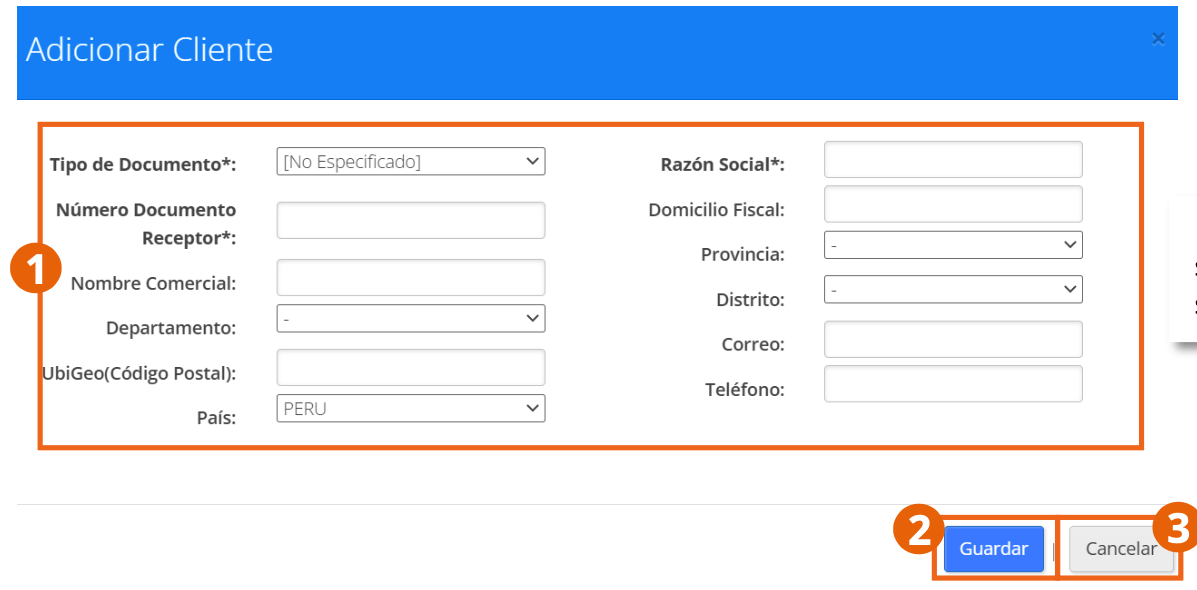
Enter the data corresponding to the customer for the new record, click Save to keep it or Cancel to discard the record.
Series
In this option you can manually enter the series authorized by SUNAT and keep track of the series in use by document type. Select Series from Administration:
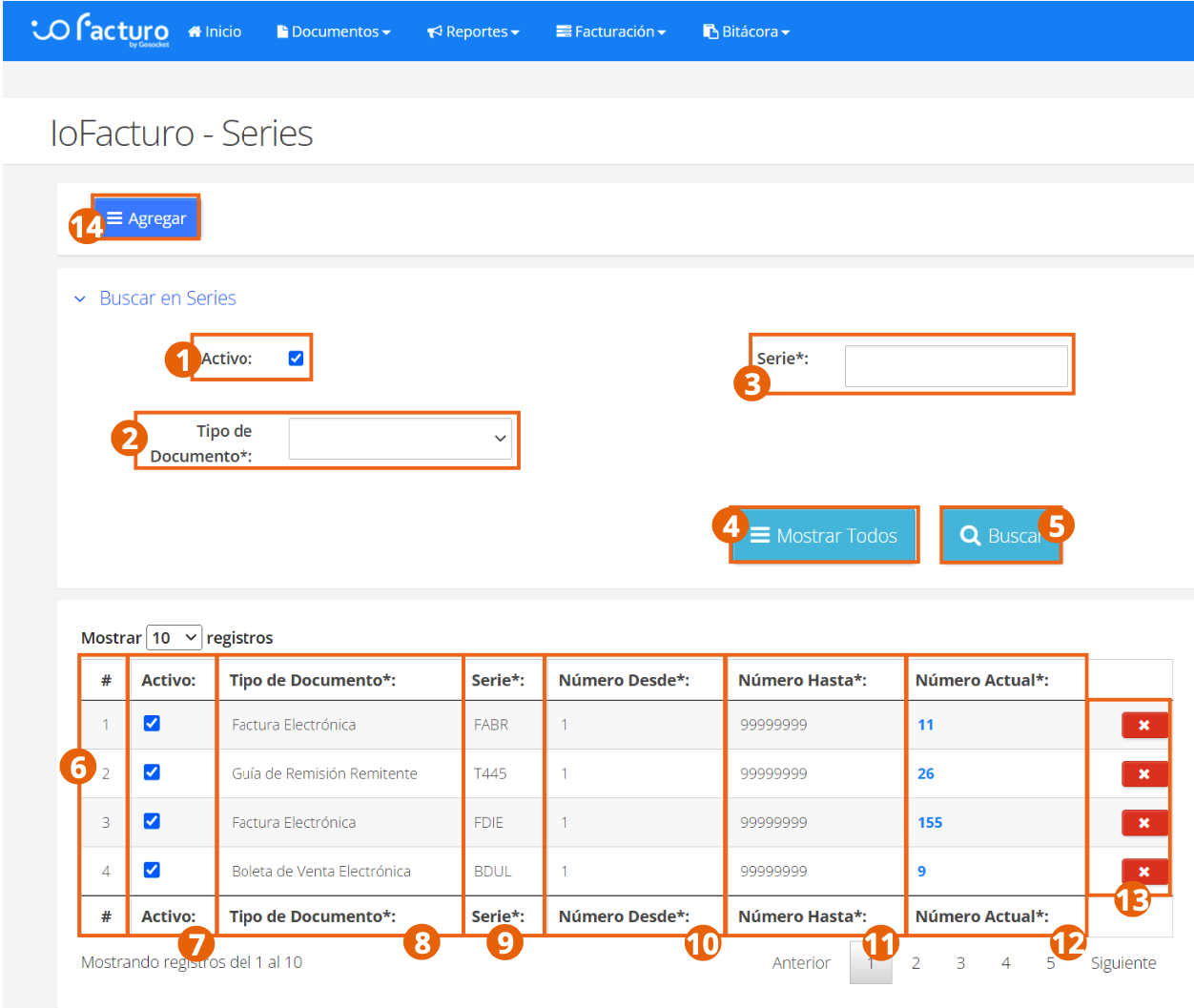
- Filter by whether the series is Active and by Document Type, or enter the Series you are looking for.
- Show All lists all registered series; Search filters according to the chosen criteria.
- Columns: #, Active, Document type, Series, Number From, Number To, and Current Number (the next number available to assign).
- To remove a row, click the delete icon on the far right.
- To enter a new record, click Add.
The registration form is displayed:
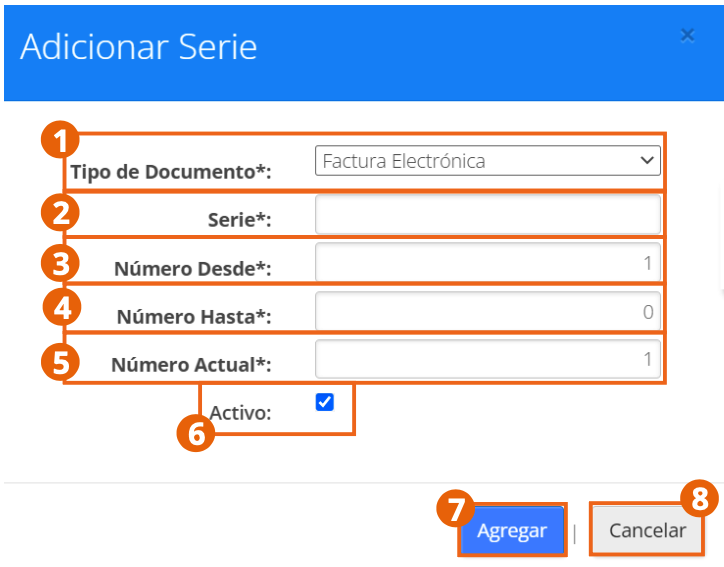
- Document Type: the type you want to add a series to.
- Series: valid according to SUNAT authorization.
- Number from and Number to: range of the series.
- Current number: last number issued.
- Active: check it so the series becomes available once the record is finished.
Click Add to save the record, or Cancel to discard it.
Custom Fields
This option allows you to add custom fields to electronic tax documents. When you enter, the records made so far are displayed:
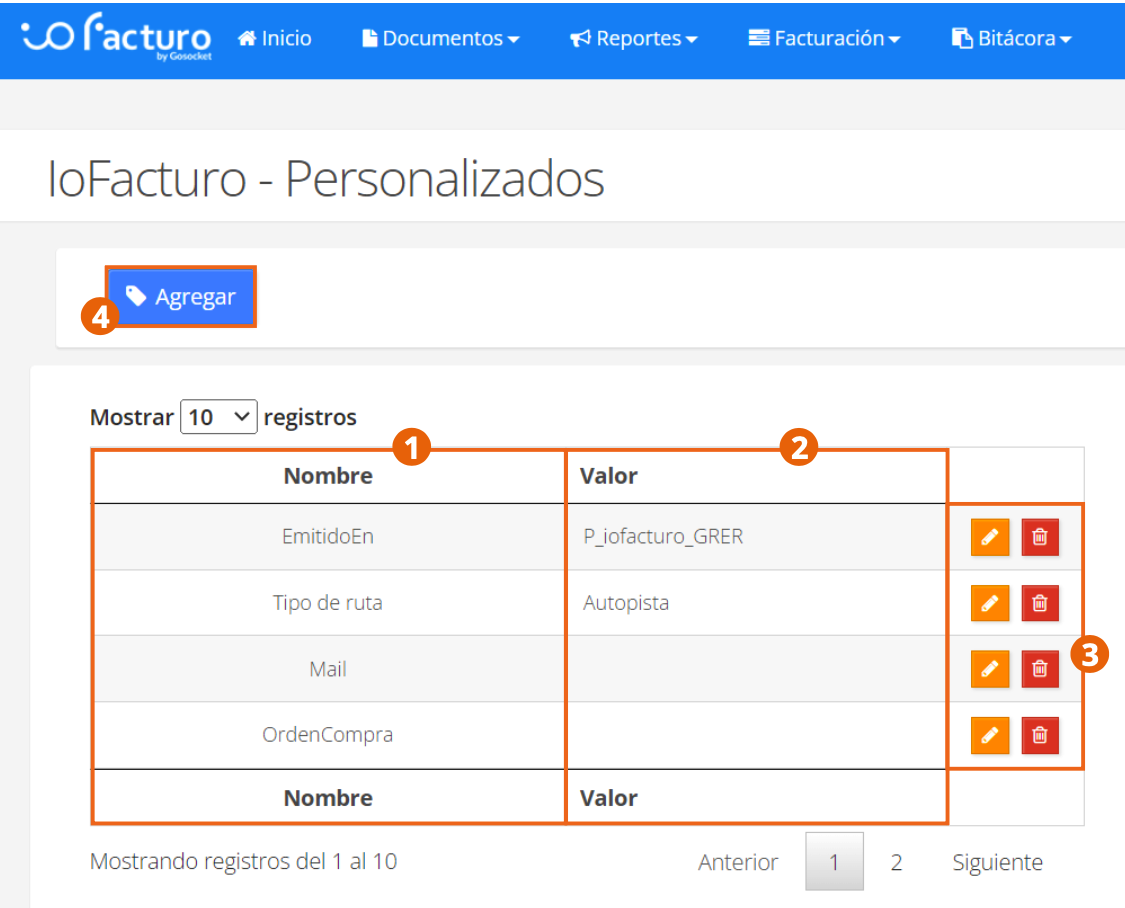
- Name and Value of the custom field.
- You can edit or delete a field with the corresponding button.
- To register a new one, click Add.
The registration form is displayed:
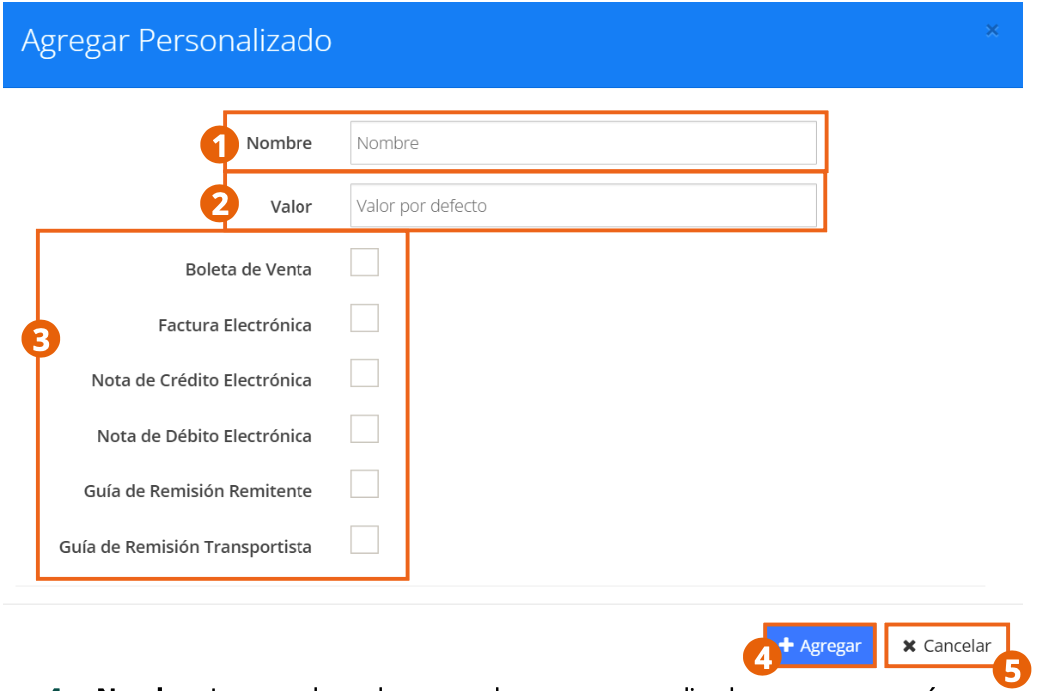
- Name: for the custom field being added.
- Value: default value of that field.
- Select which type of documents the fields will apply to.
Click Add to register the field — it will apply only to the documents you selected — or Cancel to discard the process.
Products
From this option you can enter the products or services you will sell in the system's product catalog. When you open this section, the following screen is displayed:
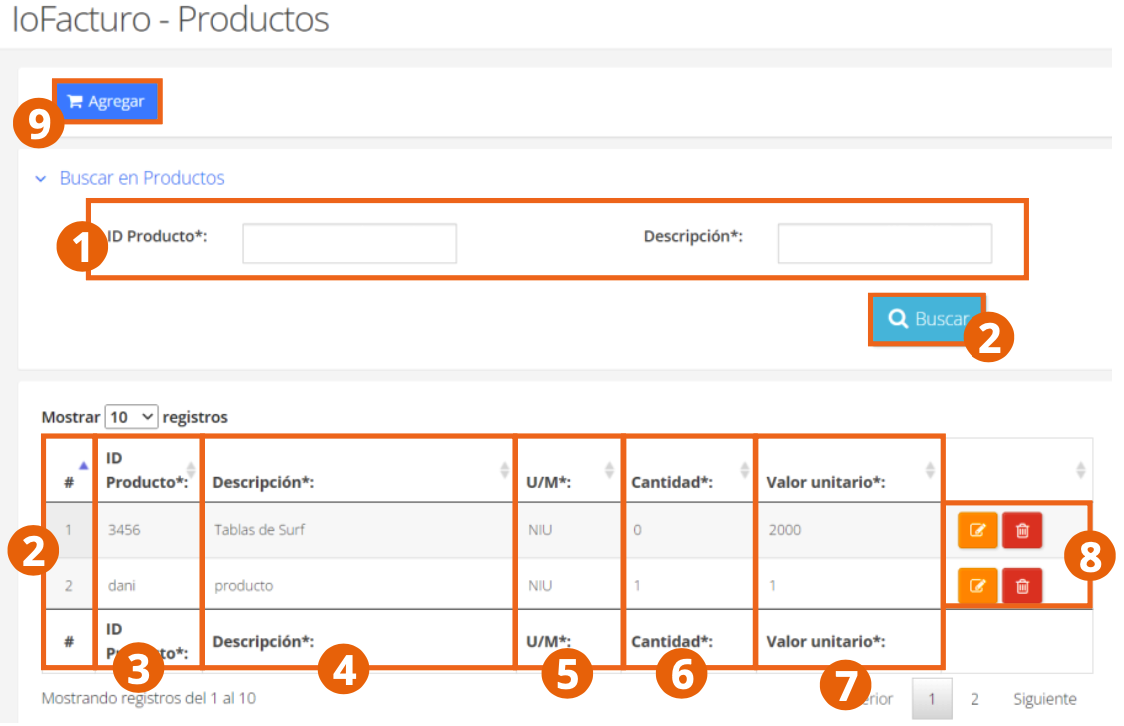
- Use the search filters to narrow down the product records and click Search.
- Columns: #, Product ID, Description, U/M, Quantity, and Unit value.
- To register a product, click Add.
When you click Add, the registration form is displayed:
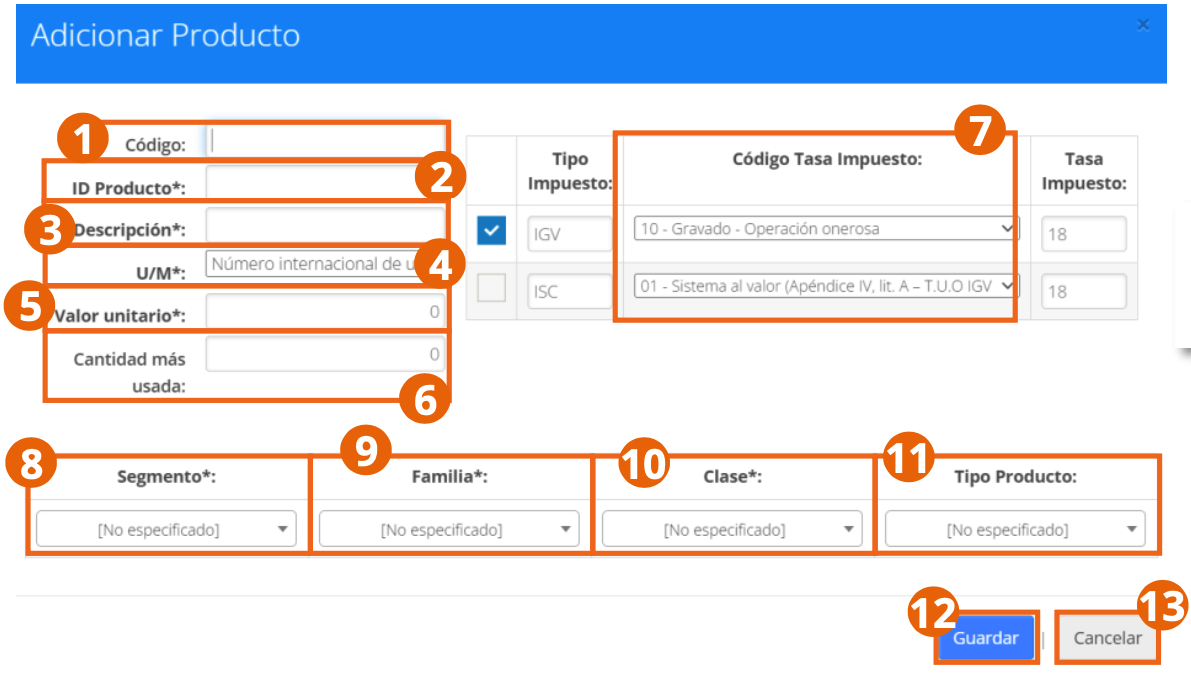
- Code and Product ID: identification of the product to be stored.
- Description: of the product being registered.
- U/M: unit of measure of the product.
- Unit value and Most used quantity.
- Tax rate code: tax applicable to the product.
- Segment, Family, Class, and Product type: classification of the product.
Click Save to store the product — it will become available for document issuance — or Cancel to discard the record.
With your catalogs configured, continue with Document Issuance or check the Specific Operations if your document requires special treatment.