The Spanish version is the authoritative reference. View in Spanish
Document Issuance
Enter the Invoicing submodule from the ioFacturo top menu. When you select this module, the document types you can issue are displayed: Electronic Sales Receipt, Electronic Invoice, Electronic Credit Note, Electronic Debit Note, and Delivery Guide.

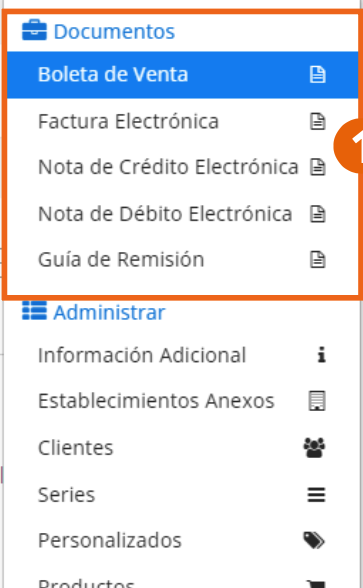
When you select Sales Receipt, Electronic Invoice, Electronic Credit Note, or Electronic Debit Note, the same form is displayed, divided into the sections described below. Fields marked with an asterisk (*) are required.
Document Data
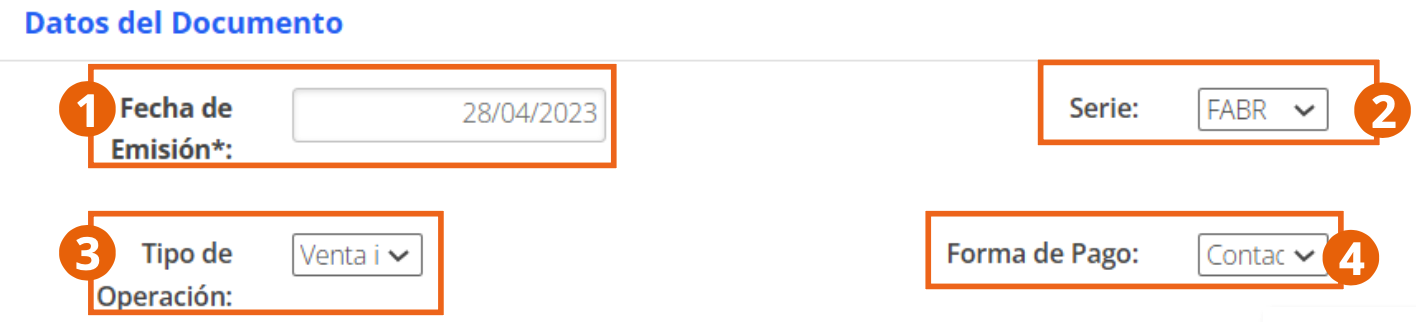
- Issue Date: date of the document.
- Series: choose the series the document belongs to, previously registered in Series according to the format established by SUNAT.
- Operation Type: can be Domestic Sale, Export of Goods, Additional Information – Lodging Benefit, Additional Information – Tourist Package, or Operation Subject to Detraction. See the detail of the latter in Specific Operations.
- Payment Method: credit or cash.
Issuer Data
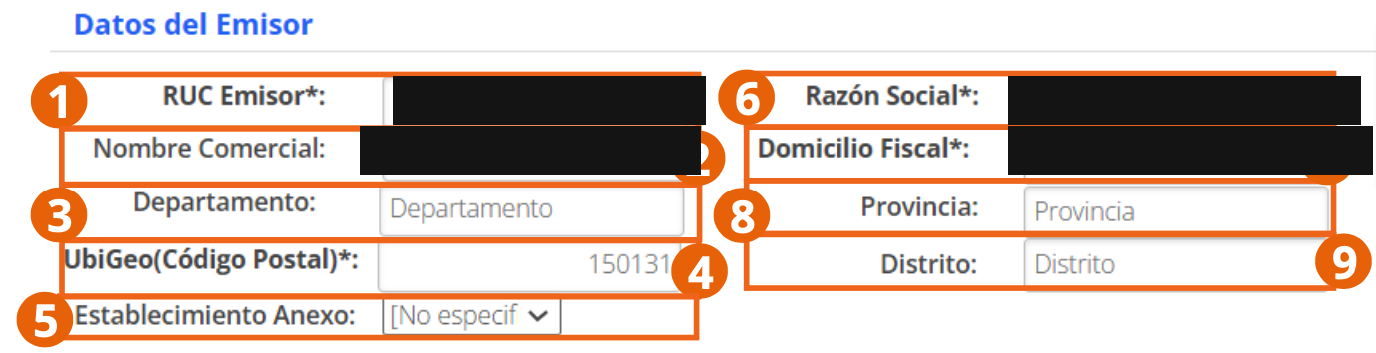
The RUC, legal name, and tax address in this screenshot correspond to the company of a test environment and were covered before publishing this manual — they are not sample product values.
- Issuer RUC: Single Taxpayer Registry of the issuer, taken from the Company Registration.
- Business Name, Legal Name, and Tax Address: previously registered company data.
- Department, Province, and District: previously configured company location.
- UbiGeo: geographic location of the company according to the INEI, previously registered.
- Secondary Establishment: select the secondary establishment from which you will issue the document. These are added from Secondary Establishments.
Receiver Data
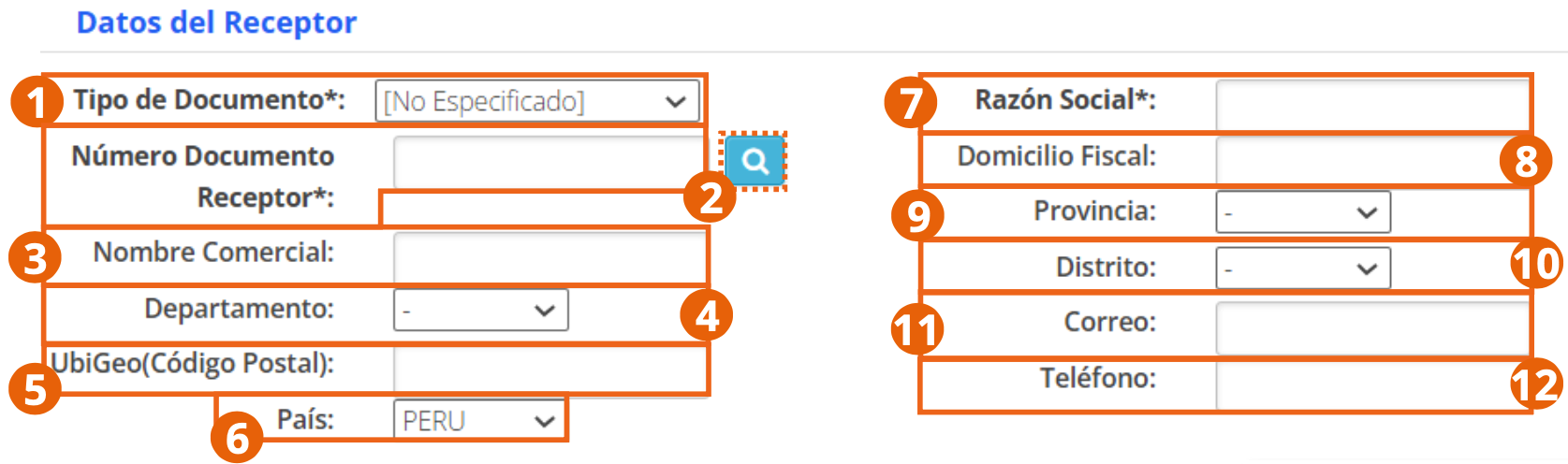
- Document Type and Receiver Document Number: identification of the buyer (receiver), according to the operation type. To add a new customer, use the Customers option.
- If the receiver is already registered, click the magnifying glass to search for them among your customers.
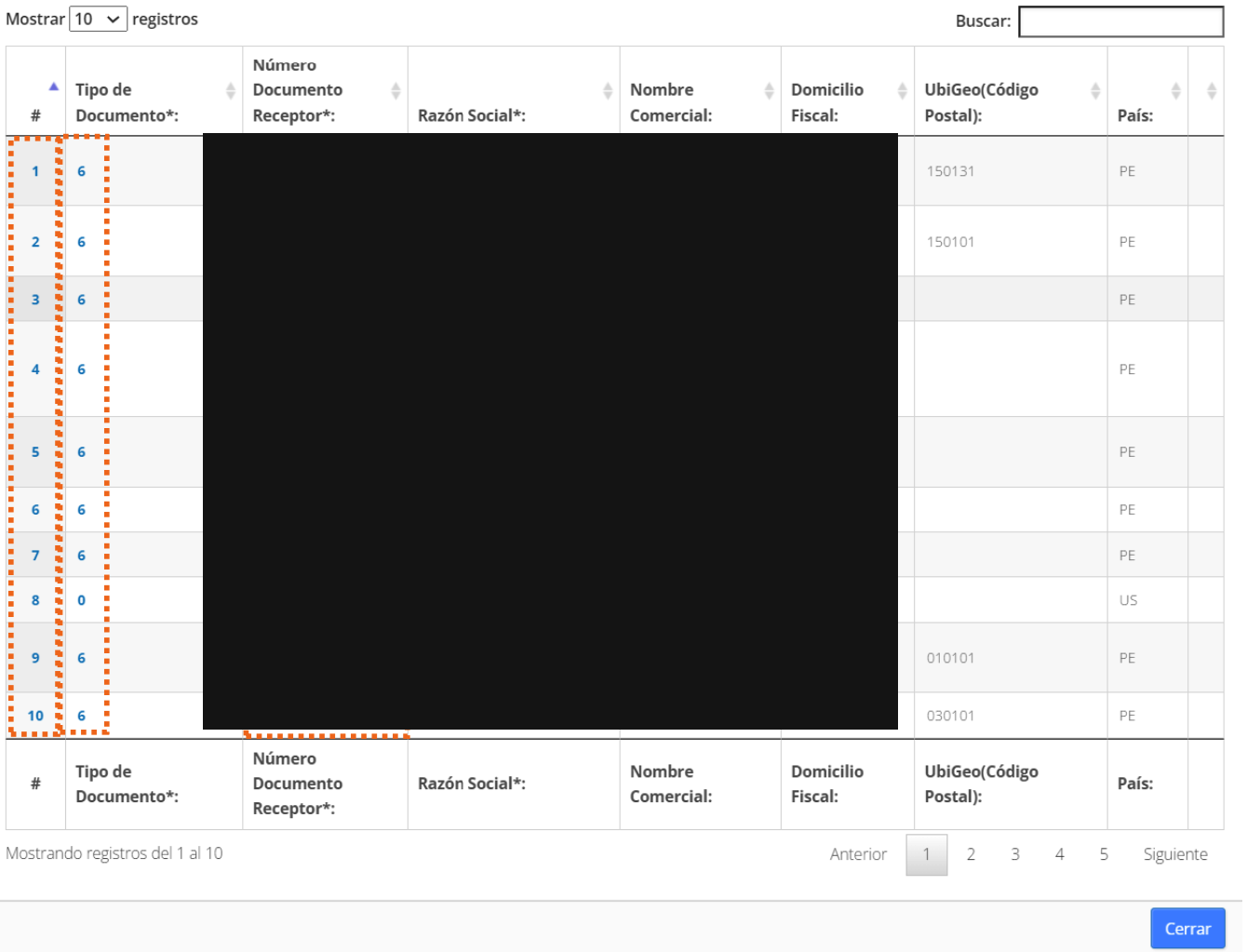
The customer records in this screenshot belong to a test environment and were covered before publishing this manual — they are not sample product data.
- Business Name, Department, UbiGeo, Country, Legal Name, Tax Address, Province, and District: if you select an already registered customer, these fields are completed automatically.
- Email: receiver's email address to which the electronic document (PDF and XML) will be sent.
- Phone: receiver's phone number.
Product Details

- No.: consecutive line number.
- Code and Description: of the product or service. If you have products already registered in Products, click the magnifying glass to search for it.
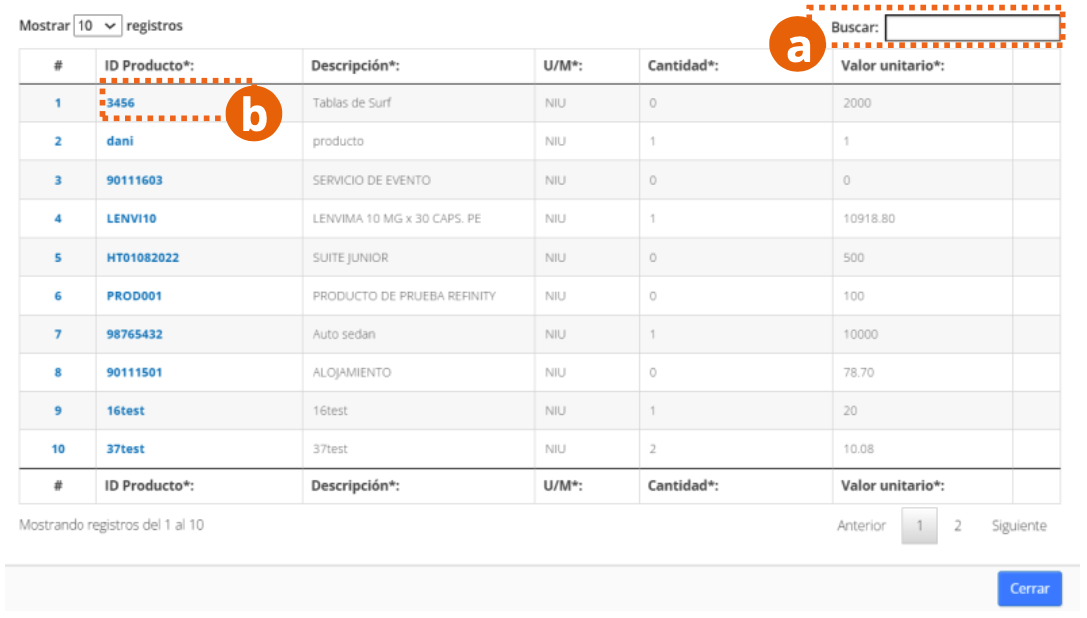
- Clicking the Product ID closes the search window and automatically completes the detail line.
- U/M: unit of measure, according to the unit of measure table published by SUNAT on its portal.
- Quantity and Unit value: of the detail line.
- % Discount: discount percentage on the line, and indicate whether it affects the taxable base.
- Sale Value per item: calculated automatically from the quantity, unit value, and discount.
Clicking the pencil icon opens the detail line edit, with additional fields:
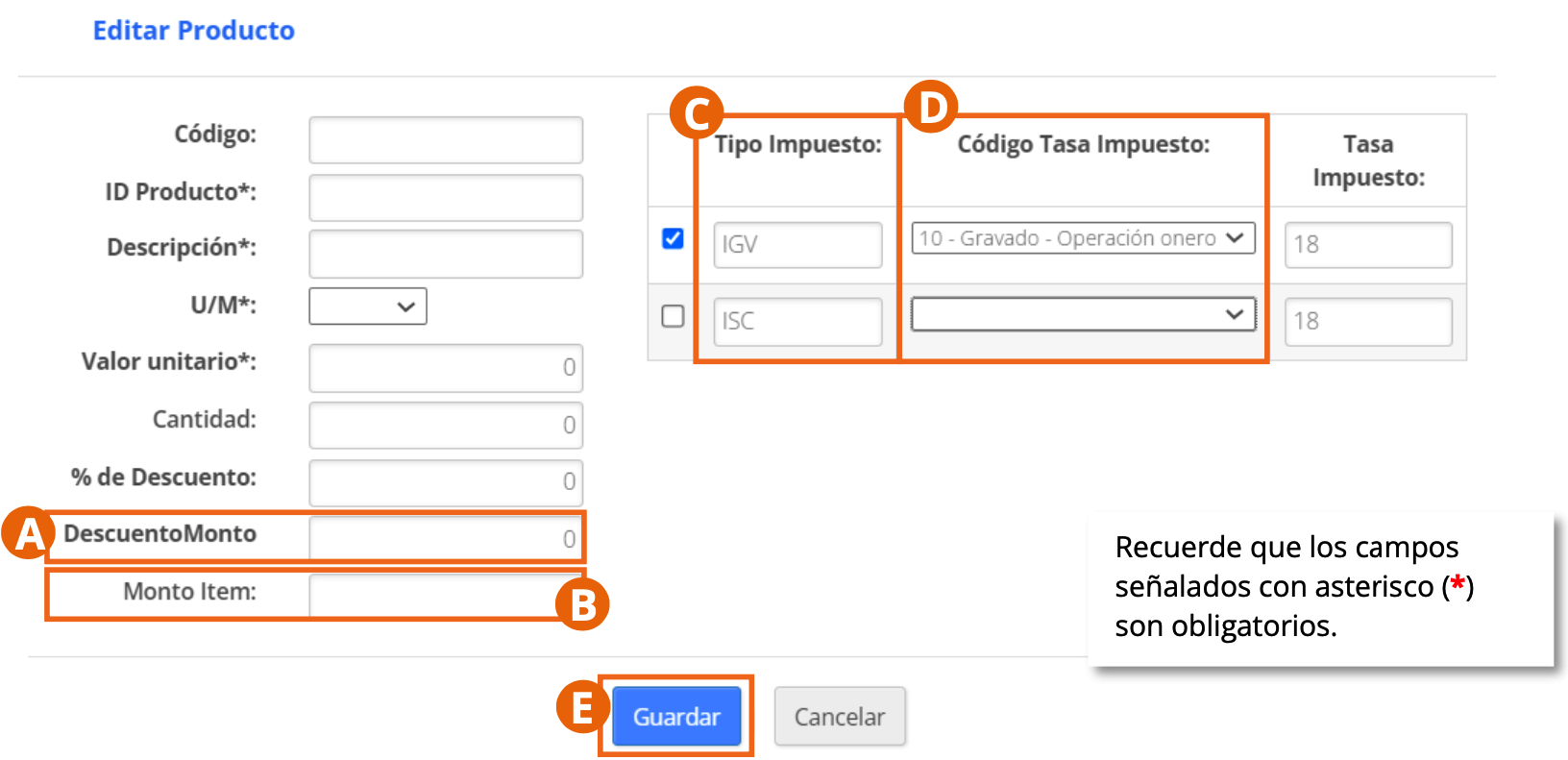
- Discount Amount and Item Amount: discount amount and result of the line's calculation.
- Tax Type and Tax Rate Code: tax applicable to the product or service.
To add another line, click Add Line; to remove it, click the trash can icon.
Reference Data
Complete this section when the document references another previously issued document.

- Ref. Document Type, Reference Series, Reference Number, Reference Date, and Reference Reason: data of the document being referenced.
Click Add Line to add another reference item, or the delete icon to remove a line.
Global Discounts and Charges

- Reason: type of global discount or charge that will apply on the document.
- Factor: discount or charge percentage. For example, for a 10% surcharge, enter the value in decimals (10% = 0.10).
- Base Amount: amount on which the discount or charge will be applied.
- Amount: calculated automatically as the result of multiplying the Factor by the Base Amount.
Custom Fields
Additional fields you can add to the documents you issue, according to your needs.
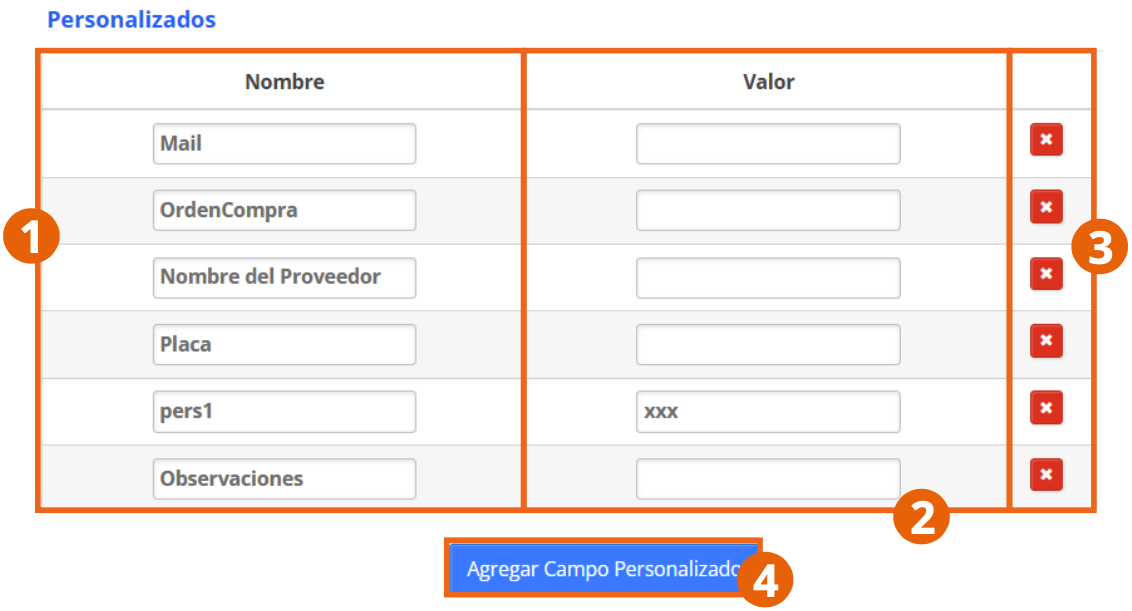
Enter the Name of the custom field and its Value. To add a new one, click Add Custom Field; to remove it, click the trash can icon.
Totals Data
This section is completed automatically based on what was entered in Product Details; the only field you need to select is the Currency the document is issued in:
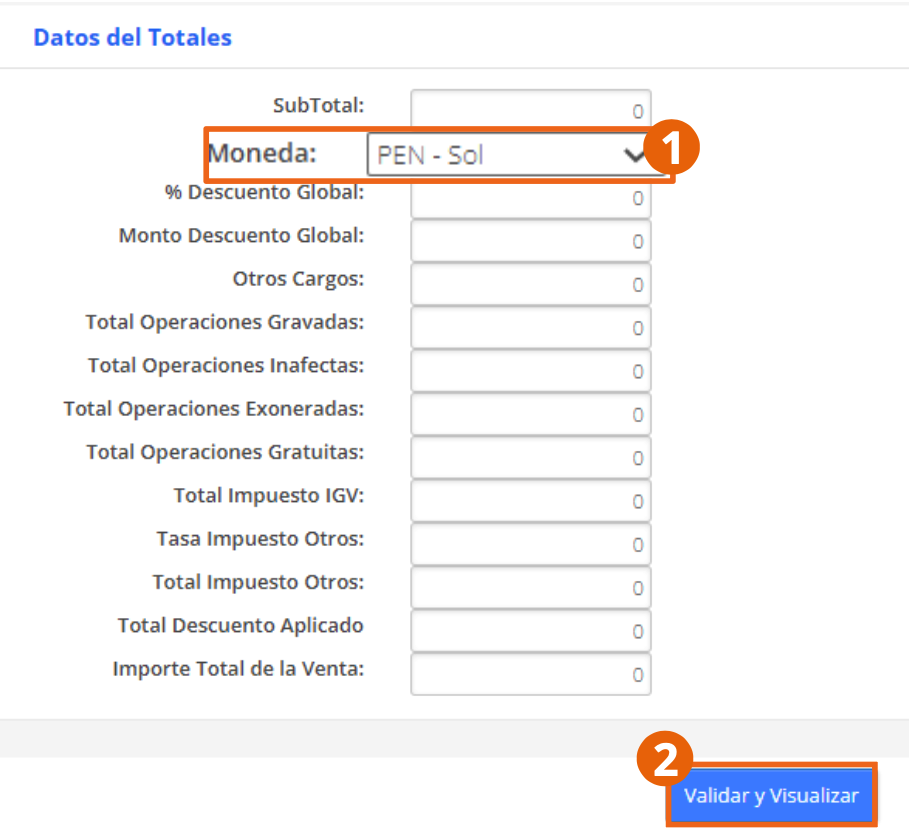
- PEN – Sol
- EUR – Euros
- USD – US Dollars
Send the Document
- To finish the issuance, click Validate and Send.
- The document preview is displayed so you can verify the information is correct.
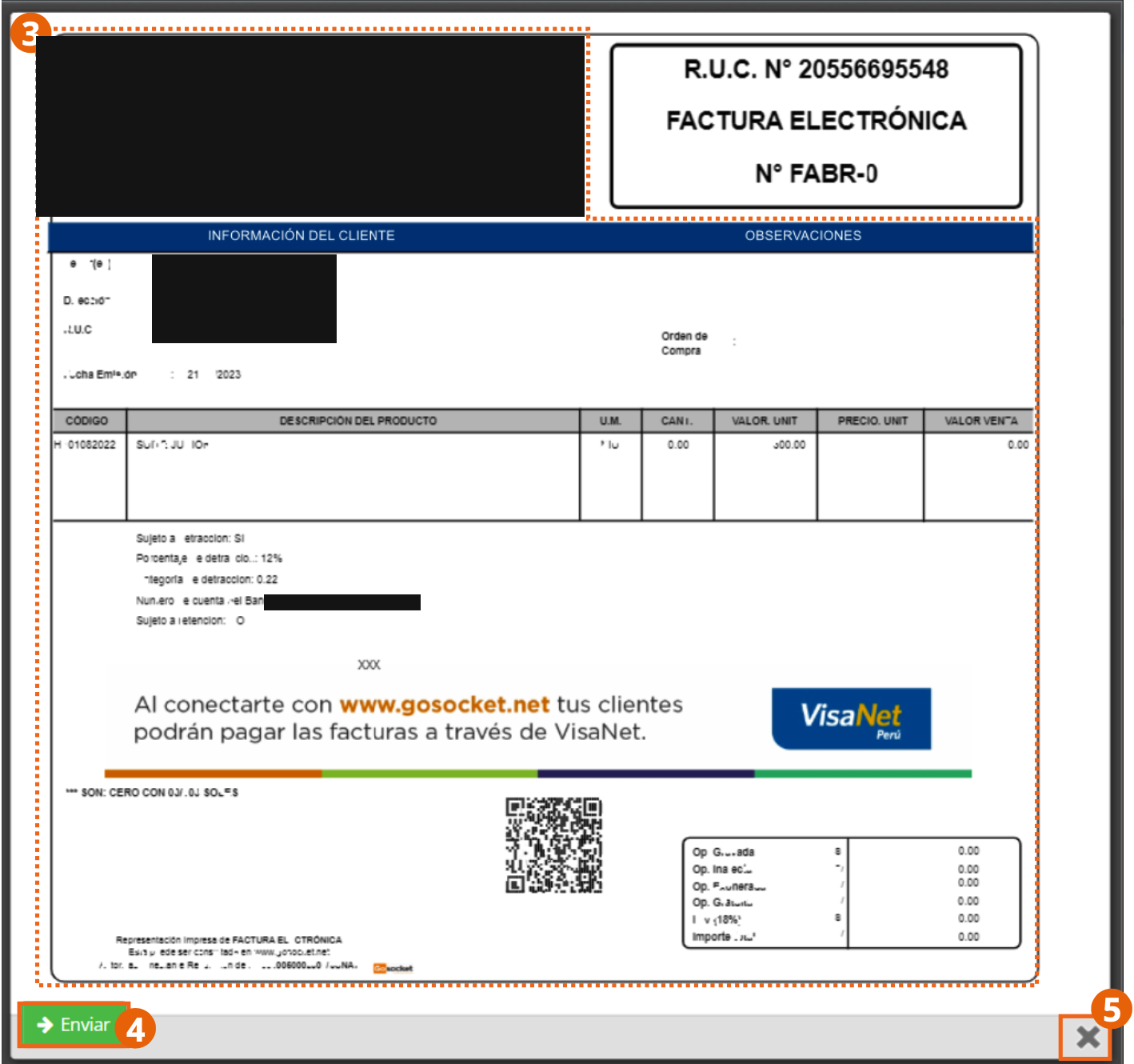
The issuing company's letterhead, the customer data, and the withholding bank account number in this preview correspond to a test environment and were covered before publishing this manual.
- Once you have verified the information, click Send; to return to editing the document, click X.
Clicking Send starts the following actions:
- The document is sent to SUNAT.
- It is made available to the user in Inbox for consultation and download (PDF and XML).
- According to the configured distribution rules, it is sent to the corresponding email addresses.
The document can end up in one of the following statuses:
- Approved, when it passes all validations successfully (with no observations).

- Approved with observations, when one or more validation rules are not met; the document remains valid for tax purposes.

- With validation errors, when the document has errors at the time of processing; it has no tax validity.

- Will be included in Daily Summary, when sending was configured as asynchronous.

If you need to support the transfer of goods, continue with the Delivery Guide. If your document requires detraction, withholding, or another specific operation, see Specific Operations.