The Spanish version is the authoritative reference. View in Spanish
Password Recovery
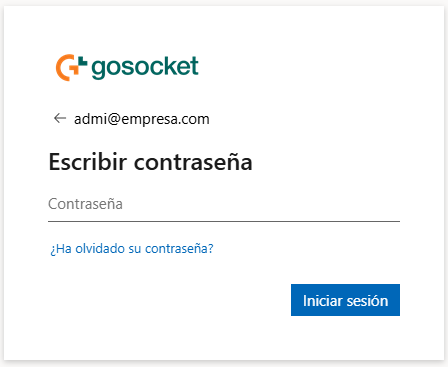
The recovery flow starts from Step 2 of Login (password screen), by clicking "Forgot your password?".
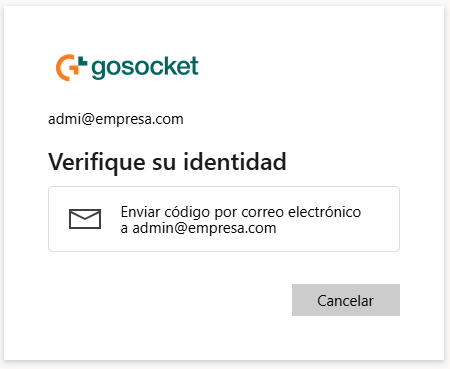
Verify your identity
AtributoTipoDescripción
Send verification code by emailOptionSends a verification code to the account email.
CancelButtonCancels the recovery process.
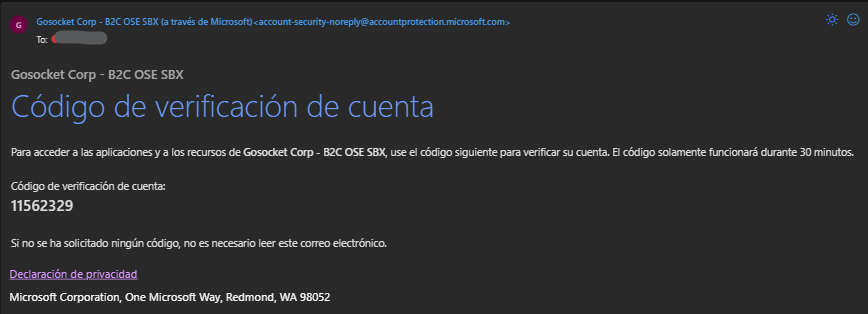
Verification email
AtributoTipoDescripción
SenderTextGosocket Corp - B2C OSE SBX (via Microsoft) — this is a legitimate email from the authentication system, not phishing.
Verification codeNumericCode to enter on the next screen.
ValidityTimeThe code is valid for 30 minutes only.
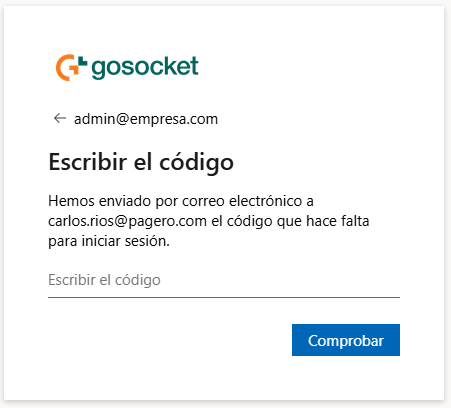
Enter the code
AtributoTipoDescripción
Email (header)TextShows the account email. The "←" arrow allows going back to the previous step.
Enter the codeTextCode received by email.
VerifyButtonValidates the entered code.
Reset the password
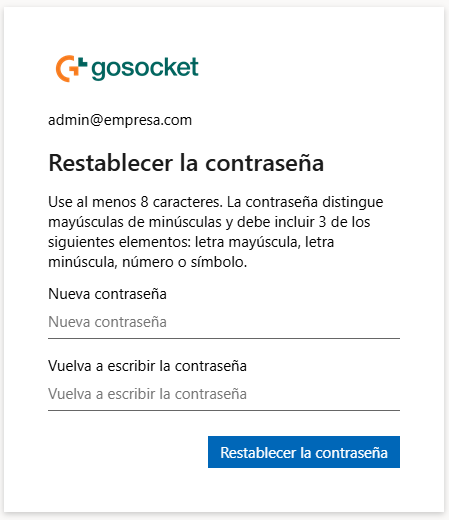
AtributoTipoDescripción
Password policyRuleMinimum 8 characters. Case-sensitive and must include at least 3 of these 4 elements: uppercase letter, lowercase letter, number or symbol.
New passwordTextNew account password.
Re-enter passwordTextConfirmation of the new password.
Reset passwordButtonConfirms the password change.
Confirmation and access
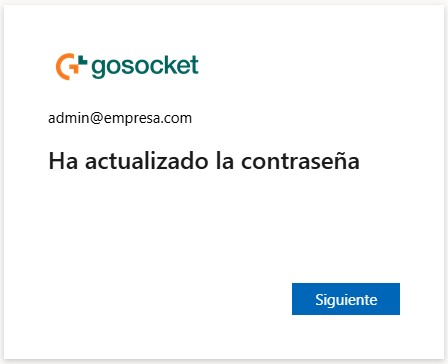
After confirming the change, the message "You have updated your password" is displayed with a Next button. Upon continuing, the "Stay signed in?" screen appears again:
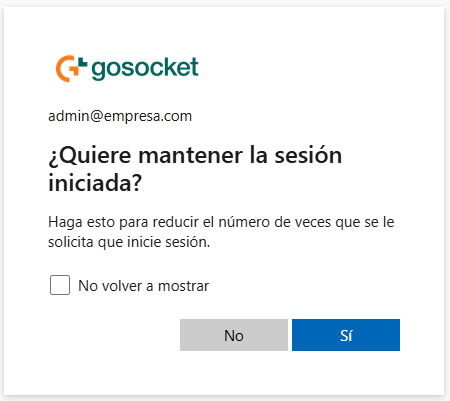
AtributoTipoDescripción
Don't show againCheckboxPrevents this screen from appearing again on future sign-ins.
NoButtonDoes not stay signed in.
YesButtonStays signed in, reducing how often you are asked to sign in again.
Upon confirming either option, the portal loads and displays the Dashboard.