Registration

Registration also starts from Login, by clicking "Don't have an account? Create one".
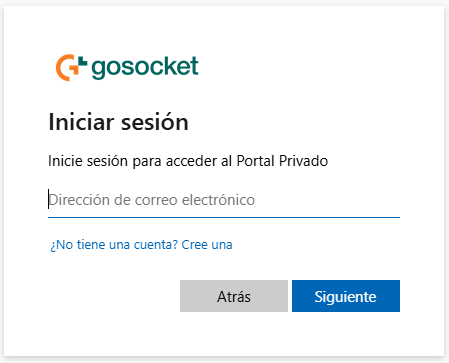
Inicio del flujo de registro desde Login

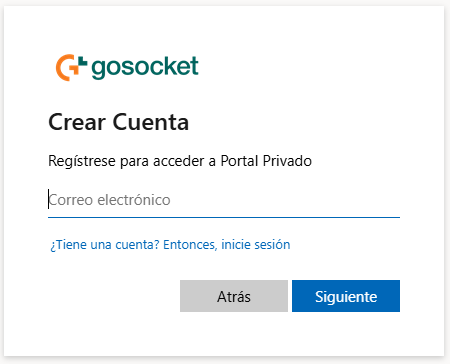
Create account: email

Pantalla Crear Cuenta, ingreso de correo
AtributoTipoDescripción
Email addressTextEmail to be used for account registration.
Have an account? Sign inLinkReturns to the Login screen.
Back / NextButtonsBack returns to Login; Next validates the email and advances.

Email verification

A verification code is sent to the entered email address.
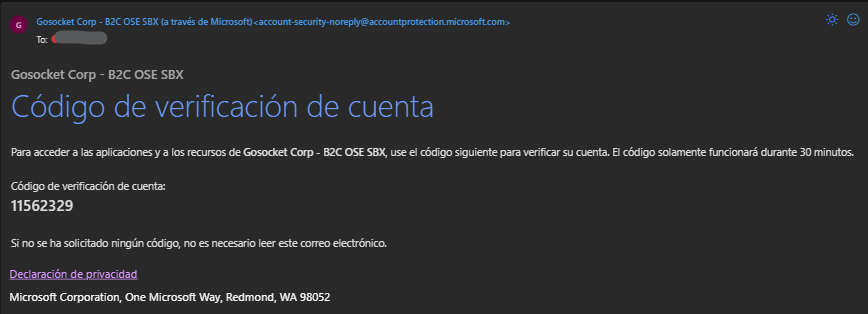
Correo con el código de verificación
AtributoTipoDescripción
SenderTextGosocket Corp - B2C OSE SBX (via Microsoft) — this is a legitimate email from the authentication system, not phishing.
Verification codeNumericCode to enter on the next screen.
ValidityTimeThe code is valid for 30 minutes only.
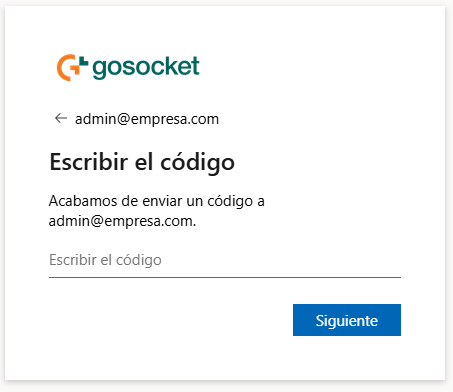
Pantalla Escribir el código para registro
AtributoTipoDescripción
Email (header)TextShows the entered email. The "←" arrow allows going back to the previous step.
Enter the codeTextCode received by email.
NextButtonValidates the entered code.

Add details

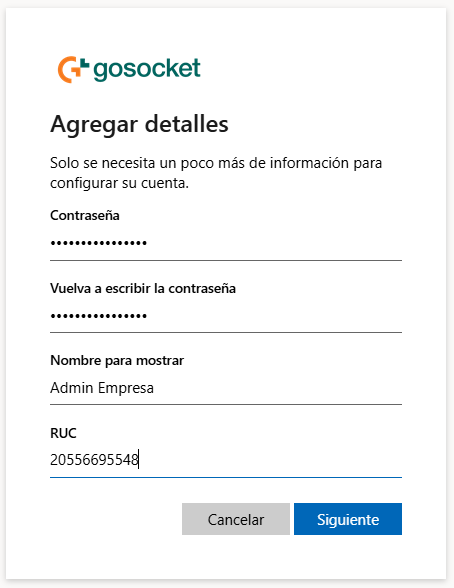
Pantalla Agregar detalles
AtributoTipoDescripción
PasswordTextAccount password.
Re-enter passwordTextPassword confirmation.
Display nameTextUser name.
RUCTextRUC of the company the account will be associated with.
Cancel / NextButtonsCancel discards the registration; Next validates the data and advances.
info

Registration is self-created and is associated with a single company: the one indicated in the RUC field during this step.

RUC validations

Upon confirmation, the entered RUC is validated against the following conditions:

  • The company must exist.
  • The company must be active.
  • The company must not have an expired temporary access.

Confirmation
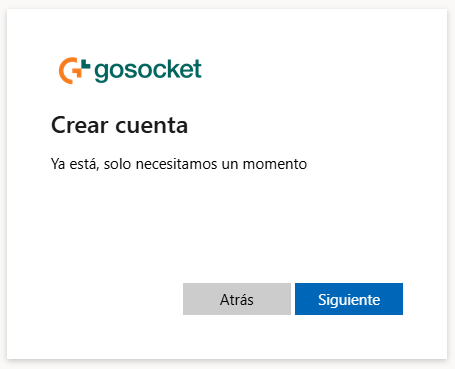
Pantalla de pre-confirmación Ya está, solo necesitamos un momento

Shows an intermediate message ("You're all set, we just need a moment") while the account finishes being created.

User pending activation
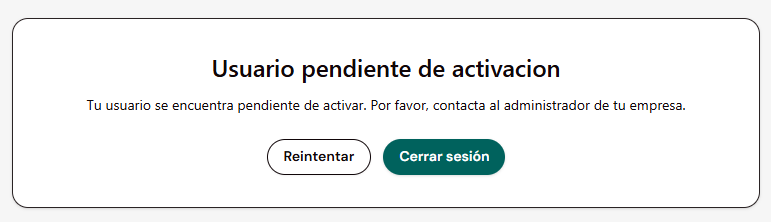
Pantalla Usuario pendiente de activación

At the end of registration, the account is created in Pending status and does not yet have portal access. The message "Your user account is pending activation. Please contact your company's administrator." is shown, with Retry / Sign out buttons.

info

An Administrator must activate the account from Users for the user to be able to access the portal.