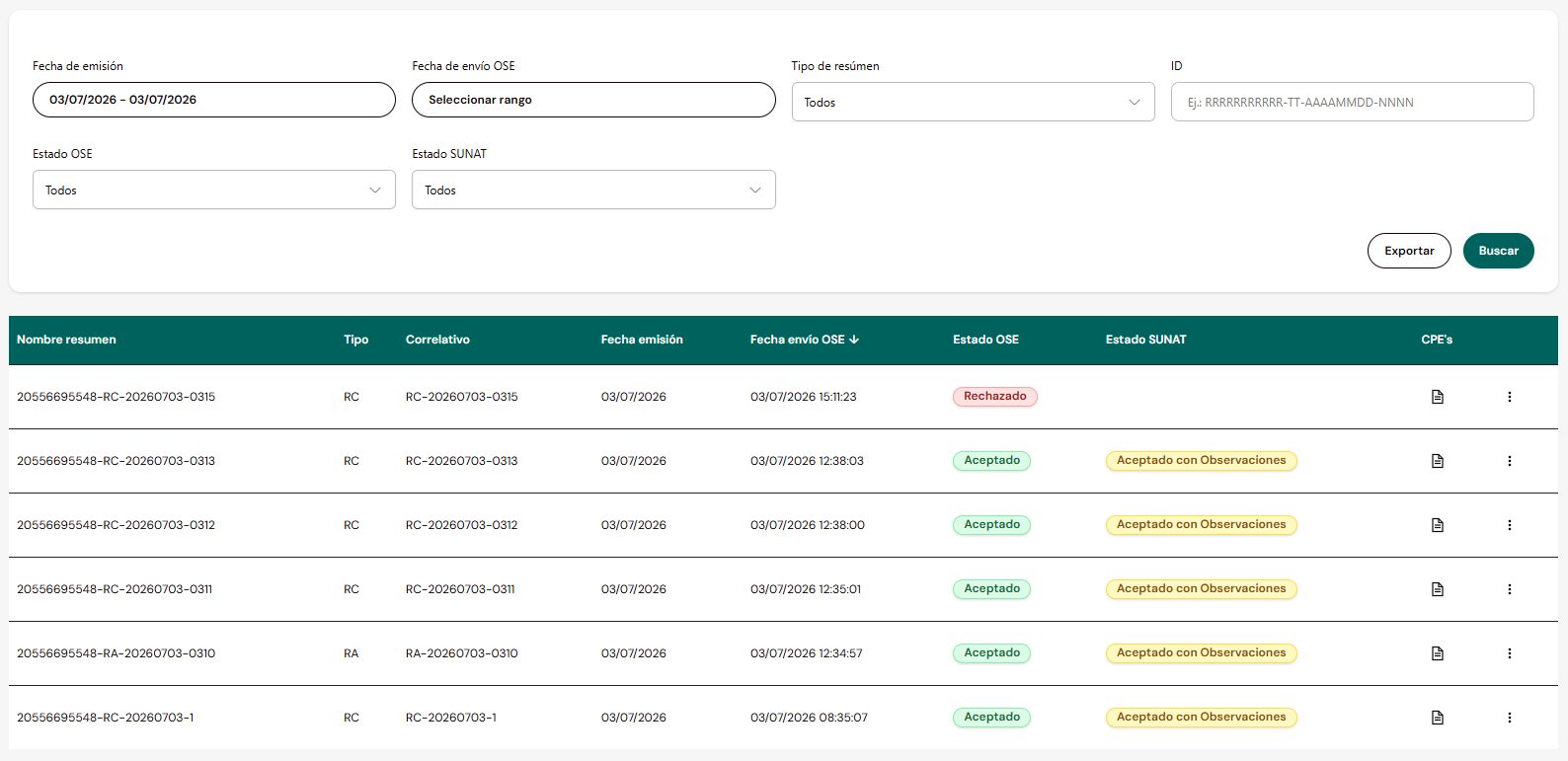
The Summaries screen allows you to view the summaries sent to the OSE: Cancellation Notices, Daily Summaries and Reversal Summaries. Unlike an individual voucher, a summary groups one or more operations on other vouchers (create, modify, delete, void or reverse).
Summary types
RACancellation NoticeVoids Invoices, Notes associated with Invoices, Withholdings, Perceptions and DAE.
RCDaily SummaryCreates, modifies or deletes Sales Vouchers and Notes associated with Sales Vouchers.
RRReversal SummaryReverses Withholdings and Perceptions.
Search filters

Issuance DateDate rangeSummary issuance date.
OSE Submission DateDate rangeDate and time the summary was sent to the OSE.
Summary TypeSelectorAll, Cancellation Notice, Daily Summary, Reversal Summary.
IDTextFull identifier: RUC-type-date-sequential (e.g.: RRRRRRRRRRR-TT-AAAAMMDD-NNNN).
OSE StatusSelectorAll, Accepted, Accepted with Observations, Rejected, Pending.
SUNAT StatusSelectorAll, Accepted, Accepted with Observations, Rejected, Pending.
Results table
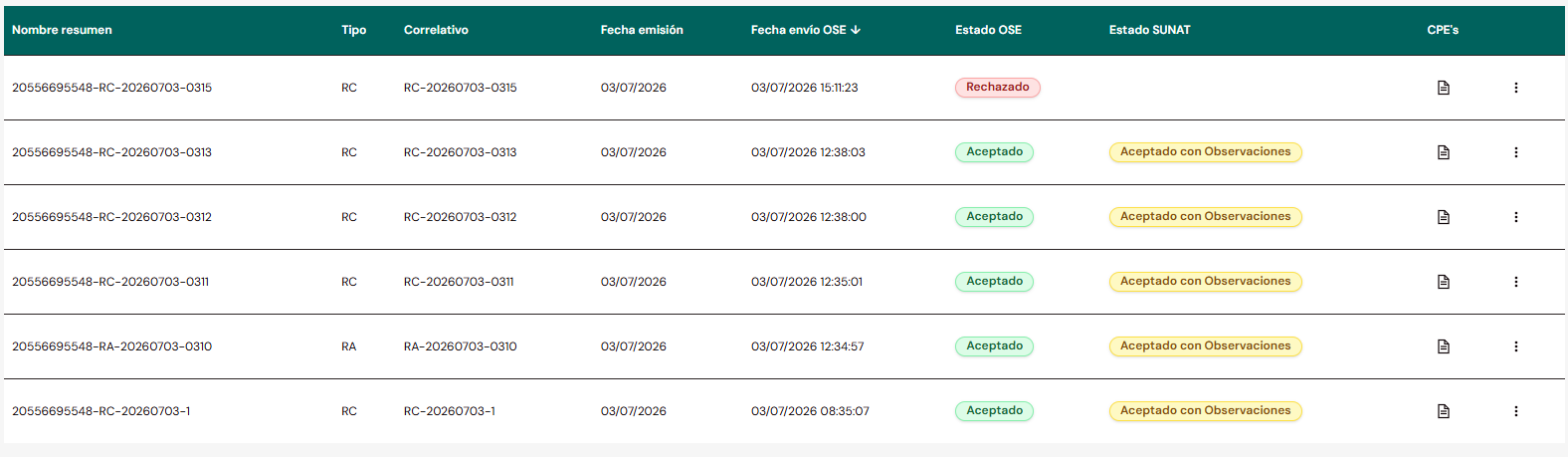
Summary NameTextFull summary identifier: RUC-type-sequential.
TypeTextRC, RA or RR according to the summary type.
SequentialTextSummary identifier: type-date-sequential. The sequential is numeric, from 1 to 5 digits, with or without leading zeros.
Issuance DateDateSummary issuance date.
OSE Submission DateDate/TimeDate and time the summary was sent to the OSE.
OSE StatusBadgeAccepted, Accepted with Observations, Rejected or Pending. Hovering shows the event date/time; clicking opens the validation detail.
SUNAT StatusBadgeAccepted, Accepted with Observations, Rejected or Pending. Hovering shows the event date/time; clicking opens the validation detail (only populated if OSE Status is Accepted or Accepted with Observations).
CPEsIconOpens the list of vouchers included in the summary.
Summary statuses
Accepted
The summary passed validation without observations.Accepted with Observations
The summary passed validation, but with recorded observations.Rejected
The summary did not pass validation (if the OSE status is Rejected, it is not sent to SUNAT).Pending
Applies to both OSE Status and SUNAT Status: indicates the summary has not yet been processed by the OSE, or the OSE has already processed it but SUNAT has not yet responded. Being an asynchronous model, the result may take time.
If the summary is rejected by the OSE, it is not sent to SUNAT and therefore has no SUNAT Status.
OSE validation detail for the summary
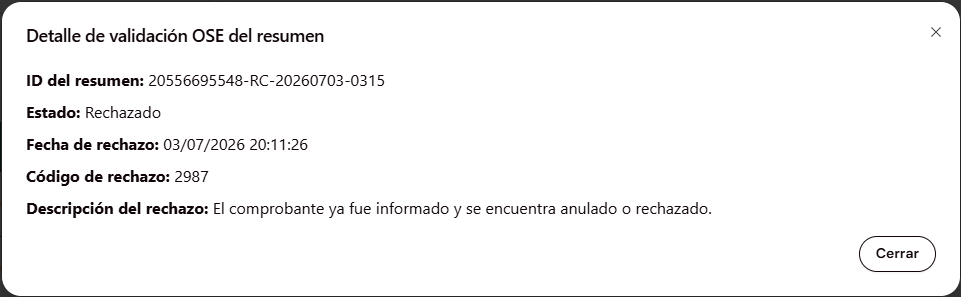
Clicking the OSE Status badge opens the "OSE Validation Detail for the Summary" modal.
- Accepted
- Accepted with Observations
- Rejected
- Pending
Summary IDTextIdentifier of the queried summary.
StatusTextAccepted.
Acceptance DateDate/TimeMoment the OSE accepted the summary.
Summary IDTextIdentifier of the queried summary.
StatusTextAccepted with Observations.
Acceptance DateDate/TimeMoment the OSE accepted the summary.
Also includes an observations table:
ItemNumberObservation sequential number.
Observation CodeCodeOBS code per the SUNAT catalog. See error and observation codes.
DescriptionTextObservation detail.
Summary IDTextIdentifier of the queried summary.
StatusTextRejected.
Rejection DateDate/TimeMoment the OSE rejected the summary.
Rejection CodeCodeERR code per the SUNAT catalog. See error and observation codes.
Rejection DescriptionTextDetail of the rejection reason.
The modal shows no additional data: it only indicates the summary is pending, as it has not yet been validated by the OSE.
SUNAT validation detail for the summary
Clicking the SUNAT Status badge opens a modal with the event history of communication with SUNAT for that summary, since there may be retry attempts.
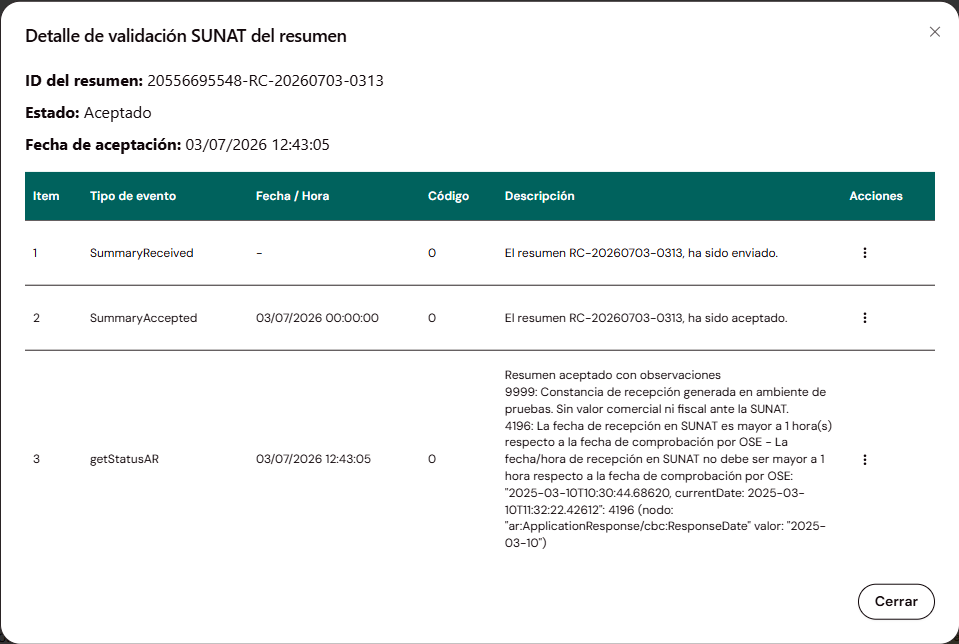
Summary IDTextIdentifier of the queried summary.
StatusTextCurrent status with SUNAT.
Acceptance DateDate/TimeMoment of the current status.
Events table
ItemNumberEvent sequential number.
Event TypeTextSummary lifecycle event (e.g.: SummaryReceived, SummaryAccepted, getStatusAR).
Date / TimeDate/TimeMoment of the event. May show "-" if the summary has not yet reached that stage.
CodeCode0 indicates success. Other codes may accompany warnings in the Description.
DescriptionTextSUNAT response detail for that event.
ActionsIcon (⋮)"Acknowledgement" option to download the SUNAT response for that event.
A summary may have more than one recorded event throughout its lifecycle (submission, acceptance by OSE, validation by SUNAT), unlike an individual voucher where events correspond to retry attempts of the same method.
Included CPEs
Clicking the CPEs icon on a row opens the "Included CPEs" modal, with the list of vouchers grouped by that summary: for each one, it indicates what operation was performed on it (create, modify, delete or void).
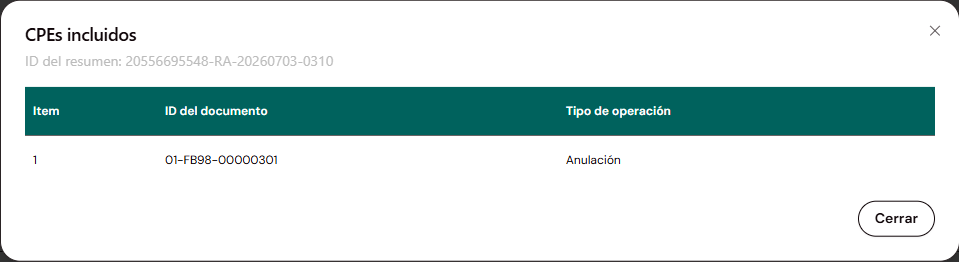
Summary IDTextQueried summary (reference, not editable).
ItemNumberRow sequential number.
Document IDTextVoucher included in the summary.
Operation TypeTextCreation, Modification, Deletion or Voiding, according to the summary type and the affected voucher.
File downloads
The ⋮ menu on each row allows downloading the summary files. The available options depend on the OSE Status:
Accepted
Downloads XML and CDR.Accepted with Observations
Downloads XML and CDR.Rejected
Downloads XML and Inconsistency report.Pending
Downloads XML only.Export
The Export button does not download the file directly: it generates a report generation request with the filters applied at that moment.
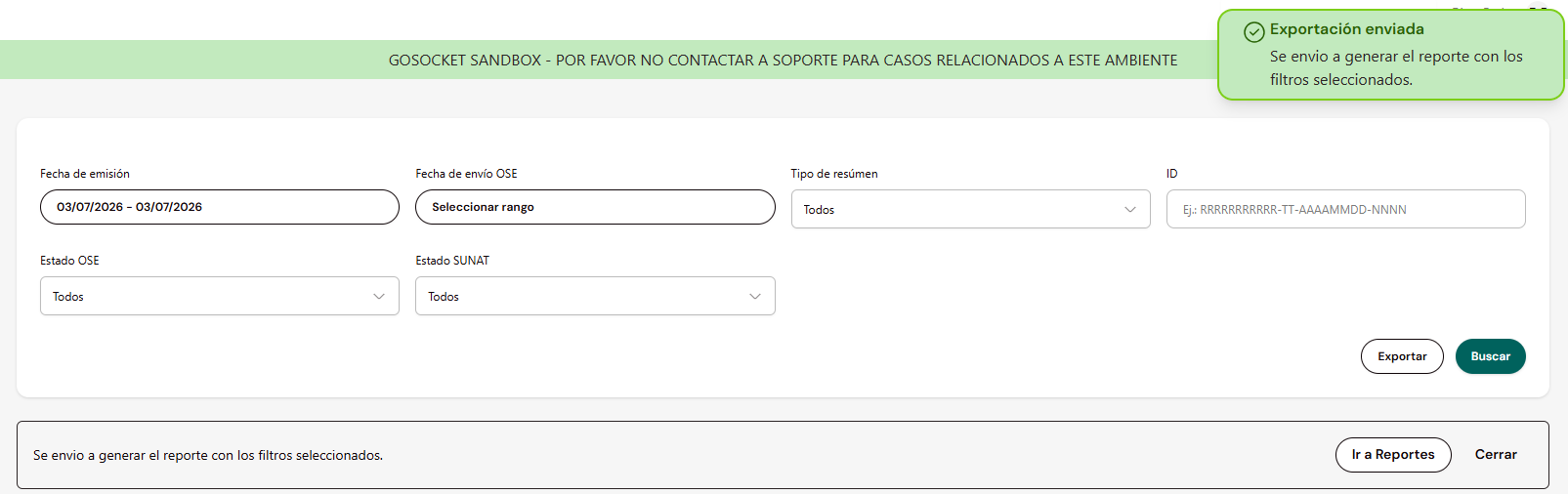
Once the request is confirmed, a notification is displayed with two options:
- Go to Reports — navigates directly to the Reports screen.
- Close — dismisses the notice; the report remains queued for generation.
The final file is downloaded from Reports.