The Spanish version is the authoritative reference. View in Spanish
Document assignment process
The assignment process goes through three tabs: Assignment list (documents associated with an assignee), Operations (creation, signing and sending to the SII) and Assignments (tracking).
1. Select the documents
In the Issued documents tab, select the documents to assign. To start a new process they must be in Available for assignment status.
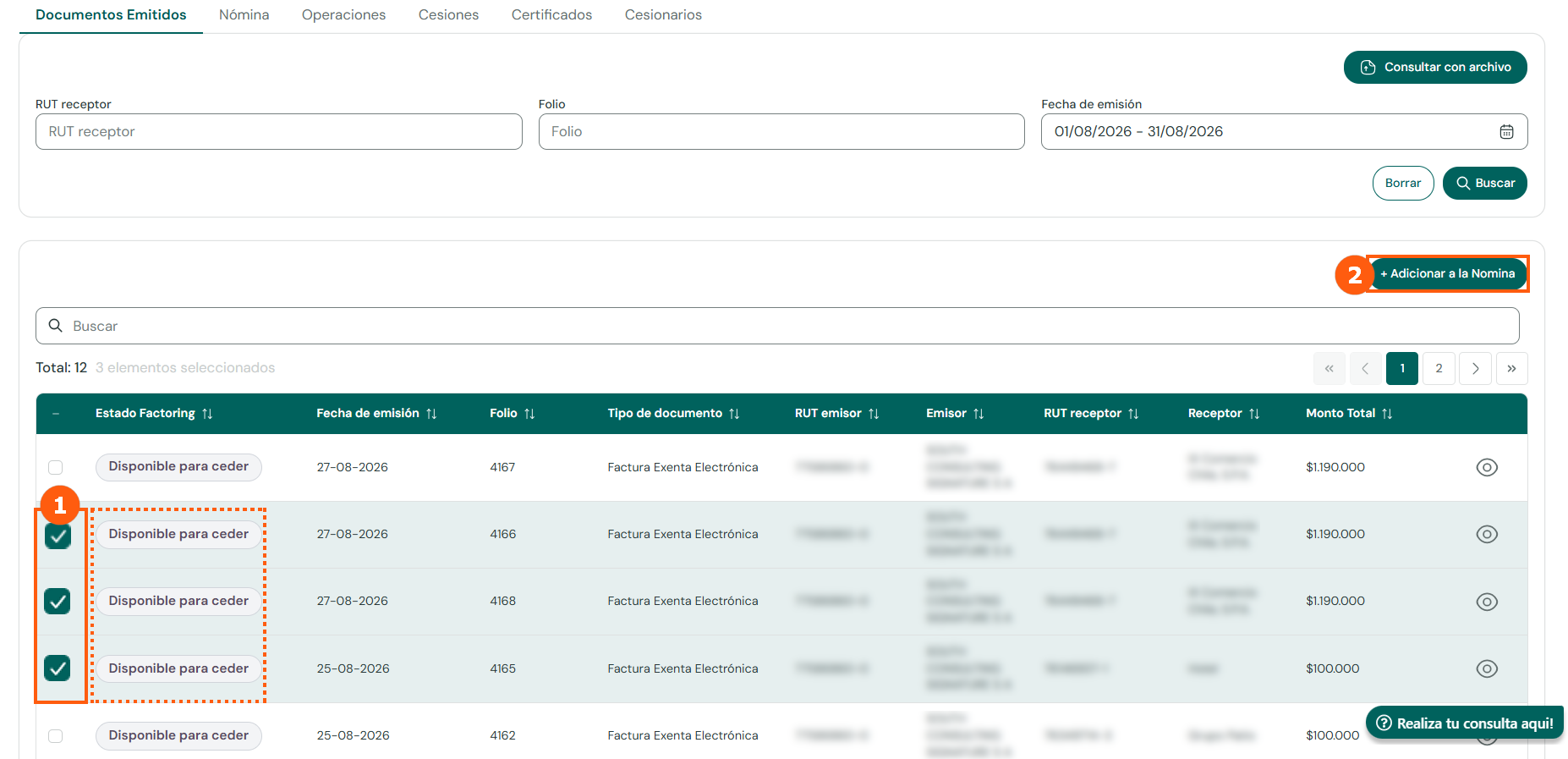
- Tick the documents using the checkboxes in the left column.
- Click + Add to Assignment List.
In the form that opens:
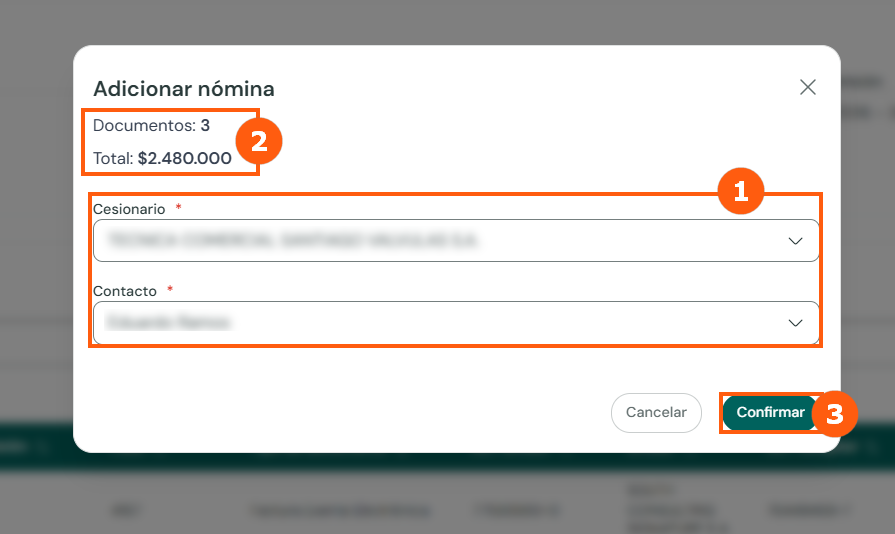
- Select the assignee and the contact who will receive the documents.
- Review the number of documents and the sum of their total amount.
- Click Confirm.
2. Review the assignment list
The module associates the documents with the assignee. They are displayed in the Assignment list tab:
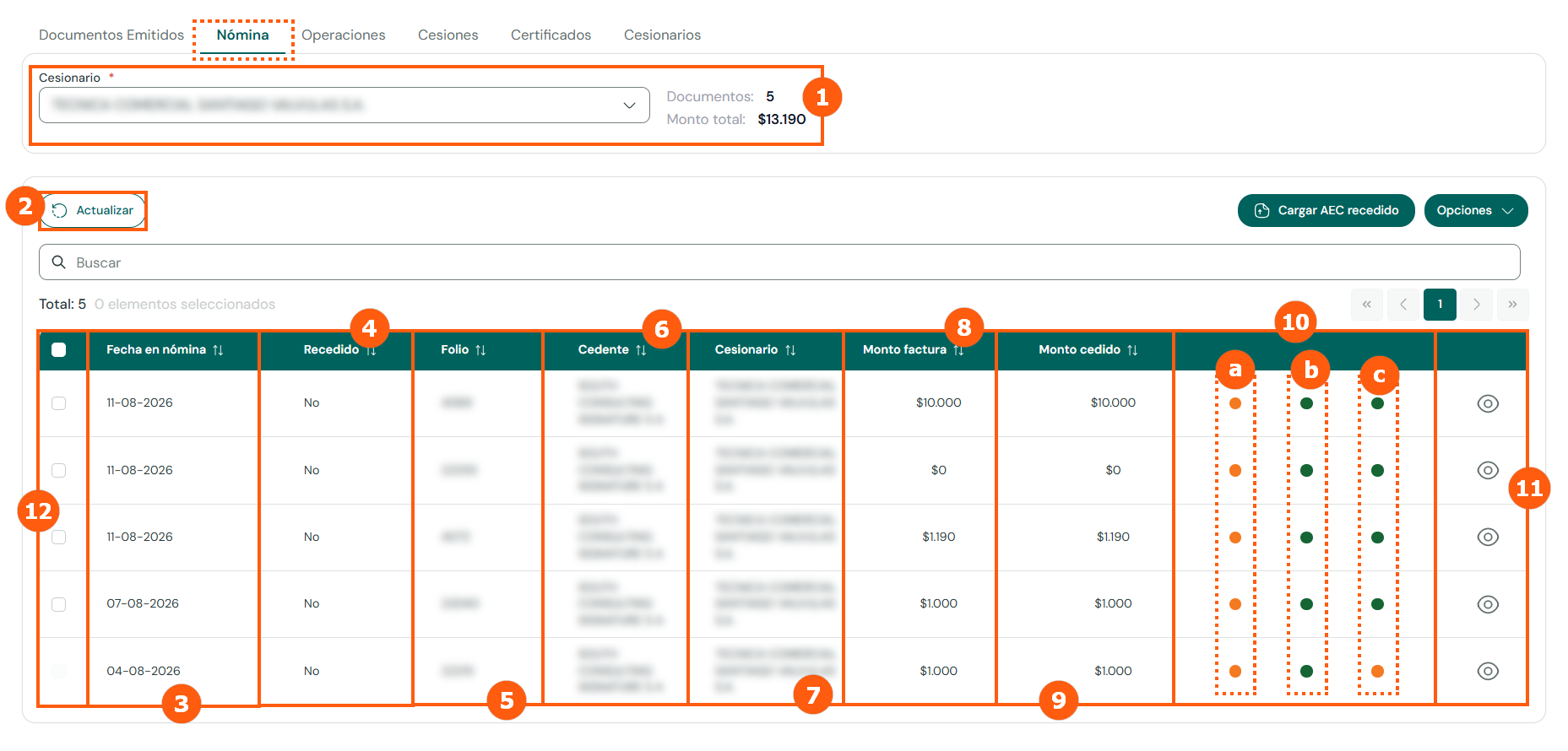
Assignment validations
| Indicator | What it checks | If it fails |
|---|---|---|
| a. Goods receipt | That the document has an acknowledgment of receipt of goods. | Informational only; it does not stop the process. |
| b. Signature validation at the SII | That the document signature in Factor matches the one on the SII portal. | The document cannot be assigned. |
| c. Assigned document | In the public assignment registry, that the document has not been assigned before. | Does not apply to AECs uploaded for reassignment. |
3. Create the operation
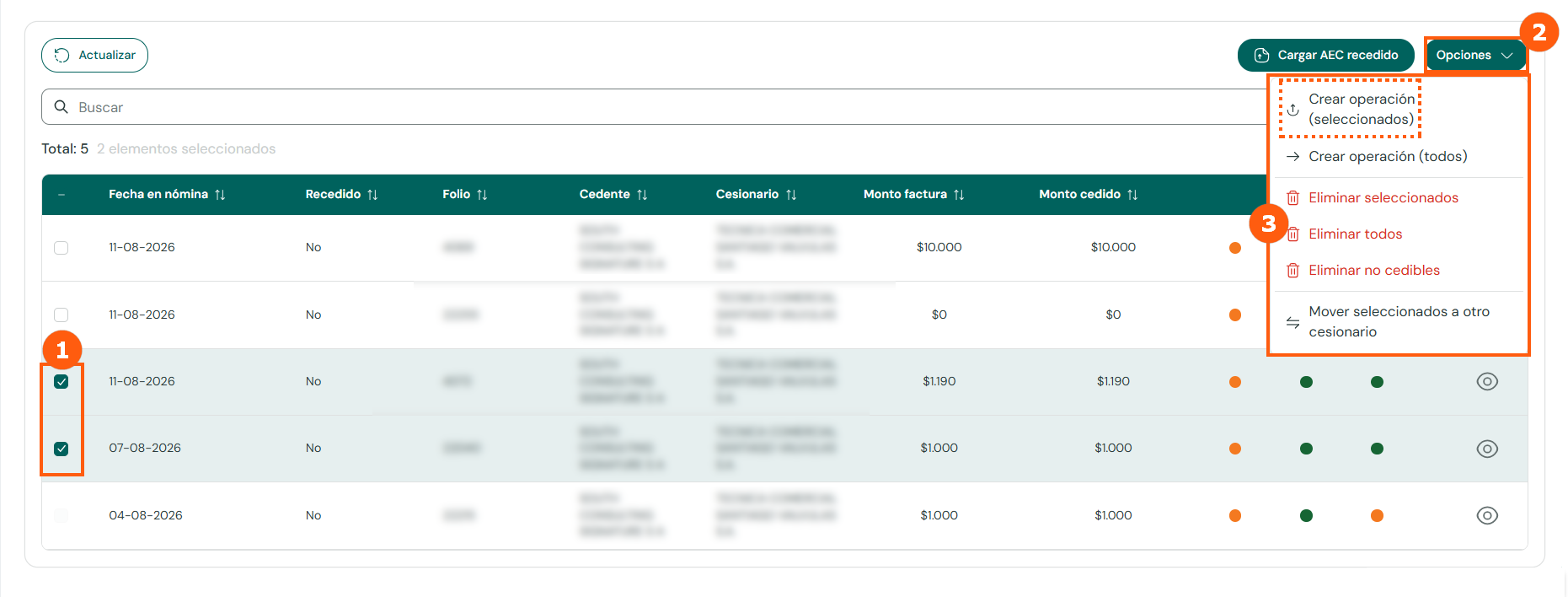
- Select the documents to assign using the checkboxes.
- Click Options. From this menu you can create operations with the selected documents or with all the documents on screen, delete the selected ones, all of them or only the non-assignable ones, and move the selected documents to another assignee (list change).
- For this example, choose Create operation (selected).
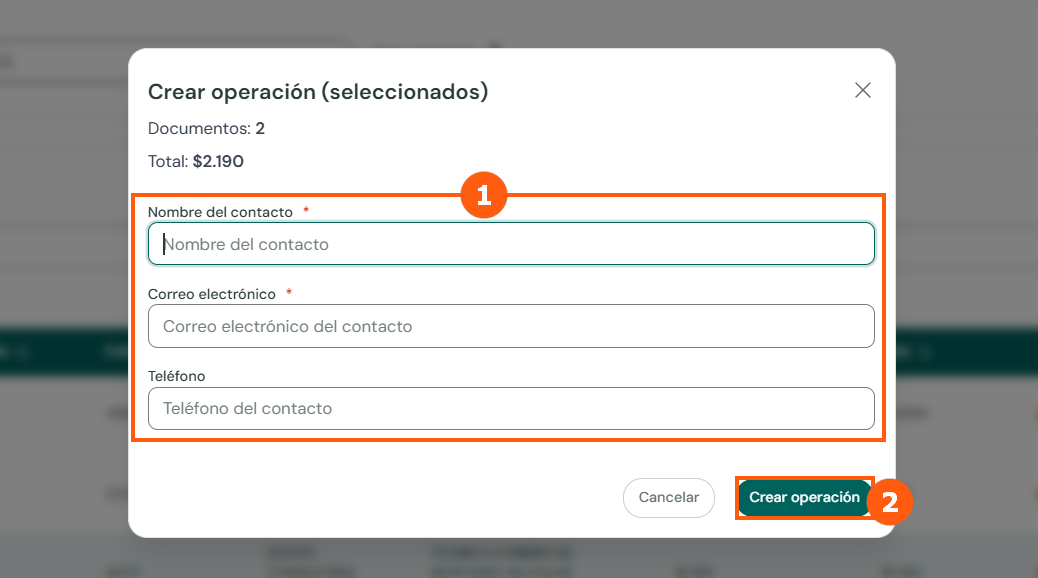
- Enter the assignor's contact details: name, email and phone.
- Click Create operation.
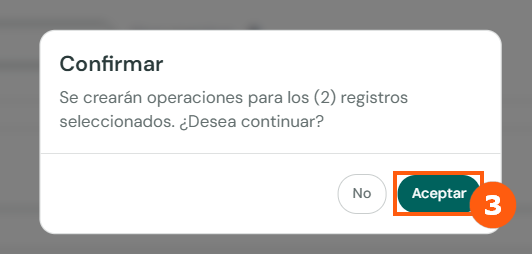
- Confirm the action with Accept.
4. Sign and send the operation to the SII
The Operations tab shows all the assignment lists validated so far, with their operation number, assignee, number and amount of documents, and status.
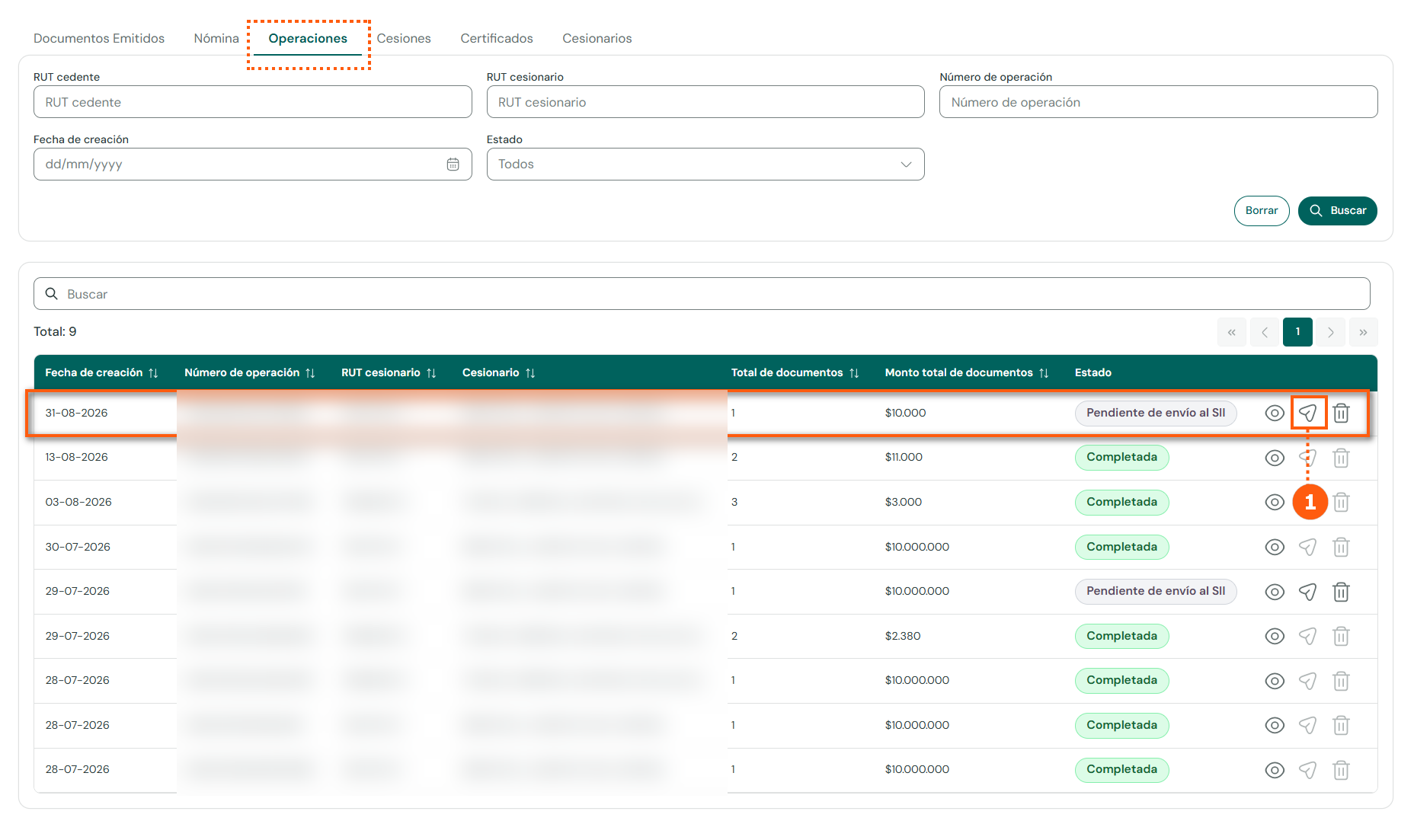
- On the operation marked Pending submission to the SII, click the Sign and send operation button at the end of the row.
Complete the signing form:
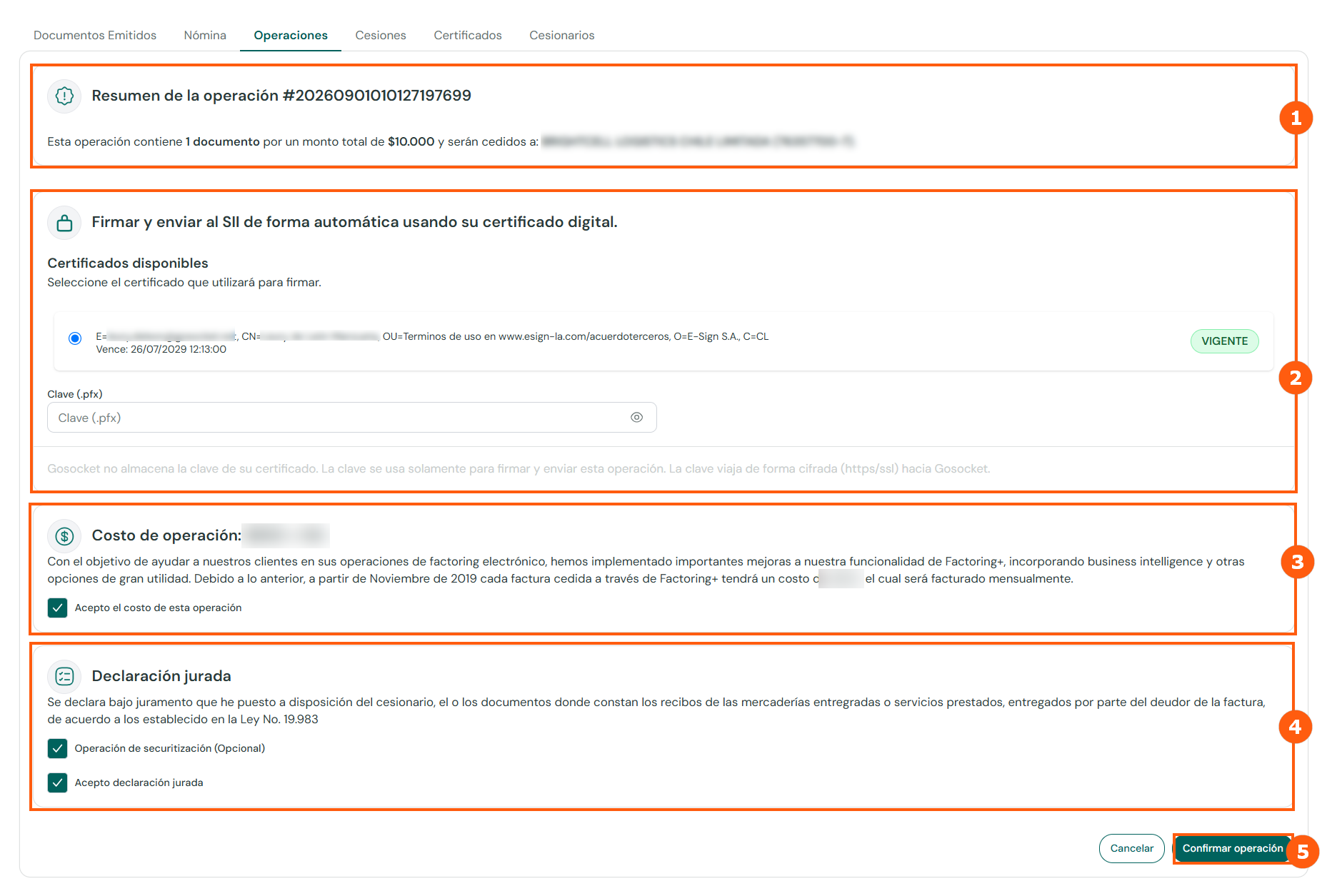
The cost per assigned document is the one set in your service agreement with Gosocket and is invoiced monthly. This documentation does not publish figures; if in doubt, contact your account executive.
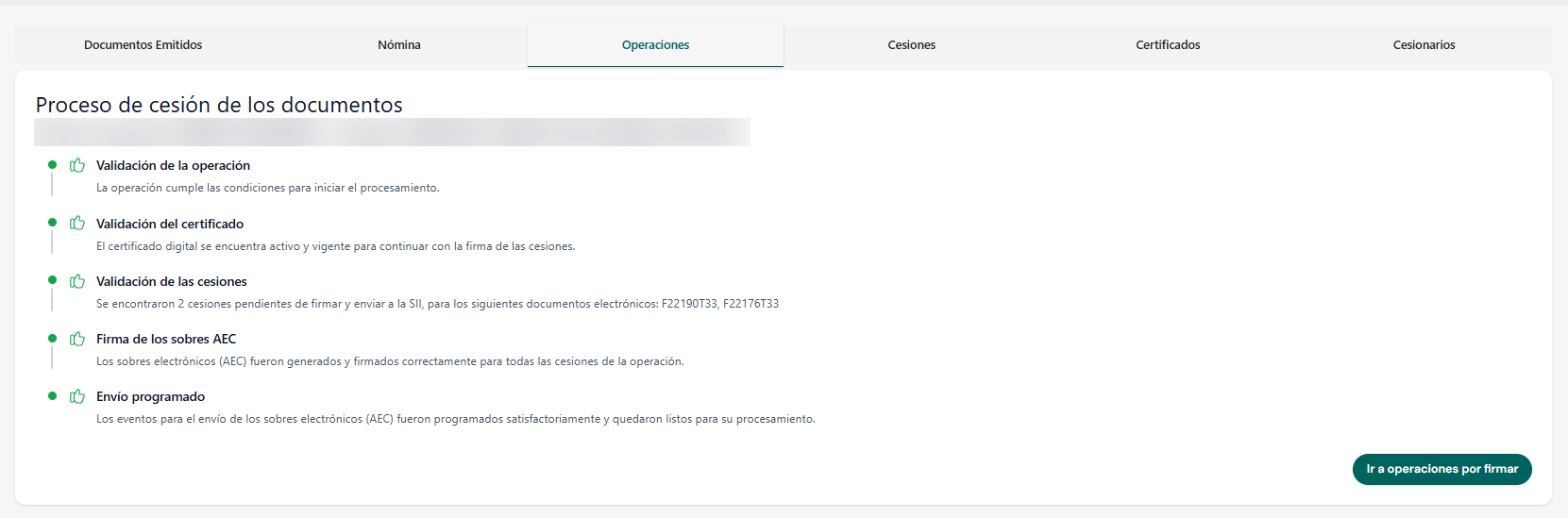
On confirmation, the system shows the result of each stage: validation of the operation, the certificate and the assignments, signing of the AEC envelopes, and scheduling of the submission.
5. Track under Assignments
Submission to the SII is an asynchronous process that runs every 5 minutes. To verify that the operation was generated correctly, go to the Assignments tab:
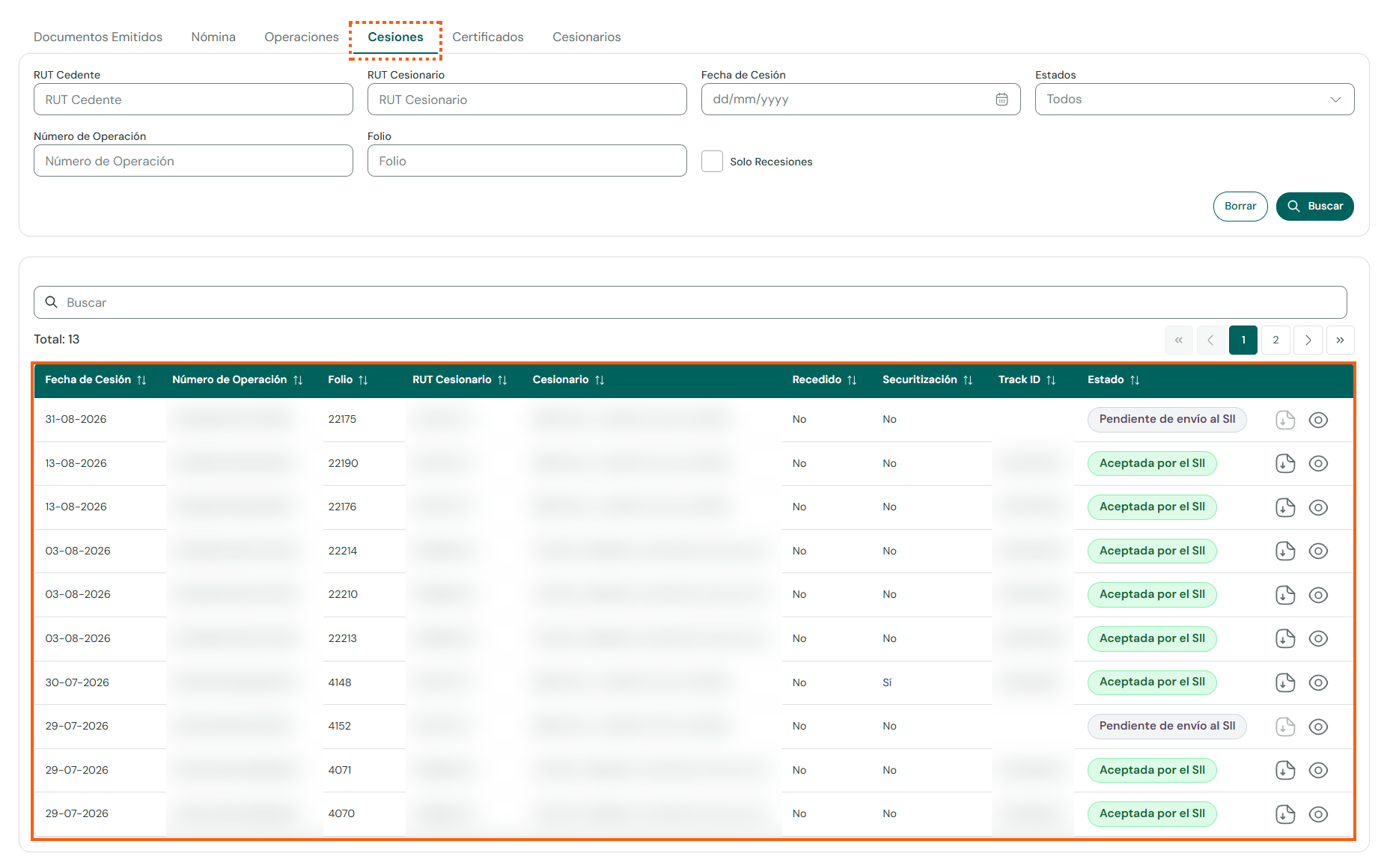
Each row shows the assignment date, operation number, folio, assignee, whether it is a reassignment or securitization, the Track ID assigned by the SII and the status (Pending submission to the SII or Accepted by the SII). From the row actions you can download the AEC and view the details. The Reassignments only filter narrows the list to reassigned AECs.
6. Successive assignment of documents (reassignment)
The gadget also supports successive assignment: assigning to a third party, as many times as needed, a document that was assigned to your company. The process is autonomous and uses an Electronic Assignment File (AEC).
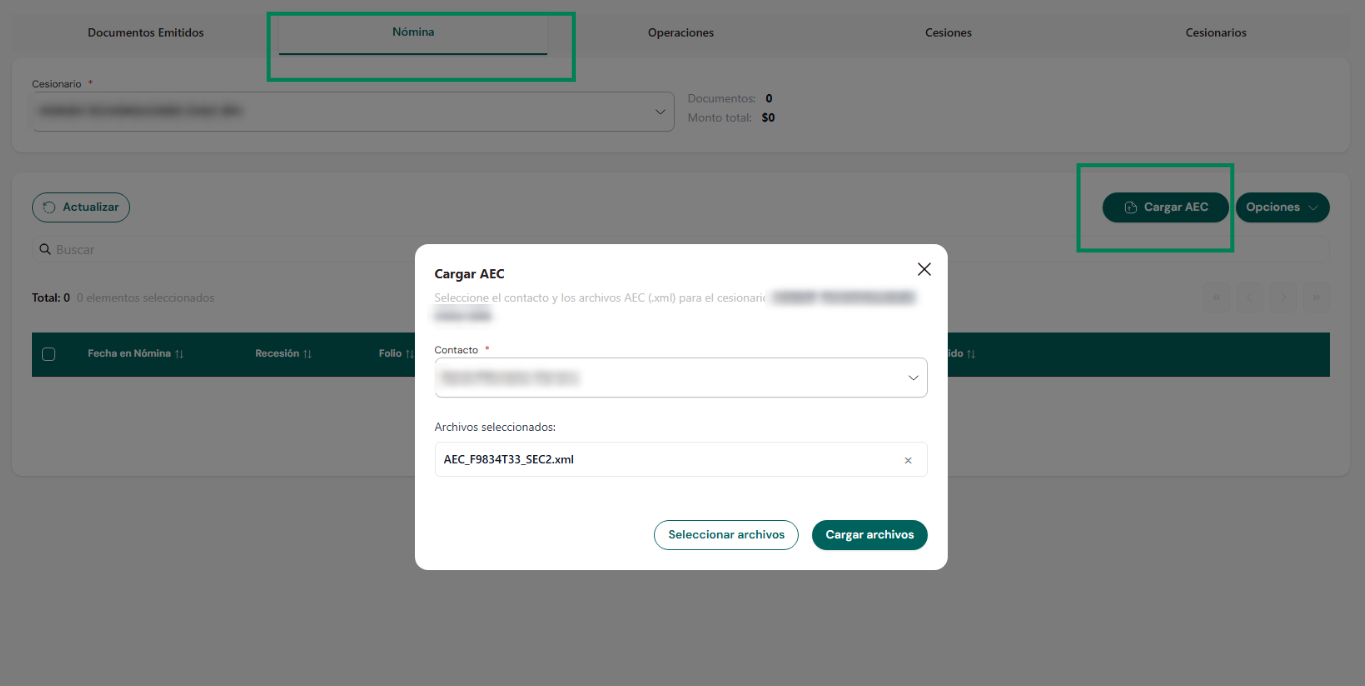
- In the Assignment list tab, select the assignee to which the AEC will be assigned.
- At the top right, click Upload AEC (Cargar AEC). Choose a contact of the assignee, select the AEC
.xmlfile and click Upload files (Cargar archivos).
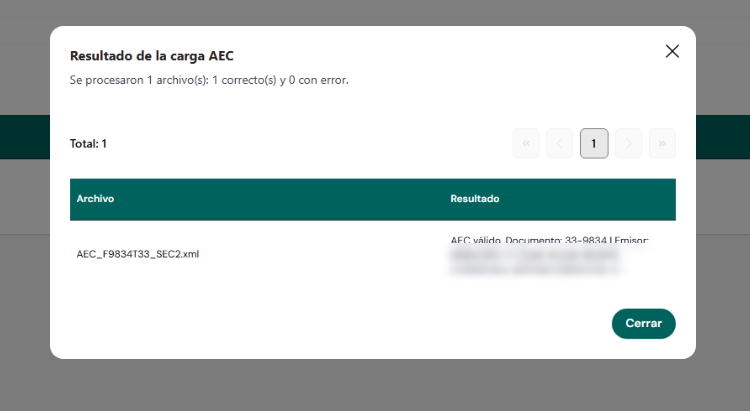
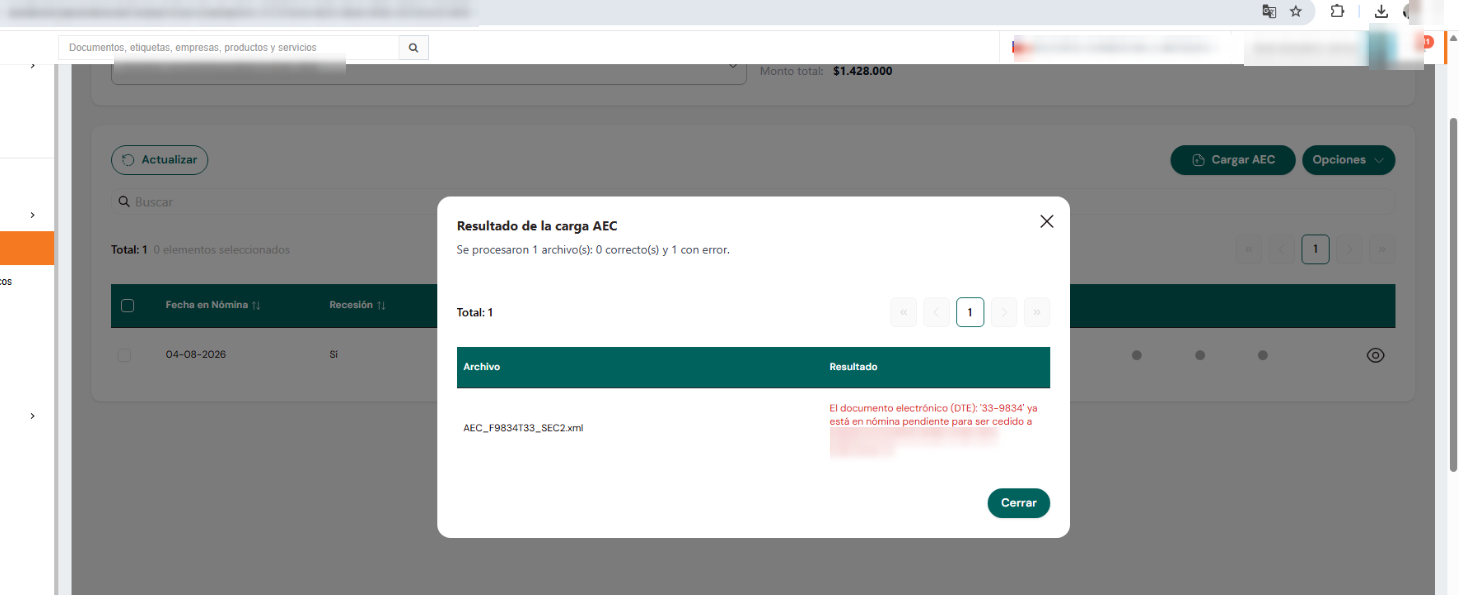
The system validates that the last recipient of the AEC is the company the document is being uploaded to, that is, the owner of the security. The upload result shows how many files were processed successfully and how many with errors:
- Once uploaded, the document (invoice or DTE) appears in the assignee's assignment list with Reassignment (Recesión) set to Yes (Sí).
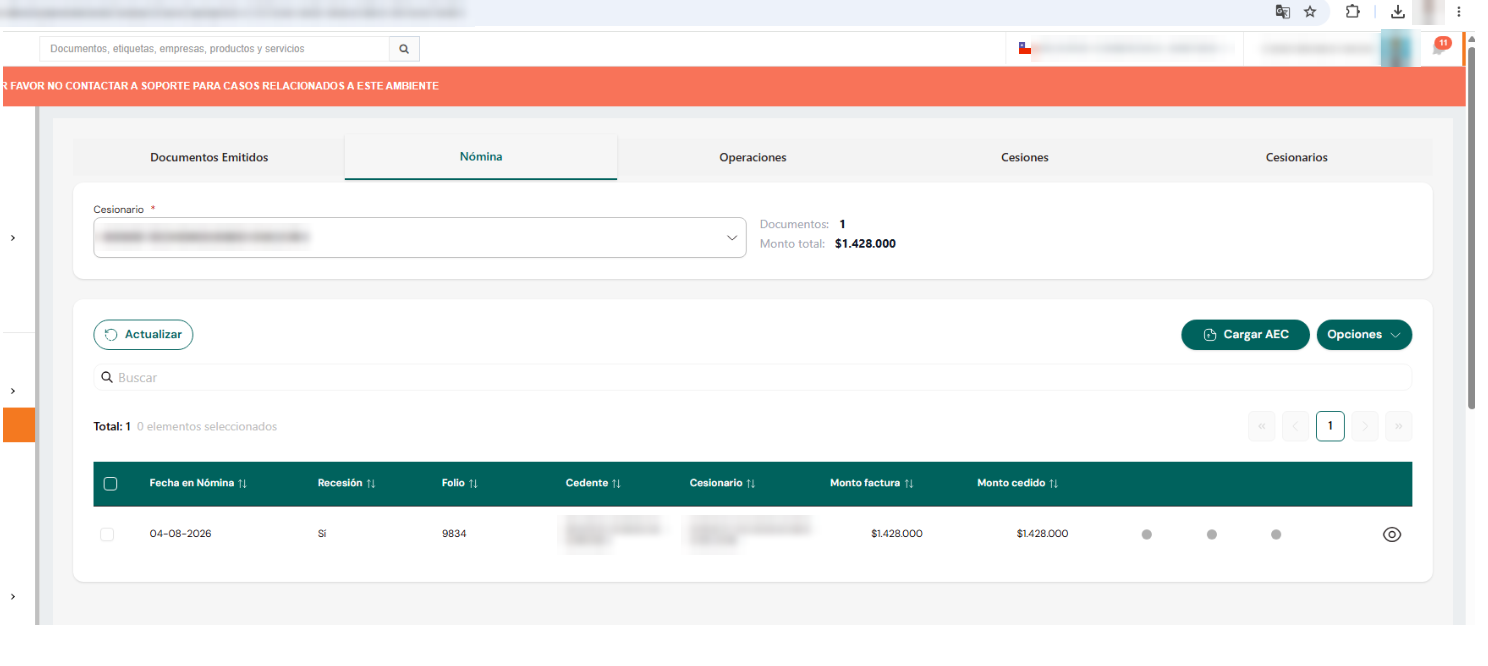
With the eye icon at the end of the row you can see the assignment list document detail:
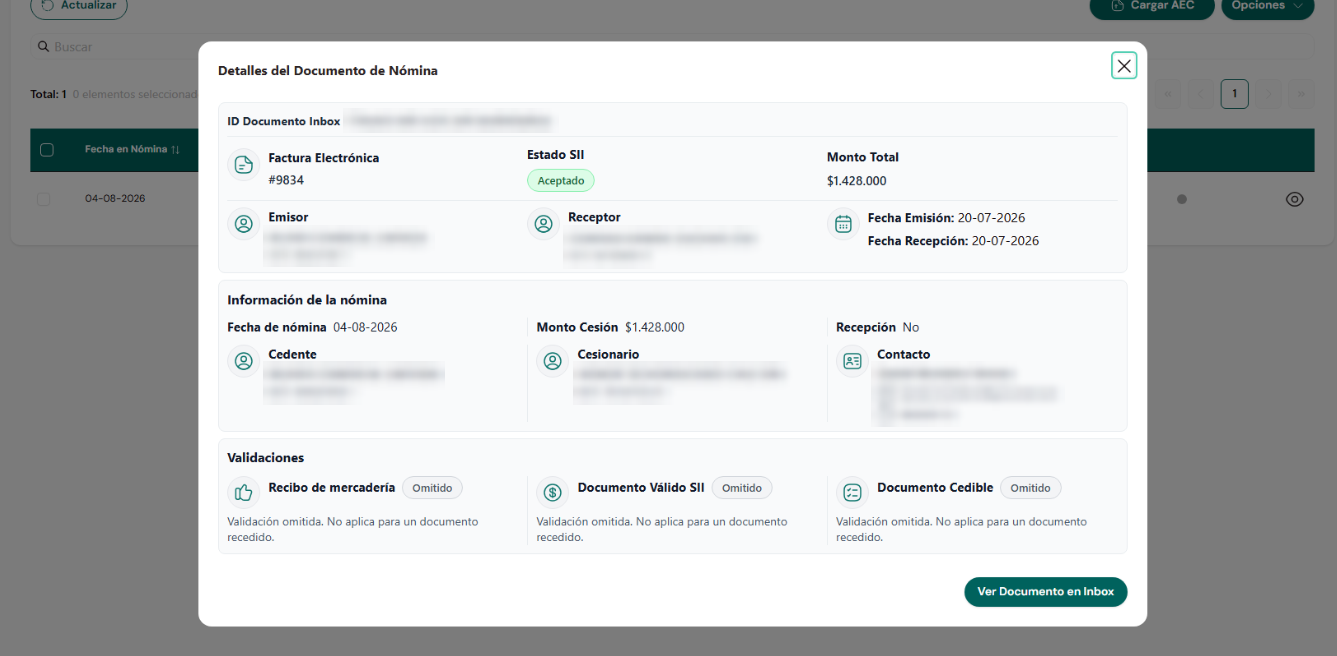
Because it is an AEC, the goods receipt, SII document signature and assigned-document validations are not run; the detail shows them as Omitted (Omitido).
If you try to upload the same document again while it is in a pending assignment list, the system does not allow it and shows an error message:
- Finally, continue the normal process from the assignment list: include the AEC in an operation, then sign it and send it to the SII (steps 3 and 4). The system creates a new sequence in the AEC and assigns the document.