The Issued documents tab is the initial screen of the flow. It shows the documents issued by your company and approved by the SII, according to the configured filters, and lets you add them to an assignee's assignment list.
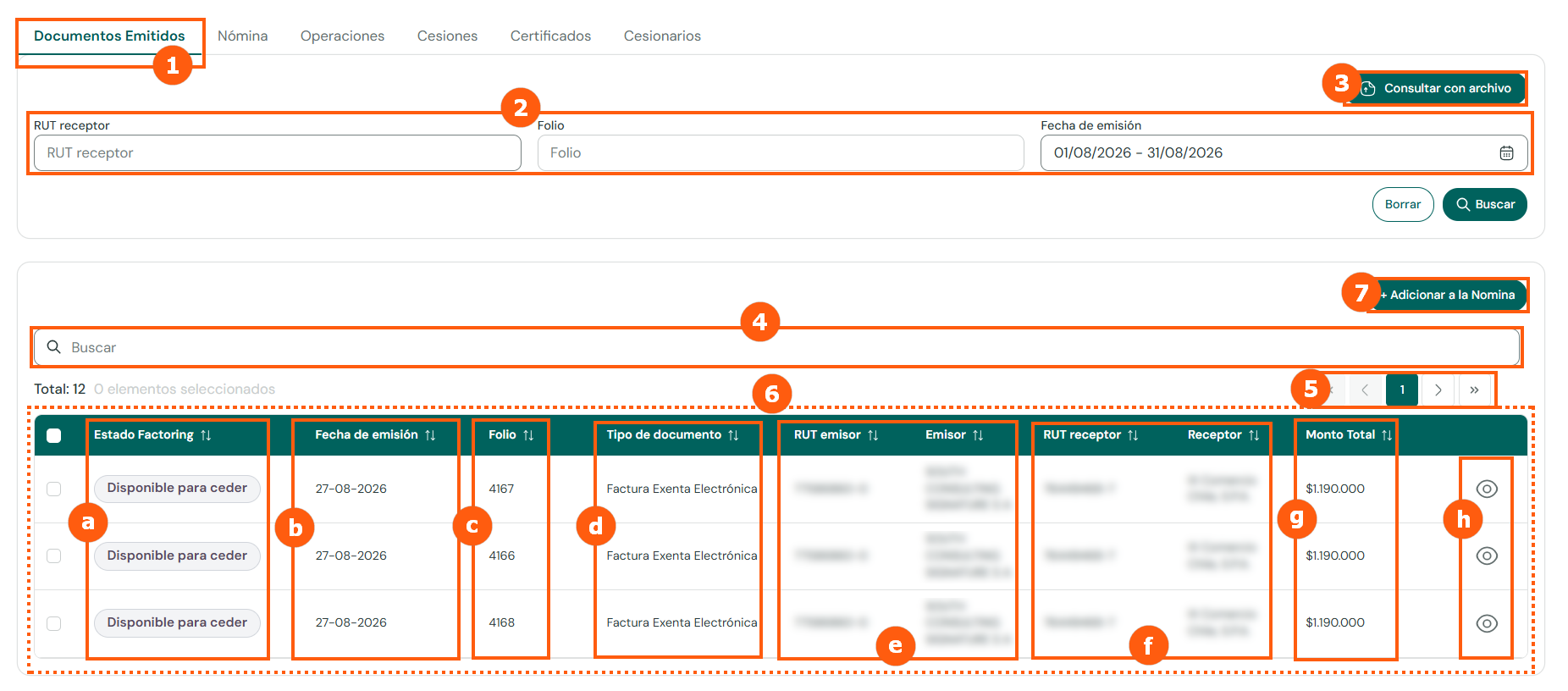
1. Issued documents
Initial tab of the flow. Lists the issued documents according to the applied filters.2. Filters
Receiver RUT, legal folio and issue date. You can combine one or more; the more filters you use, the more precise the result.3. Query with file
Locates documents by uploading a TXT file with the folios to filter (see [Searching folios with a text file](#searching-folios-with-a-text-file)).4. Generic search box
Filters the table by any of its columns.5. Paginator
Navigation between result pages.6. Document table
Documents issued and approved by the SII (see columns below).7. Add to Assignment List
Creates the logical association of the selected documents with an assignee.Table columns
a. Factoring status
Assignment status of the document. To start an assignment it must be Available for assignment.b. Issue date
Issue date of the document.c. Folio
Legal folio of the document.d. Document type
DTE type (for example, Electronic Invoice or Exempt Electronic Invoice).e. Issuer RUT / Issuer
Tax ID and legal name of the issuer.f. Receiver RUT / Receiver
Tax ID and legal name of the receiver.g. Total amount
Total value of the document.h. Tracking
Opens the document information and history.
Adding documents to the assignment list
Before this step, the assignee must exist in the Assignees tab.
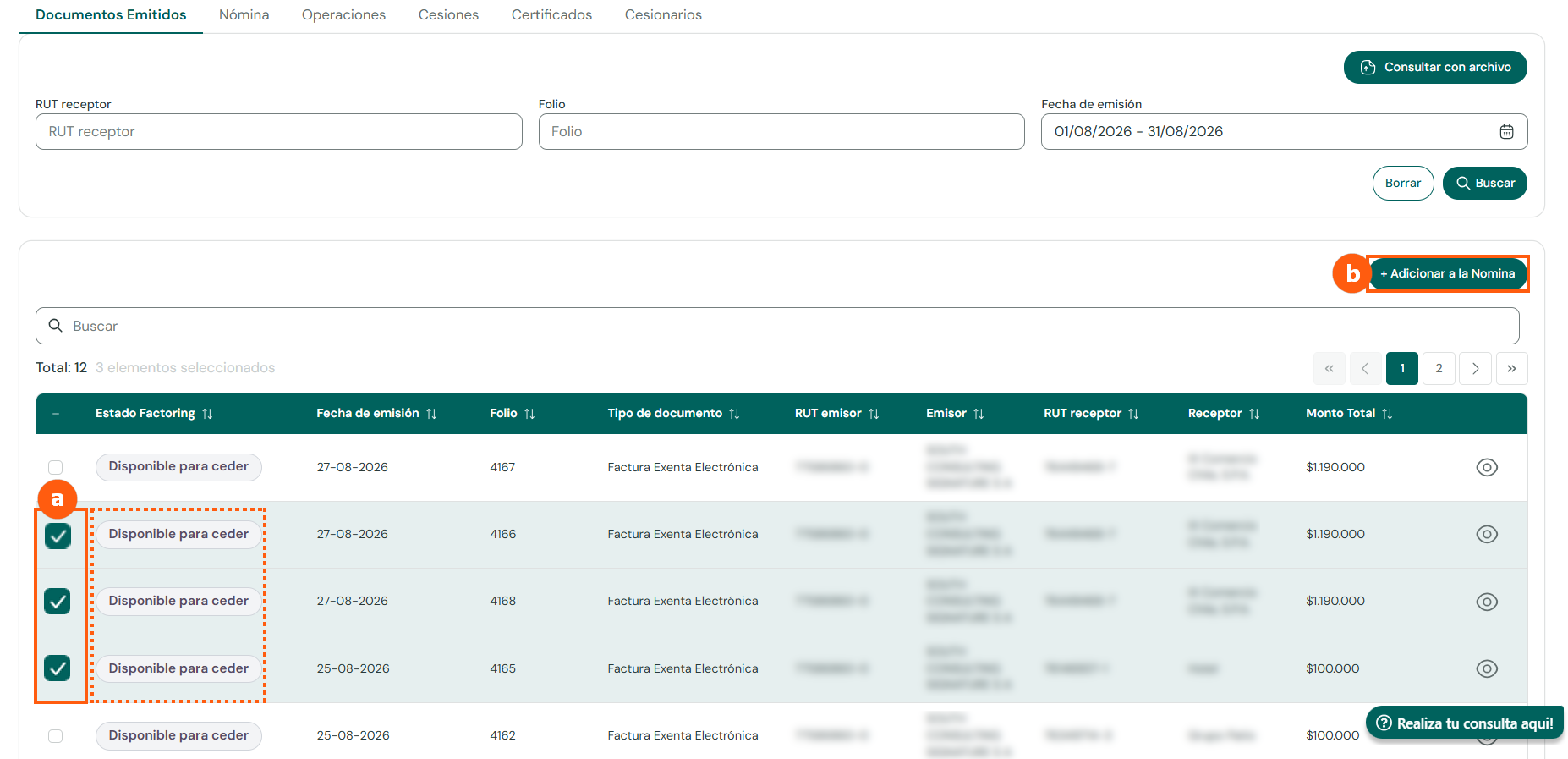
- Select one or more documents using the checkboxes in the left column. Each document must be in Available for assignment status.
- Click + Add to Assignment List.
The Add to assignment list window opens, summarizing the number of documents and the total amount:
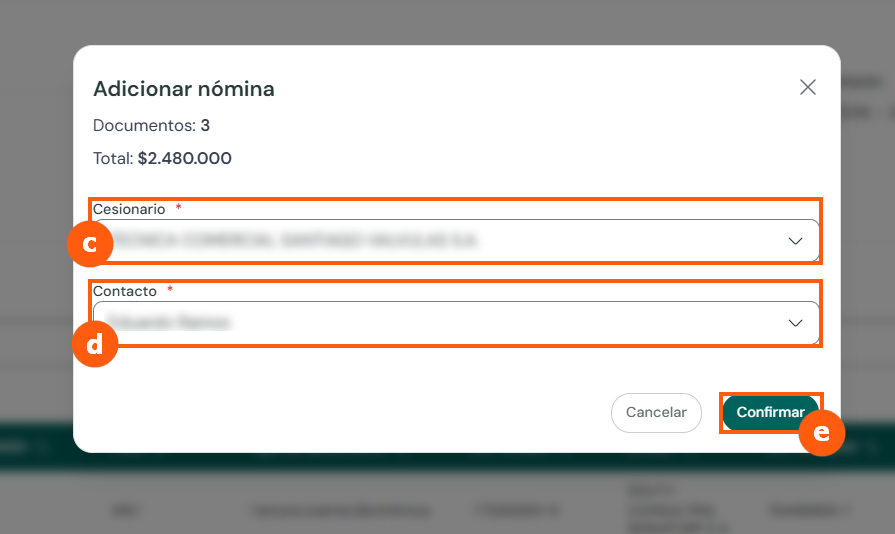
- Select the assignee the documents will be associated with.
- Choose a contact of the assignee.
- Click Confirm.
The documents are now associated with the assignee and can be reviewed in the Assignment list tab, where the assignment process continues.
Searching folios with a text file
The Issued documents tab lets you search folios in bulk by uploading a TXT file. To do so, click Query with file (Consultar con archivo).

The Document query by folios window (Consulta de documentos por folios) opens, with the instructions for uploading the file:
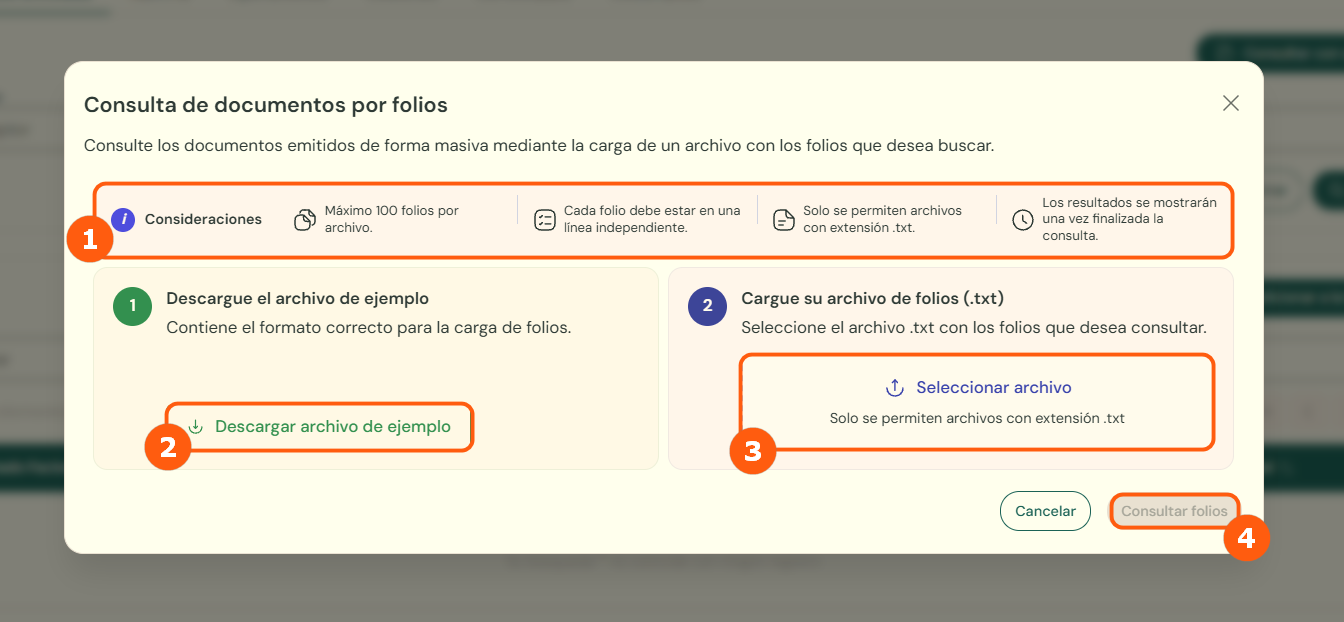
1. Considerations
System recommendations to avoid problems when uploading: maximum 100 folios per file, each folio on its own line, only files with the .txt extension, and results are shown once the query finishes.2. Download example file
If you do not have a file with the folios in the correct format, download the example offered by the portal.3. Select file
Choose the .txt file with the folios you want to query, or drag it into the box.4. Query folios
Starts the query once the file is uploaded.Example file, with one folio per line:

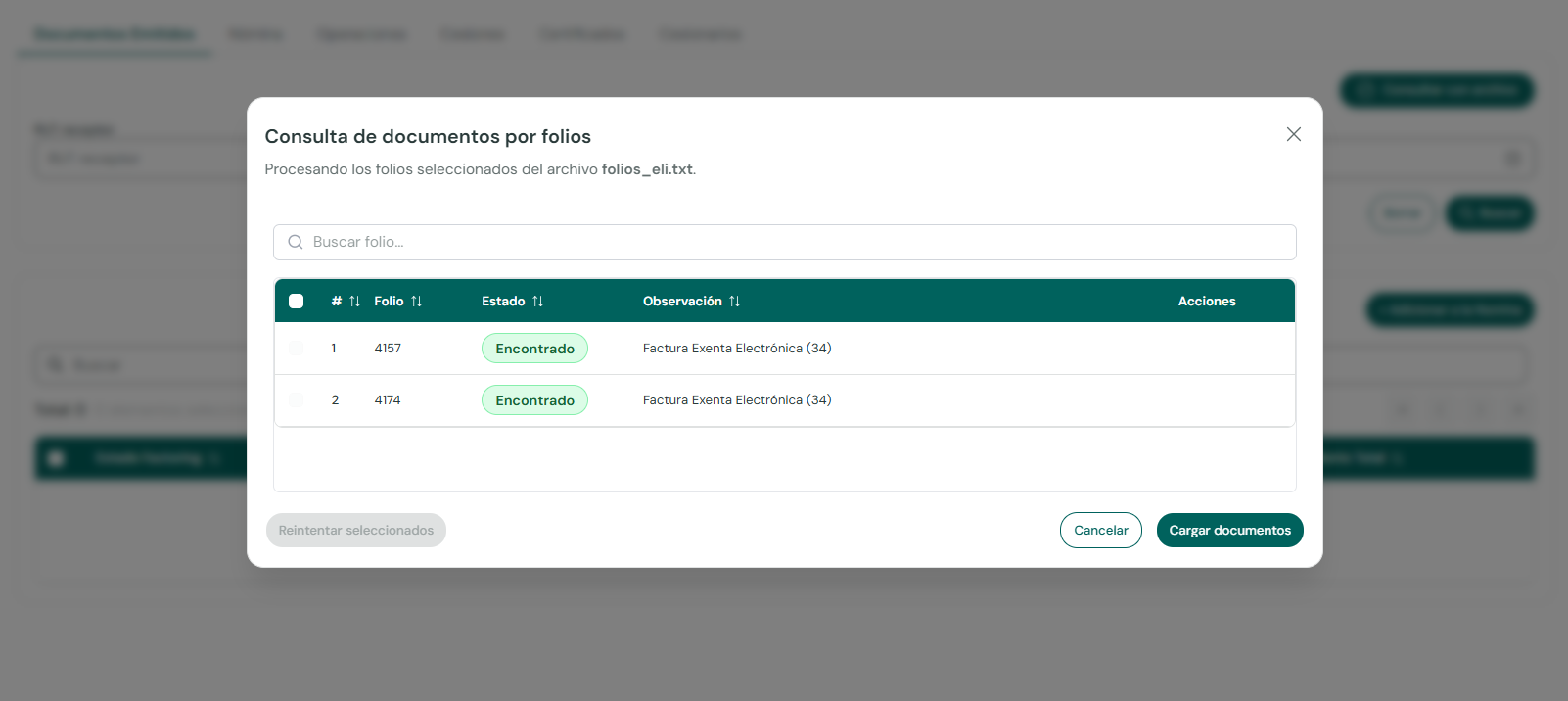
The result is shown folio by folio, with its status (for example, Found) and a note with the document type. You can upload a new file or, if you prefer, load only the documents found with Load documents (Cargar documentos).