The Spanish version is the authoritative reference. View in Spanish
Upload invoices
When you enter the Upload Invoices module, you find the query screen for registered operations, which lets you quickly locate an operation through the following filters:
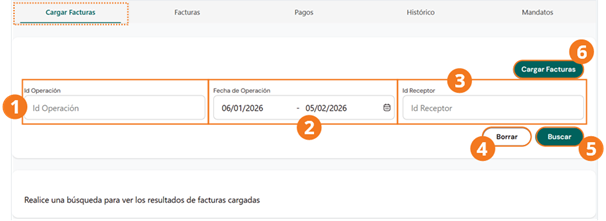
Click Clear to reset the filters or Search to apply them.
Once the operations from the filtered search are displayed, we find the following information per operation:
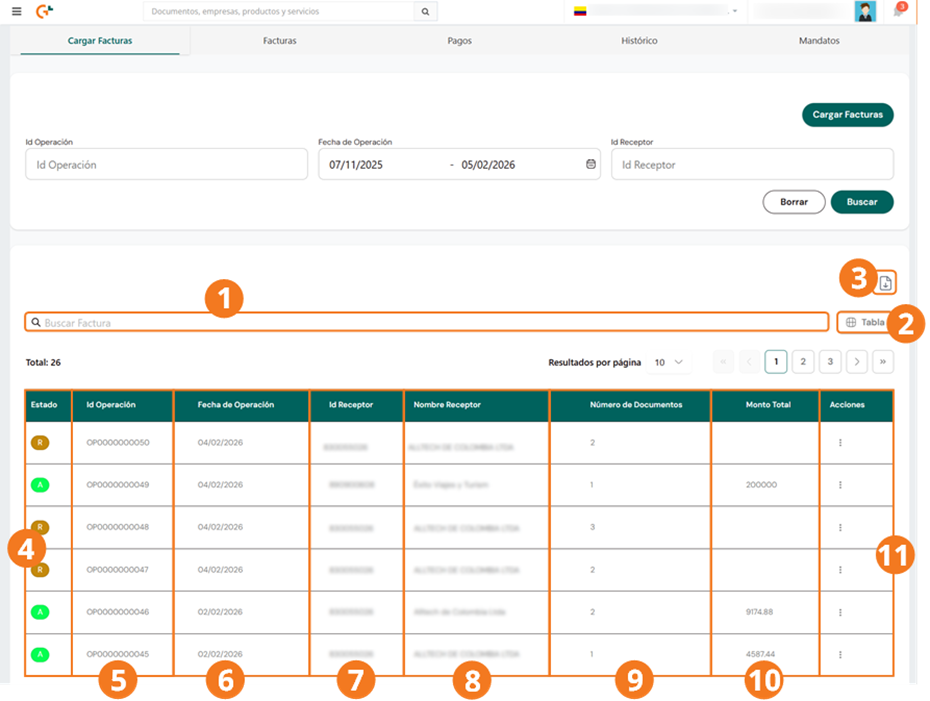
-
To locate a document, you can use the search bar at the top.
-
By clicking Table, you can choose the columns that will be shown in the query table; the checked options are the ones that will be displayed.

-
To download an Excel file with the information of the uploaded invoices shown in the query, click the corresponding button. You will then see the following report.
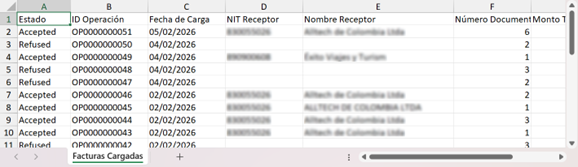
The columns of the results table are:
Document statuses
To view the status tracking, click the actions button and select Document Statuses:

This action will display the following pop-up window:
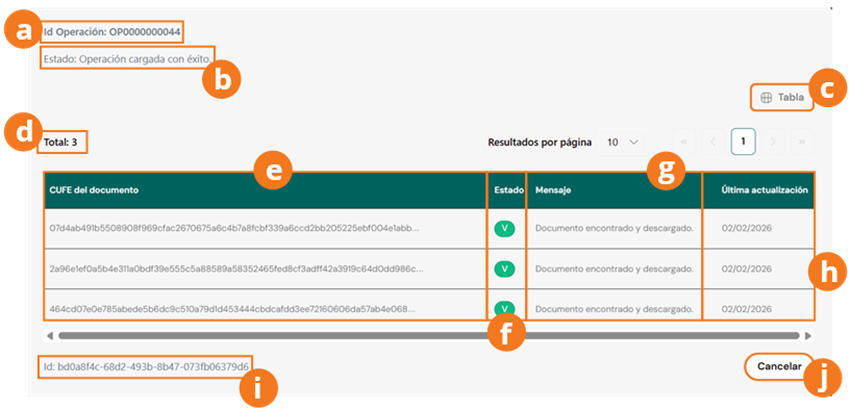
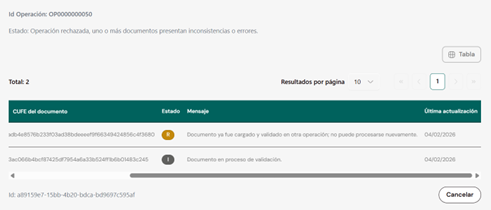

Click Cancel to close this window.
Uploading invoices
To start an invoice upload operation and later generate a mandate, follow these instructions:
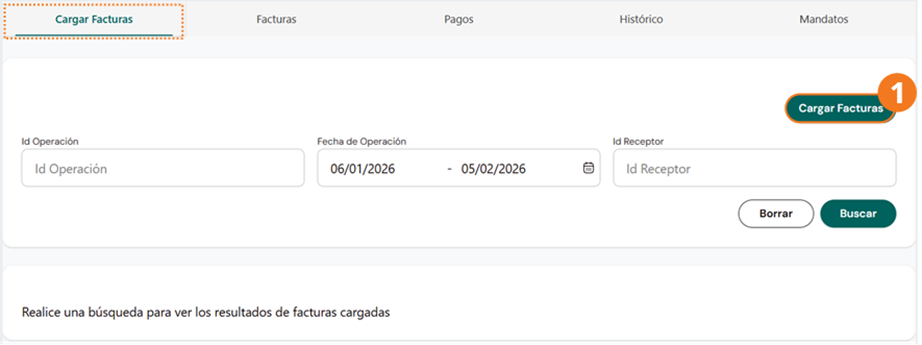
- Click Upload Invoices.
The Upload File pop-up window will be displayed, from which we can upload an Excel, CSV, or TXT file to the system, with a column that must contain the CUFEs of the invoices belonging to this operation.
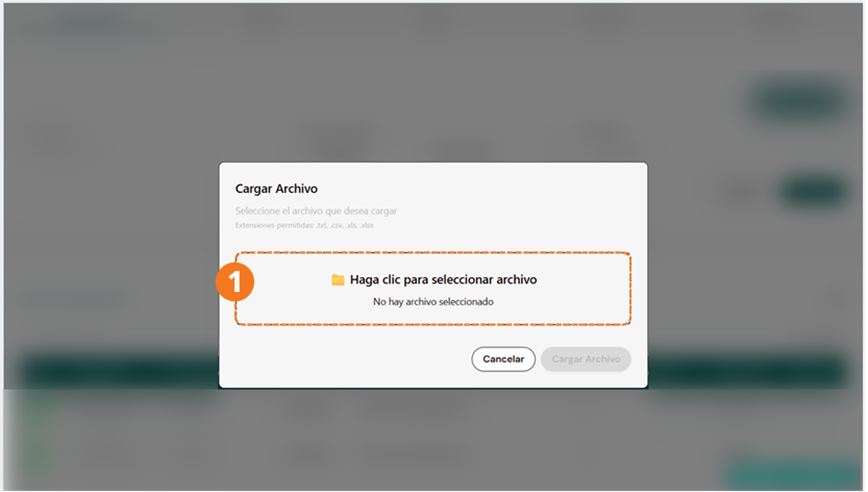
- To upload the file with the operation's invoices, click the box that indicates so.
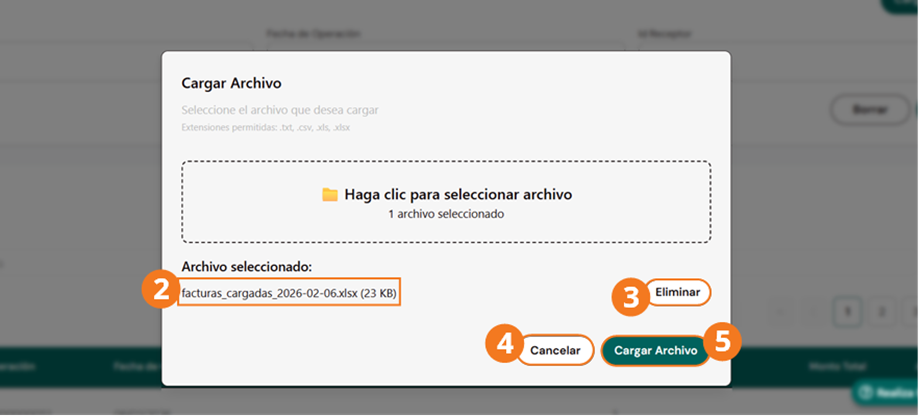
- Verify the name of the file to be uploaded.
- To change the operation's file, click Remove.
- If you need to cancel the upload, click Cancel.
- When finished, click Upload File.
Example upload file
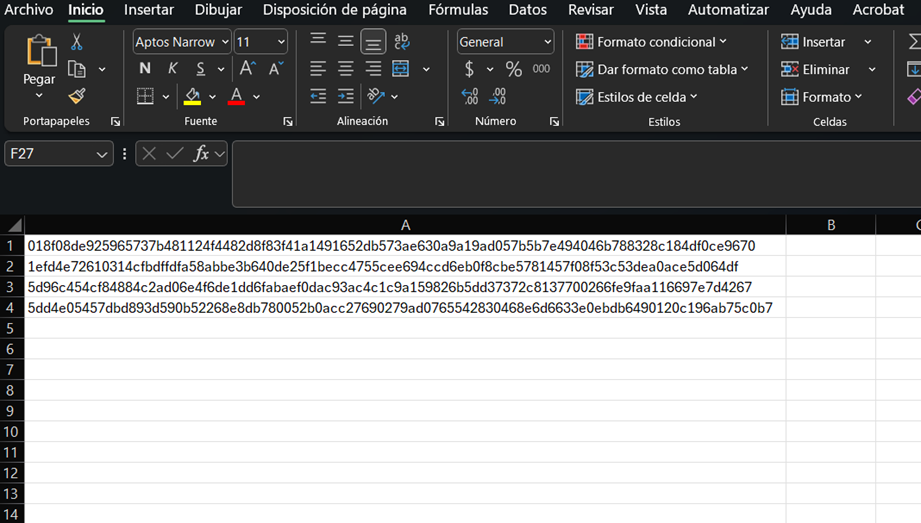
For this example, the CUFEs of four invoices belonging to the same operation are shown. It is important to note that all documents in the same operation must have the same receiver.
Once the documents are downloaded, they can be queried in the Invoices module.