The Spanish version is the authoritative reference. View in Spanish
Invoices
The Invoices module lets us query information about the documents uploaded so far, validate negotiable instruments, and generate registration and endorsement events.
When you enter this module, you find a filter section to locate documents:
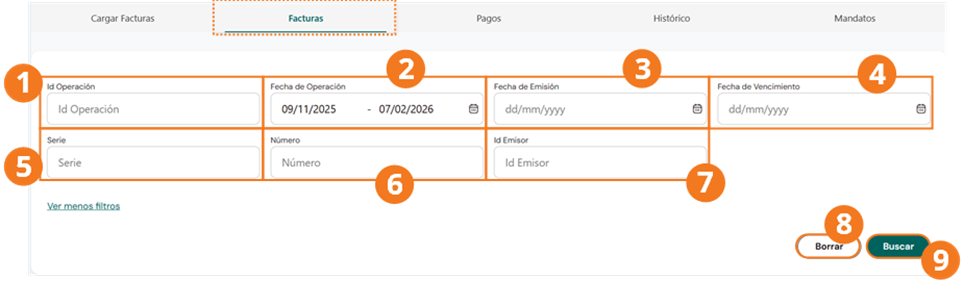
Click Clear to reset the filters and Search to apply them.
A table with the uploaded documents will be displayed. The icons on the left indicate the status across three dimensions:
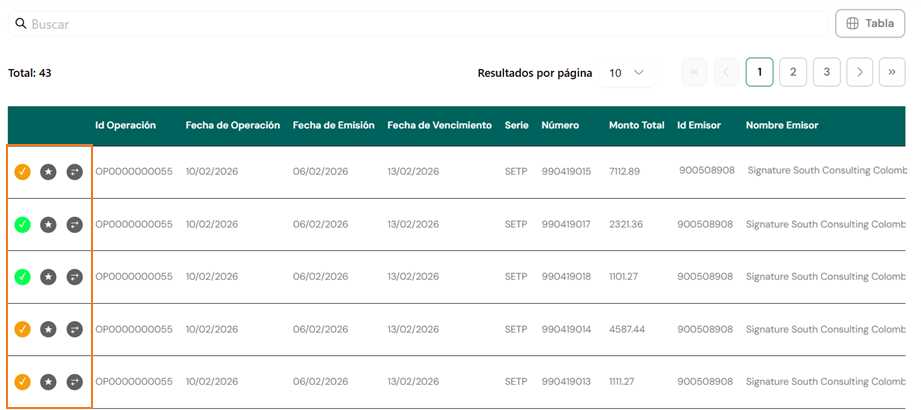
| Status | 🔘 Gray – Pending | 🟢 Green – OK | 🟡 Yellow – Partial | 🔴 Red – Error |
|---|---|---|---|---|
| Negotiable instrument | In process (automatic) | Events 030, 032, and 033/034 | Missing events | Query error |
| Registration (036) | No event 036 | Registered | — | Rejected by RADIAN |
| Endorsement (037) | No event 037 | Endorsed | — | Rejected by RADIAN |
For a document to be registered, all event icons must be shown in green.
In addition, the table has the following controls and columns:
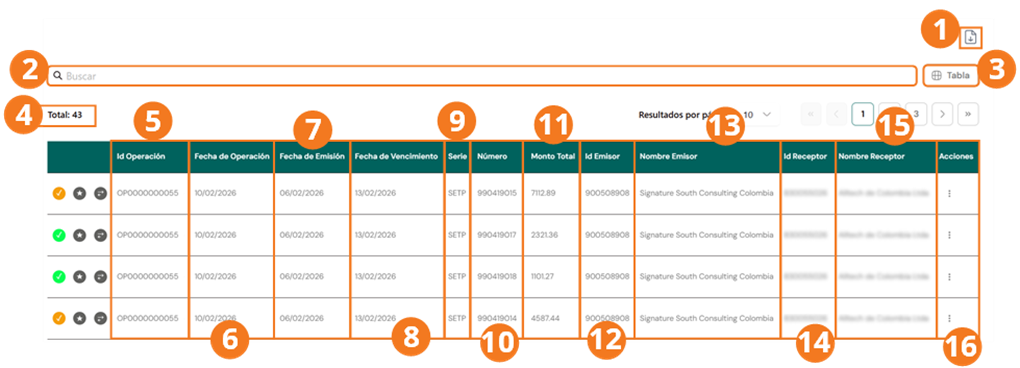
-
Click the icon to download the report of the previously uploaded invoices.
-
You can use the search box to locate a document.
-
Select the columns that will be shown on this query screen.

Actions
From the Options column, three operations can be performed:
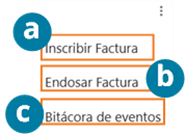
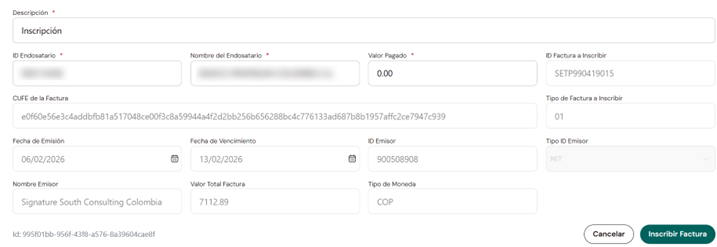
Register invoice
Sends the document for registration in RADIAN. A form is displayed where you must complete the fields in black as applicable:
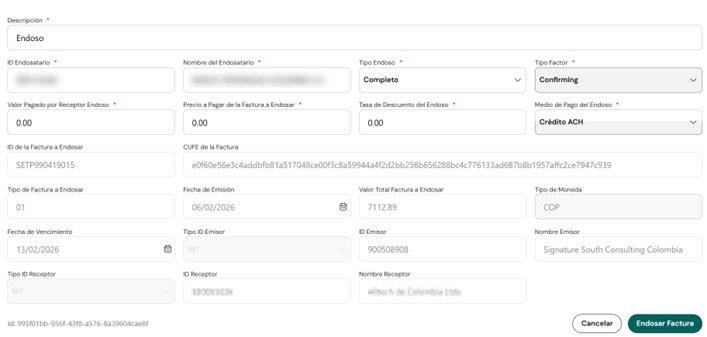
Endorse invoice
Requires the document to be registered beforehand. When you click, the endorsement form is displayed:
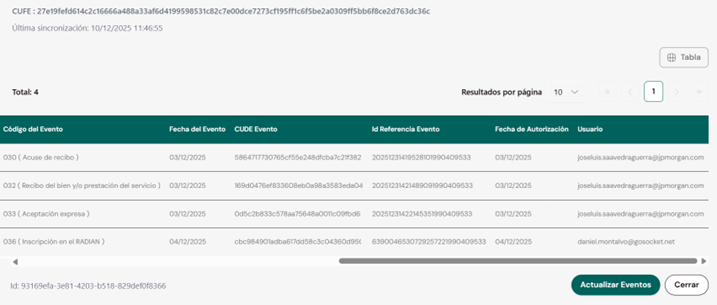
Event log
Query the history of events the document has gone through:
When a document is endorsed successfully, it stops appearing in this view and shows up in the Payments section.