The Spanish version is the authoritative reference. View in Spanish
Mandate generation
The Mandates module allows you to create a contract with the client through forms prefilled per client.
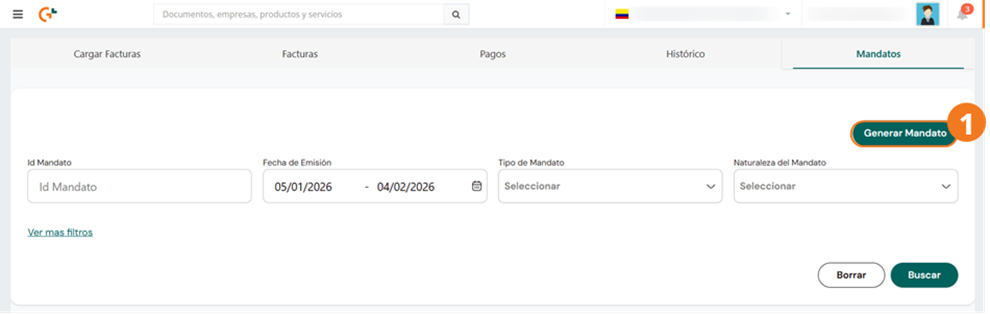
- To begin generating Mandates, click Generate Mandate.
In the form shown when creating a Mandate, the information to be captured is the mandator's. That is, the document issuer.
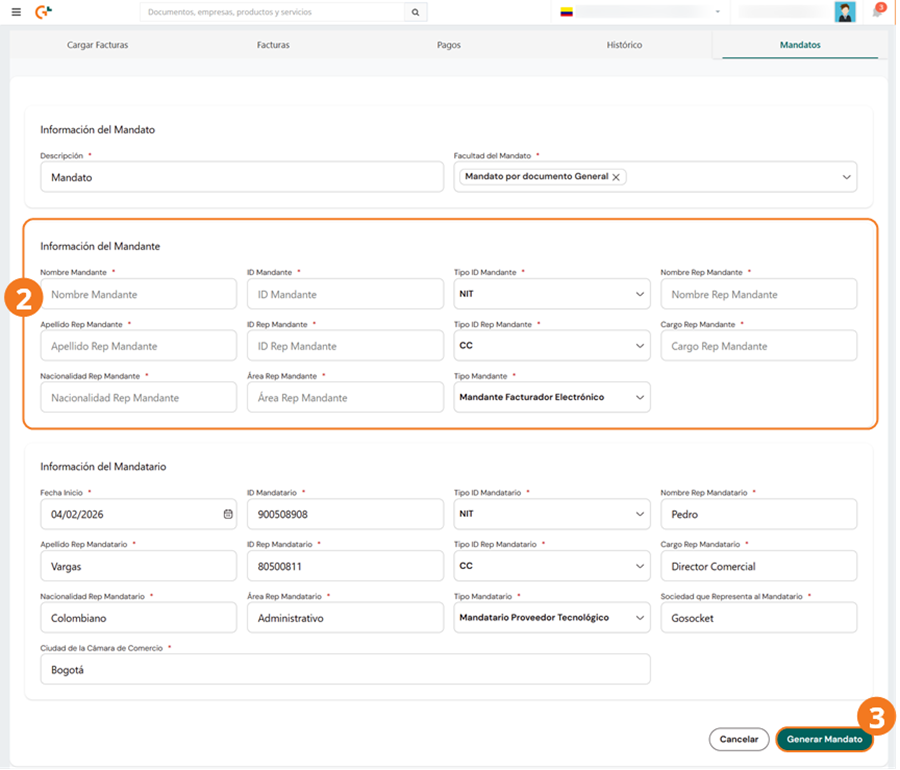
- Enter the data of the document issuer or Mandator.
- When finished, click Generate Mandate.
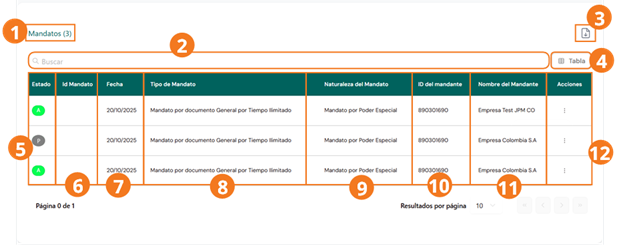
Once the form is filled out and the Mandate event is generated, the operation is shown in the Mandates registry as follows:
-
The top of the screen shows the number of registered Mandates.
-
You can locate a previously registered mandate using the search bar shown at the top of the records list.
-
To download the mandate records report, click the corresponding button.
-
Click Table to review the records in a table.
-
Mandate status, which can be:
- Approved by DIAN
- Pending DIAN approval
-
Identification number of the Mandate record.
-
Date the Mandate was generated.
-
Type of mandate generated.
-
Nature of the Mandate.
-
Tax identifier of the mandator.
-
Tax name of the mandator.
-
Within the Actions column, the Terminate Mandate option is shown to complete the mandate; this action will remove the mandator's permissions to generate events on the Mandate document.

When you click that option, the following form will be displayed, where you must enter the following information:
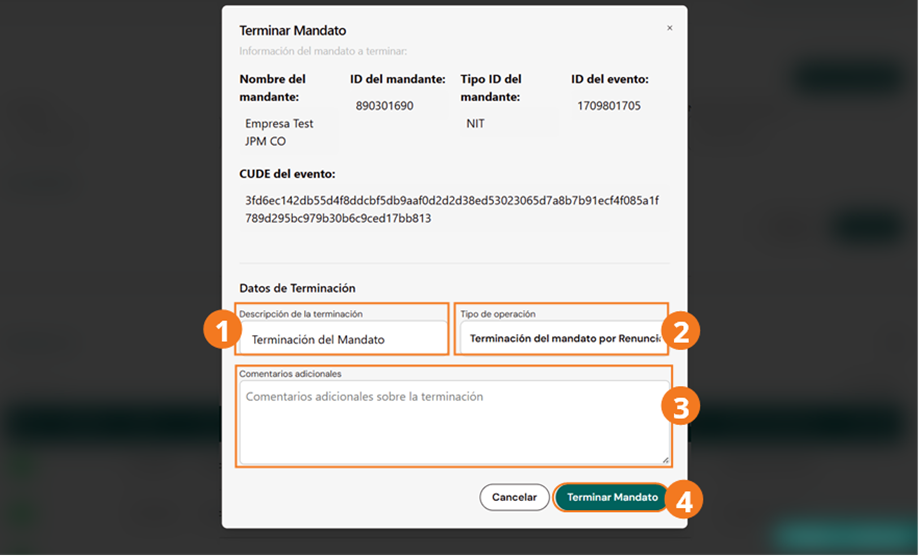
- Enter a description about the Mandate termination.
- Type the kind of operation you are performing.
- You can add an additional comment about the Mandate termination.
- When finished, click Terminate Mandate.
For Mandates, the following is currently implemented:
- Mandate event (043) with type 432 (General document for unlimited time) and nature 1 (Special power of attorney).
- Mandate termination event (044).
Any other type or nature requires an adaptation to the product (both frontend and backend).