The Spanish version is the authoritative reference. View in Spanish
Document Reception
This publication aims to explain how the electronic document reception flow works within Inbox.
This process allows receiving different types of vouchers from customers and suppliers through the channels offered by Gosocket. Once received, both the issuer and the recipient can view the documents in the Inbox Received tray, along with their respective graphic representation and attachments.
Likewise, our system performs a series of automatic validations to guarantee that the structure and integrity of the information strictly comply with the requirements of the tax authorities.
The following image describes, step by step, the document reception flow within the Inbox platform:
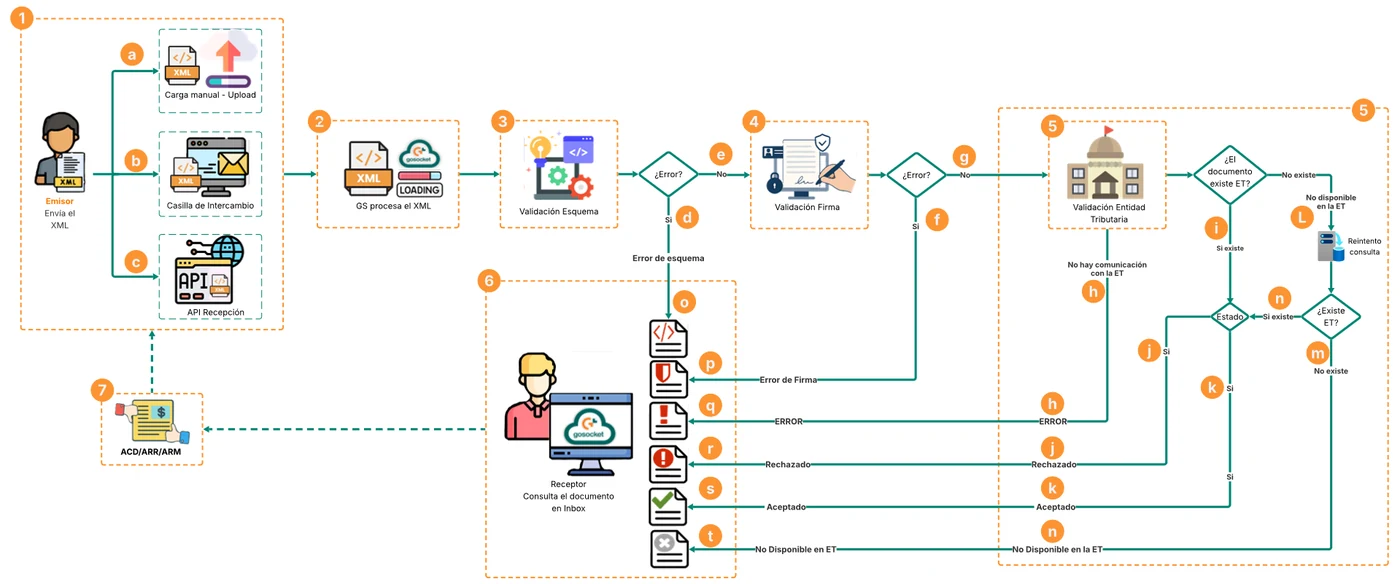
General Reception Process of an XML - Does not apply to all countries
1. Methods for sending the XML document in Gosocket:
The supplier has the option to send the XML document to the Gosocket platform in three ways:
a. Manual upload - Upload
The supplier manually uploads the XML document through the Gosocket Upload and the document notes will identify the channel through which the XML was uploaded, as follows:
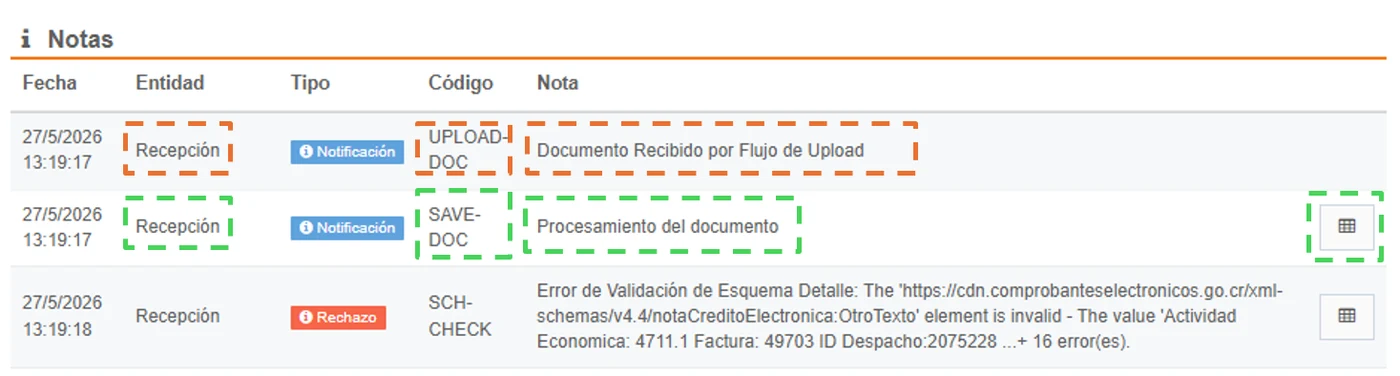
Document detail Notes section - Upload Flow
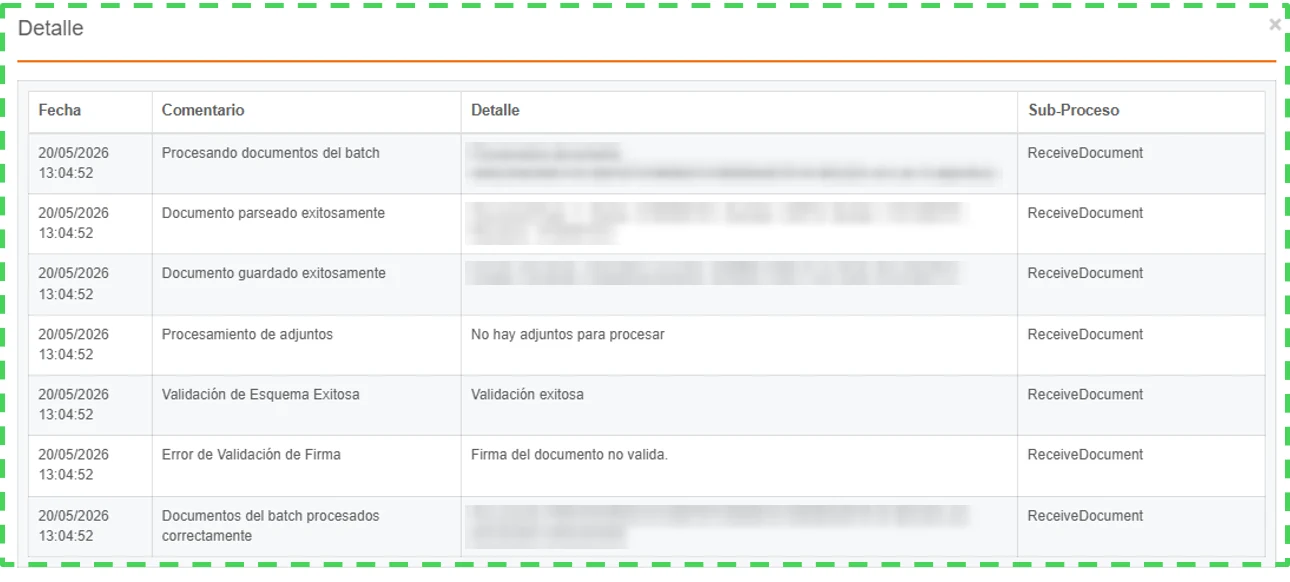
Detail of the XML processing by Upload
b. Exchange mailbox
The supplier sends the XML document through the exchange mailbox and the document notes will identify the channel through which the XML was uploaded, as follows:
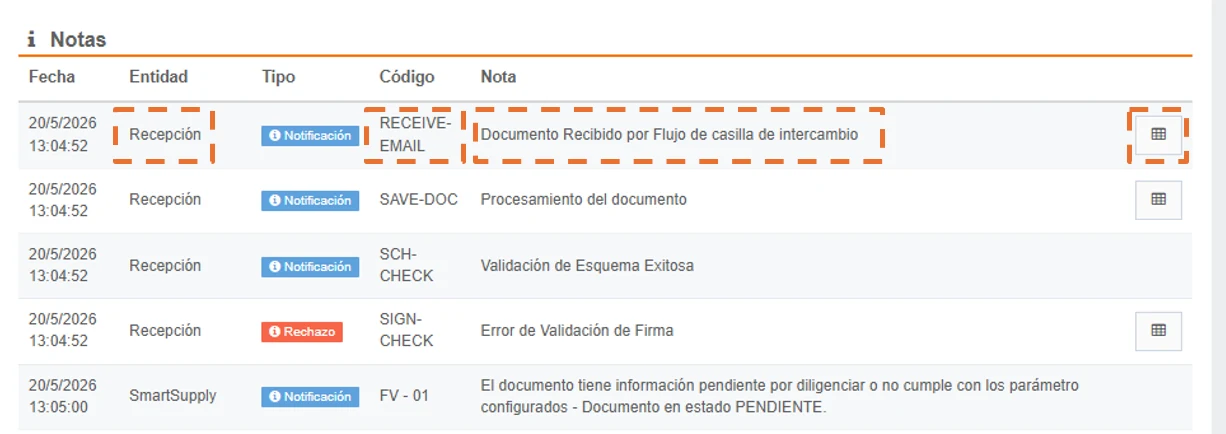
Document detail Notes section - Exchange Mailbox Flow
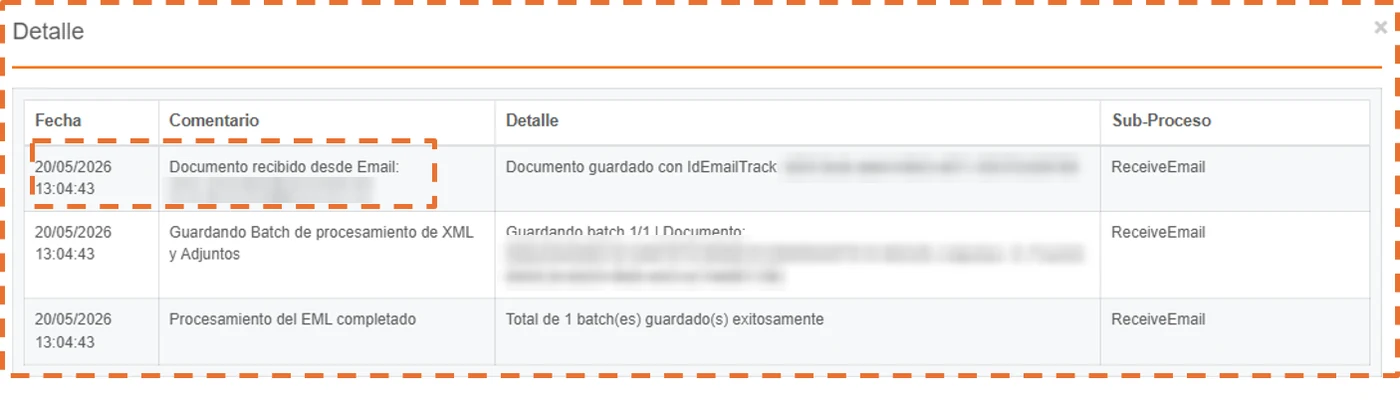
Detail of the XML processing by the exchange mailbox
c. Reception API
The supplier uploads the XML document through the Reception API and the document notes will identify the channel through which the XML was uploaded; for this option it will be denoted with the text “Document uploaded by UploadApiToCheck.”, as follows:

Document detail Notes section - Reception API Flow
Note: When using any of the following document reception channels:
- Exchange mailbox
- Manual XML upload (Upload option)
- Reception API
The system will automatically run the schema, signature, and corresponding validation with the Tax Authority (TA) checks.
2. Reception and validation of documents in Gosocket
The Gosocket portal downloads and processes the XML. When it is a tax document, it enters a reception validation process.
3. Document schema validation
First, a schema validation is performed on the XML document to ensure it complies with the format established by the tax authority. Depending on the result of this validation, the process can lead to one of the following scenarios:
d. Failed: The document does not comply with the tax format, the document reception flow will be stopped due to the schema error, it will be registered in Gosocket with status Schema Error and the interface will show the icon  and the document notes will detail the reason for the rejection, as follows:

Schema error icon in Inbox
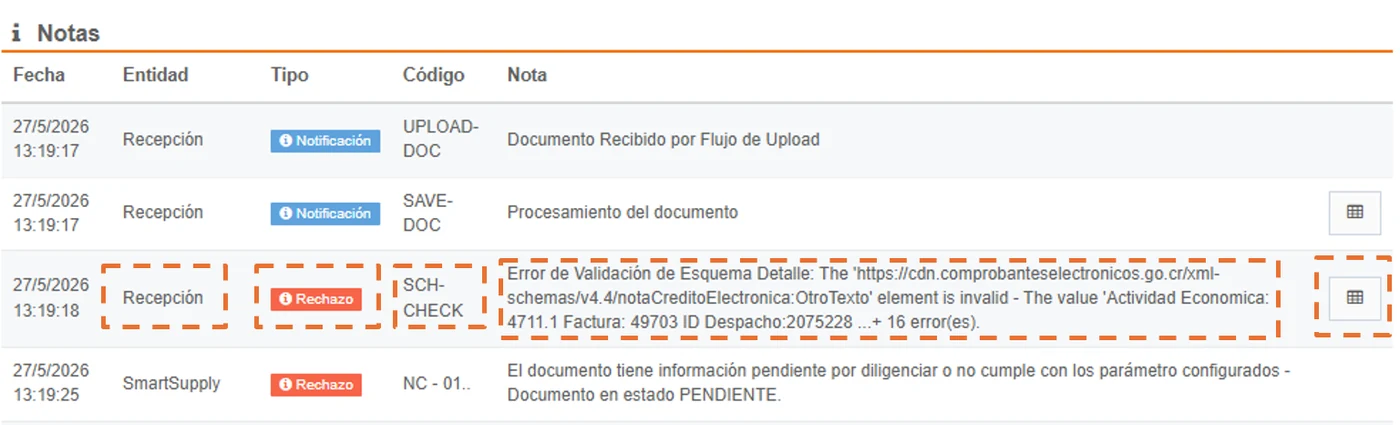
Document detail Notes section - Schema Error
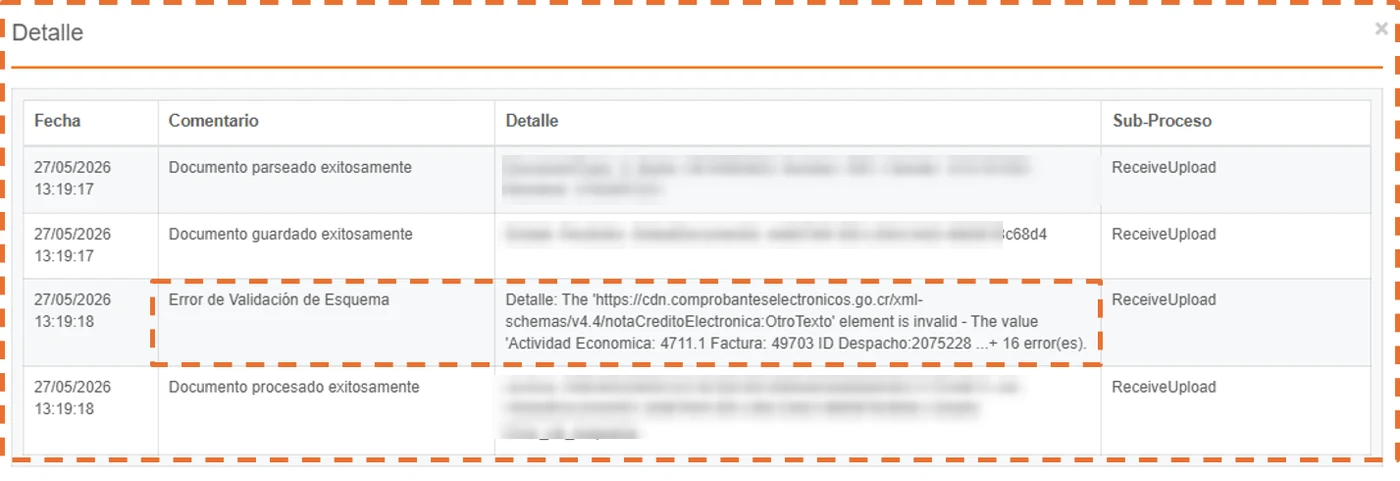
Detail of the XML processing for the schema error
e. Successful: The document complies with the tax format and, therefore, the system continues with the next validation.
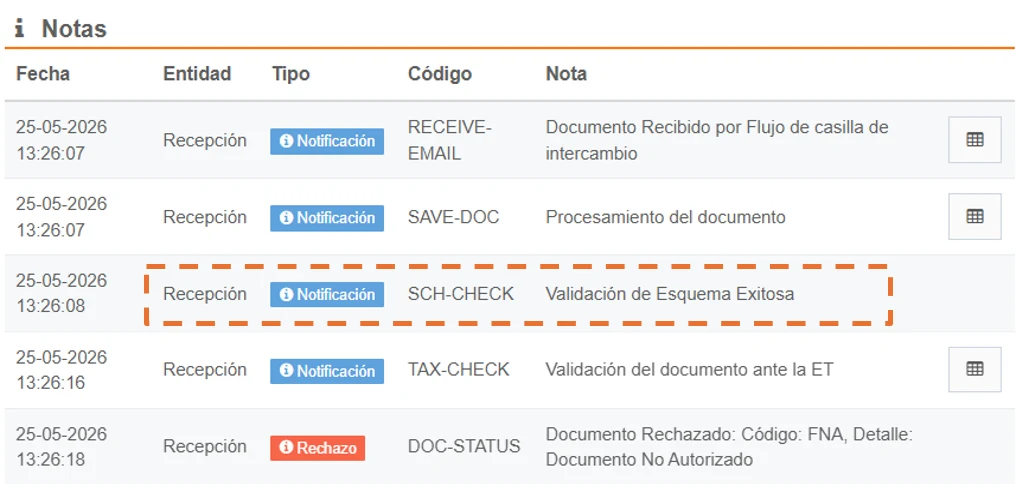
Document detail Notes section - Successful schema validation
4. Document electronic signature validation
Second, a document electronic signature validation is performed to ensure that the information has not been altered. This validation can produce one of the following results:
f. Failed: This means the document has been altered, the document reception flow will be stopped due to the signature error, so it will be registered in Gosocket with status Signature Error, the interface will show an icon  and the preview notes will indicate the reason for the rejection, as follows:

Signature error icon in Inbox
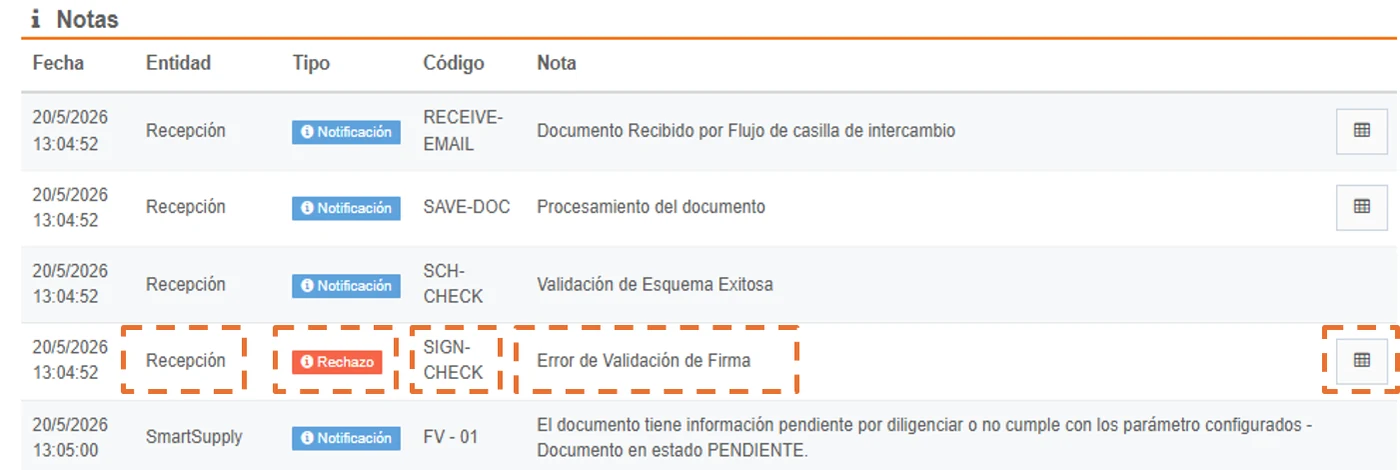
Document detail Notes section - Signature Error
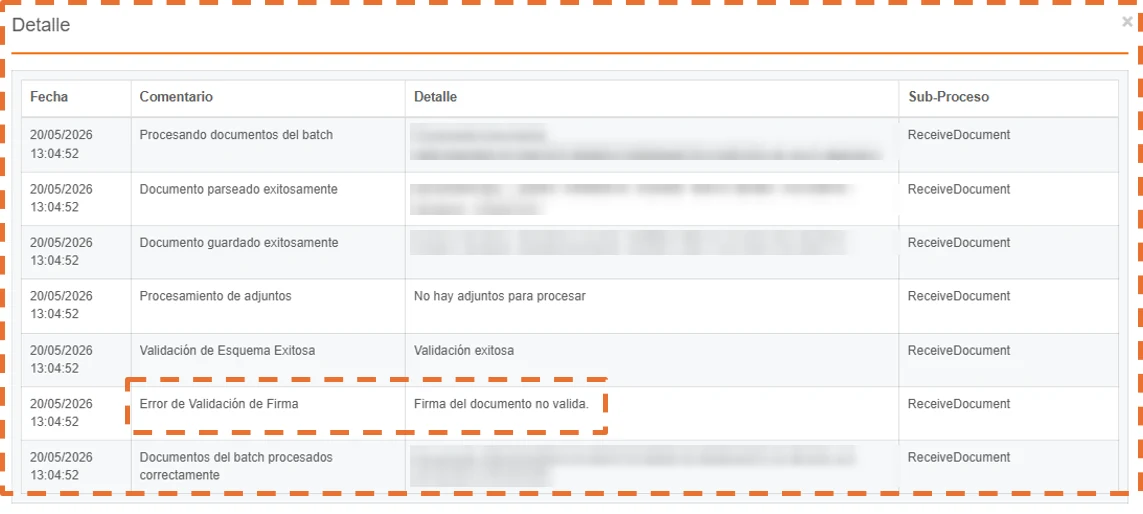
Detail of the XML processing for the schema error
g. Successful: If the XML electronic signature validation is correct, the document will continue with the reception flow.
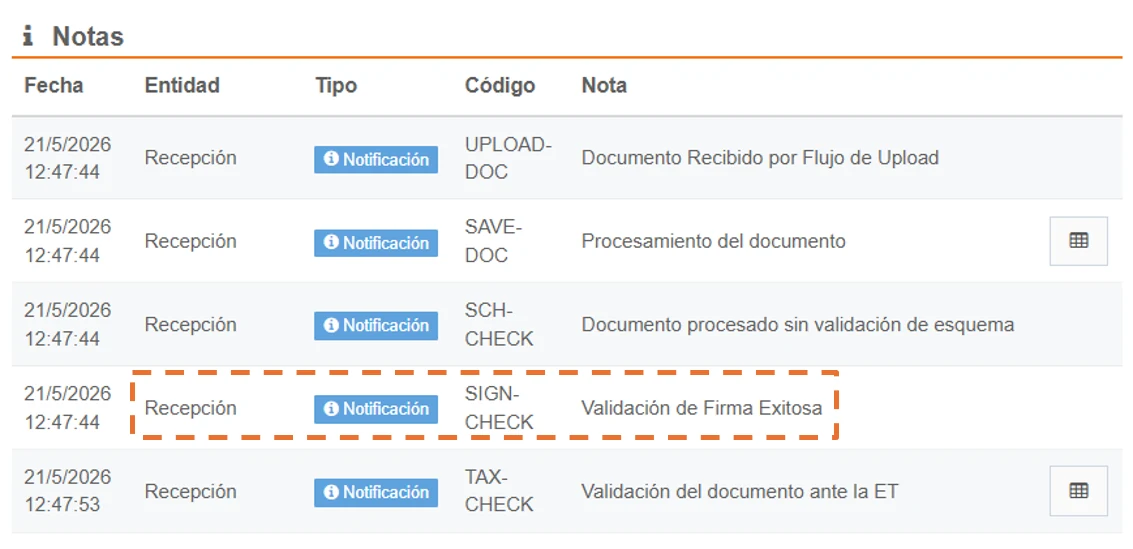
Document detail Notes section - Successful signature validation
5.Document validation with the Tax Authority
Third, the query validation with the Tax Authority is performed. This validation can produce several results:
h. Document has an internal exception from Gosocket ❗
When performing the validation query with the Tax Authority for the document and Gosocket cannot connect to the TA service or there are communication errors with the service, the document changes its status to ERROR and it will be assigned the icon ❗.

Error icon in inbox: There was no communication with the TA.
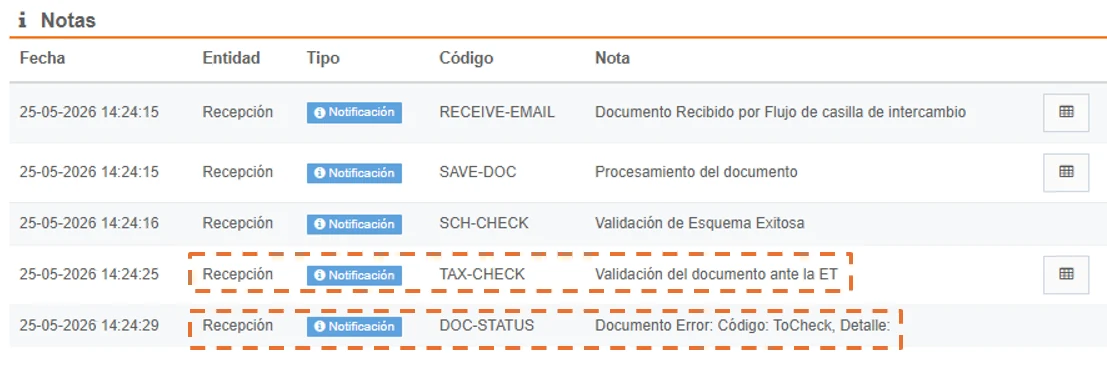
Document detail Notes section - Document validation with the TA with communication error.
i. At this point in the process, when the document does exist in the tax authority , two responses can result:
- If the document exists, but has a status of Rejected
 (For more detail, see item j)
 - If the document exists, but has a status of Accepted
 (For more detail, see item k)
j. Document Rejected by the Tax Authority
If the document exists in the TA, but there is some reason for rejection at the Tax Authority, its status will be Rejected and it will be assigned the icon .

Rejected icon in inbox: Document validation with the TA rejected
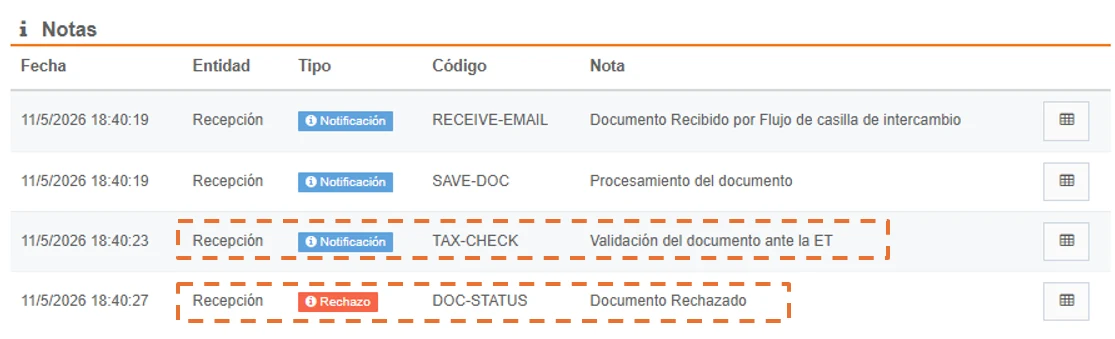
Document detail Notes section - Document validation with the TA rejected
k. Document Accepted by the Tax Authority
If the result of the previous validations (Schema and Signature) is satisfactory and the query with the tax authority is successful, the document will be registered in Gosocket with the status Accepted. In the interface, this status will be identified with a green check icon.

Accepted icon in inbox: Successful document validation with the TA
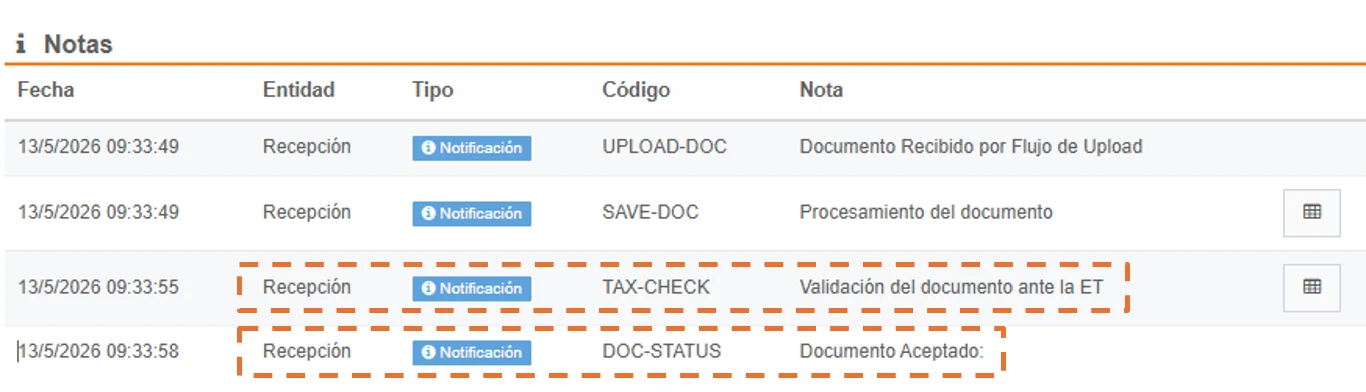
Document detail Notes section - Successful document validation with the TA
L. Automatic retries when the document has the status Not Available in ET  .
.
At this stage of the process, when the document does not exist in the Tax Authority, this indicates that the received document is not registered in the TA. In this scenario, the following actions are performed on the document:
-
In Gosocket, the document will remain in status Not Available in ET and will be assigned the corresponding icon
. -
An automatic retries process will be triggered, which consists of performing multiple queries to the Tax Authority to check whether the document changes to a status other than Not Available in ET. If a different status is obtained during any of these retries, the document will automatically update both its status and its corresponding icon.
-
If, after completing all the retries, the document is still not available in the Tax Authority, it will keep the status Not Available in ET and retain the corresponding icon
. -
The current retry parameter is 30 attempts in 1 hour (the query is retried every 2 minutes).
When the document is received and the query retries with the TA are performed, the following message is shown in the Notes section:
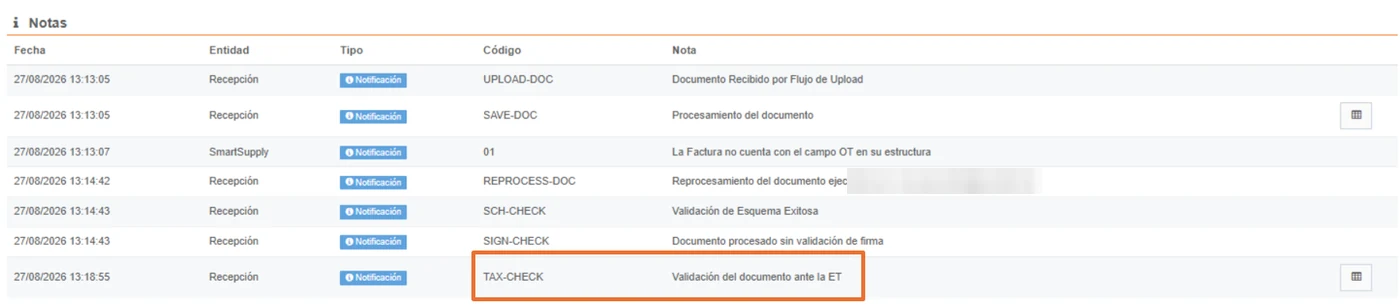
and within the document detail, the code “TAX-CHECK” will indicate that the validation with the TA has started:

Once the automatic retries are exhausted (approximately one hour later), the final status of the document with the TA will be displayed, as follows:
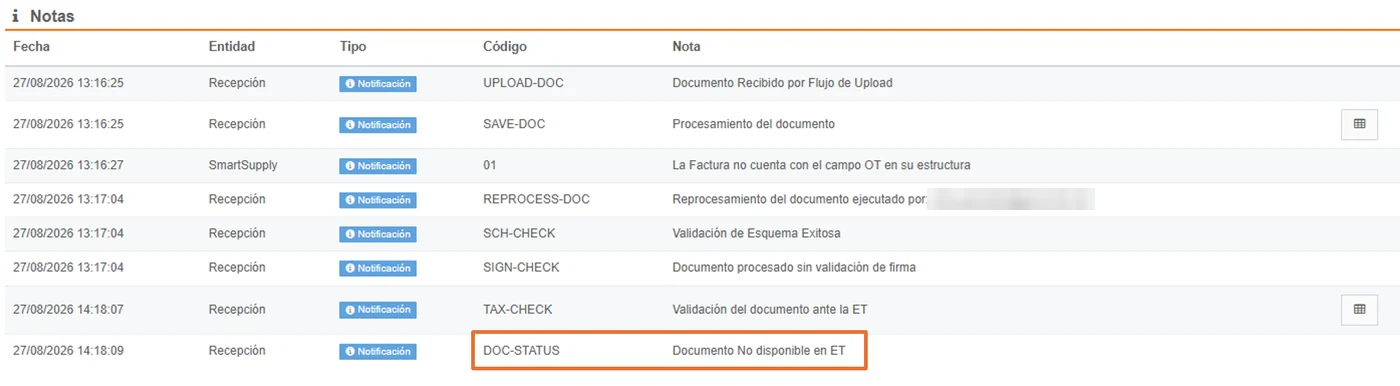
and the document detail will show the message:
“Integrated Query with the TA: Does not exist. 30 attempts were made. Manual reprocessing was performed.”
and the other line will show another message: “The maximum number of retries for the status query with the TA was reached”, as follows:
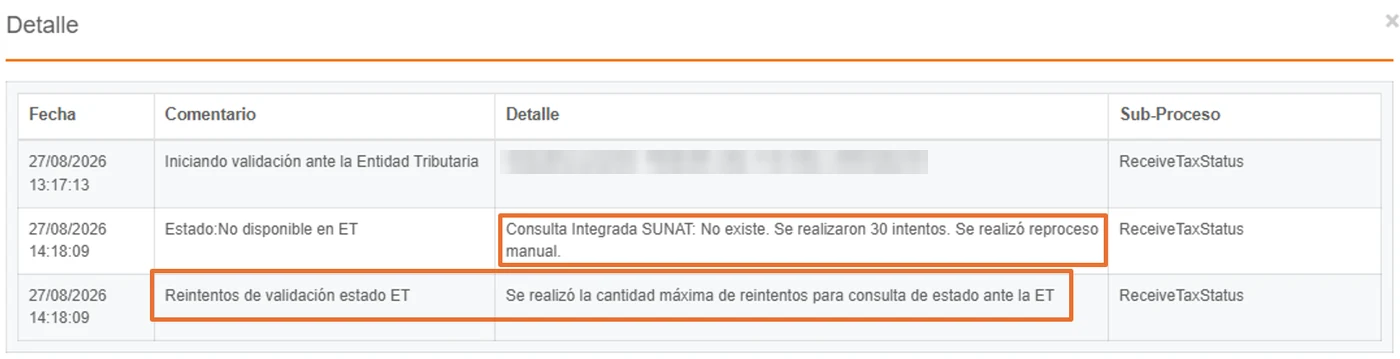
and after these retries, two responses can result:
m. If after 30 attempts the document is still not found, it will remain permanently in status Not Available in ET, showing the following icon in the Inbox.

Rejected icon in inbox: Document validation with the TA
n. If during these retries the document is found in the TA, its status is updated, the process continues and two responses can result:
- If the document exists, but has a status of Rejected (For more detail, see item j)
- If the document exists, but has a status of Accepted (For more detail, see item k)
6. Inbox iconography of reception validation results
Finally, both the issuer and the recipient can check the results of the XML document validations in Inbox, as follows:
| No. | Status | Icon in the inbox interface |
|---|---|---|
| o | Document has a schema error | |
| p | Document has a signature error | |
| q | Communication error with the Tax Authority | |
| r | Document was Accepted by the Tax Authority | |
| s | Document was Rejected by the Tax Authority | |
| t | Document not available or does not exist in the Tax Authority | |
7. Issuance of commercial acknowledgments
Once the document has been received and validated, the mercantile or commercial acknowledgments deemed necessary can be issued from the inbox platform or, failing that, sent through the exchange mailbox. The above applies only to the following countries:
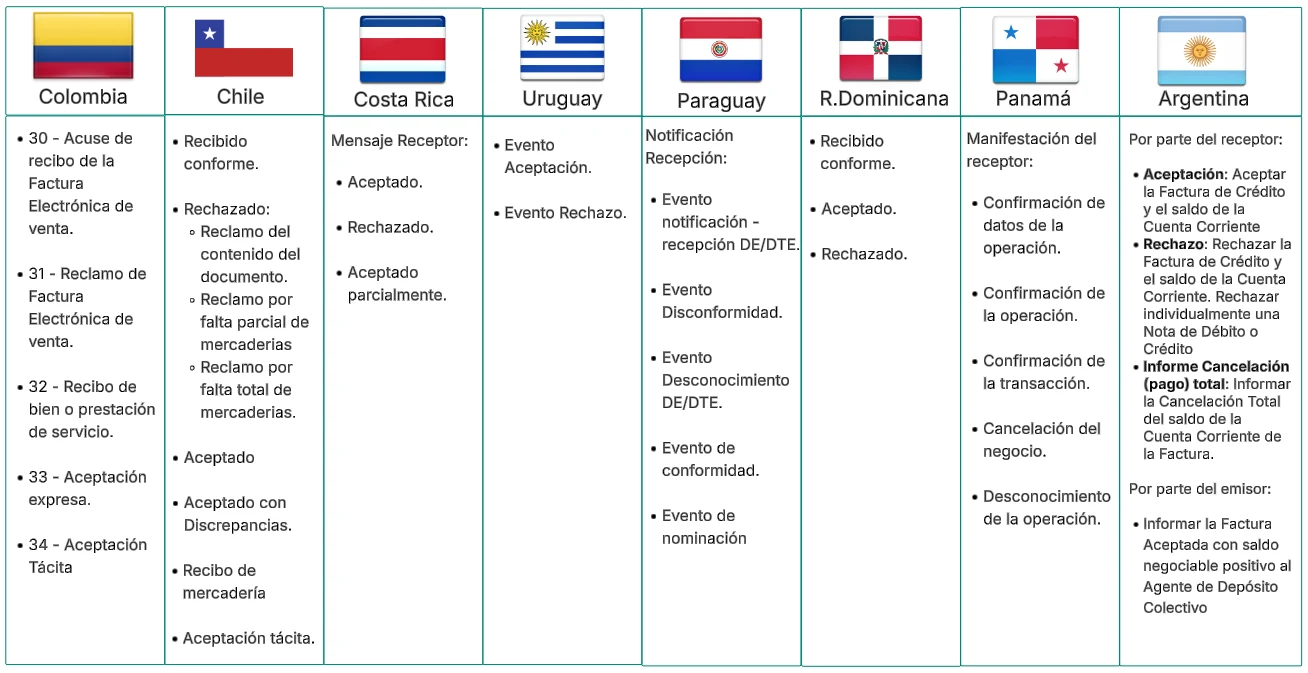
Countries where commercial acknowledgments apply
Finally, a summary by country of the validations of the reception process that Gosocket performs on received XMLs is presented:
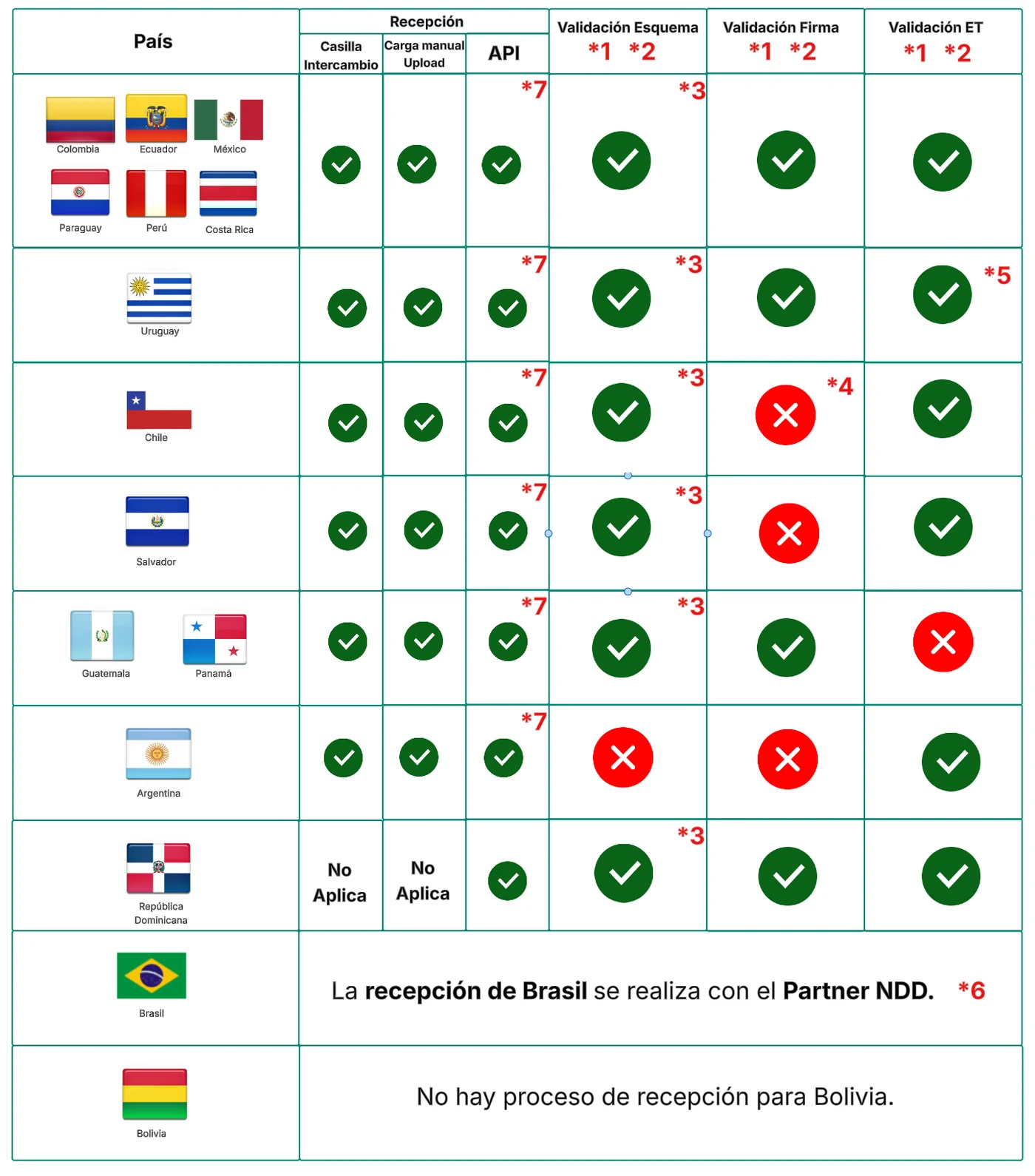
*1: (Where the validation applies) Configuration to skip reception validations by country
Also, within the reception validation flow, Gosocket allows skipping the schema, signature, or tax authority checks. These configurations can be applied flexibly according to country-level requirements.
For more details on how to configure this feature, see the following section: Country - Reception Validation Configuration
*2: (Where the validation applies) Configuration to skip reception validations by company
On the other hand, within the reception validation flow, Gosocket allows skipping the schema, signature, or tax authority checks at the company level. These configurations can be applied flexibly according to the requirements of each company.
For more details on how to configure this feature, see the following section: Company - Reception Validations Configuration
*3: (Where the schema validation applies) Allow the reception flow to continue despite XML schema errors:
This feature can be enabled independently for each company. Its purpose is that, if a schema error is detected in the XML upon receiving the document in Gosocket, the specific error detail will be automatically recorded in the document's "Notes" section.
Despite this finding, the document will continue its normal flow toward the following reception validations, such as the signature and tax authority checks.
The document will remain in Inbox as follows:
- In Gosocket, the document will remain in status Validated ET with schema error and the orange icon
 will be displayed, as follows:

For more details on how to configure this feature, see the following section: XML Configuration Presents Schema Errors and Reception Flow Continues
***4: (**🇨🇱 ) Advanced signature validation:
In Chile, signature validation is NOT performed, but Gosocket has an optional process called “Advanced signature validation” whose purpose is to validate the integrity of the document's signature with the Tax Authority and it can be enabled through a request to the Product team.
For more details on this feature, see the following section:Chile: Document Receipt
***5: (**🇺🇾 ) Document found in the TA but without status, returning error 106:
In Uruguay there is a specific case, where, when querying Gosocket's compliance and it returns an error code 106 “No valid status obtained from the DGI”, the document will remain in Inbox as follows:
- This feature is already configured by default.
- In Gosocket, the document will remain in status ET status not validated and the icon
 will be displayed, as follows:

For more details on this feature, see the following section: Uruguay: Document Receipt
***6: (**🇧🇷 ) Brazil Reception
The Brazil reception is carried out with the NDD Partner; for more details on the reception of electronic documents in Brazil, see the following section: BR: AP - Recepción
*7: Reception via API
This option allows customers to receive documents through an API designed to upload, store, and track XML files. It also facilitates the execution of reception validations (schema, signature, and TA), the application of commercial acknowledgments, document distribution, and the creation of custom validation rules through the Smart Supply tool. For more detail on this API, see the following section: Reception API