The Spanish version is the authoritative reference. View in Spanish
Argentina: Document Reception (MS)
1. INTRODUCTION
Unlike other countries, where electronic documents are received through a legal document in an official fiscal XML format standardized by each tax authority.
In Argentina, the process of receiving and validating electronic invoices by ARCA (Revenue and Customs Control Agency), works as a prior authorization system in which ARCA validates the document before it acquires fiscal validity.
The complete process for receiving electronic invoices in ARCA is explained below:
a. Invoice generation by the issuer
The company or taxpayer generates the invoice from:
- ARCA's Comprobantes en Línea.
- An ERP system or invoicing software.
- A Web Service integrated with ARCA (WSFE).
The invoice contains data such as:
- Issuer CUIT.
- Point of sale.
- Document type (A, B, C, E, etc.).
- Date.
- Recipient data.
- Billed items.
- VAT and other taxes.
- Total amount.
b. Electronic submission to ARCA
Before delivering the invoice to the customer, the system electronically sends the transaction data to ARCA for validation. ARCA receives:
- Issuer tax data.
- Document numbering.
- Recipient information.
- Amounts and taxes.
- Transaction type.
c. Validations performed by ARCA
ARCA runs multiple automatic checks:
Taxpayer validation verifies that:
- The CUIT exists.
- The taxpayer is active.
- The taxpayer is authorized to issue electronic invoices.
- The point of sale is enabled.
Mathematical validation checks:
- VAT calculations.
- Totals.
- Subtotals.
- Applied tax rates.
Tax validation checks:
- Allowed document type.
- Recipient's VAT status.
- Sequential numbering.
- Current tax rules.
d. CAE issuance
If the invoice is approved, ARCA generates the CAE (Electronic Authorization Code)
This code constitutes the fiscal authorization of the document. Without a CAE, the invoice has no tax validity.
Along with the CAE, ARCA returns:
- CAE number.
- CAE expiration date.
- Status: Approved.
e. Response to the issuing system
ARCA returns an electronic response:
Approved: The invoice is authorized and can be sent to the customer.
Rejected: ARCA reports an error code indicating the reason:
- Invalid CUIT.
- Incorrect point of sale.
- Duplicate numbering.
- Calculation error.
- Missing mandatory data.
f. Generation of the final document
Once the CAE is obtained:
- The PDF or printed representation is generated.
- The CAE is added.
- The CAE expiration date is included.
- The mandatory QR code is added.
g. Delivery to the recipient
The invoice can be sent through:
- Email.
- Customer portal.
- Web download.
- Paper printout.
h. Storage and traceability
ARCA keeps the electronic authorization records, which allows for:
- Tax audits.
- Document verification.
- Cross-checking of tax information.
- Detection of forged invoices.
i. Process summary
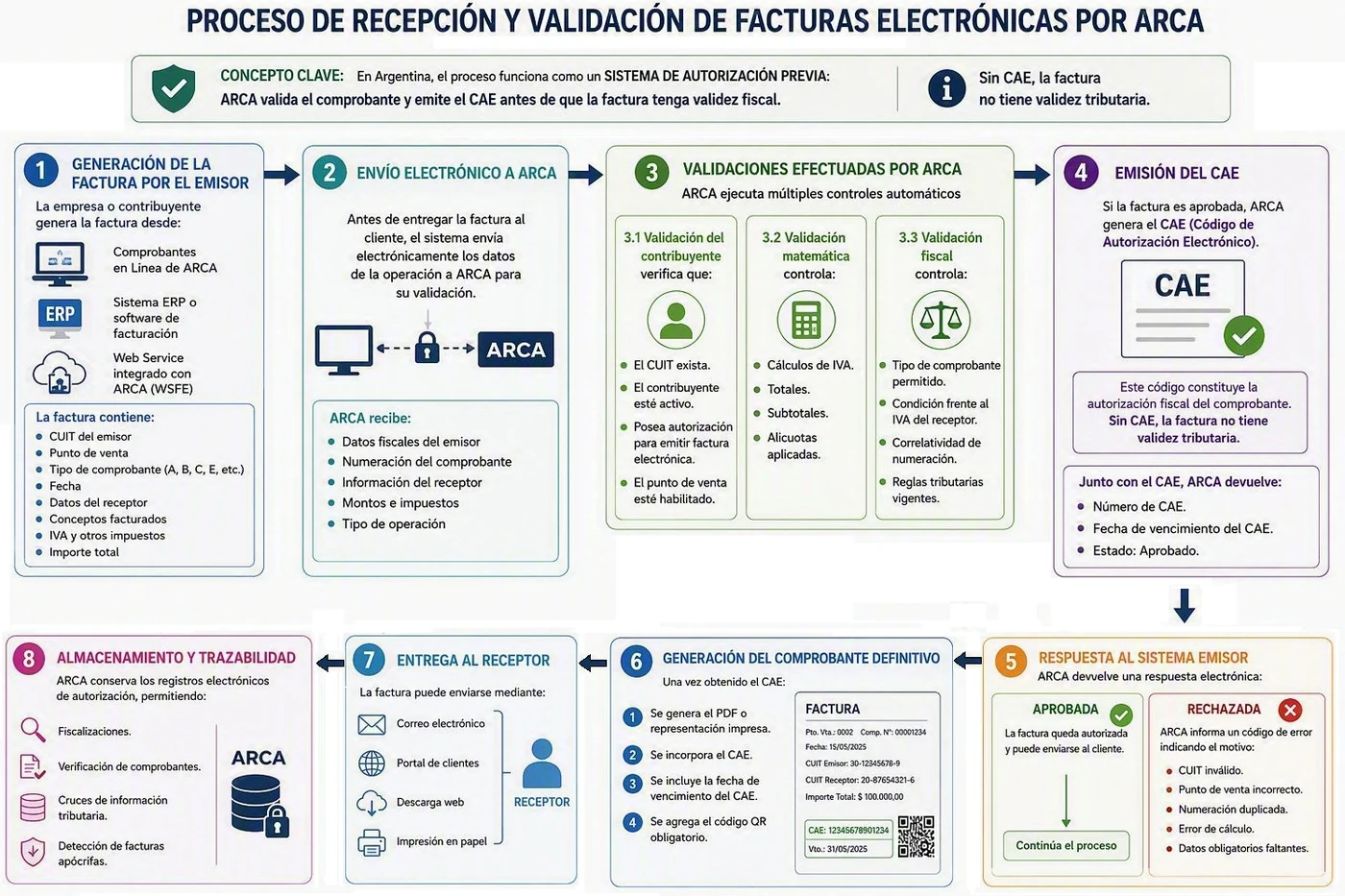
2. Graphic reception of the document
Note that ARCA does not receive the electronic invoice as a commercial recipient. Its role is to receive and process the electronic document authorization request sent by the issuer.
Once the request is received, ARCA performs the corresponding tax validations and, if the information is correct, issues the CAE (Electronic Authorization Code). Assigning the CAE gives the document fiscal validity and allows the issuer to send it to the customer.
This scheme is known as the prior authorization model for electronic documents and is the foundation of the electronic invoicing system in Argentina.
3. Document reception in Gosocket
For document reception processes in Argentina, consider that ARCA does not use or process the PDF file as the primary document for authorizing an electronic invoice. Authorization is performed on the electronic information reported by the issuer.
However, when an invoice is received through an exchange mailbox provided by Gosocket, an OCR process extracts the information from the graphic representation of the document in PDF format. This data is then queried and validated through the verification services provided by ARCA, in order to confirm that the document was actually authorized and has a valid CAE.
The main data that must be extracted from the graphic representation to carry out this validation process are:
- Issuer CUIT.
- Point of sale.
- Document type (Invoice A, B, C, E, Credit Note, Debit Note, among others).
- Document number.
- Issue date.
- Recipient data.
- Billed items.
- VAT and other applicable taxes.
- Total transaction amount.
- CAE.
- CAE expiration date.
Once this information is obtained, Gosocket can run the corresponding validations against ARCA's services to verify the authenticity and validity of the document before continuing with the reception, acceptance, and registration processes.
4. COMPLETE PROCESSING FLOW OF A PDF DOCUMENT
This process allows receiving different types of documents from customers and suppliers through the channels offered by Gosocket. Once received, both the issuer and the recipient can view the documents in the Received tray of Inbox.
Likewise, our system performs a series of automatic validations to ensure that the information strictly complies with the requirements of the tax authorities.
The following image describes, step by step, the document reception flow within the Inbox platform:
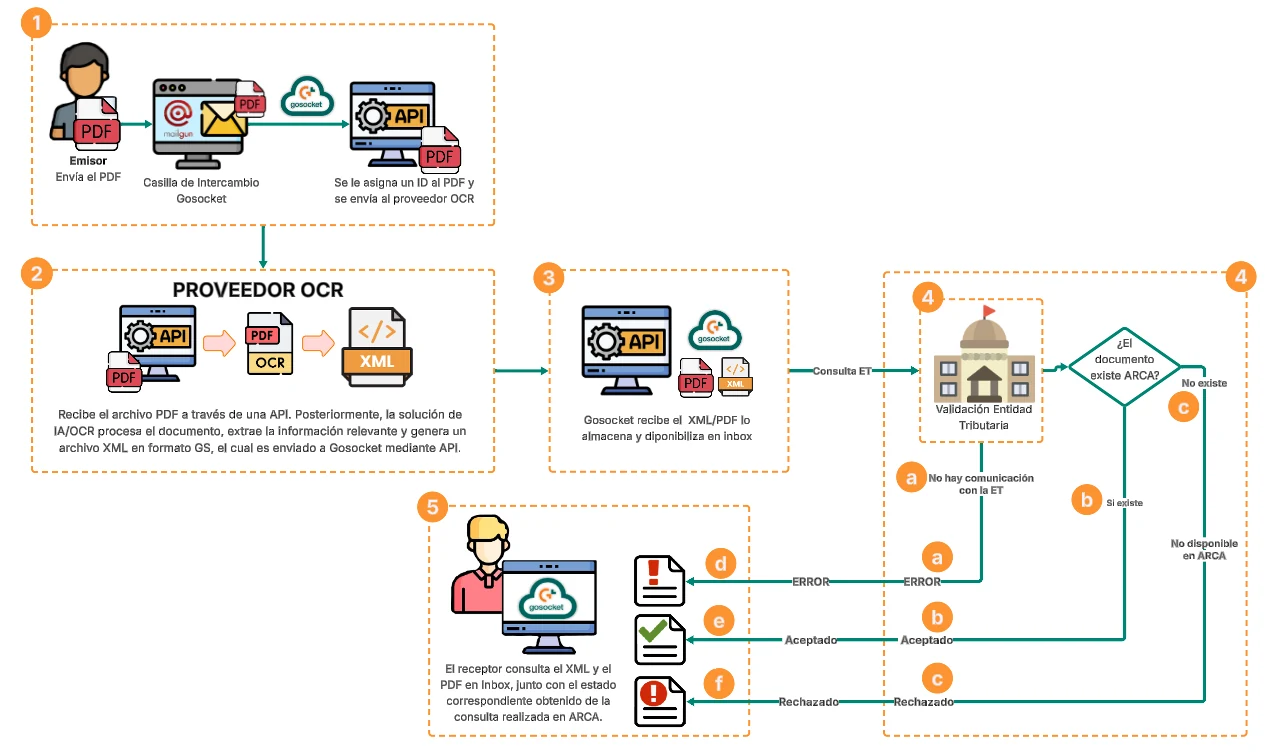
Argentina reception process
1. The issuer or supplier sends the PDF document through the Gosocket exchange mailbox:
Gosocket provides an exchange mailbox for receiving documents in PDF format. Through this channel, one or more documents can be sent for processing.
Available environments:
- Sandbox (Testing):
ar_ms_docupath_sbx@inbound.gosocket.com - Production:
The documents in PDF format that can be received are:
- Type A, B, C documents
- Type T documents
Once the email with the attached PDF is received, the Mailgun-based integration service records the entry of each PDF into the platform and assigns it a unique identifier (External ID), which allows tracking and tracing the processing of the PDF.
Gosocket then sends the PDF document(s) to the OCR provider through API services for processing.
2. The OCR provider receives the PDF, extracts the information from the PDF and sends the document to Gosocket in XML format.
The OCR provider receives the PDF documents through an API and uses artificial intelligence models to extract the information they contain.
As a result of this process:
- The structured information of the document is obtained, and an XML document is generated in the standard format defined by Gosocket.
- Once the PDF processing is complete, the OCR provider sends Gosocket the generated XML.
3. Gosocket receives and stores the document in XML format together with its corresponding PDF.
Gosocket processes the XML received and makes it available on the Inbox platform, keeping the relationship between the original PDF and the XML sent by the OCR provider.
6. Gosocket queries and validates the document in ARCA
Once Gosocket receives the XML with the data extracted from the document in PDF format, a query is made to ARCA's validation services to verify the existence and fiscal status of the document.
During this query, Gosocket uses the document information, such as the issuer CUIT, document type, point of sale, document number, and CAE, to validate that the document was authorized by ARCA and that its information matches the official records.
As a result of this validation, the following statuses may be obtained:
- Authorized document: The document was successfully validated by ARCA and has a valid CAE.
- Rejected document:
- The document was reported to ARCA but was not authorized due to errors or inconsistencies in its issuance.
- There is no information about the document in the ARCA records queried, or the data provided does not match.
- The document has a CAE whose validity date has expired.
- Query error: The validation could not be completed due to communication problems with ARCA's services or incomplete information in the request.
Once the query result is obtained, Gosocket records the validation status of the document and continues with the corresponding flow within the Inbox platform, allowing users to view the result of the verification performed with ARCA. This query can produce several results:
a. Document has an internal Gosocket exception ❗
When querying the document status with ARCA, if Gosocket cannot connect to the TA service or there are communication errors with the service, the document status changes to ERROR and it is assigned the icon ❗.

Error icon in Inbox: No communication with the TA.
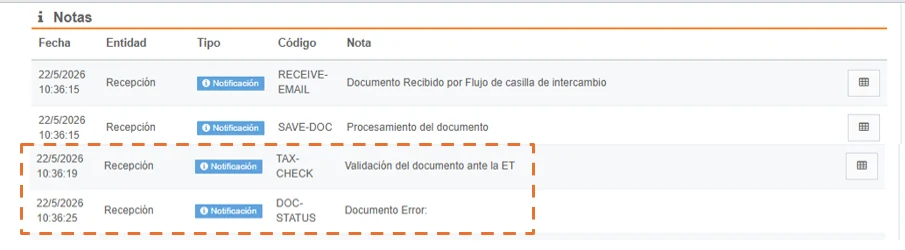
Document detail, Notes section - Document validation with communication error
b. Document queried in ARCA with Approved status 
If the document status query with the tax authority returns Approved, the document is registered in Gosocket with the Accepted status. In the interface, this status is identified with a green check icon.

Accepted icon in Inbox: Successful document validation with the TA
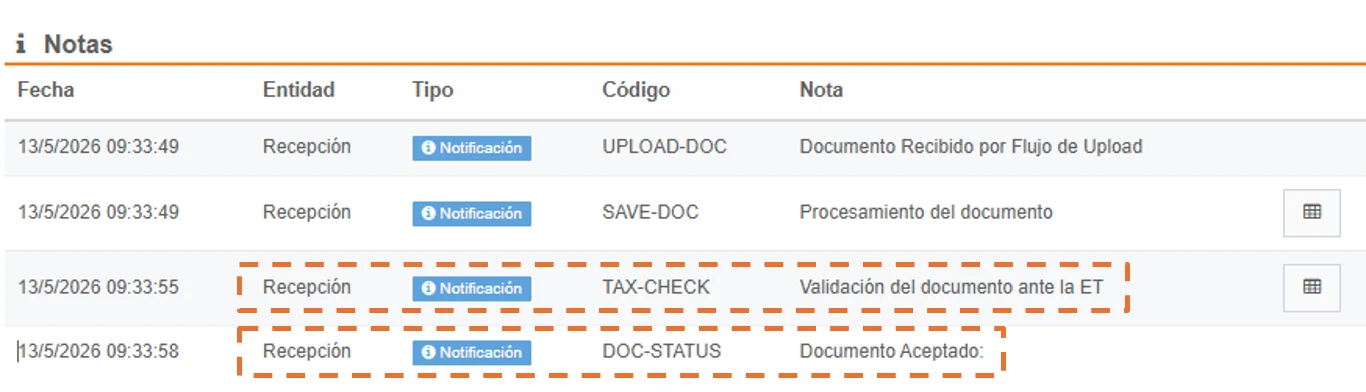
Document detail, Notes section - Successful document validation with the TA
c. Document queried in ARCA with Rejected status
If the document status query with the tax authority returns Rejected, the document is registered in Gosocket with the Rejected status. In the interface, this status is identified with the icon. The different reasons why ARCA may reject a document are:
- Invalid CUIT.
- Incorrect point of sale.
- Duplicate numbering.
- Calculation error.
- Missing mandatory data.

Rejected icon in Inbox: Document validation with the TA rejected
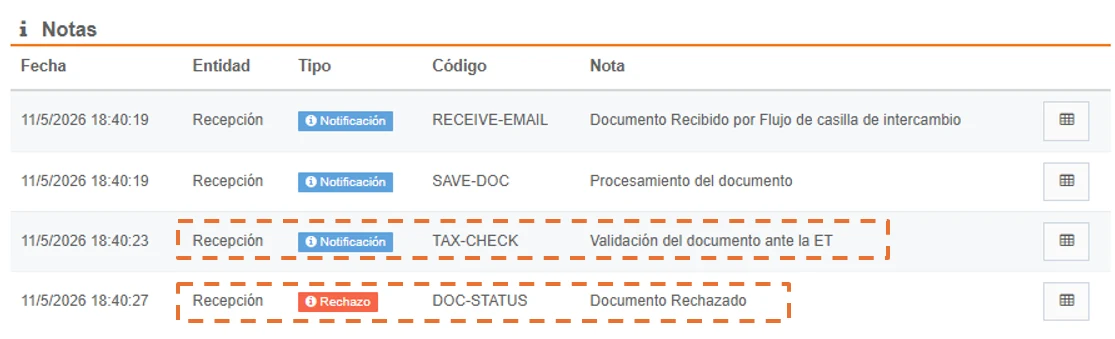
Document detail, Notes section - Document validation with the TA rejected
6. Icons in Inbox for the result of the reception validations
Finally, both the issuer and the recipient can view the results of the XML document validations in Inbox, as follows:
| No. | Status | Icon in the Inbox interface |
|---|---|---|
| d | Communication error with the Tax Authority | |
| e | Document Accepted by the Tax Authority | |
| f | Document Rejected by the Tax Authority | |
5. List of documents that can be received through the reception flow for each WS:
| WSFEV1 |
|---|
| 001 - INVOICES A 002 - DEBIT NOTES A 003 - CREDIT NOTES A 004 - RECEIPTS A 005 - CASH SALE NOTES A 034 - TYPE A DOCUMENTS UNDER SECTION A SUBSECTION F) R.G. N° 1415 039 - OTHER TYPE A DOCUMENTS THAT COMPLY WITH R G 1415 060 - SALES AND NET PROCEEDS ACCOUNTS A 063 - SETTLEMENTS A 201 - MIPYMES ELECTRONIC CREDIT INVOICE (FCE) A 202 - MIPYMES ELECTRONIC DEBIT NOTE (FCE) A 203 - MIPYMES ELECTRONIC CREDIT NOTE (FCE) A 006 - INVOICES B 007 - DEBIT NOTES B 008 - CREDIT NOTES B 009 - RECEIPTS B 010 - CASH SALE NOTES B 011 - INVOICES C 012 - DEBIT NOTES C 013 - CREDIT NOTES C 015 - RECEIPTS C 035 - TYPE B DOCUMENTS UNDER ANNEX I, SECTION A, SUBSEC. F), R.G. N° 1415 040 - OTHER TYPE B DOCUMENTS THAT COMPLY WITH R.G. N° 1415 049 - DOCUMENTS FOR THE PURCHASE OF NON-REGISTRABLE GOODS FROM END CONSUMERS 061 - SALES AND NET PROCEEDS ACCOUNTS B 064 - SETTLEMENTS B 206 - MIPYMES ELECTRONIC CREDIT INVOICE (FCE) B 207 - MIPYMES ELECTRONIC DEBIT NOTE (FCE) B 208 - MIPYMES ELECTRONIC CREDIT NOTE (FCE) B 211 - MIPYMES ELECTRONIC CREDIT INVOICE (FCE) C 212 - MIPYMES ELECTRONIC DEBIT NOTE (FCE) C 213 - MIPYMES ELECTRONIC CREDIT NOTE (FCE) C |
| WSMTXCA |
|---|
| 1 – INVOICE A 2 – DEBIT NOTE A 3 – CREDIT NOTE A 6 – INVOICE B 7 – DEBIT NOTE B 8 – CREDIT NOTE B 51 – INVOICE A WITH LEGEND TRANSACTION SUBJECT TO WITHHOLDING 52 – DEBIT NOTE A WITH LEGEND TRANSACTION SUBJECT TO WITHHOLDING 53 – CREDIT NOTE A WITH LEGEND TRANSACTION SUBJECT TO WITHHOLDING 201 - MIPYMES ELECTRONIC CREDIT INVOICE (FCE) A 202 - MIPYMES ELECTRONIC DEBIT NOTE (FCE) A 203 - MIPYMES ELECTRONIC CREDIT NOTE (FCE) A 206- MIPYMES ELECTRONIC CREDIT INVOICE (FCE) B 207 - MIPYMES ELECTRONIC DEBIT NOTE (FCE) B 208 - MIPYMES ELECTRONIC CREDIT NOTE (FCE) B |
| WSCT |
|---|
| 195 - INVOICE T 196 - DEBIT NOTE T 197 - CREDIT NOTE T |
| WSFEXV1 |
|---|
| 019 - EXPORT INVOICES 020 - DEBIT NOTES FOR FOREIGN TRANSACTIONS 021 - CREDIT NOTES FOR FOREIGN TRANSACTIONS |
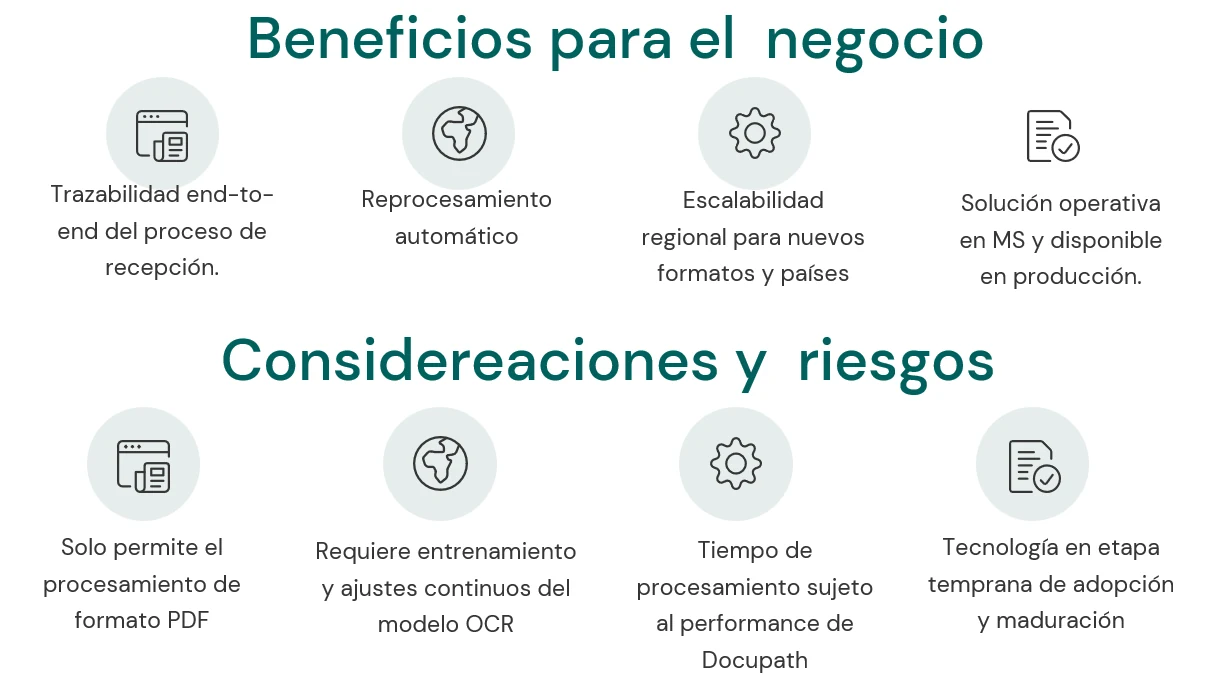
6. Benefits and considerations of reception in Argentina: