The Spanish version is the authoritative reference. View in Spanish
Uruguay: Document Reception (MS)
1. XML RECEPTION PROCESS
This process allows receiving different types of documents from customers and suppliers through the channels offered by Gosocket. Once received, both the issuer and the recipient can view the documents in the Inbox Received tray, along with their corresponding graphic representation and attachments.
Likewise, our system performs a series of automatic validations to ensure that the structure and integrity of the information strictly comply with the requirements of the tax authorities.
The following image describes, step by step, the document reception flow within the Inbox platform:
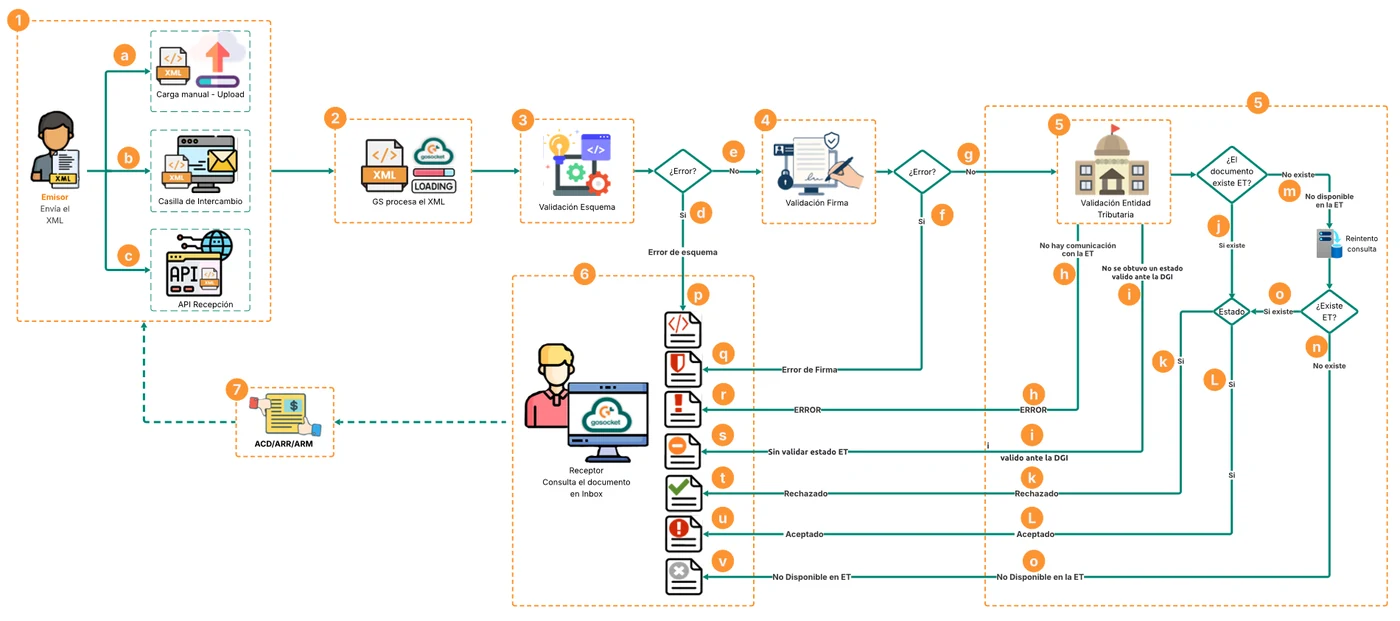
Uruguay reception flow
1. Methods for sending the XML document in Gosocket:
The supplier has the option of sending the XML document to the Gosocket platform in three ways:
a. The supplier performs the manual upload of the XML file through the Upload option in Gosocket. The requirements and conditions for this process are detailed in the section Manual upload.
b. The supplier sends the XML document through the Gosocket exchange mailbox . The requirements and conditions for this process are detailed in the section Exchange mailbox.
c. The supplier uploads the XML document through the Reception API of Gosocket. The requirements and conditions for this process are detailed in the section Reception API's.
Note: When using any of the following document reception channels:
- Exchange mailbox
- Manual XML upload (Upload option)
- Reception API
The system will automatically run the schema, signature, and corresponding validation with the Tax Authority (TA) validations.
2. Reception and validation of documents in Gosocket
The Gosocket portal downloads and processes the XML. When it is a tax document, it enters a reception validation process.
3. Document schema validation
First, a schema validation is performed on the XML document to ensure that it complies with the format established by the tax authority. Depending on the result of this validation, the process can lead to one of the following scenarios:
d. Failed: The document does not comply with the tax format, the document reception flow will be stopped due to the schema error, it will be recorded in Gosocket with the Schema Error status, and the interface will display the icon  and the reason for the rejection will be detailed in the document notes, as follows:

Schema error icon in inbox
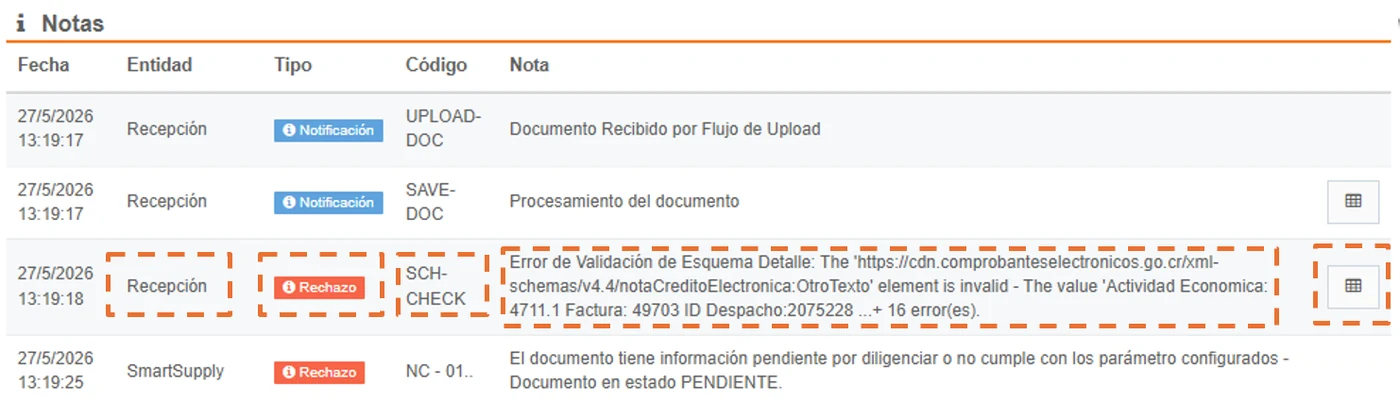
Document detail Notes section - Schema Error
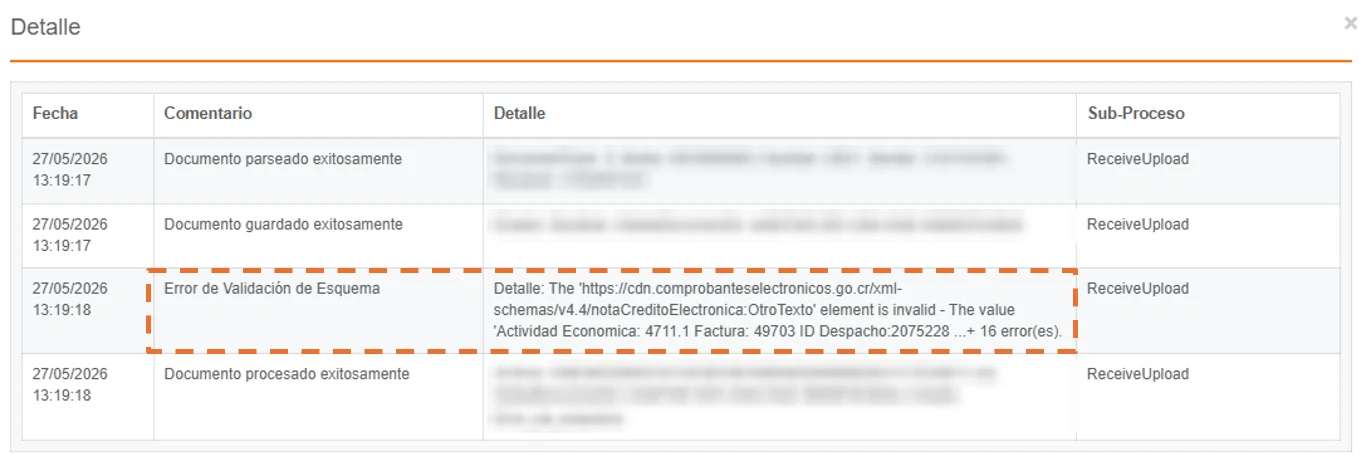
Detail of XML processing for the schema error
e. Successful: If the XML schema validation is correct, the document will continue with the reception flow.
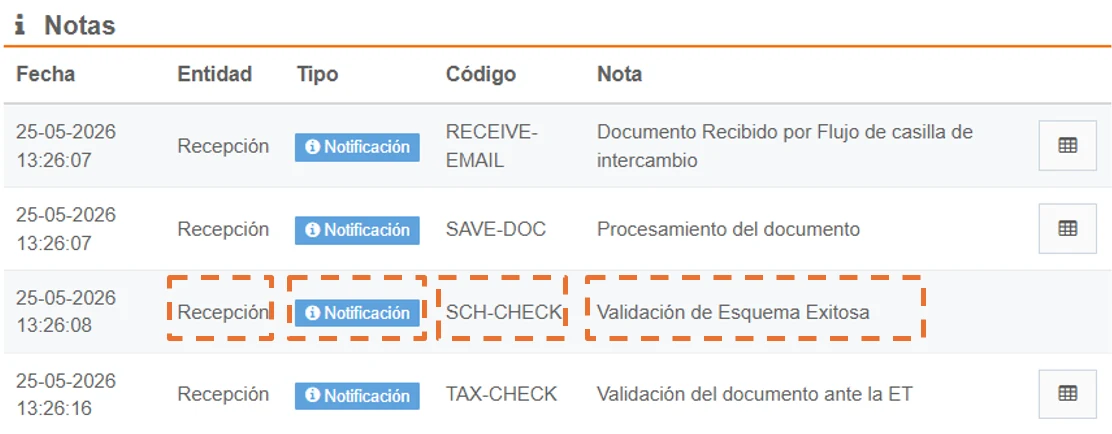
Document detail Notes section - Successful schema validation
Special configuration: The XML presents a schema error, but if the configuration is enabled, this option allows the reception flow to continue:
This feature can be enabled independently for each company. Its purpose is that, if a schema error is detected in the XML when receiving the document in Gosocket, the specific error detail will be automatically recorded in the document's "Notes" section.
Despite this finding, the document will continue with its normal flow towards the following reception validations, such as the verification of the signature and the tax authority.
The document will remain in Inbox as follows:
- In Gosocket the document will remain in Validated ET with schema error status and the orange
 icon will be displayed, as follows:

For more details on how to configure this feature, see the following section: XML Configuration Presents Schema Errors and Reception Flow Continues
4. Document electronic signature validation
Second, an electronic signature validation of the document is performed to ensure that the information has not been altered. This validation can produce one of the following results:
f. Failed: This means the document has been altered, the document reception flow will be stopped due to the signature error, and it will therefore be recorded in Gosocket with the Signature Error status, the interface will display an icon  and the preview notes will indicate the reason for the rejection, as follows:

Signature error icon in Inbox
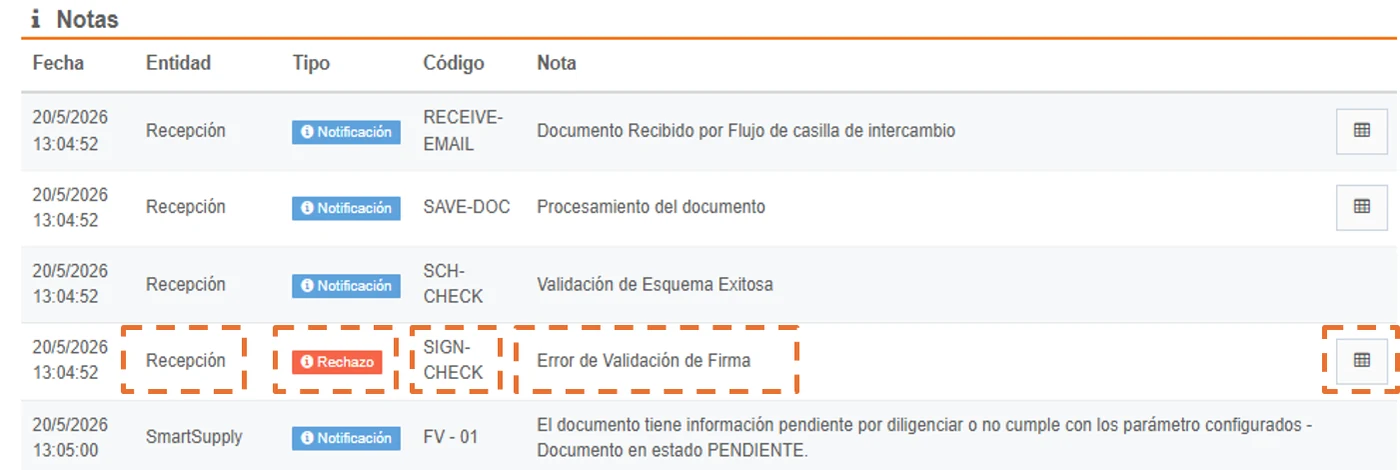
Document detail Notes section - Signature Error
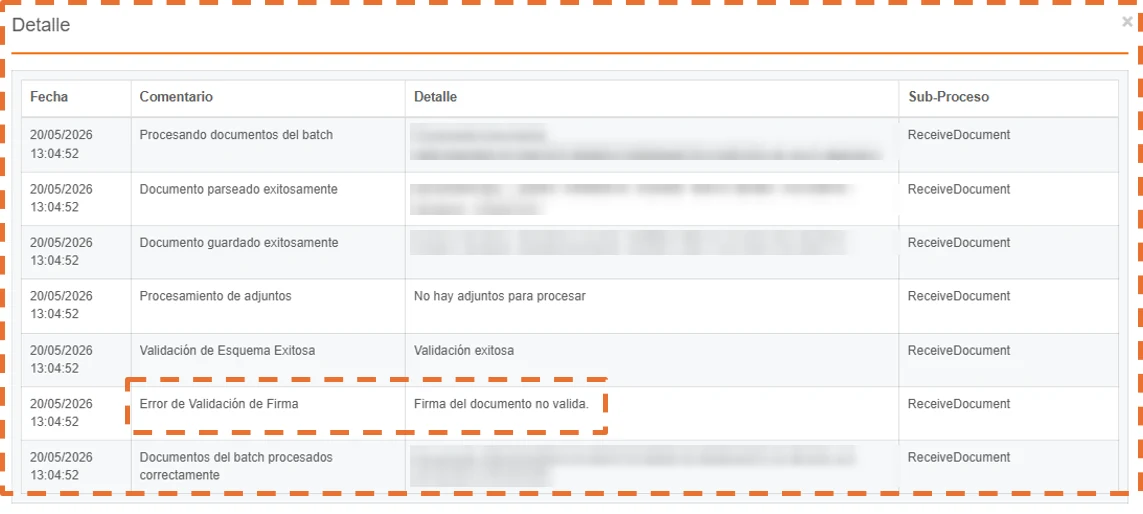
Detail of XML processing for the signature error
g. Successful: If the validation of the electronic signature of the XML is correct, the document will continue with the reception flow.
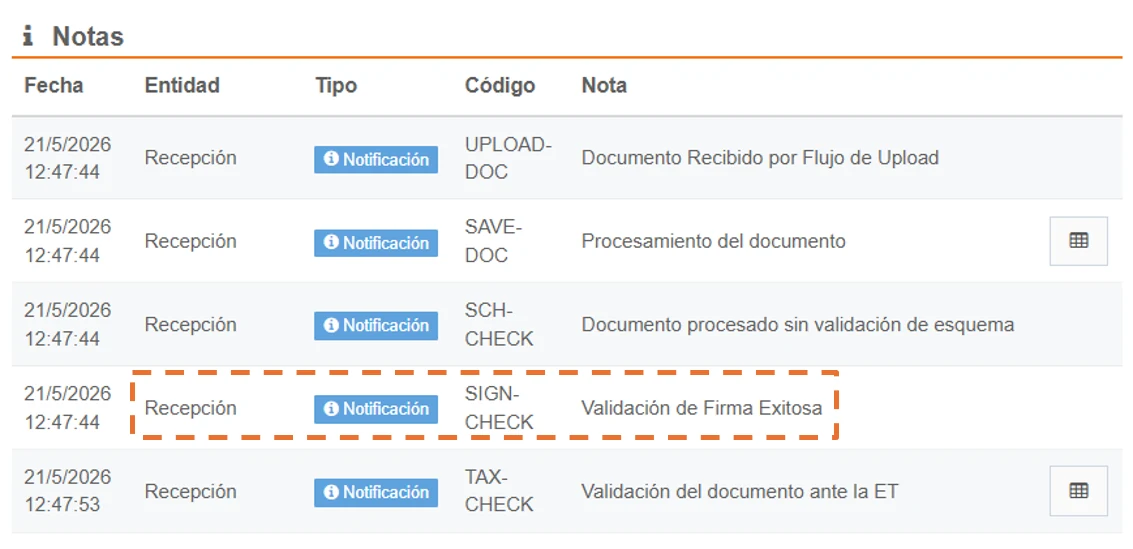
Document detail Notes section - Successful signature validation
5.Document validation with the Tax Authority
Third, the query validation with the Tax Authority is performed. From this validation, several results can be obtained:
h. The document has an internal exception from Gosocket ❗
When performing the validation query with the Tax Authority for the document and Gosocket fails to connect with the TA service or there are communication errors with the service, the document changes its status to ERROR and is assigned the icon ❗.

Error icon in inbox: No communication with the TA.
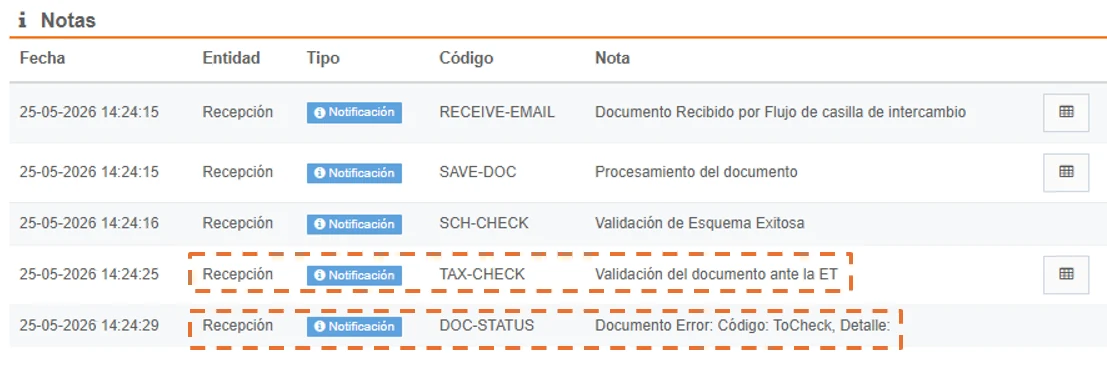
Document detail Notes section - Document validation with the TA with communication error.
i. Document found in the TA but without status and returns error 106  :
:
In Uruguay there is a specific case where, when querying Gosocket's compliance and it returns an error code 106 "No valid status was obtained from the DGI", the document will remain in Inbox as follows:
- This feature is already configured by default.
- In Gosocket the document will remain in ET status not validated status and the icon will be displayed, as follows:

j. At this point in the process, when the document does exist in the tax authority , two responses derive:
- If the document exists, but it has a Rejected status
 (For more details see item k)
 - If the document exists, but it has an Accepted status
 (For more details see item L)
k. Document Rejected by the Tax Authority
If the document exists in the TA, but there is some reason for rejection at the Tax Authority, its status will be Rejected and it will be assigned the icon .

Rejected icon in inbox: Document validation with the TA rejected
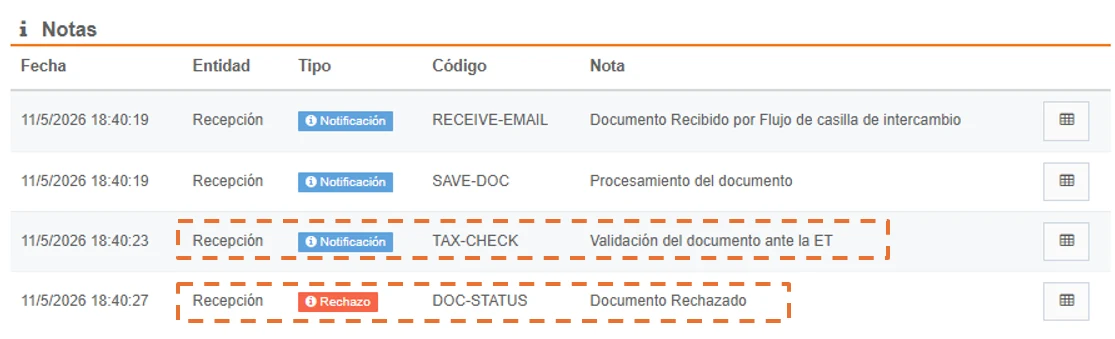
Document detail Notes section - Document validation with the TA rejected
L. Document Accepted by the Tax Authority
If the result of the previous validations (Schema and Signature) is satisfactory and the query with the tax authority is successful, the document will be recorded in Gosocket with the Accepted status. In the interface, this status will be identified with a green checkmark icon.

Accepted icon in inbox: Successful document validation with the TA
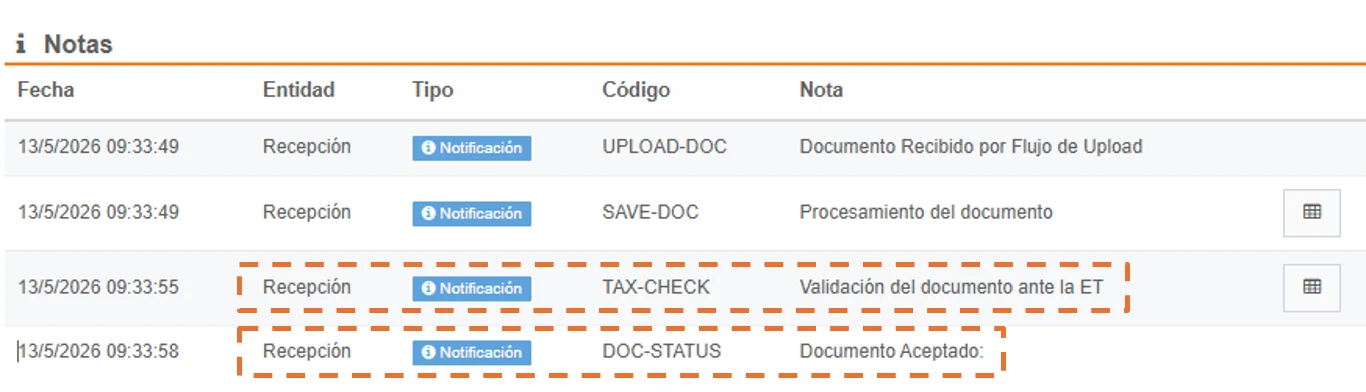
Document detail Notes section - Successful document validation with the TA
In order to perform document validation with the TA: it must be verified that the company receiving the document has a valid, current certificate uploaded in order to perform such validation with the TA, since it is used for validating the document with the TA and for issuing events.
Otherwise, within the validation, when the certificate is NOT active or uploaded, compliance returns a response that is displayed in the document's notes section with the following text:
"The document status could not be queried with the DGI due to the absence of a valid certificate for the recipient.
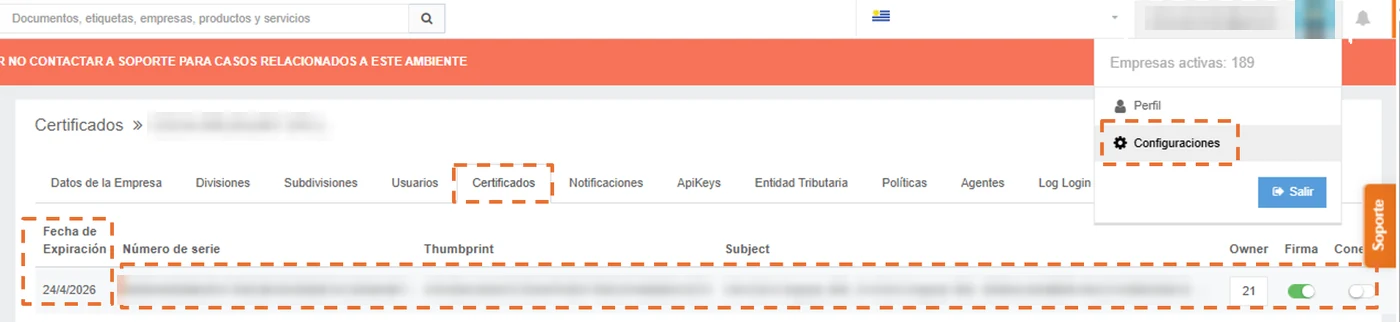
m. Automatic retries when the document has Not Available in ET status  .
.
At this stage of the process, when the document does not exist in the Tax Authority, this indicates that the received document is not registered with the TA. In this scenario, the following actions are performed on the document:
-
In Gosocket, the document will remain in Not Available in ET status and will be assigned the corresponding icon
. -
An automatic retry process will be triggered, which consists of performing multiple queries to the Tax Authority to check whether the document changes to a status other than Not Available in ET. If a different status is obtained during any of these retries, the document will automatically update both its status and its corresponding icon.
-
If, after completing all the retries, the document is still not available in the Tax Authority, it will keep the Not Available in ET status and the corresponding icon
. -
The current retry parameter is 30 attempts in 1 hour (the query retry is performed every 2 minutes).
When the document is received and the query retries with the TA are performed, the following message is shown in the notes section:
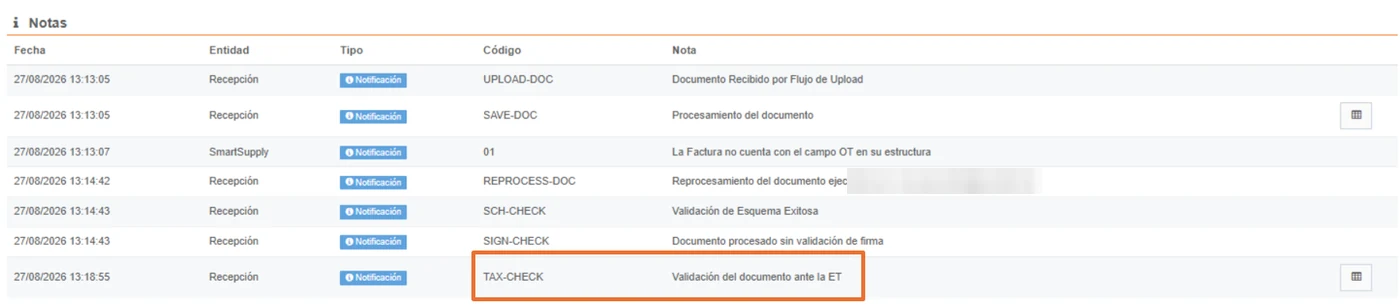
and within the document detail, the “TAX-CHECK” code will indicate that the validation with the TA has started:

Once the automatic retries are exceeded (approximately one hour later), the final status of the document with the TA will be displayed, as follows:
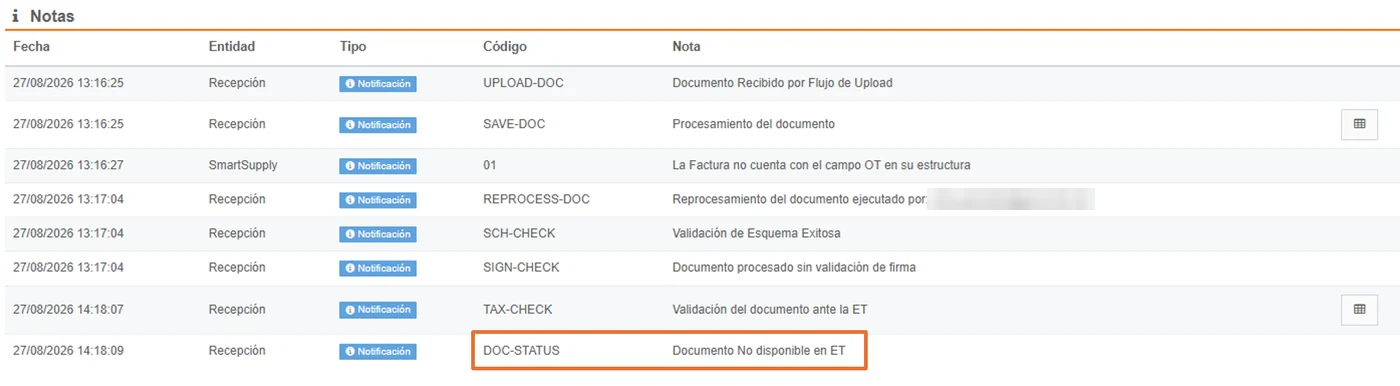
and the document detail will show the message:
“Integrated Query with the TA: Does not exist. 30 attempts were made. Manual reprocessing was performed.”
and the other line will show another message: “The maximum number of retries for the status query with the TA was reached”, as follows:
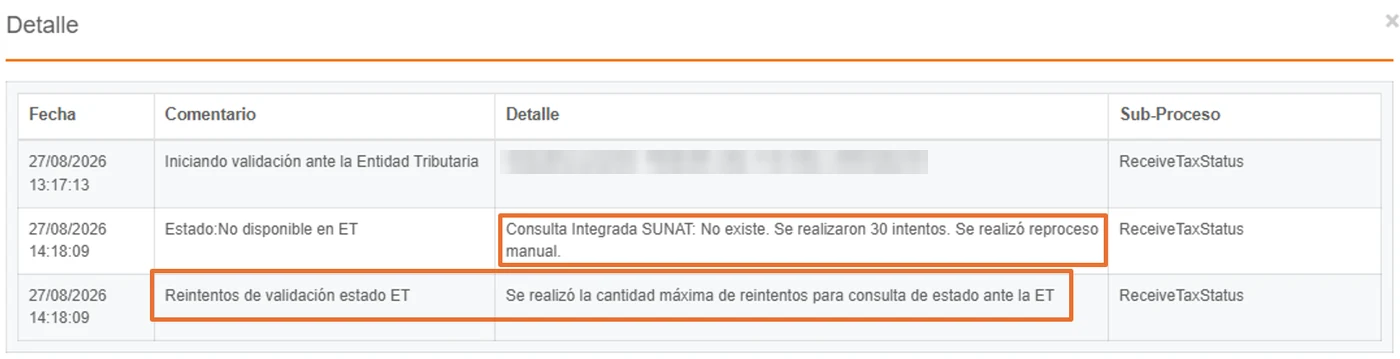
and after these retries, two responses derive:
n. If after 30 attempts the document is still not found, it will remain permanently in Not Available in ET status, showing the following icon in the Inbox.

Rejected icon in inbox: Document validation with the TA
o. If during these retries the document is found in the TA, its status is updated, the process continues, and two responses derive:
- If the document exists, but it has a Rejected status (For more details see item k)
- If the document exists, but it has an Accepted status (For more details see item L)
6. Icons in inbox for the result of reception validations
Finally, both the issuer and the recipient can view the results of the XML document validations in Inbox, as follows:
| No. | Status | Icon in the inbox interface |
|---|---|---|
| p | Document has schema error | |
| q | Document has signature error | |
| r | Communication error with the Tax Authority | |
| s | Document ended up Accepted by the Tax Authority | |
| t | Document ended up Rejected by the Tax Authority | |
| u | Document not available or does not exist in the Tax Authority | |
7. Issuance of commercial acknowledgments
Once the document has been received and validated, the commercial or trade acknowledgments deemed necessary can be issued from the inbox platform or, failing that, they can be sent through the exchange mailbox. This is explained in more detail in the section Commercial acknowledgments
2. MANUAL DOCUMENT REPROCESSING
Additionally, a button has been implemented in Inbox that allows manually reprocessing tax documents with "ERROR" ❗, "Not Available in ET" , "Signature error" and "Schema error" status.
Note: This option only allows reprocessing documents that were sent through the exchange mailbox, the reception API, or manual upload (upload).
This reprocessing option can be found in the following path, as applicable:
- Inbox/Received/Options/Actions/Reprocess document without validating schema.
- Inbox/Received/Options/Actions/Reprocess document without validating signature.
- Inbox/Received/Options/Actions/Reprocess document.
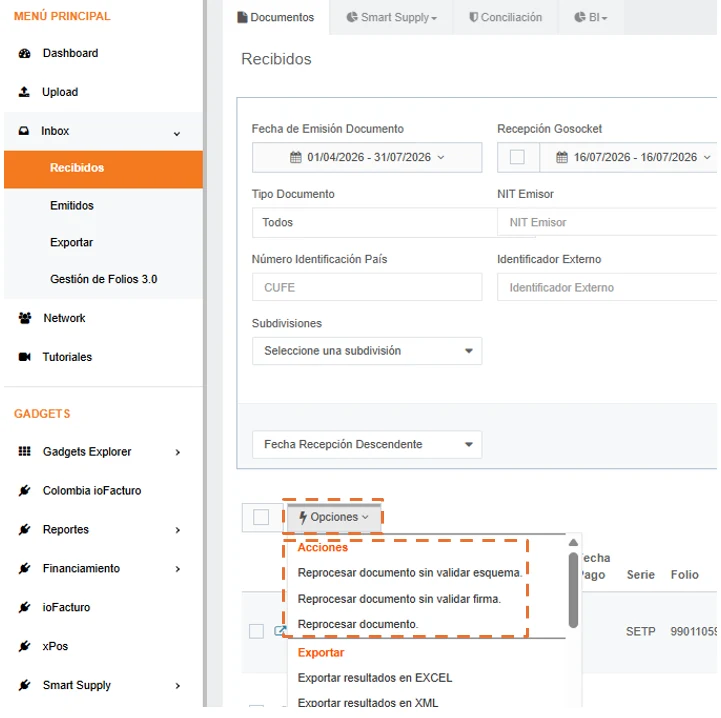
Accompanied by a selector that, as its name indicates, will allow independently selecting an Electronic Document or a set of them.
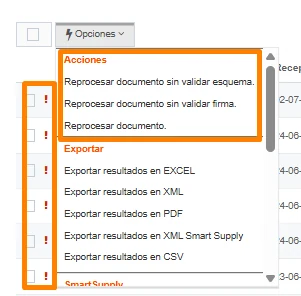
Next, a pop-up window will be displayed in which the user must confirm that they want to revalidate the previously selected documents.

Once the reprocessing has been generated, a banner will be displayed at the top of the page indicating that the document(s) were sent for reprocessing:
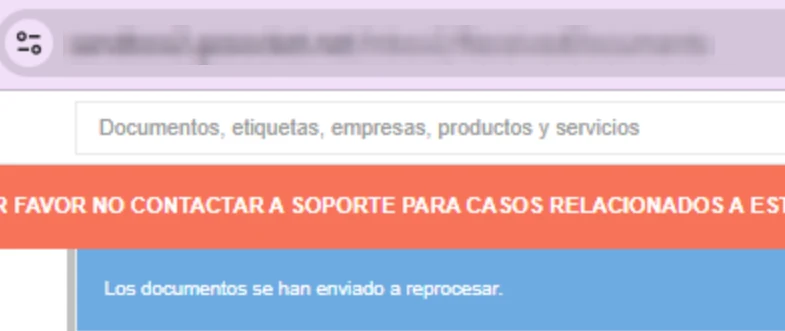
and finally, for any of the three reprocessing actions generated through this option, the notes section will indicate:
- Records the email of the user who performed the document reprocessing.
- Generates a note "Document processed without schema validation" or "Document processed without signature validation"
- The document continues the reception validation flow.
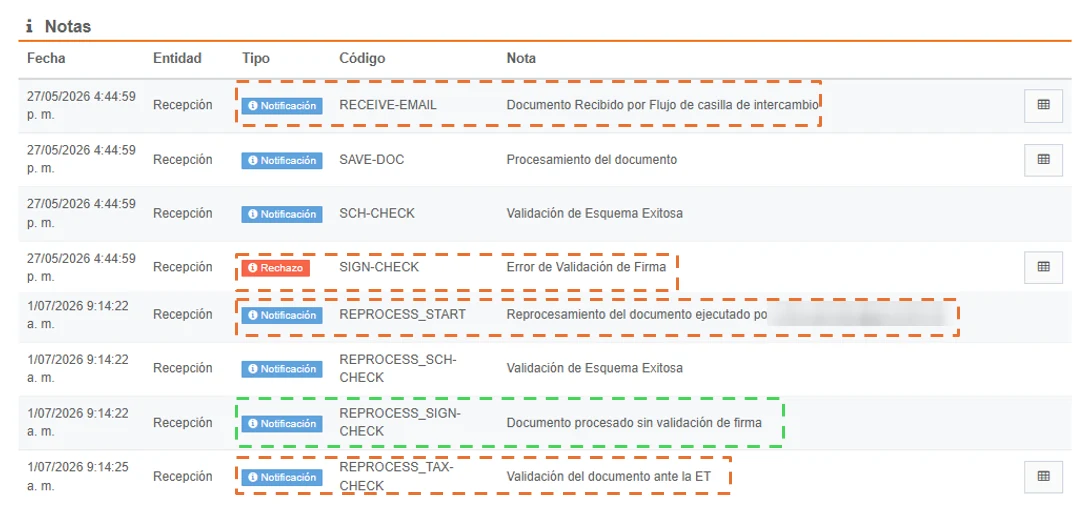
This button allows reprocessing of the different validations in the reception process:
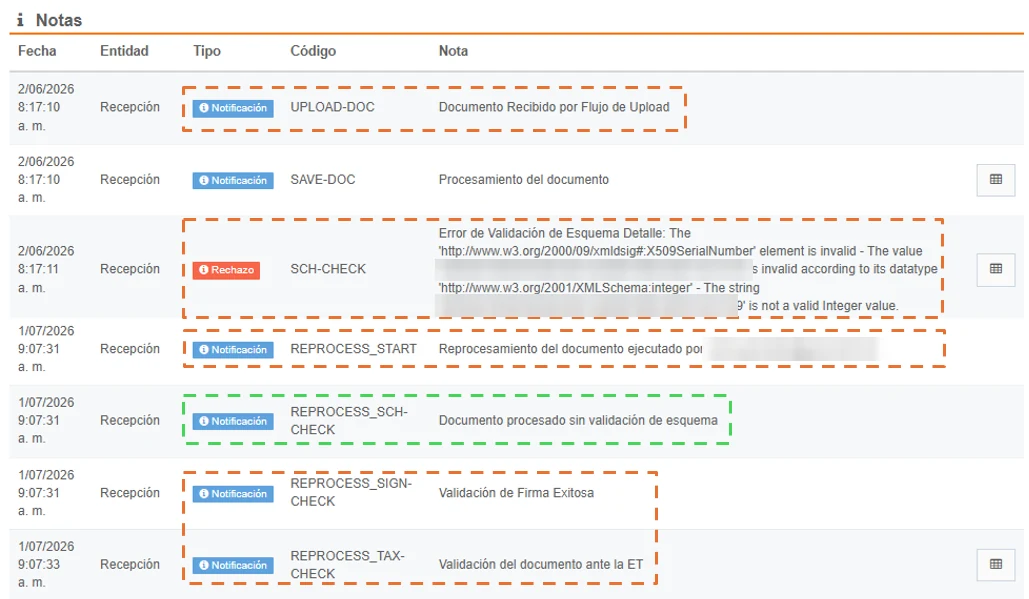
2.1. Reprocess document without validating schema:
Allows the document to go through the reception validations without taking the schema validation into account; however, when selecting the document and applying this reprocessing without schema validation, the system:
- Records the email of the user who performed the document reprocessing.
- Generates a note "Document processed without schema validation".
- The document continues the reception validation flow.
2.2. Reprocess document without validating signature:
Allows the document to go through the reception validations without taking the signature validation into account; however, when selecting the document and applying this reprocessing without signature validation, the system:
- Records the email of the user who performed the document reprocessing.
- Generates a note "Document processed without signature validation".
- The document continues the reception validation flow.
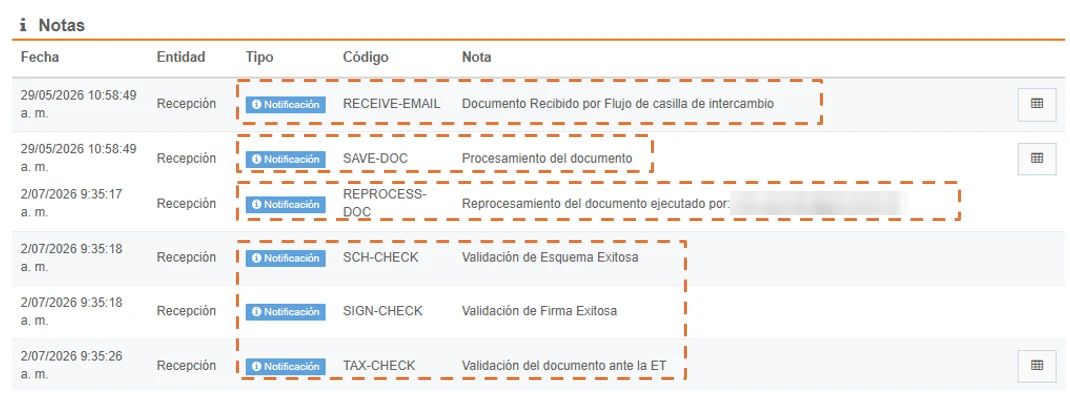
2.3. Reprocess document:
Allows reprocessing the document from scratch and performs the reception validations again without skipping any validation; however, when selecting the document and applying this reprocessing, the system:
- Records the email of the user who performed the document reprocessing.
- Performs the reception validations without skipping any of them.
3. XML SUBMISSION METHODS
Currently, there are three methods for receiving documents into the system:
- Manual upload: Import of the XML file through the Upload option in Gosocket.
- Exchange mailbox: Automated inbound flow through the exchange mailbox.
- Reception API: Connection via API for integrated processing.
Enveloped documents:
Documents that arrive enveloped (that is, more than two documents in the same package) include the original document along with its respective signature. However, the "Certificate" node is declared only once for all the documents contained in the envelope.
Subsequently, the Gosocket platform performs an internal process: when the system separates the enveloped documents and generates a new XML for each one, it automatically adds the "Certificate" node to each individual file.
This way, signature validation can be performed on all tax documents.
3.1. Manual XML upload through Upload in Gosocket
Gosocket has a tool within the Inbox platform that allows the supplier to directly upload the XML file of their documents.
- Access path: Main menu > Upload > Manual Upload.
From this section, the user can select the XML file from their device's file browser or, if preferred, drag and drop it directly into the interface.
Once the document is received, the solution automatically starts the processing and validation flow.
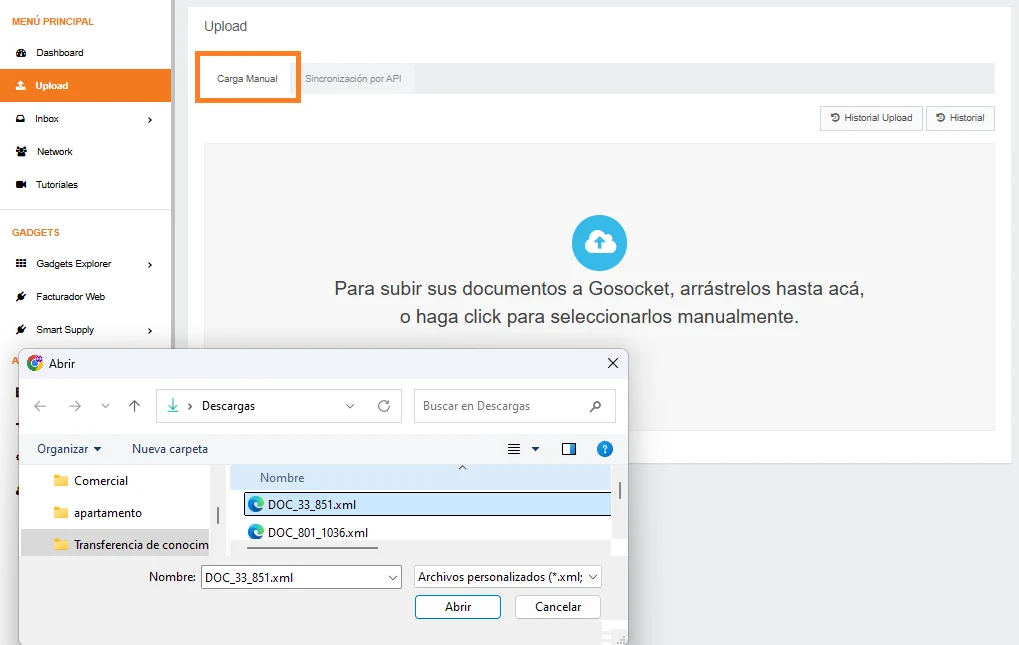
Once the XML file is received through the manual upload option, the following will be identified:
a. How many XML files in total were received, how many processed successfully, and how many have errors.
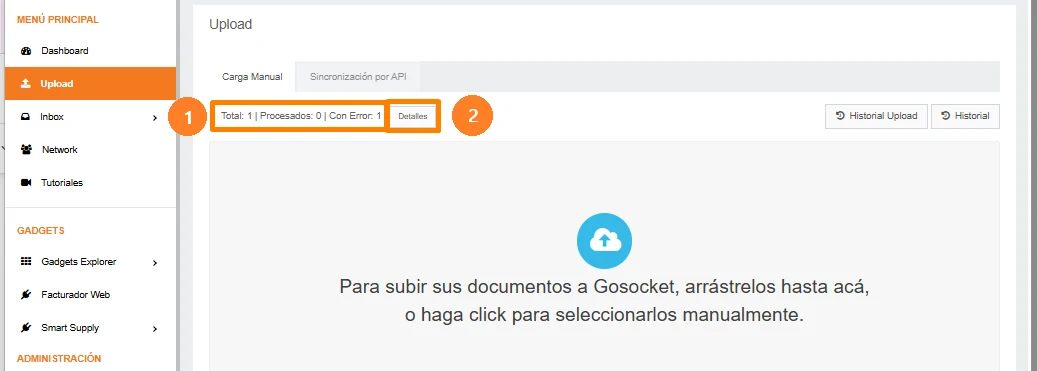
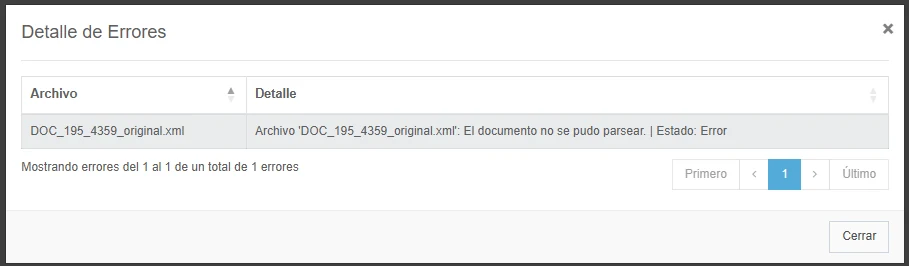
b. By clicking the "Details" button, a popup will be displayed with the "Error Details" identifying the possible errors that the XML file uploaded manually through this option may contain, and otherwise, if the document has no errors, a detail will be shown indicating that it was successfully uploaded to the Gosocket platform:
c. Finally, the document will be displayed in the inbox received tray, with all validations performed.

3.1.1. Considerations for manual XML upload
- Up to 100 XML files can be uploaded in a single upload.
- Schema, signature, and Tax Authority validations will be performed.
- The tax documents stipulated by the Tax Authority must be sent in XML format.
The tax documents that can be received are:
- e-Ticket.
- e-Ticket Credit Note.
- e-Ticket Debit Note.
- e-Invoice.
- e-Invoice Credit Note.
- e-Invoice Debit Note.
- e-Invoice Export.
- e-Invoice Export Credit Note.
- e-Invoice Export Debit Note.
- e-Waybill Export.
- e-Waybill.
- e-Resguardo.
3.2. Exchange mailbox
This is the process by which the supplier sends their XML files through an email mailbox. Each country has specific addresses assigned according to the work environment.
The mailboxes to be used, according to the environment, are:
- Sandbox (Testing):
uy_ms_sbx@inbound.gosocket.com - Production:
uy@recepcionprd.gosocket.net
Note: If a customized exchange mailbox is needed for a customer, it must be escalated to the commercial team since this request generates an additional cost.
3.2.1. Considerations for the exchange mailbox
It is important to keep the following points in mind when sending documents, as this will prevent them from being rejected by the application.
a. The tax documents that can be sent through the exchange mailbox are:
- e-Ticket.
- e-Ticket Credit Note.
- e-Ticket Debit Note.
- e-Invoice.
- e-Invoice Credit Note.
- e-Invoice Debit Note.
- e-Invoice Export.
- e-Invoice Export Credit Note.
- e-Invoice Export Debit Note.
- e-Waybill Export.
- e-Waybill.
- e-Resguardo.
b. The tax documents stipulated by the Tax Authority must be sent in XML format.
c. They can be sent individually or several XML files in the same email.
d. Several XML files can be sent compressed in a file, and only the .zip extension will be allowed.
e. The XML files or compressed files (.zip) must be attached to the email of the mailbox provided by Gosocket.
f. Attachments can be sent, such as the invoice PDF or others that may be required.
g. The maximum weight allowed in an email that includes XML and PDF files is 20MB.
h. The solution can process the graphic representation PDF, if included, and attachments that arrive at the mailbox, where once received they are stored, associated with their respective document, allowing them to be downloaded within Inbox.
The process works as follows:
- If an XML document arrives at the exchange mailbox along with an additional PDF file with the same name, for example: Invoice12345.xml and Invoice12345.pdf, it is understood that the .pdf file is the graphic representation of the DTE, so it is synchronized that way in Gosocket and will be available for viewing.
- If an XML document arrives at the mailbox with more than one attachment of any extension, they are associated as attachments.
Note: If there are PDF files with a name different from the XML, they will be considered attachments.
- For sending attachments, it is recommended to send each DTE with its attachments separately, since if more than one XML document arrives, the graphic representation will only be stored as long as the PDF file has the same name as its corresponding XML; the rest of the attachments will not be processed since there is no way to know which document to associate them with.
- Attachments can also be associated after sending the XML; for example, if the XML is sent without attachments, another email with attachments (PDF, Excel, Word, etc.) can be sent afterward, and these will be associated with the previously sent document, as long as the second email also includes the XML.
3.3. Reception API's
For the document reception process, Gosocket offers two APIs that allow sending XML to the Gosocket platform:
3.3.1. UploadZipDocument:
This API allows sending a request that includes one or several XML and PDF files to Gosocket, packaged together in a compressed file (.zip). Once received, the system processes the document, generates the corresponding record, and securely stores it on the platform.
a. Tracking Management
To perform detailed end-to-end tracking of the PDF processing, from when the PDF enters the platform through the exchange mailbox, until the supplier sends the XML and the PDF to Gosocket, this entire process is assigned two unique identifiers called "externalId" and "batchId".
b. Upload and storage
The API manages the reception of the .zip file, which must contain the PDF and its corresponding XML in Gosocket's native format for its correct integration into the ecosystem.
This API allows the reception, processing, and storage of electronic documents on the Gosocket platform.
c. Post-storage processing actions
Once the document has been successfully stored in Inbox, it will allow the following actions:
- Reception validations (Automatic): Technical verification of standards compliance, including:
o Schema Validation.
o Integrity of the document's Electronic Signature.
o Validations with the corresponding Tax Authority: Indicates whether the document was accepted, rejected, or presents validation errors from the regulatory entity after fiscal validation.
- Receiver message (Automatic): Application of receiver message events according to the current regulations of the tax authority.
- Smart Supply Validations (Configuration on demand): Application of logical rules and approval flows configured in the Smart Supply module.
- File Distribution (Configuration on demand): Once the document has been processed on the Gosocket platform, and based on the prior parameterization of the distribution rules, the system executes the automated transfer of the files to the configured technical destinations. This feature allows integration with various environments, such as:
o Windows servers.
o File transfer protocols (SFTP / FTP).
o Automated email submission.
You can view the configuration details of the Reception API at the following link: API Reception.zip - Generic
3.3.2. SendDocumentToUpload:
This API allows sending a request that includes a single XML to Gosocket. Once received, the system processes the document, generates the corresponding record, and securely stores it on the platform.
a. Upload and storage
The API manages the reception of the file in XML format for its integration into the Gosocket ecosystem:
- Ingestion: Uploads the document directly into Gosocket's Inbox module through the endpoint: POST - SendDocumentToUpload
- Persistence: Ensures storage of the XML file on the platform's servers for later management.
b. Tracking Management
Successful execution of the API generates a unique identifier called trackId. This value is returned in the response and is essential for:
- Performing detailed tracking of the processing status.
- Querying the upload result through the endpoint: GET- GetDocumentUploadStatus
c. Post-storage processing actions
Once the document has been successfully stored in Inbox, it will allow the following actions:
- Reception validations (Automatic): Technical verification of standards compliance, including:
o Schema Validation.
o Integrity of the document's Electronic Signature.
o Validations with the corresponding Tax Authority: Indicates whether the document was accepted, rejected, or presents validation errors from the regulatory entity after fiscal validation.
- Receiver message (Automatic): Application of receiver message events according to the current regulations of the tax authority.
- Smart Supply Validations (Configuration on demand): Application of logical rules and approval flows configured in the Smart Supply module.
- File Distribution (Configuration on demand): Once the document has been processed on the Gosocket platform, and based on the prior parameterization of the distribution rules, the system executes the automated transfer of the files to the configured technical destinations. This feature allows integration with various environments, such as:
o Windows servers.
o File transfer protocols (SFTP / FTP).
o Automated email submission.
You can view the configuration details of the Reception API at the following link: Reception API
4. COMMERCIAL ACKNOWLEDGMENTS
The purpose of the commercial acknowledgment is to validate tax documents with the Tax Authority, and as a result, there will be a status change within our received documents tray in the Gosocket Inbox.
Through the use of these events, the recipient reports the reception, acceptance, or rejection of each document.
These events can be generated from two different points in Inbox, which we will explore below.
Currently in Uruguay there are 2 events related to received documents:
**1.**Acceptance Event.
**2.**Rejection Event.
Once the documents have been received in inbox and have passed the reception validations, Gosocket allows applying the commercial acknowledgments as follows:
4.1. Receive commercial acknowledgments through the exchange mailbox
4.2. Manually issue the commercial acknowledgment for these documents.
4.1. Reception of commercial acknowledgments through the exchange mailbox
To receive commercial acknowledgments through the exchange mailbox, the file must strictly comply with the specific structure required by the TA and be in XML format.
<ApplicationResponse
xmlns="urn:oasis:names:specification:ubl:schema:xsd:ApplicationResponse-2"
xmlns:cac="urn:oasis:names:specification:ubl:schema:xsd:CommonAggregateComponents-2"
xmlns:cbc="urn:oasis:names:specification:ubl:schema:xsd:CommonBasicComponents-2"
xmlns:ext="urn:oasis:names:specification:ubl:schema:xsd:CommonExtensionComponents-2"
xmlns:sts="dian:gov:co:facturaelectronica:Structures-2-1"
xmlns:xades="http://uri.etsi.org/01903/v1.3.2#"
xmlns:xades141="http://uri.etsi.org/01903/v1.4.1#"
xmlns:xs="http://www.w3.org/2001/XMLSchema">
<ext:UBLExtensions>
...
</ext:UBLExtensions>
<cbc:UBLVersionID>UBL 2.1</cbc:UBLVersionID>
<cbc:CustomizationID>1</cbc:CustomizationID>
<cbc:ProfileID>DIAN 2.1: ApplicationResponse de la Factura Electrónica de Venta</cbc:ProfileID>
<cbc:ProfileExecutionID>1</cbc:ProfileExecutionID>
<cbc:ID>0000000000000000000</cbc:ID>
<cbc:UUID schemeID="1" schemeName="CUDE-SHA384">000000000000000000000000000000000000000000000000000000000000000000000000000000000000000000000000</cbc:UUID>
<cbc:IssueDate>2026-06-30</cbc:IssueDate>
<cbc:IssueTime>15:14:00-05:00</cbc:IssueTime>
<cbc:Note>OK</cbc:Note>
<cac:SenderParty>
...
</cac:SenderParty>
<cac:ReceiverParty>
...
</cac:ReceiverParty>
<cac:DocumentResponse>
<cac:Response>
<cbc:ResponseCode>030</cbc:ResponseCode>
<cbc:Description>Acuse de recibo de Factura Electrónica de Venta</cbc:Description>
</cac:Response>
<cac:DocumentReference>
<cbc:ID>FV0000</cbc:ID>
<cbc:UUID schemeName="CUFE-SHA384">000000000000000000000000000000000000000000000000000000000000000000000000000000000000000000000000</cbc:UUID>
<cbc:DocumentTypeCode>01</cbc:DocumentTypeCode>
</cac:DocumentReference>
<cac:IssuerParty>
<cac:Person>
...
</cac:Person>
</cac:IssuerParty>
</cac:DocumentResponse>
</ApplicationResponse>
<ApplicationResponse
xmlns="urn:oasis:names:specification:ubl:schema:xsd:ApplicationResponse-2"
xmlns:cac="urn:oasis:names:specification:ubl:schema:xsd:CommonAggregateComponents-2"
xmlns:cbc="urn:oasis:names:specification:ubl:schema:xsd:CommonBasicComponents-2"
xmlns:ext="urn:oasis:names:specification:ubl:schema:xsd:CommonExtensionComponents-2"
xmlns:sts="dian:gov:co:facturaelectronica:Structures-2-1"
xmlns:xades="http://uri.etsi.org/01903/v1.3.2#"
xmlns:xades141="http://uri.etsi.org/01903/v1.4.1#"
xmlns:xs="http://www.w3.org/2001/XMLSchema">
<ext:UBLExtensions>
...
</ext:UBLExtensions>
<cbc:UBLVersionID>UBL 2.1</cbc:UBLVersionID>
<cbc:CustomizationID>1</cbc:CustomizationID>
<cbc:ProfileID>DIAN 2.1: ApplicationResponse de la Factura Electrónica de Venta</cbc:ProfileID>
<cbc:ProfileExecutionID>1</cbc:ProfileExecutionID>
<cbc:ID>0000000000000000000</cbc:ID>
<cbc:UUID schemeID="1" schemeName="CUDE-SHA384">000000000000000000000000000000000000000000000000000000000000000000000000000000000000000000000000</cbc:UUID>
<cbc:IssueDate>2026-06-30</cbc:IssueDate>
<cbc:IssueTime>15:14:00-05:00</cbc:IssueTime>
<cbc:Note>OK</cbc:Note>
<cac:SenderParty>
...
</cac:SenderParty>
<cac:ReceiverParty>
...
</cac:ReceiverParty>
<cac:DocumentResponse>
<cac:Response>
<cbc:ResponseCode>032</cbc:ResponseCode>
<cbc:Description>Recibo del bien y/o prestación del servicio</cbc:Description>
</cac:Response>
<cac:DocumentReference>
<cbc:ID>FV0000</cbc:ID>
<cbc:UUID schemeName="CUFE-SHA384">000000000000000000000000000000000000000000000000000000000000000000000000000000000000000000000000</cbc:UUID>
<cbc:DocumentTypeCode>01</cbc:DocumentTypeCode>
</cac:DocumentReference>
<cac:IssuerParty>
<cac:Person>
...
</cac:Person>
</cac:IssuerParty>
</cac:DocumentResponse>
</ApplicationResponse>
<ApplicationResponse
xmlns="urn:oasis:names:specification:ubl:schema:xsd:ApplicationResponse-2"
xmlns:cac="urn:oasis:names:specification:ubl:schema:xsd:CommonAggregateComponents-2"
xmlns:cbc="urn:oasis:names:specification:ubl:schema:xsd:CommonBasicComponents-2"
xmlns:ext="urn:oasis:names:specification:ubl:schema:xsd:CommonExtensionComponents-2"
xmlns:sts="dian:gov:co:facturaelectronica:Structures-2-1"
xmlns:xades="http://uri.etsi.org/01903/v1.3.2#"
xmlns:xades141="http://uri.etsi.org/01903/v1.4.1#"
xmlns:xs="http://www.w3.org/2001/XMLSchema">
<ext:UBLExtensions>
...
</ext:UBLExtensions>
<cbc:UBLVersionID>UBL 2.1</cbc:UBLVersionID>
<cbc:CustomizationID>1</cbc:CustomizationID>
<cbc:ProfileID>DIAN 2.1: ApplicationResponse de la Factura Electrónica de Venta</cbc:ProfileID>
<cbc:ProfileExecutionID>1</cbc:ProfileExecutionID>
<cbc:ID>0000000000000000000</cbc:ID>
<cbc:UUID schemeID="1" schemeName="CUDE-SHA384">000000000000000000000000000000000000000000000000000000000000000000000000000000000000000000000000</cbc:UUID>
<cbc:IssueDate>2026-06-30</cbc:IssueDate>
<cbc:IssueTime>15:14:00-05:00</cbc:IssueTime>
<cbc:Note>OK</cbc:Note>
<cac:SenderParty>
...
</cac:SenderParty>
<cac:ReceiverParty>
<cac:PartyTaxScheme>
...
</cac:PartyTaxScheme>
<cac:Contact>
...
</cac:Contact>
</cac:ReceiverParty>
<cac:DocumentResponse>
<cac:Response>
<cbc:ResponseCode>033</cbc:ResponseCode>
<cbc:Description>Aceptación expresa</cbc:Description>
</cac:Response>
<cac:DocumentReference>
...
</cac:DocumentReference>
</cac:DocumentResponse>
</ApplicationResponse>
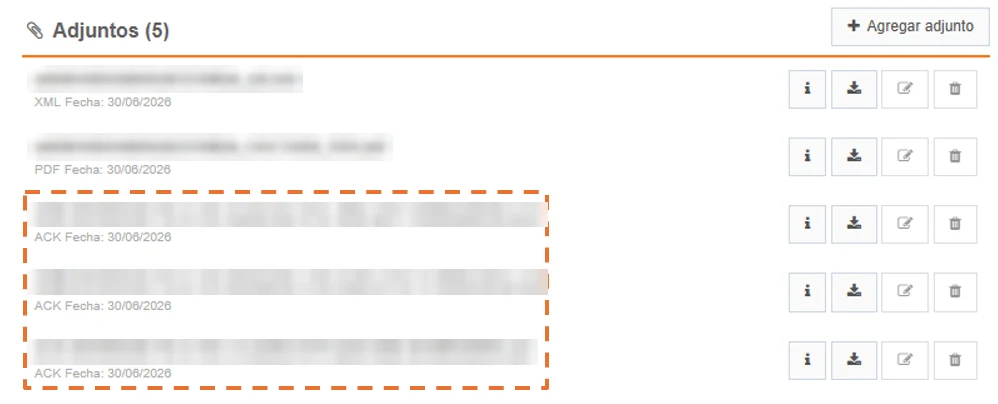
This XML file, which contains the structure of the commercial acknowledgment, must be sent once the invoice is already registered in Inbox, sending it to the same reception mailbox.
Once the acknowledgment arrives through this channel, it can be viewed as an attachment within the Attachments section in the document preview, as follows:
4.2. Manually issue the commercial acknowledgment for these documents.
These commercial events can be generated manually from two different points in Inbox, which we will explore below:
4.2.1. Options Button (Received Documents)
**1.**To access this option and manually generate the commercial acknowledgment required for the document(s), in inbox the documents to be managed must be selected using the checkbox or selector.
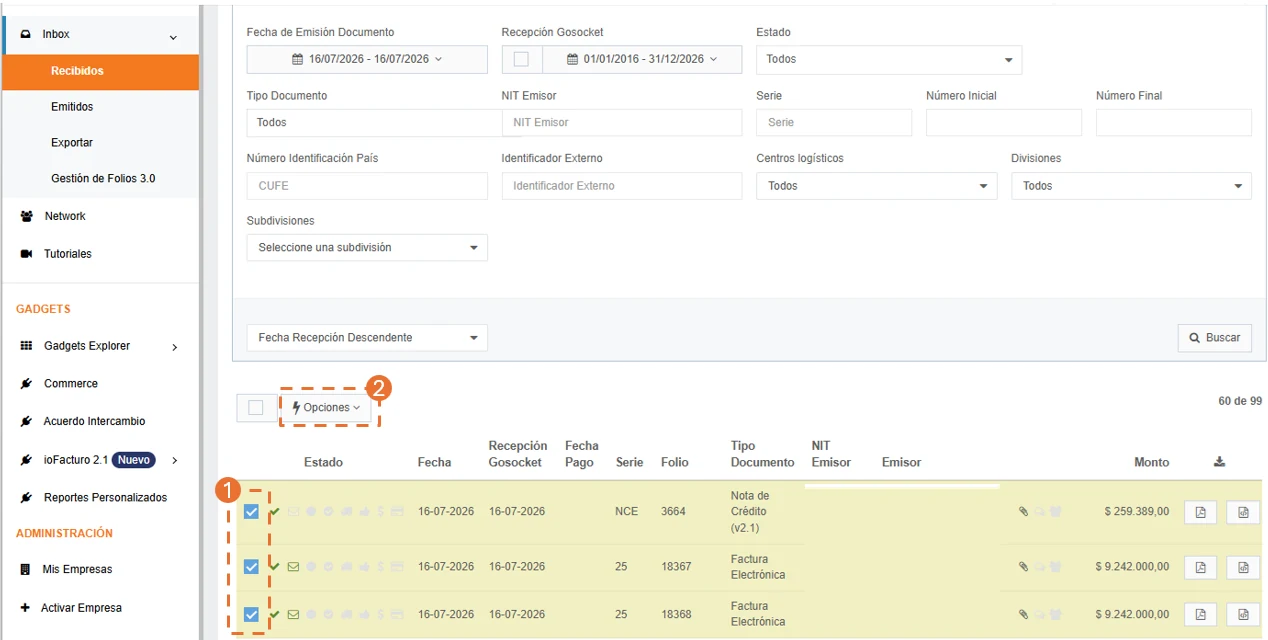
**2.**Now, select the "Options" button and look for the "Commercial acknowledgment" section, located at: Inbox / Received Tray / Options Button / Section: commercial acknowledgment, Within this menu, you will find the following Commercial Acknowledgment options:
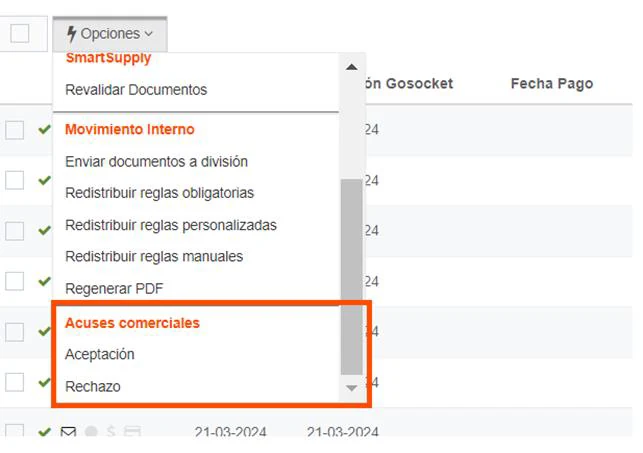
i. Acceptance event
This is the event that produces an acknowledgment of receipt showing that there is acceptance of the document. That is, that the document's information is valid for the recipient.
This option only applies to documents in accepted status with the TA.
When selecting the Acceptance Event from the Options button, a pop-up window is generated to relate the acknowledgment description and notification email, followed by the validate button, the acknowledgments of the event for the document are generated.

This event will be displayed within the document preview in the upper right corner.
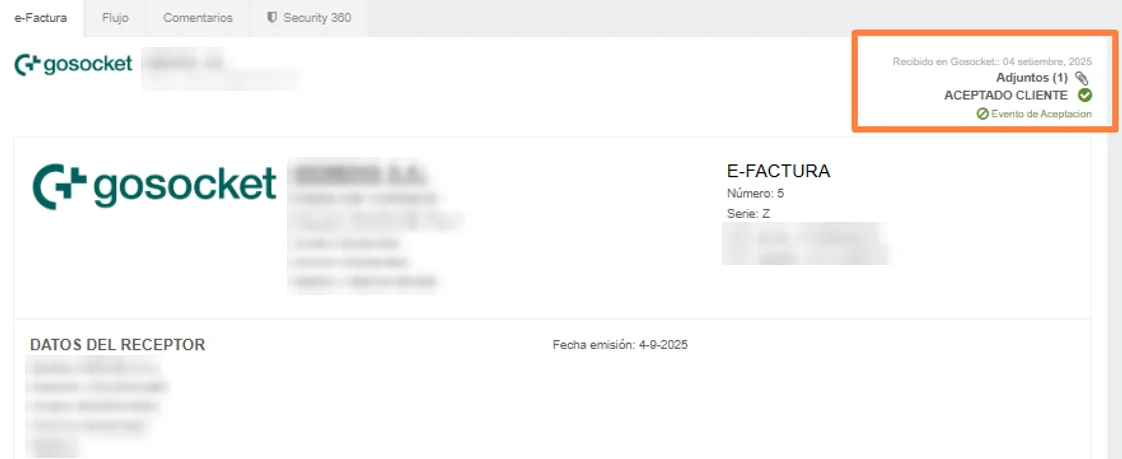
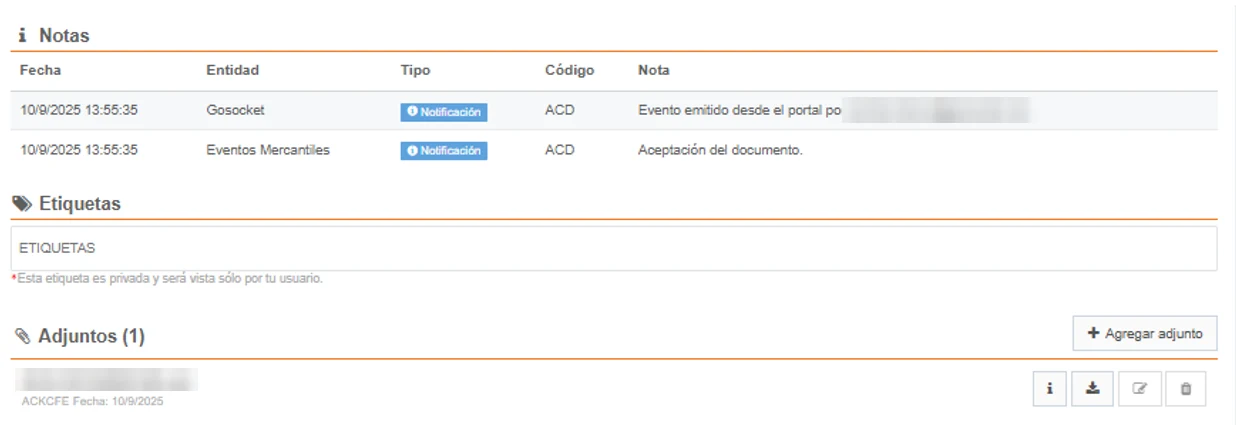
And in the notes section, and the XML of the event sent to the Tax Authority will be shown in the attachments section, as shown below:
Likewise, the Acceptance Event will be displayed in the document's status icon.

ii. Rejection event
This is the event that helps the recipient show that they do not agree with the information shown within the document.
This option only applies to documents in accepted status with the TA.
When selecting the Rejection Event from the Options button, a pop-up window is generated to relate the acknowledgment description and notification email, followed by the validate button, the acknowledgment of the event for the document is generated.

This event will be displayed within the document preview in the upper right corner.
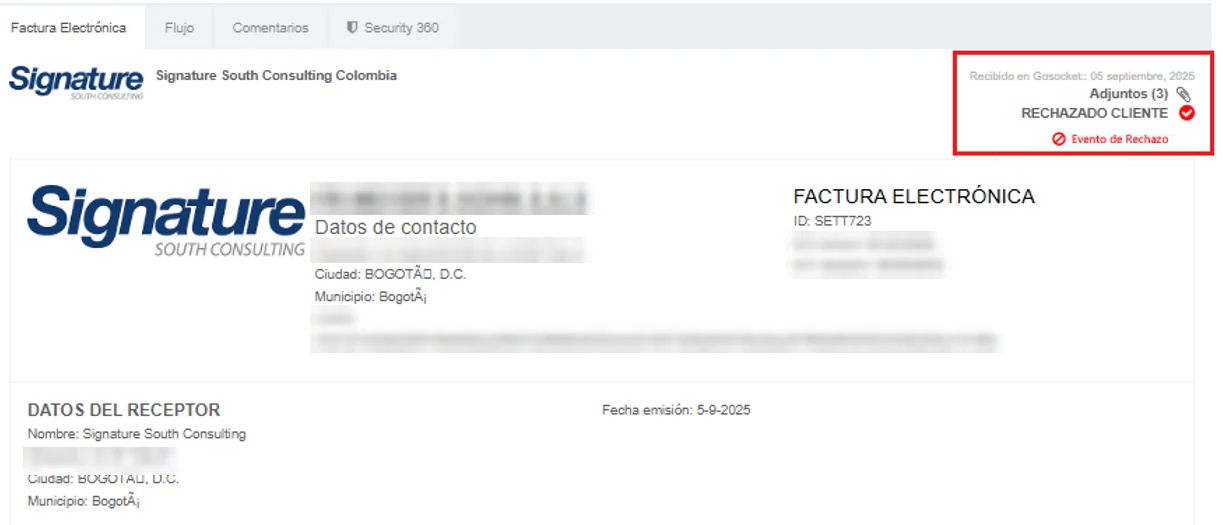
And it will be displayed within the document preview in the notes section, and the XML of the event sent to the Tax Authority will be shown.
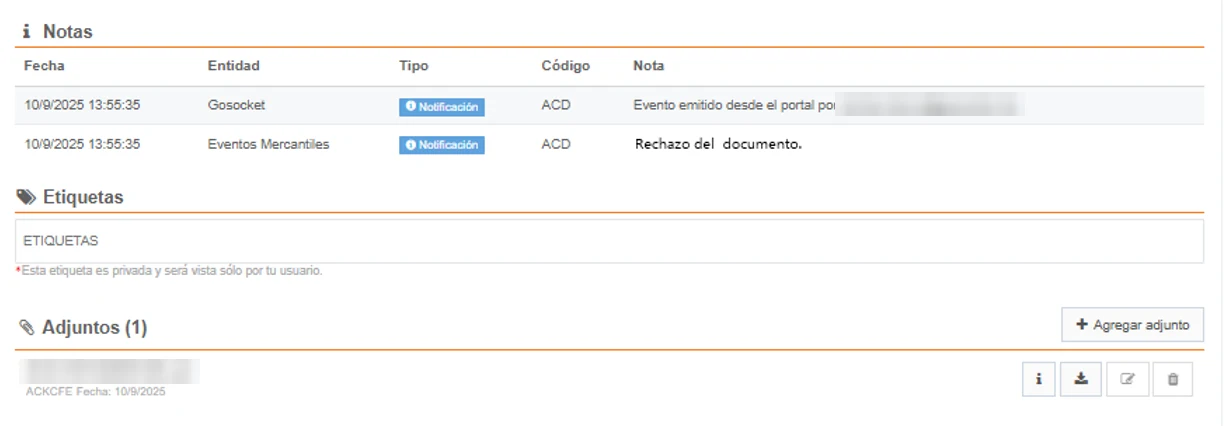
Likewise, the Rejection Event will be displayed in the document's status icon.

These events will be displayed within the document preview in the notes section, and the XML of the event sent to the Tax Authority will be shown:
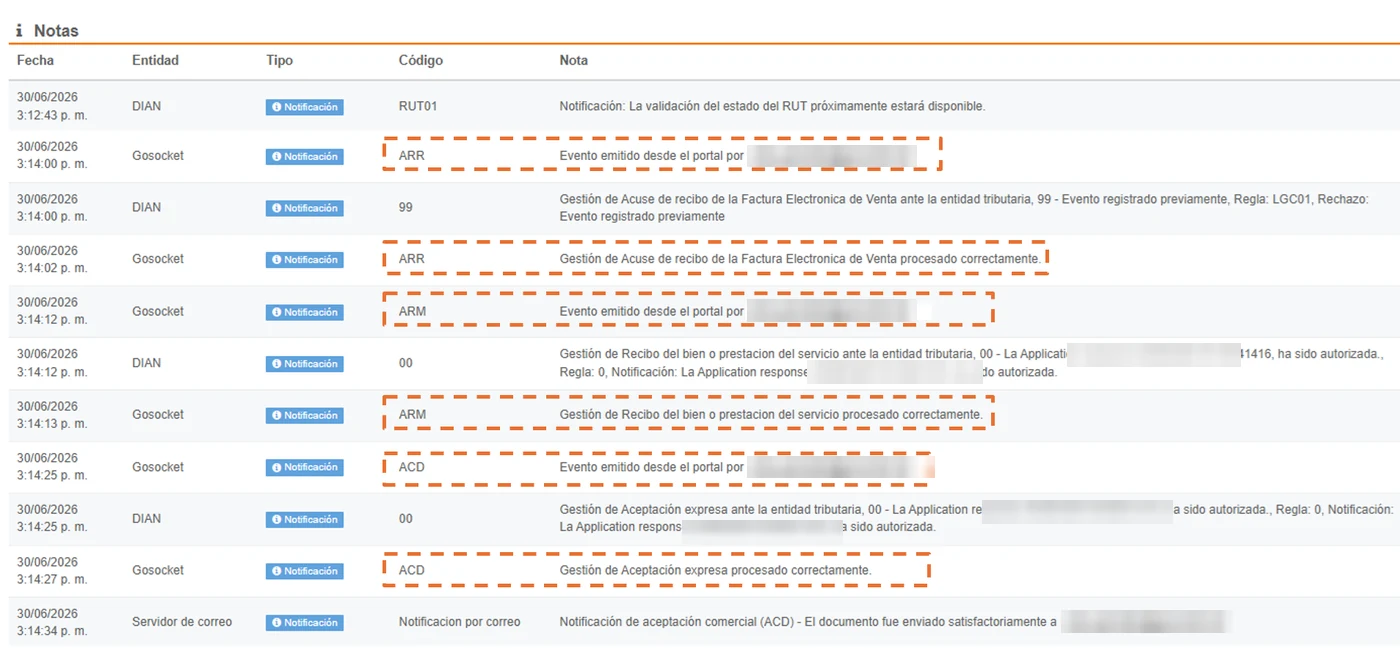
and in the attachments section, as shown below:
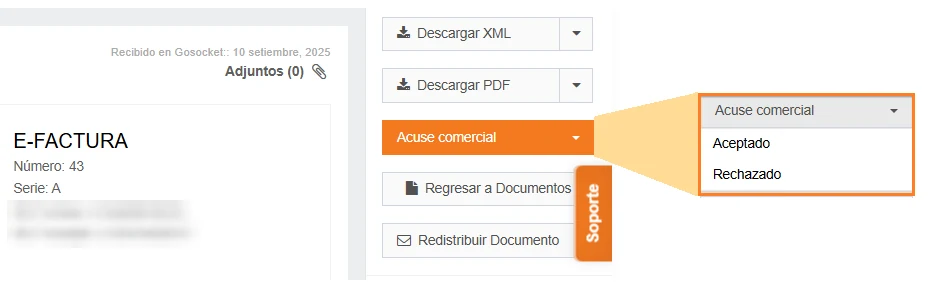
4.2.2. Apply commercial acknowledgments from the document preview
These events can also be generated from the Inbox document preview, which we will explore below.
This action can also be performed from the document preview through the Commercial acknowledgment button.
4.2.3. Icons according to the commercial acknowledgment
According to the commercial acknowledgment previously assigned, the document may show one of the following icons when viewed from Received:
- Document acknowledgment of receipt: This status reports on the issuance of the acknowledgment for a document:
a. Gray, will be displayed when the document does not yet have an acknowledgment of receipt.

b. Green, indicates that an acceptance acknowledgment was issued and issued successfully.

c. Red, indicates that a rejection acknowledgment was issued and issued successfully.

- Commercial approval: Acceptance or Rejection: This icon can be presented in the following ways:
- For acceptance, an icon with a thumb pointing up in green will be displayed.

b. If rejected, an icon with a thumb pointing down in red will be displayed.

c. If this event is not present, the thumb will be gray.

For more details on running commercial acknowledgments from the API available in this section, see the Inbox and API Manual.
5. QUERYING RECEIVED DOCUMENTS FROM GOSOCKET
Once documents have been processed by the reception service, they can be queried from the Gosocket portal in the Inbox/Received section. **
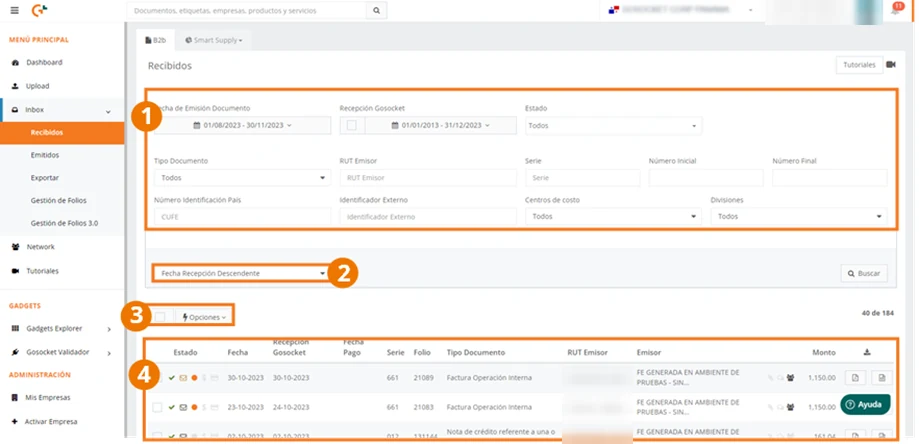
This section shows the following screen:
**1.**Filters section to optimize search results. **
**2.**Display order control, with which you can modify the way search results are displayed. **
**3.**List of options linked to export, commercial responses, and internal movements of Electronic Documents. **
**4.**Display section with the search result detail and representative icons of the most relevant status changes. **
* For more information on these points, see the Inbox documentation.**
Once the document search is performed in the main grid, the list of received documents that met the established search criteria will be displayed; in this grid, in addition to relevant document information, the document status can also be observed.
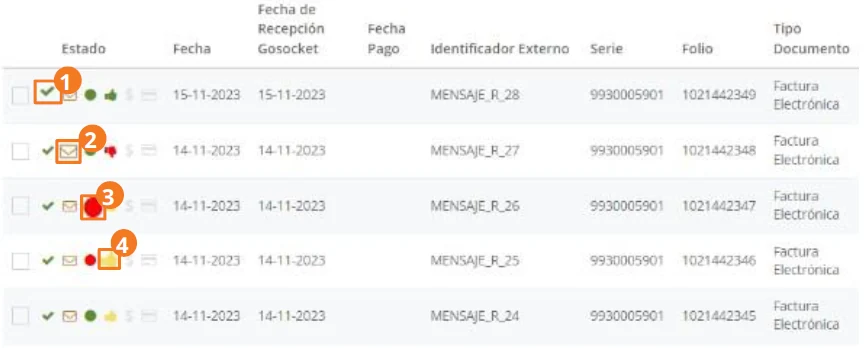
**1.**Tax authority validation.
**2.**Distribution validation.
**3.**Smart Supply status validation.
**4.**Receiver message validation.
The status column (1) will show the result of the applied validations, as explained in the section XML reception process.
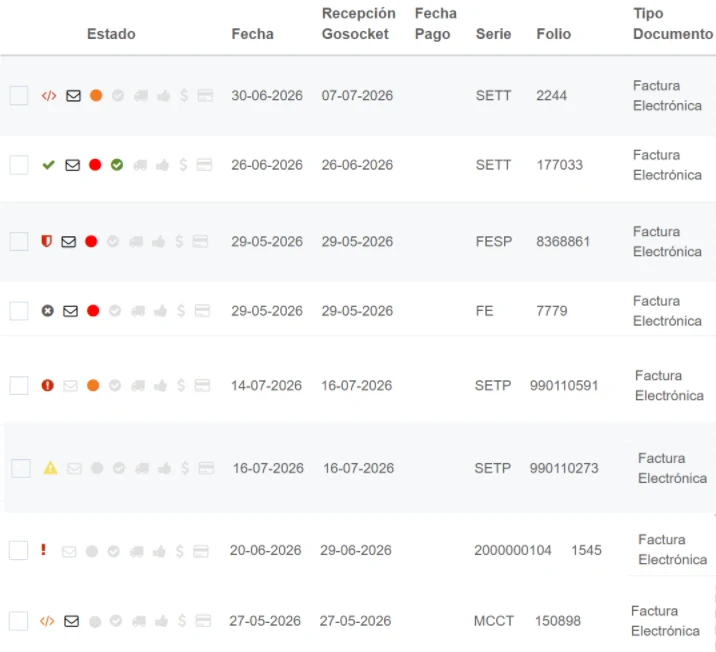
| Icon | Status | Validation |
|---|---|---|
| VALIDATED | Document approved by the TA |
| REJECTED* | Document rejected by the TA |
| Not Available in ET | Document does not exist in the TA |
| ❗ | ERROR* | Document Rejected or internal exception by Gosocket |
| ET status not validated* | when querying Gosocket's compliance and it returns error code 106 "No valid status was obtained from the DGI" |
| Signature Error | Document with signature error |
| Schema Error | Document with schema error |
| Schema error but the flow continues * | The XML presents a schema error, but if the configuration is enabled, this option allows the reception flow to continue. |
* Note: Clicking on the document will open the document preview where you can review the notes related to the reason for rejection.

* Note: for the case in which the document ends up in "ERROR" status, the user can reprocess it through the actions, in order to perform the schema, signature, or TA validations again. This process is explained in detail in the section Reprocessing.

* Note: Document found in the TA but without status and returns error 106:
In Uruguay there is a specific case where, when querying Gosocket's compliance and it returns an error code 106 "No valid status was obtained from the DGI", the document will remain in Inbox as follows:
- This feature is already configured by default.
- In Gosocket the document will remain in ET status not validated status and the icon will be displayed, as follows:
* Note: Special configuration: The XML presents a schema error, but if the configuration is enabled, this option allows the reception flow to continue:
This feature can be enabled independently for each company. Its purpose is that, if a schema error is detected in the XML when receiving the document in Gosocket, the specific error detail will be automatically recorded in the document's "Notes" section.
Despite this finding, the document will continue with its normal flow towards the following reception validations, such as the verification of the signature and the tax authority.
The document will remain in Inbox as follows:
In Gosocket the document will remain in Validated ET with schema error status and the orange icon will be displayed, as follows:
For more details on how to configure this feature, see the following section: XML Configuration Presents Schema Errors and Reception Flow Continues