The Spanish version is the authoritative reference. View in Spanish
Single Sign-On (SSO)
Introduction
Single Sign-On (SSO) is an authentication solution that allows users to log in to multiple applications and websites with a single user authentication. Nowadays, users frequently access multiple applications from their browsers, and organizations have prioritized access management strategies that improve both security and the user experience. SSO provides both aspects, since users can access all password-protected resources, without repeating the login, once their identity has been validated.
Single Sign-On (SSO) allows users to authenticate to Gosocket using the identity provider (IdP) configured by their organization, avoiding the use of a password specific to the portal.
Gosocket has implemented SSO using the SAML 2.0 protocol, where we act as the Service Provider (SP) and the client as the Identity Provider (IdP), offering a more secure and convenient user experience.
Benefits for the client
-
Facilitates access
With SSO, users only need to remember a single username and password combination to access all connected applications, including Gosocket.
-
Improves security
SSO reduces the need for multiple passwords, which decreases the likelihood of users employing weak passwords or reusing them across several accounts.
-
Reduces administration costs
SSO simplifies password administration, which reduces the costs associated with account management and technical support.
-
Increases productivity
By eliminating the need to remember multiple credentials, users can quickly access the applications they need to perform their tasks.
Limitations
-
Compatibility with the SAML 2.0 protocol
The SSO implementation in Gosocket is compatible with SAML 2.0, so clients must ensure that their identity provider (IdP) also supports it.
-
Tested identity providers
So far, we have validated the compatibility of our SSO implementation with Okta and Azure Active Directory. However, if the client uses another identity provider (IdP) compatible with the SAML 2.0 standard, there should be no issues in carrying out the integration.
Data for quoting and implementation
To provide a quote and implement SSO with the client's identity provider, we need the following data:
From the client
- Name and version of the identity provider (IdP) used.
- Identity provider metadata of the client: metadata URL.
- Delivery of the domain(s) to be integrated. That is, the domain to which the users authorized to access the portal belong, for example, @gosocket.net, @pagero.com.
- Technical contact responsible for the SSO implementation within the client's organization.
From Gosocket
-
Gosocket metadata (URL of the Gosocket entity metadata descriptor).
Identifier (Entity ID or Audience Restriction):
PRODUCTIONhttps://auth.gosocket.netSANDBOXhttps://auth-sbx.gosocket.netReply URL (Assertion Consumer Service URL, Recipient URL or Destination URL):
PRODUCTIONhttps://auth.gosocket.net/core/sso/acsSANDBOXhttps://auth-sbx.gosocket.net/core/sso/acs -
Gosocket technical contact responsible for the SSO implementation.
Using Single Sign-On (SSO) in Gosocket
To log in using this method, we provide the following instructions:
There are two ways to log in using this method:
Logging in from the SSO button
- Go to the Gosocket portal.
- Select Login.

- Select the SSO option to log in.

- Enter the email that corresponds to the client's specific domain.

Enter an account whose domain has been previously configured with this type of login. For example, if your login account has the @gosocket.net domain, then this domain must have been configured beforehand.
When pressing Enter, the system will verify whether the domain has been configured. If not, no change will be shown on the screen.
- If the domain is configured, you will be redirected to the identity provider.
- Complete the authentication following your organization's instructions.
Logging in by directly entering the email
- Enter the email on the login screen.
- Click elsewhere on the screen so that the email field loses focus.
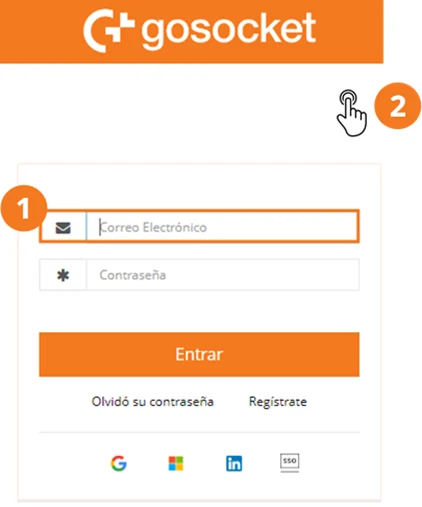
- The system will verify whether the domain has an SSO configuration.
Once the domain is validated
If the email domain is configured to use Single Sign-On (SSO), the system will redirect you to the identity provider (IdP) configured by your organization.
- Select the account you will use to access the Gosocket portal.

Once the account is selected, a more secure authentication will be performed against the client's database and the policies of their own domain.
- Continue with the internal login process following the on-screen instructions provided by the organization's identity provider.
- Once the user's identification data has been verified, the client's system will send the authorization to access the Gosocket portal. Then the home screen will be displayed within the portal.
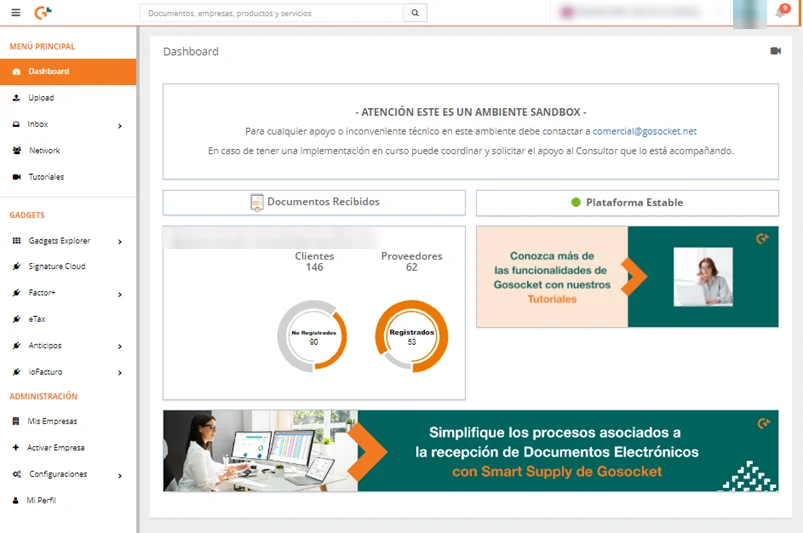
First access to the portal via SSO
If the user does not have a previous record within Gosocket, the SSO integration will automatically create the user within Gosocket and display a screen with the following information.
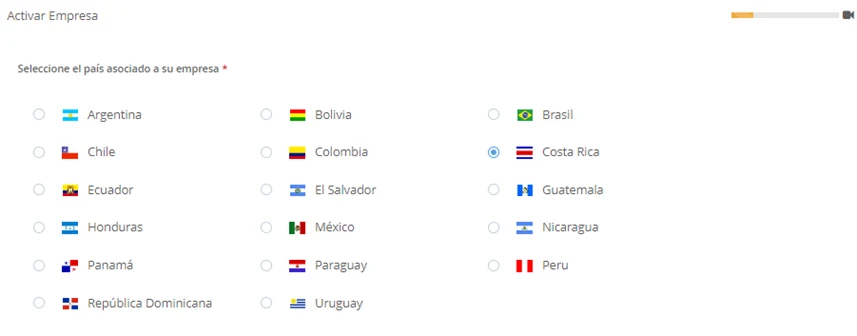
Once created, the company administrator will need to enable the user within the organization so they can access the portal features.
General login behavior (enabled or disabled)
As part of the configuration of the Single Sign-On (SSO) integration, it is possible to define whether login using a Gosocket portal username and password will also remain enabled, or whether access will be performed exclusively through the organization's identity provider (IdP), that is, only via SSO.
General login enabled
When general login is enabled, users have two alternatives to access the portal:
- Authenticate through the identity provider (SSO), as long as their email domain is configured for this type of access.
- Log in using their Gosocket username and password.
General login disabled
When general login is disabled, access to the portal can only be performed through Single Sign-On (SSO).