The Spanish version is the authoritative reference. View in Spanish
Inbox whitelist
Guide for Entering IP Addresses (Access Whitelist)
To configure secure access to the portal using IP whitelist, you can enter individual IP addresses or address ranges using CIDR.
What is CIDR format?
CIDR stands for Classless Inter-Domain Routing and is used to represent one or several IP addresses in a single line. The general format is:
{IP address}/{network mask}
Examples of valid entries
| Entry | Meaning | How many IPs does it cover? |
|---|---|---|
192.168.1.10 | An individual IP (equivalent to 192.168.1.10/32) | 1 IP |
203.0.113.5/32 | A single IP: 203.0.113.5 | 1 IP |
200.1.2.0/24 | From 200.1.2.0 to 200.1.2.255 | 256 IPs |
10.10.0.0/16 | From 10.10.0.0 to 10.10.255.255 | 65,536 IPs |
How does the mask work?
The number after the slash (for example, /24) indicates how many of the IP's 32 bits are fixed to define the network. The remaining bits are used to define the possible IPs within the range.
| Mask | Possible IPs | Example |
|---|---|---|
/32 | 1 IP | 192.168.1.10/32 |
/24 | 256 IPs | 192.168.1.0/24 |
/16 | 65,536 IPs | 10.10.0.0/16 |
Recommendations
- You can enter individual IPs or CIDR ranges as needed.
- Avoid duplicating entries.
- Make sure the format is correct before saving.
- To enter multiple IPs, use the multiple-entry field (one per line).
Examples of invalid entries
| Entry | Reason for the error |
|---|---|
192.168.1.999 | Invalid IP (out of range) |
10.10.0.0/33 | Invalid mask (maximum is /32) |
192.168.1.0.1 | Incorrect format |
10.10.0.0/abc | Non-numeric mask |
🖥️Where to apply this IP configuration?
This guide applies to the Inbox → Settings → Client Whitelist section, where allowed IPs for portal access are configured. Validation is performed automatically, but this document helps you understand which formats are valid and how to use them correctly.
📄 Technical & Commercial Data Sheet
🔐 Security Service: IP Whitelist for Document Portal Access
✍️ Service Description
The IP Whitelist allows you to define a list of IP addresses from which access to the portal is authorized. Any connection attempt from IPs outside this list will be automatically blocked.
It works as an additional layer of security, ideal for organizations that handle sensitive information, operate under regulatory standards, or want to limit access to corporate networks.
🎯 Service Objective
- Strengthen perimeter security controls for portal access.
- Limit access exclusively to authorized corporate networks.
- Provide additional compliance for companies subject to international standards.
✅ Key Benefits
| Benefit | Description |
|---|---|
| 🔒 Greater access security | Only approved IP addresses can access the portal. |
| 🧠 Smart network control | Allows you to manage IP ranges (CIDR), specific addresses, and VPNs. |
| ⚙️ SSO Complement | Integrates with Single Sign-On to strengthen network-based authentication. |
| 📜 Support for ISO compliance | Supports specific ISO/IEC 27001 controls related to access control. |
| 🧾 Clearer auditing | Facilitates traceability, monitoring, and forensic analysis in case of incidents. |
🛡️ Contribution to ISO/IEC 27001 Compliance
This service helps meet key controls of the ISO/IEC 27001 standard, such as:
| ISO 27001 Control | Description |
|---|---|
| A.9.1.2 – Access to networks | Access to networks and services is restricted to authorized users only. |
| A.9.4.1 – Information access restriction | It ensures that access to information systems is based on defined policies. |
| A.13.1.1 – Network controls | Control measures are applied to network connections and exposed services. |
| A.13.1.3 – Segregation in networks | Allows defining network boundaries within which the system can operate. |
This service is highly recommended for organizations that need to demonstrate compliance with security policies during internal or external audits.
🧾 How is it implemented?
- Once Gosocket enables the Whitelist for the company, the client can configure or edit the list of IPs or ranges (in CIDR format) in our portal under Settings; they must be an administrator of the company. They can also edit or delete them.
- The client can update the list whenever necessary from this option.
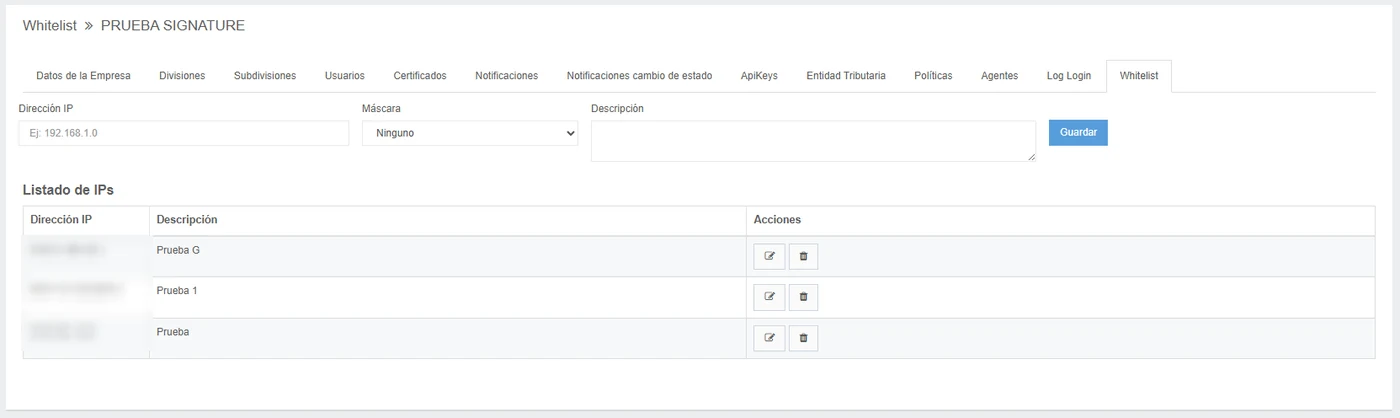
- Users with the @gosocket domain do NOT have access to this option in Inbox.
IPs must be public and belong to the client's network, and the configuration is independent for each environment: Sandbox and Production.
🧑💼 Target Audience
- Banking and financial institutions
- Public sector and government
- Companies subject to ISO/IEC 27001, PCI-DSS, HIPAA
- Multinational corporations
- Legal, audit, and technology firms
📰 Behavior
If a user attempts to access from an unauthorized IP, the portal will automatically block access and the following page will be displayed when trying to access it:

- Currently, no alerts or notifications are generated for blocked access attempts.
- No logs visible to the client are recorded regarding blocked or allowed access associated with this functionality.
- Dynamic IPs cannot be managed within the Whitelist. In these cases, the client should consider using a proxy or an exit point with a fixed IP.
- In case of blocking due to an error in a configured IP:
- If the client's administrator can access from an enabled IP, they can make the adjustment directly in the Inbox/Settings Portal.