The Spanish version is the authoritative reference. View in Spanish
Manual Upload - Standard Excel
This page explains how to bring non-tax operational documents into Gosocket using the standard Excel template, and how to review the upload result in Smart Supply. For an overview of the module, see Smart Supply.
Data dictionary
| Term | Definition |
|---|---|
| DNT (Non-Tax Document) | Documents that lack fiscal validity and are not registered with the tax authority. Their main purpose is to complement and support the company's operational and transactional flows, for example: purchase orders, Migo, HES, IR/HES. |
| XSLT | The "translator" or transformation engine that takes a file with data and converts it into a different format. The XSLT is the key piece that allows the information the user enters in an Excel file to be converted into a DTE (XML) that the system can process. |
| XML | The technical, secure, and standard format that the platform uses to process information legally. |
| DTE | A file in XML format that complies with the technical and legal standards required by the tax authorities (such as DIAN in Colombia, SII in Chile, SAT in Mexico, etc.). It contains all the information of a commercial transaction digitally signed to guarantee its authenticity. |
What is the manual upload of non-tax documents?
This functionality allows non-tax operational documents to be incorporated into Gosocket through Excel templates. These documents, although not directly linked to tax obligations, are essential for the company's operational management, as is the case with purchase orders, Migo, or HES.
To enable the manual upload functionality, a prior configuration must be performed from the Gosocket administration portal.
The Manual upload option is always visible in the Upload section. If the company is not configured in the administration portal, an error is generated and the Excel file cannot be used to upload non-tax documents.
1. Manual Upload - Standard Excel
This option uses an Excel file called the "standard template" due to its structure, for collecting general data of non-tax documents. This tool allows Gosocket to automatically transform the information into DTE format through an XSLT process. Once available in this format, the document can be fully integrated into the operational flow, facilitating interaction with tax documents and the execution of business rules in Smart Supply.
The user can access the functionality through the following path:
- Main menu
- Upload
- Manual upload
- Download template
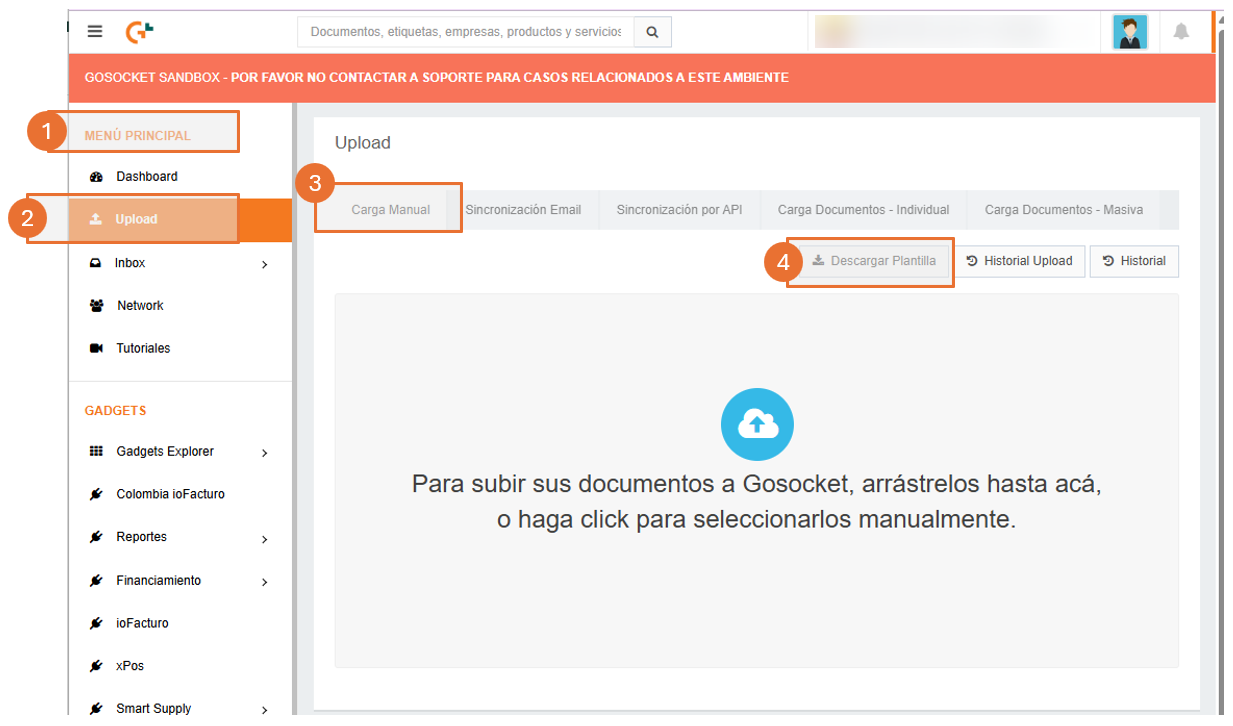
1.1. Download Template button
When you click the "Download template" button, the system generates an Excel file with a standard structure. This format allows the user to fill in the information of the Non-Tax Documents (DNT) that will be uploaded to the Gosocket platform, following this order:
| Column | Field | Description |
|---|---|---|
| a | TaxIdReceptor | Enter the company's tax ID. |
| b | NombreReceptor | Enter the company's business name. |
| c | TipoDocumento | Enter the identifier code of the non-tax document. |
| d | Numero | Enter the sequential number of the non-tax document. |
| e | FechaEmisión | Enter the issue date of the non-tax document in dd/mm/yyyy format. |
| f | Moneda | Enter the currency abbreviation of the non-tax document. |
| g | MontoTotal | Enter the total amount of the non-tax document. |
| h | Categoria | Free field, additional information can be entered. |
| i | Referencia1 | Free field, additional information can be entered. |
| j | Referencia2 | Free field, additional information can be entered. |
| k | Referencia3 | Free field, additional information can be entered. |
| l | Referencia4 | Free field, additional information can be entered. |

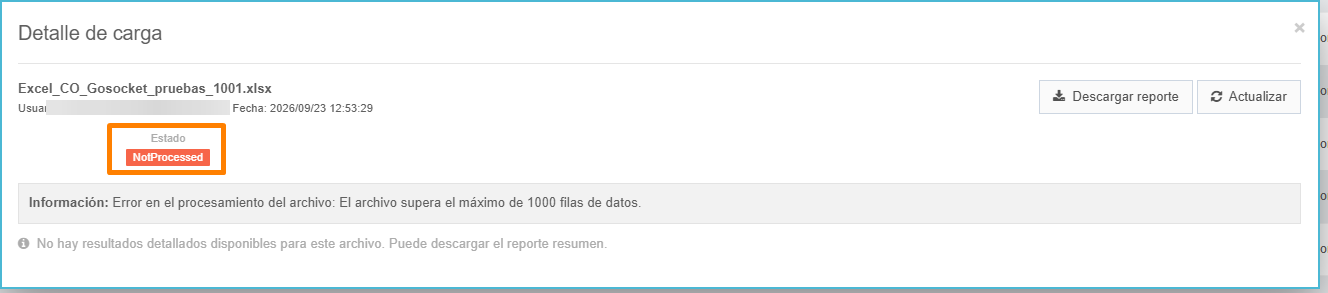
The standard Excel file allows a maximum of 1,000 records or non-tax documents per transaction. If multiple uploads with this same number of records are performed, a minimum interval of 12 minutes must be left between uploading one file and the next.
Otherwise, the status of the standard Excel file will be set to "Processed with errors".
When reviewing the error detail, the following message is displayed in the interface: "Information: Error processing the file: The file exceeds the maximum of 1000 data rows."
In Upload History, the file is left with the status "Processed with errors":

And when downloading the report, the following is shown:

After entering the non-tax document information in the Excel file, save it in .xlsx format and upload it in the "Manual upload" tab through the interface: "To upload your documents to Gosocket, drag them here, or click to select them manually.", as shown in the following image:
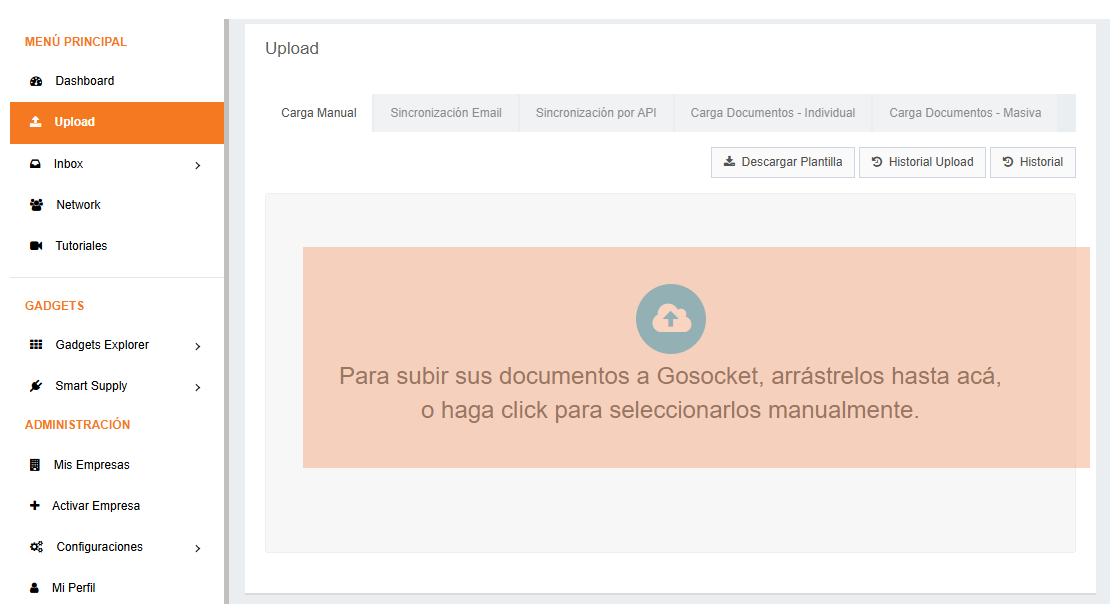
Once the Excel file is uploaded in either of the two ways mentioned:
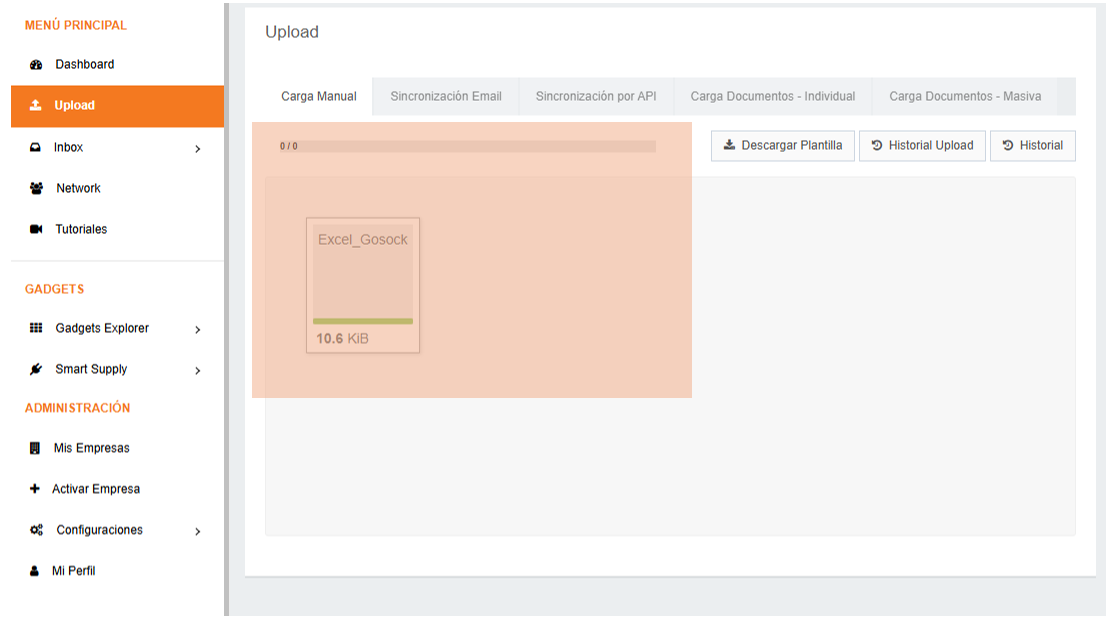
In the same interface, the total number of files is displayed, and you can identify whether they were processed successfully or with errors.
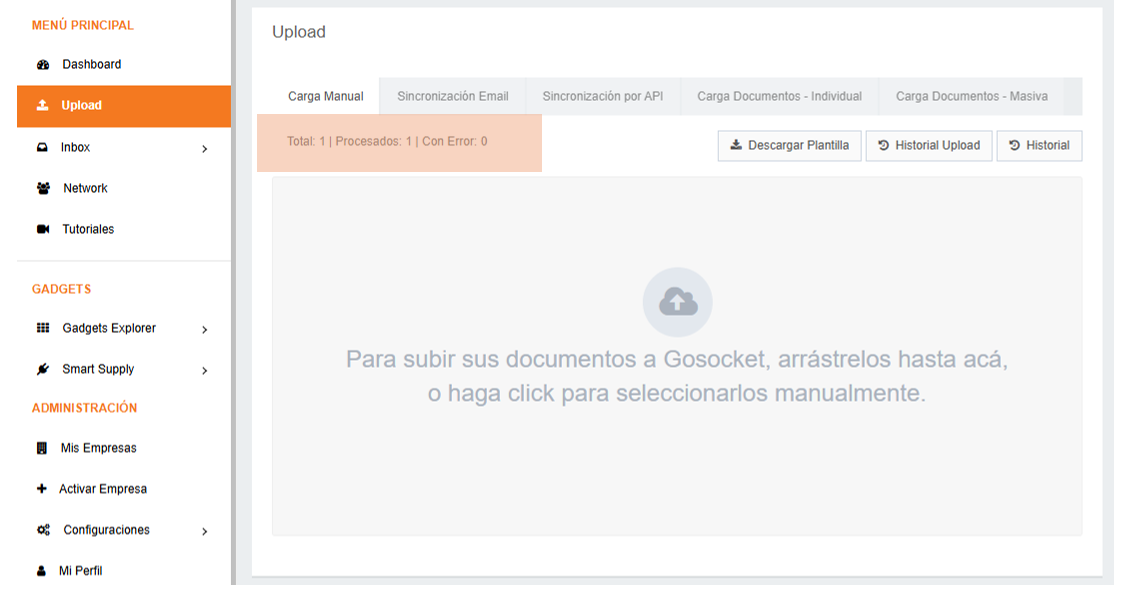
To see more specific details, the user can select the "Upload History" button.
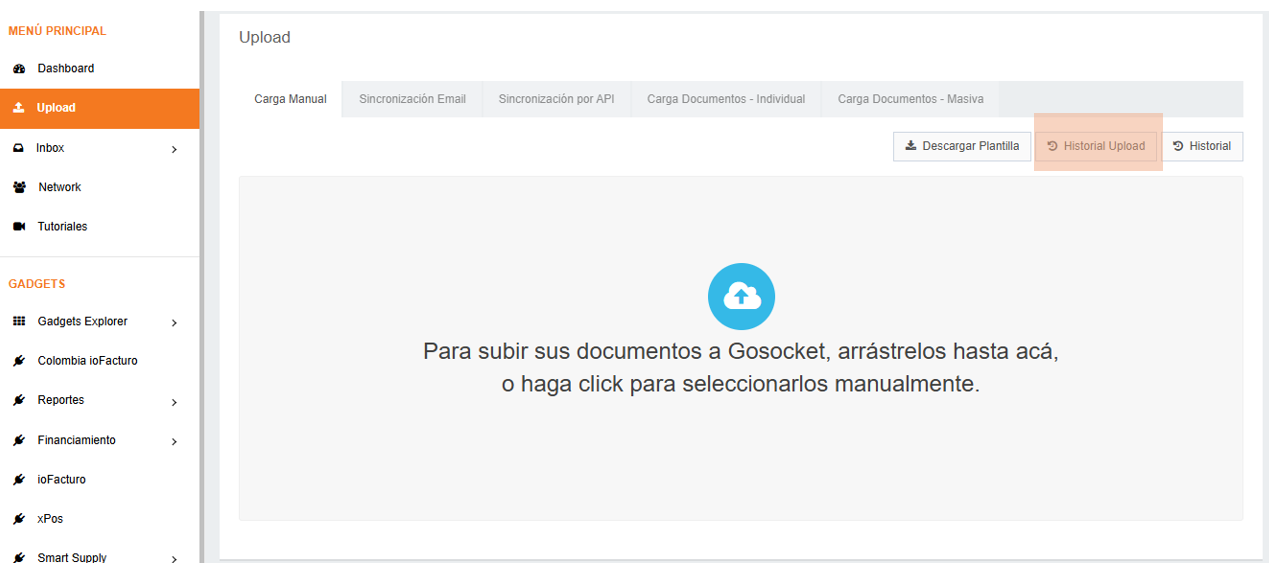
1.2. Upload History button
Clicking the "Upload History" button opens a screen with the following structure:
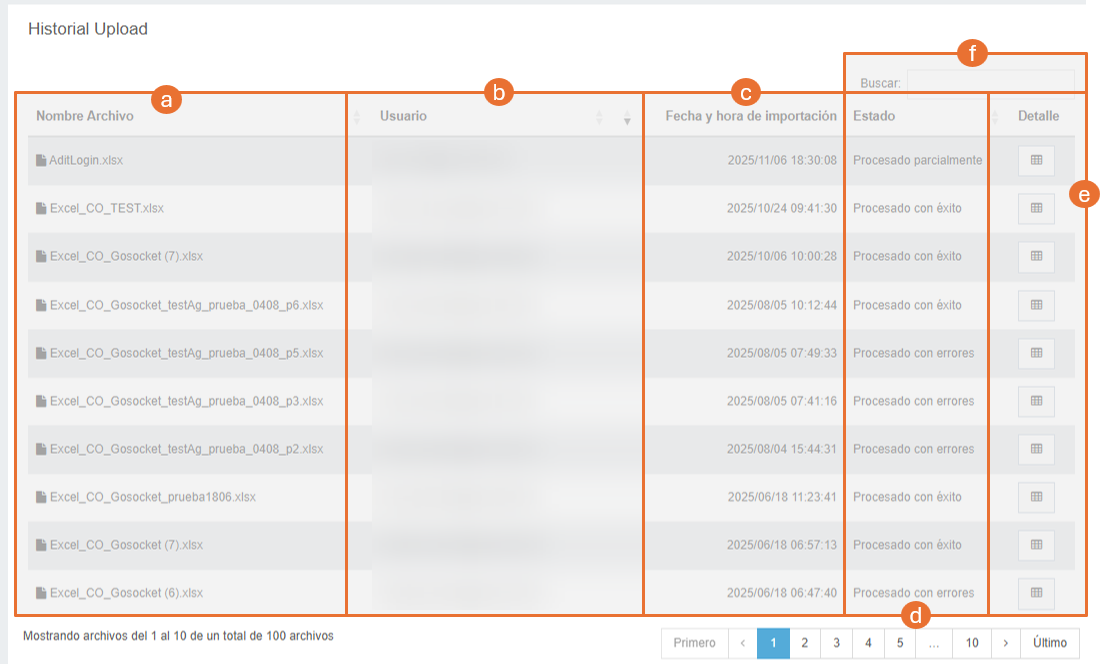
The screen shows the records from the last 3 months, counted from the current date.
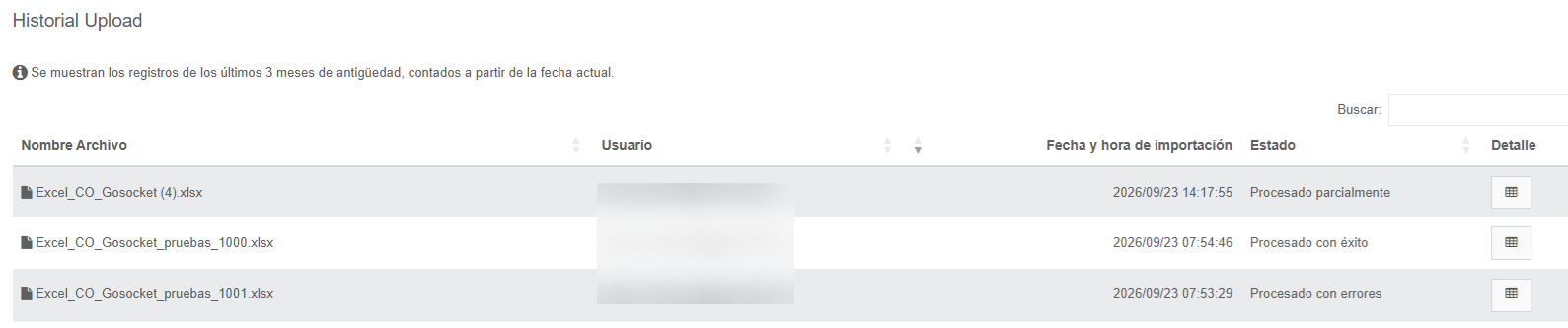
| Ref. | Element | Description |
|---|---|---|
| a | File name | The name with which the Excel file is uploaded. |
| b | User | Email of the user who performed the upload. |
| c | Import date and time | Shows the date and time of the upload. |
| d | Status | Shows the status of the uploaded file (see the list below). |
| e | Upload detail | When you press the button in this column, a detail of each record included in the uploaded Excel file is shown (see below). |
| f | Search | You can use this field to quickly locate a previously processed upload. |
The possible file statuses (Status column) are:
- Processed successfully: no errors were detected in the imported document.
- Processed with errors: the imported file has errors and is not in one of the allowed formats (
.xls,.xlsx). - Partially processed: the imported file has an error and one or some of the related items could not be processed. For example: "Non-tax document could not be stored because one containing prior references already exists on the platform; Document submission 27: Submission rejected: Non-tax document could not be stored because one containing prior references already exists on the platform."
Upload detail
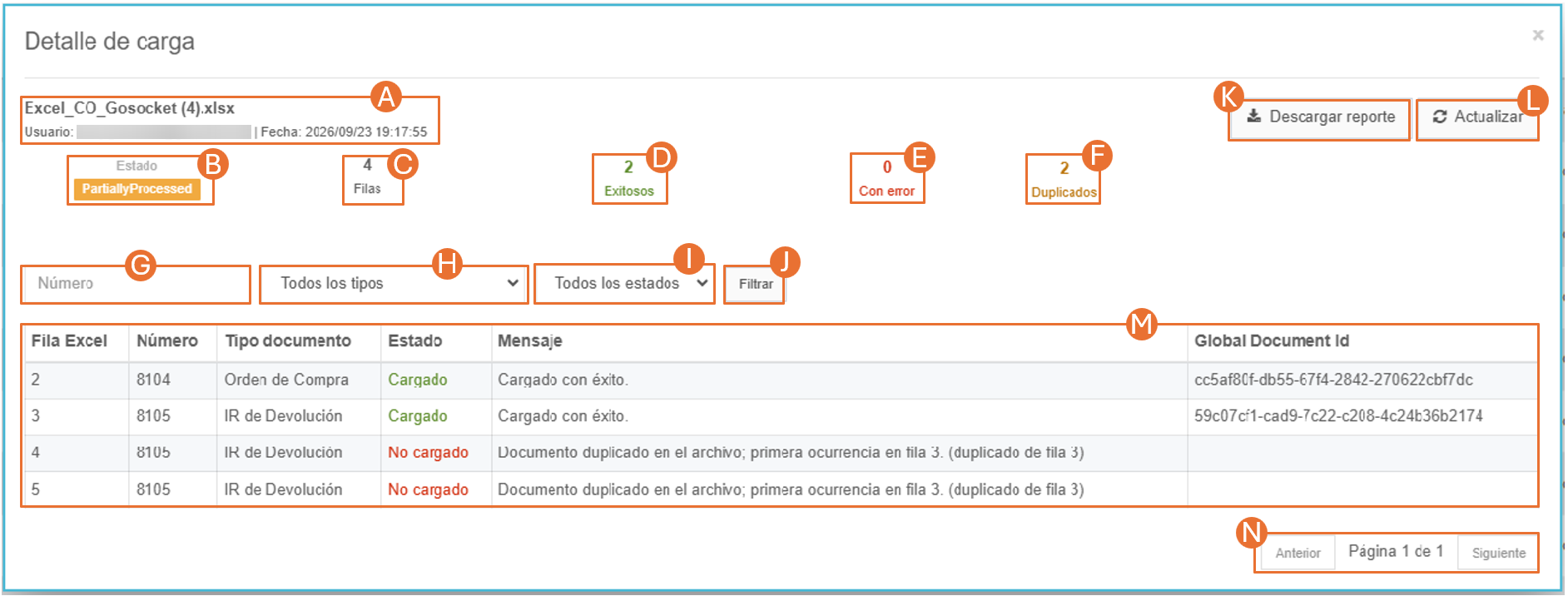
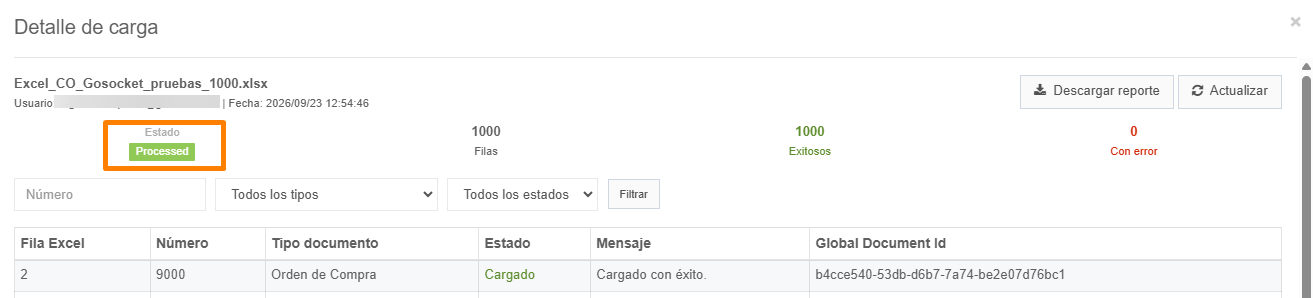
When you press the button in the Detail column, a window shows the detail of each record included in the uploaded Excel file. Its elements are:
| Ref. | Element | Description |
|---|---|---|
| A | File data | File name, user, and date and time when the Excel file was uploaded. |
| B | Final upload status | Status of the uploaded Excel file: Processed, NotProcessed or PartiallyProcessed. |
| C | Rows | Number of rows included in the standard Excel file. |
| D | Successful | Number of documents or records uploaded successfully. |
| E | With errors | Number of documents or records that were NOT processed successfully. |
| F | Duplicates | Number of documents or records that the system identified as duplicates. |
| G | "Number" filter | Allows you to enter the sequential number of the non-tax document included in the Excel upload. |
| H | "Document list" filter | Allows you to select a non-tax document included in the Excel upload. |
| I | "Statuses" filter | Allows you to select a specific status of the Excel upload result: All statuses, Uploaded, and Not uploaded. |
| J | "Filter" button | When clicked, the filter selected in items G, H, and I is applied; the three filters are independent. |
| K | "Download report" button | When clicked, the system generates a report in Excel format that shows the information contained in the upload detail window (see the examples below). |
| L | "Refresh" button | Allows you to refresh the screen while the Excel file is being processed when it contains many records. |
| M | Row detail | Detail of each row included in the Excel file with its respective status and processing message. |
| N | Pager | The number of records shown on each screen is 20 lines. |
Example of the detail window with the final status Processed:
And with the final status NotProcessed:
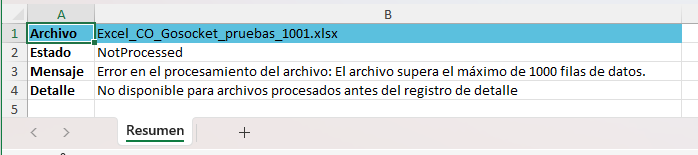
The report downloaded with the "Download report" button has the following fields depending on the upload result.
Report fields when the Excel file was uploaded successfully:

Report fields when the Excel file has duplicate records:

Report fields when the Excel file was not processed:
Viewing the document in Inbox
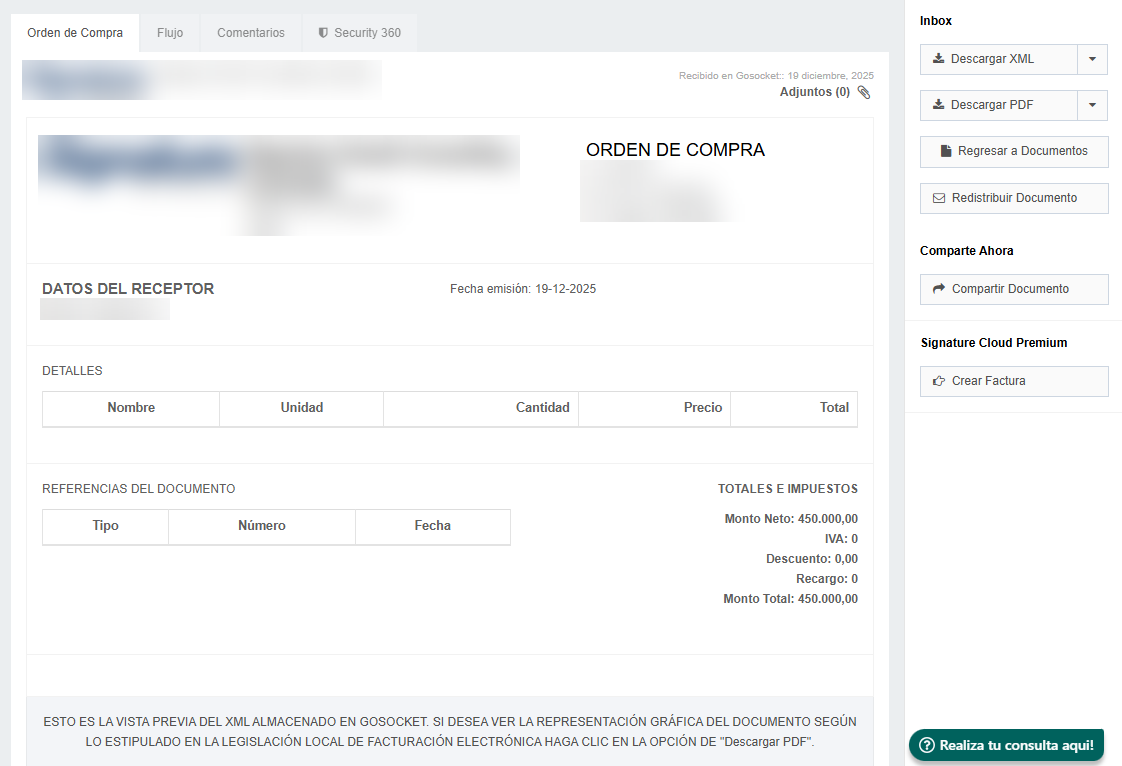
If the file was processed successfully, the user can view the non-tax document in Inbox. When reviewing its detail, the following can be viewed:

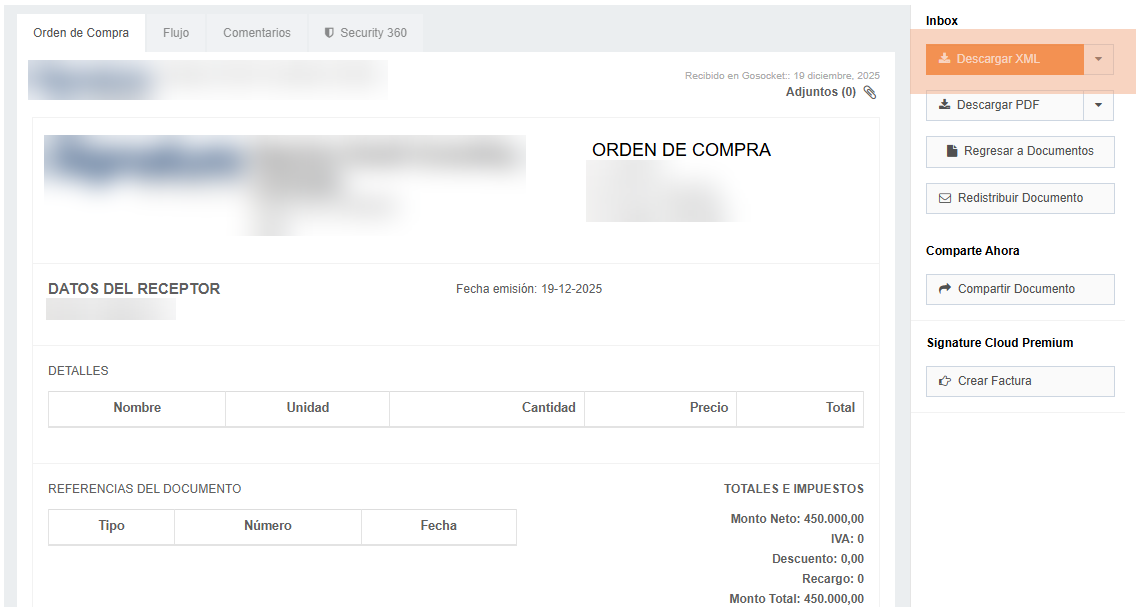
- The preview of the non-tax document.
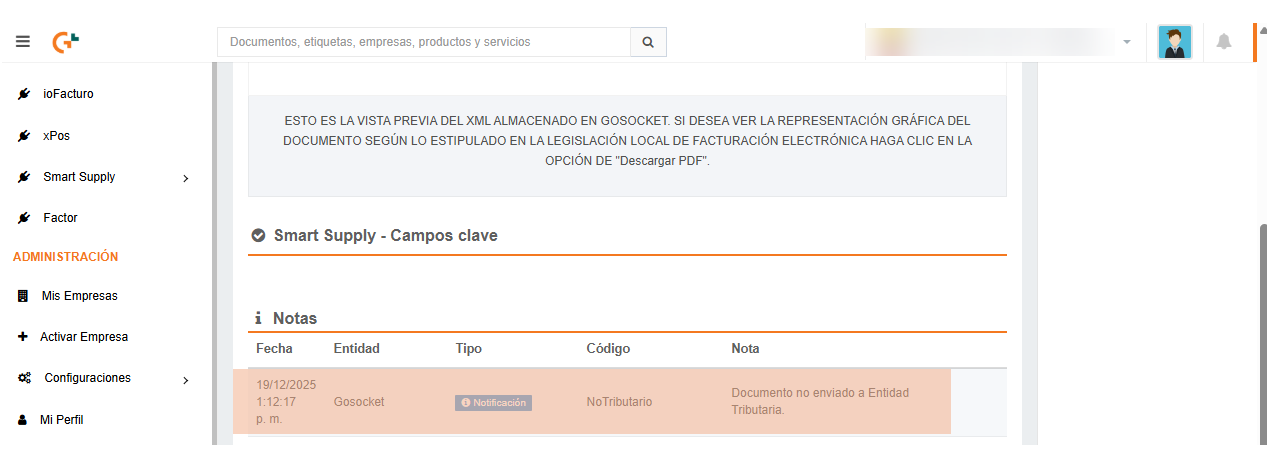
- A note "Document not sent to the Tax Authority." and the classification "Non-tax".
- The XML generated through the XSLT transformation, with the DTE structure.
Preview of the non-tax document:
Download XML option of the document:
Note "Document not sent to Tax Authority." classified as "Non-tax":
XML generated with the DTE structure:
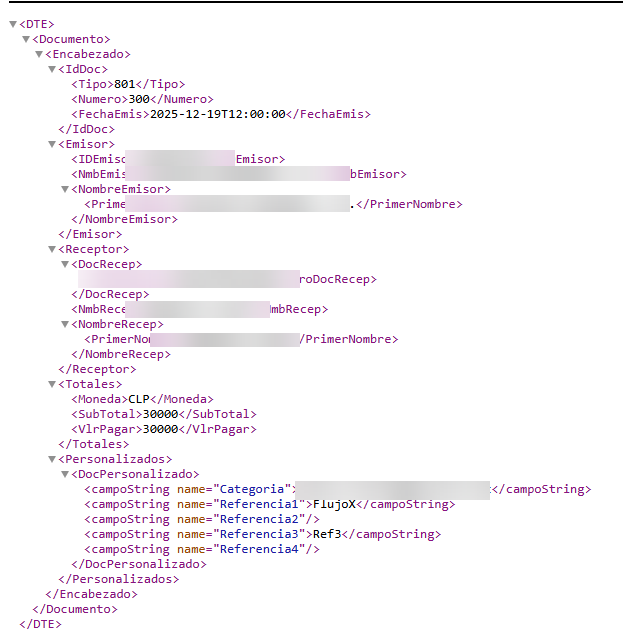
When we say that a DNT (Non-Tax Document) is transformed into a DTE, what happens is the following:
- Standardization: the system takes the data from your Excel and "translates" it into the XML language that Gosocket understands.
- Compatibility: by converting an operational document (such as a purchase order) into the DTE format, the Smart Supply module can read it, compare it with real invoices, and apply business rules automatically.
Non-tax documents can also be issued via API.