The Spanish version is the authoritative reference. View in Spanish
Inbox and Smart Supply
Introduction
The goal of this guide is to identify the key interactions that the functional user can perform with the different Smart Supply options directly from the Inbox interface. We will demonstrate this through a practical example.
Welcome to this Smart Supply training! We will see how the tool applies business validations and how the user can interact to ensure the success of the process.
1. Requirements for a document to apply Smart Supply validations
A fundamental requirement for Smart Supply to operate is that the company receives documents through the Gosocket platform. The process starts when documents arrive in the Received tray in Inbox through two channels: the Exchange Mailbox or Manual Upload through the Upload option (see Manual document upload).
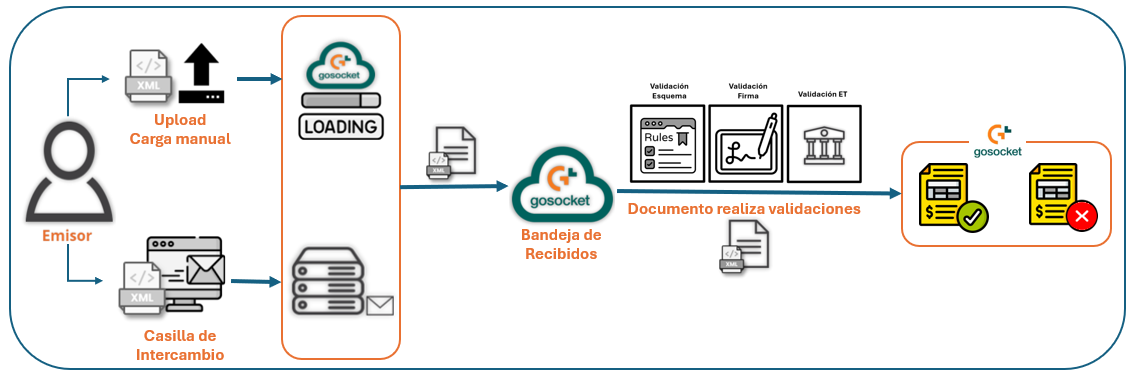
For Smart Supply to be able to execute any configured validation, the document must have successfully passed the Schema, Signature, and Tax Authority validations. Only after meeting this requirement will the verification icon be displayed in the Inbox grid, as follows:

and the previously configured Smart Supply traffic light color will be assigned, as shown in the image:

On the other hand, if the document does not pass these reception validations, the rejection icon will be displayed in the Inbox grid.

and it will not be assigned any Smart Supply traffic light color, as shown below:

In summary:
| Reception result | What you will see in the Inbox grid | Smart Supply traffic light |
|---|---|---|
| The document passes the schema, signature and tax authority validations | Verification icon and the VALIDADA label | The previously configured color is assigned |
| The document does not pass those validations | Rejection icon and the RECHAZADA label | No color is assigned |
2. Document statuses in Smart Supply
In summary, these are the Smart Supply traffic light statuses. Each one is explained below:
| Color | Status | Type | What it indicates |
|---|---|---|---|
| Orange | Pending | Intermediate | Editable fields are enabled for the supplier to enter information. |
| Blue | Pending receiver | Intermediate | The editable fields are only enabled for the Receiver (the document's customer); the Issuer (supplier) cannot see them. |
| Green | Accepted | Terminal | The validation process has finished. It does not imply commercial acceptance of the document. |
| Yellow | Sent | Terminal | The validation process has finished. It tells the supplier they sent the correct information, which can be injected into the accounting system or distributed using the configured distribution rules. |
| Red | Rejected | Terminal | The document has a condition that the buyer cannot accept. |
| Gray | Not validated | — | The document has not gone through any Smart Supply validation. |
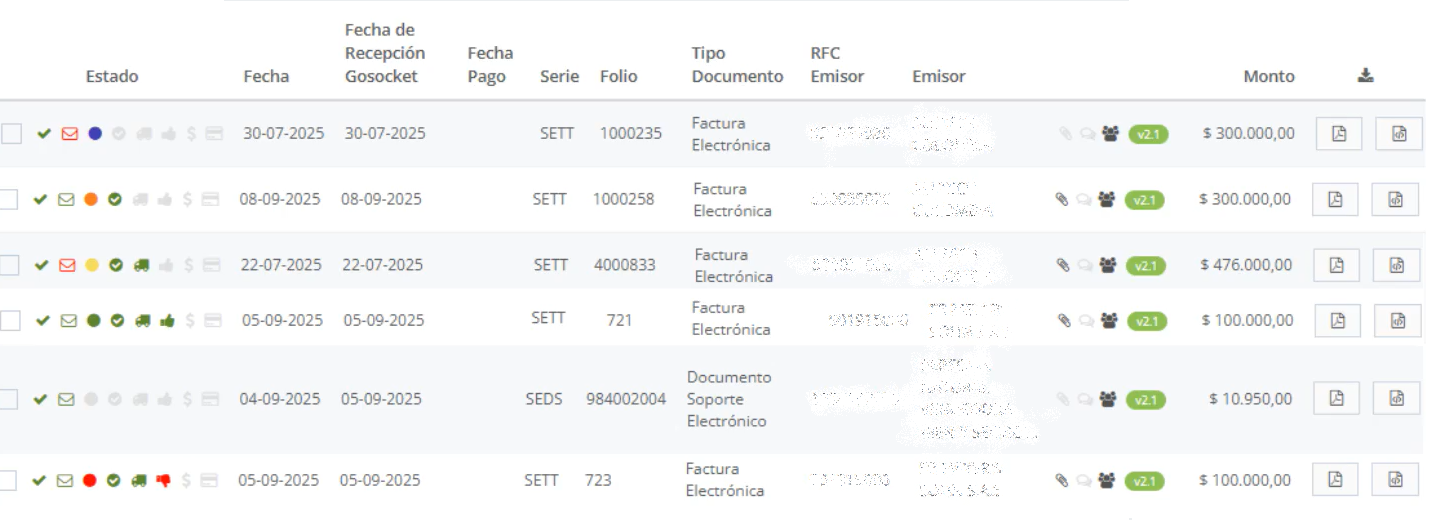
To track the progress of a document after Smart Supply validations are applied, we use the different statuses reflected in the Smart Supply traffic light. This information is visible in the Received submodule within the Gosocket Inbox as follows:
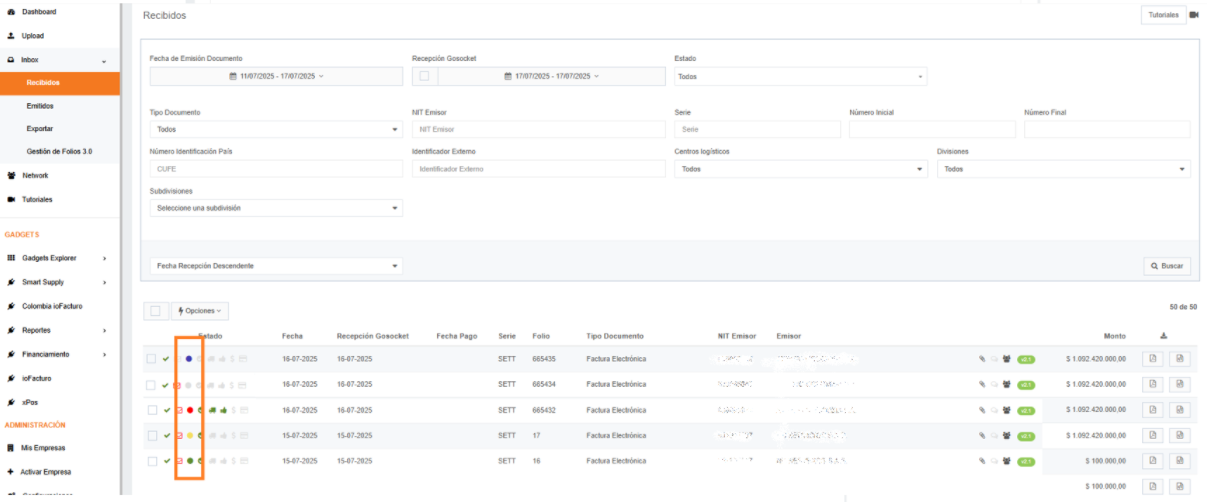
2.1. Pending status (Orange)

The color Orange indicates "Pending".
The status PENDING (Orange) is classified as an intermediate status. It indicates that editable fields will be enabled for the supplier to enter certain information, depending on the type of fields to display, in order to continue the flow on the Inbox platform. The document preview status is denoted with the color Orange.
2.2. Pending receiver status (Blue)

The color Blue indicates "Pending receiver".
The status PENDING RECEIVER (Blue) is classified as an intermediate status in the Smart Supply validation process.
Unlike the Pending (Orange) status, this status indicates that the editable fields for entering missing or required information will only be enabled for the Receiver (the document's customer). The Issuer (supplier) will not be able to see or interact with these specific fields. The document preview status is denoted with the color Blue.
2.3. Accepted status (Green)

The color Green indicates "Accepted".
The status ACCEPTED (Green) is classified as a terminal status. It indicates that the validation process has finished; this does NOT imply commercial acceptance of the document. On the platform it is denoted with the color Green.
2.4. Sent status (Yellow)

The color Yellow indicates "Sent".
The status SENT (Yellow) is classified as a terminal status. It indicates that the validation process has finished. It is a catch-all status that tells the supplier that they have sent the correct information and that it can be injected into the company's accounting system or distributed using the configured distribution rules. On the platform it is denoted with the color Yellow.
2.5. Rejected status (Red)

The color Red indicates "Rejected".
The status REJECTED (Red) is classified as a terminal status. It indicates that the document has a condition that is not acceptable to the buyer. On the platform it is denoted with the color Red.
2.6. Not validated status (Gray)

The color Gray indicates "Has not gone through Smart Supply validations".
When you see a document assigned or identified with the color Gray, this status indicates that the document has not gone through any Smart Supply validation.
2.7. Search for a document with Smart Supply validations in Inbox
Inbox has a filter that lets you search for documents by Smart Supply status. This filter can be found in the Received and Sent trays of Inbox. Select the Status filter and look for the Smart Supply Validation section; this list shows all the statuses a document can have in Smart Supply.
For example, when selecting the "Sent" status, Inbox performs the search and retrieves all documents that are in Sent Smart Supply status within a given date range.
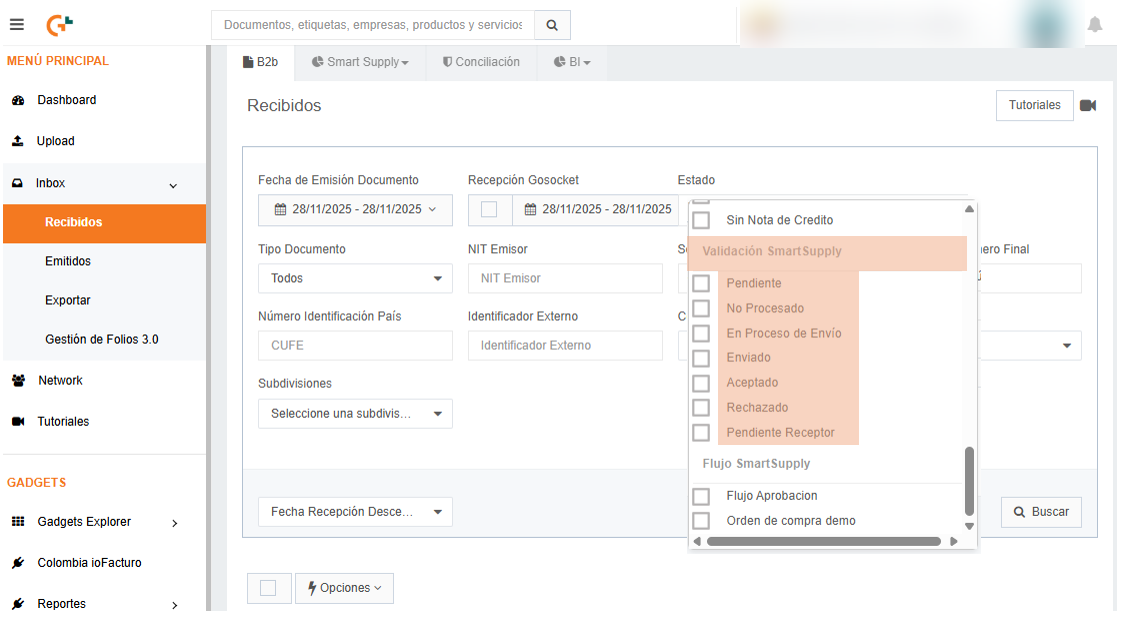
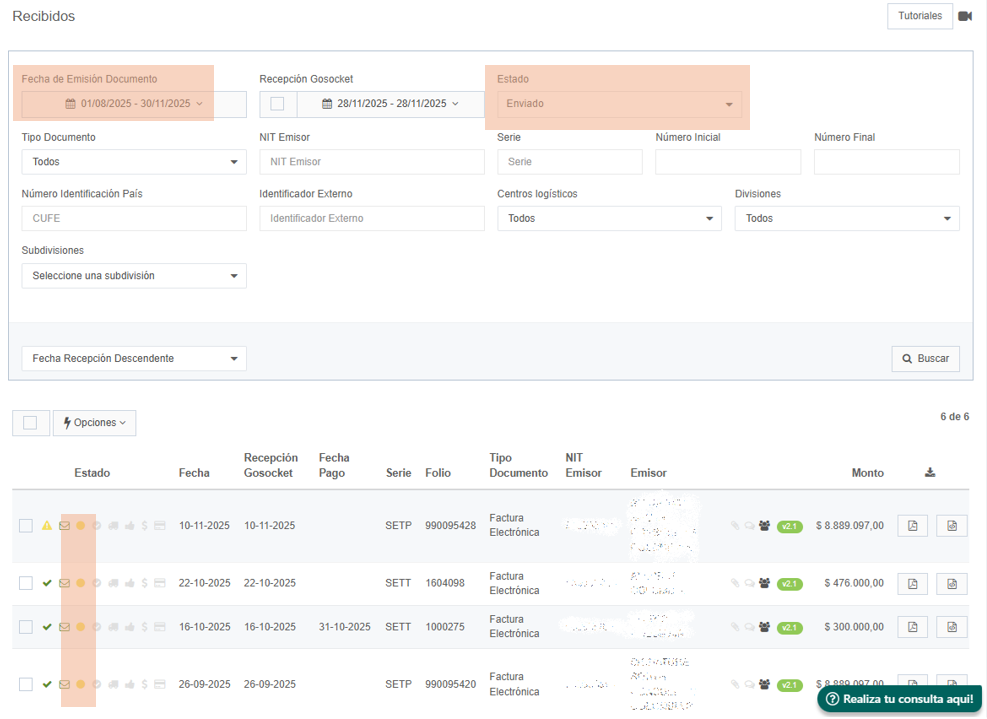
In this filter you can only select one option: if you try to combine it with another status, you will not get any results.
3. Use cases
In the following use cases, you can review the different scenarios a document may go through:
| If the document is in status... | See |
|---|---|
| Accepted (green) | Use case: Document with Accepted Smart Supply status |
| Pending (orange) | Use case: Document with Pending Smart Supply status |
| Rejected (red) | Use case: Document with Rejected Smart Supply status |