The Spanish version is the authoritative reference. View in Spanish
📊 xPOS-Core Dashboard
The Dashboard is the web interface that runs on the same machine as xPOS-Core. It lets you review the service's operational status, query processed documents, manage folios and run maintenance tasks on the installation.
This page describes the local console, the one running on the store machine. Centralized administration of the whole device fleet — Pool, Monitor, Versions, Logs — lives in the Customer portal (xPOS Gadget), which is a separate product and runs in the cloud.
🔐 Dashboard access
- Open a web browser on the machine where xPOS is installed.
- Go to the following address:
http://localhost:3200/dashboard/
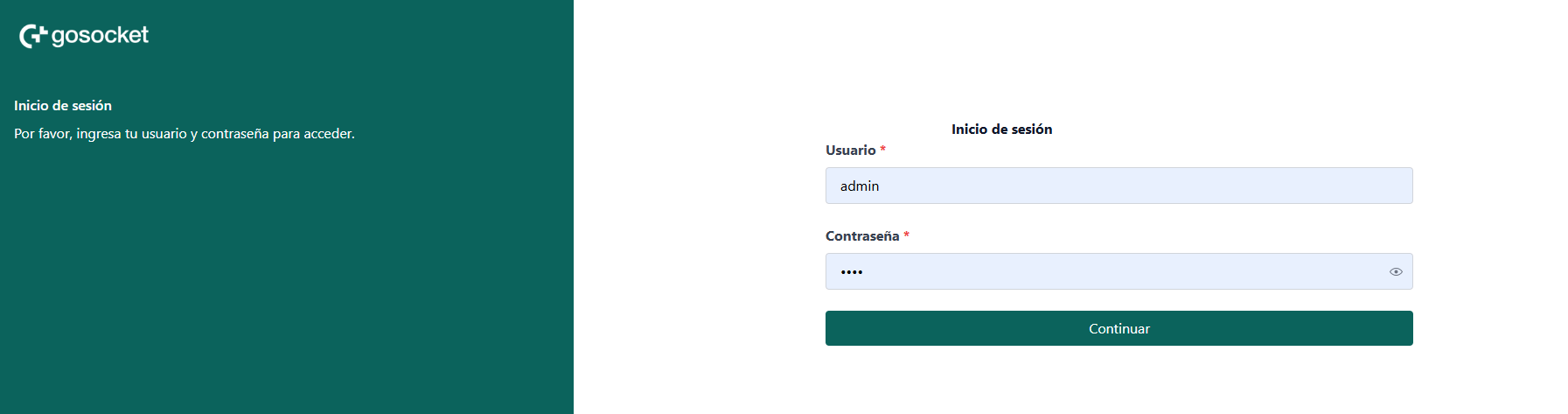
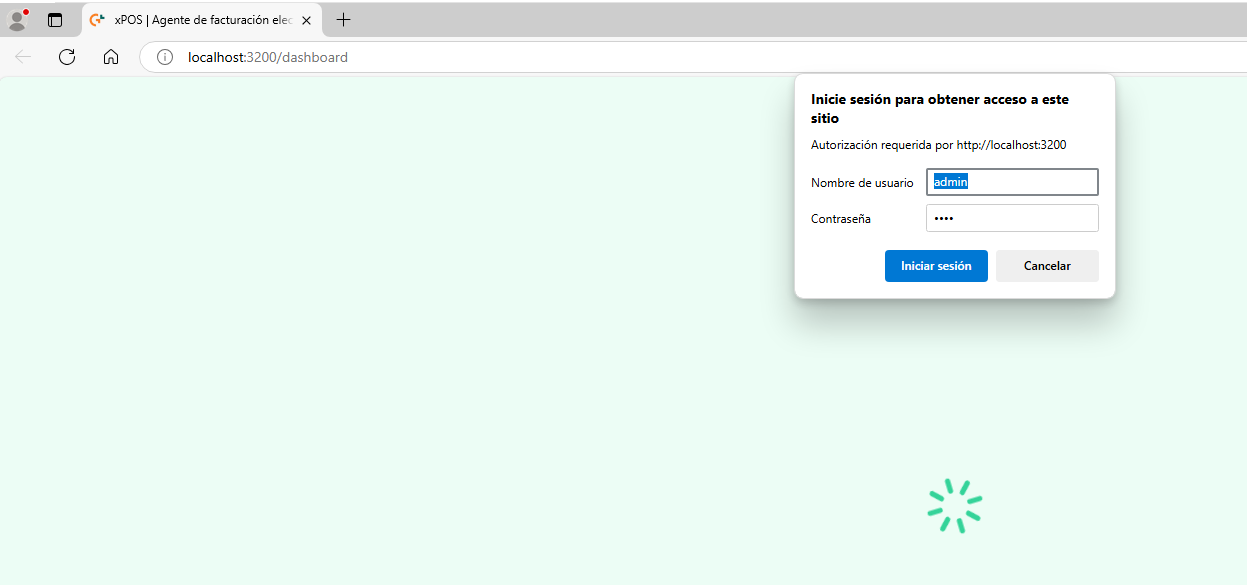
- Sign in with the installation credentials.
| Field | Example value |
|---|---|
| Username | admin |
| Password | 1234 |
The credentials shown are examples: the real ones for your installation are provided during onboarding with the Gosocket team.
For xPOS-Core versions v2.X.X or higher:
For xPOS-Core versions v1.X.X or lower:
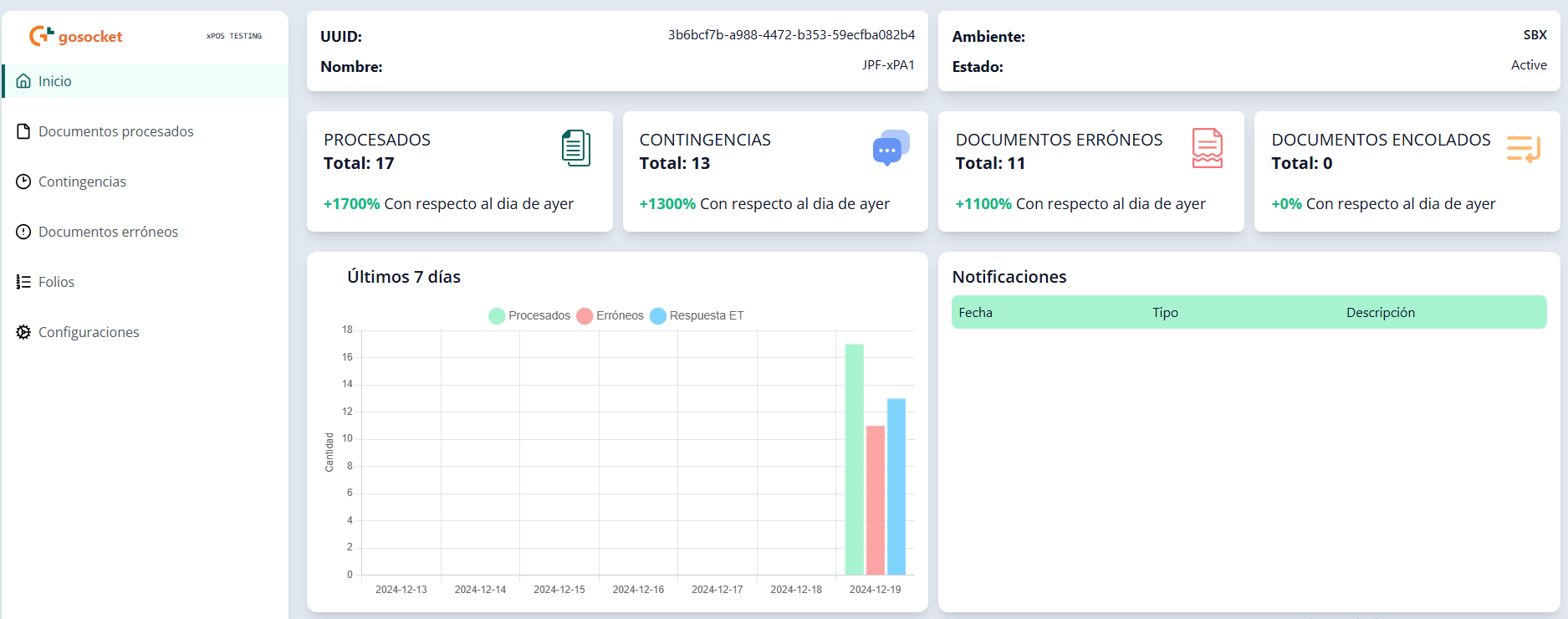
Once authenticated, you reach the main Dashboard:
Need to access it from another machine? See Remote access to xPOS-Core.
🆔 xPOS information
The top of the dashboard shows a summary of the main data of the installed xPOS:
- Version: version of the executable X.XX.X.
- xPOS name.
- UUID: unique identifier of the xPOS.
- Environment: Sandbox (SBX) or Production (PRD).
- Status:
- 🟢 Active: the xPOS can process documents.
- 🔴 Blocked: the xPOS cannot operate due to a block applied by the user from the administration portal or the xPOS Gadget.
- 🔴 Financial block: the xPOS cannot operate due to a block requested by Gosocket's finance and/or commercial team.
- 🔴 Expired version: the xPOS cannot operate because the version is discontinued and will not be supported.

🏢 Issuer selector (multiroot)
From xPOS-Core 2.7.0 onwards, a single device can have several issuers installed (several onboardings, each with its own certificate, credentials and folios).
When there is more than one issuer, the sidebar includes a selector that determines which issuer you are working with. It shows the current issuer highlighted, allows searching by name or identifier, copying the identifier and adding a new issuer.
Every dashboard view shows only the data of the selected issuer. The filter is applied on the server, not in the browser.
The issuer used to process each sale is determined by the origin parameter the POS sends in the API call — see Multiroot. The dashboard selector only decides what is displayed on screen.
📥 Home module
Summarizes the document transactions sent to the xPOS.

Metrics shown
- Processed documents ✅ — total documents generated correctly.
- Contingencies 🕓 — transactions performed in contingency mode.
- Failed documents ⚠️ — documents with errors during creation or sending.
- Queued documents ⏳ — documents pending delivery to the tax authority or to the Inbox portal.
Since version 2.7.1, Home also includes the Notifications card with the device's latest notices.
🔔 Notifications module
Notifications reach the dashboard in every country.
A notification is a system notice that a store or support person can read without opening logs: the xPOS startup, a configuration reload, the certificate expiry, folios, orders coming from the portal, a diagnosis with failures or a synchronization problem.
- The message is for a person: it is in Spanish and does not include tax identifiers, credentials or taxpayer data. The technical detail stays in the logs, but the dashboard does not show it.
- Each occurrence is one row, with its exact moment, as in a log: if a notice repeats, it appears once per occurrence.
- With several issuers (multiroot), each issuer sees its own notices plus those of the whole installation, such as the xPOS startup or an issuer's deactivation.
- A notification does not replace the document status: queued documents are still seen in Contingencies.
Colors by level. The type of each notification appears as colored text according to its level: blue = information, amber = warning, red = error. In the tables on this page they are marked with 🔵, 🟠 and 🔴.
Home card
Shows the latest ten notifications, with a relative date ("3 min ago"; the full date appears on hover), the type colored by level and the description on one line. Unread ones are in bold. Clicking a row opens the detail, and View all goes to the Notifications page. The header summarizes how many are unread and how many require attention.
Example, with illustrative data:
| Date | Type | Description |
|---|---|---|
| 2 min ago | 🔵 Folios | Nuevo rango de folios recibido para el tipo 3: serie B001, del 8096 al 8100 |
| 12 min ago | 🟠 Account | xPOS bloqueado desde el portal: no se emitirán documentos hasta desbloquearlo |
| 25 min ago | 🔵 Configuration | Configuración recargada desde el portal: cambió outputResponse |
| 2 h ago | 🔴 Diagnosis | Healthcheck con fallas: zona horaria y reloj (el reloj del equipo difiere 4 minutos) |
| today 08:20 | 🔵 System | xPOS iniciado, versión 2.7.1 |
| today 08:20 | 🔵 Update | Versión actualizada de 2.7.0 a 2.7.1 |
| yesterday 18:40 | 🟠 Certificate | El certificado de firma vence en 15 días o menos (13/10/2026); renuévelo en el portal |
Notifications page
Opened from the Notifications menu, the same in every country. It has the dashboard's common filter bar —search in the description, Today / 3 days / 7 days / range, Type and Level—, sorting by date, pagination and the Mark all as read and Export Excel actions.
| Column | Content |
|---|---|
| Date | Date and time of the occurrence. Sortable. |
| Type | The catalog type, colored by level. |
| Level | Information, Warning or Error. |
| Description | The message. Unread ones are in bold; long messages are trimmed to three lines. |
| Actions | View detail and Mark as read. Clicking the row also opens the detail. |
Detail. Shows the full message, the type, the level, the moment, the first time the notice occurred and how many times it repeated. When the detail is closed, the notification is marked as read.
What is notified
| Type | When | Level | Example |
|---|---|---|---|
| System | Every xPOS startup | 🔵 Information | "xPOS iniciado, versión 2.7.1" |
| Update | First startup after updating | 🔵 Information | "Versión actualizada de 2.7.0 a 2.7.1" |
| Configuration | Reload from the portal, only if something changed: at startup, in the daily reload, by portal order or with the Reload button | 🔵 Information | "Configuración recargada desde el portal: cambió outputResponse" |
| Folios | Range received, no folios or failure requesting them | 🔵 🟠 🔴 Depending on the case | "Nuevo rango de folios recibido para el tipo 3: serie B001, del 8096 al 8100" |
| Diagnosis | Healthcheck with failures | 🔴 Error | "Healthcheck con fallas: zona horaria y reloj (…)" |
| Certificate | Daily while 30, 15, 7 or 3 days or fewer remain before expiry, and on expiry | 🟠 Warning (30 and 15 days) · 🔴 Error (7 and 3 days, expired) | "El certificado de firma vence en 15 días o menos (13/10/2026); renuévelo en el portal" |
| Account | Blocks, unblock and deactivation ordered from the portal | 🟠 Warning · 🔴 Error | "xPOS bloqueado desde el portal: licencia vencida" |
| Synchronization / Tax authority | Only warnings and errors when synchronizing with the Inbox or querying the status from the tax authority | 🟠 Warning · 🔴 Error | An error in the status query to the SII (Chile) |
| Queue 🇵🇪 | Events of Peru's contingency queue | — | — |
| Other | Any other notice visible to the client | — | — |
Per-document success messages, such as the confirmation of each submission, are not notifications: they would fill the list with one row per receipt.
Orders from the portal
The orders the portal sends to the device (over MQTT) generate a notification when they change what the store can do or the state of the device. Several correspond to the actions in the Gadget xPOS Pool.
| Order | Type | Notice |
|---|---|---|
reloadConfig, reload-config | Configuration | "Recarga de configuración solicitada desde el portal", or the failure with its reason |
compactDatabase | System | "Base de datos compactada por orden del portal", or why it was not done |
liberarFolios | Folios | "Folios liberados por orden del portal para el tipo N", or that there was no range |
update-xpos, run-updater | Update | "Actualización de xPOS solicitada desde el portal" / "Ejecución del actualizador solicitada desde el portal" |
block, unblock | Account | 🟠 Blocked · 🔵 unblocked |
blockFinancially, blockExpired | Account | 🔴 Block due to financial status · expired license |
inactive | Account | "Onboarding desactivado desde el portal y eliminado de este equipo", visible across the whole installation |
Information queries (folios, onboarding, response tables, telemetry) and tasks the portal runs on demand do not generate a notification.
Read and unread
Marking a notification as read leaves the notice read up to that moment: its earlier occurrences are also read, and a later repetition appears unread again.
Example: the same notice occurred at 08:20, at 12:05 and at 16:40 —three rows on the page— and the 12:05 one is marked as read.
| Occurrence | Status |
|---|---|
| 08:20 | Read |
| 12:05 | Read: the read mark stays here |
| 16:40 | Unread, in bold |
A notification is marked as read when its detail is closed, with Mark as read in the row menu, or with Mark all as read.
How long they last
- Cleanup runs every day at midnight device time.
- Each occurrence is kept for at least 30 days, even if the onboarding's log retention (
xposLogsPersistencyDays, 7 days by default) is shorter. If that retention is longer than 30 days, the onboarding's value applies. - Expired occurrences of a notice are trimmed one by one; the notice disappears when it has no valid occurrence left.
Example: the notice "xPOS iniciado, versión 2.7.0" has occurrences on 15/08, 20/08, 10/09 and 29/09. The cleanup on 30/09 trims those older than 30 days (15/08 and 20/08), and the ones from 10/09 and 29/09 remain.
Internal logs, which only Gosocket support sees, follow the onboarding's retention, without the 30-day floor.
Notifications can also be queried through the API: see Resilience and operation · Notifications.
📑 Documents module
Lets you explore the history of processed documents.
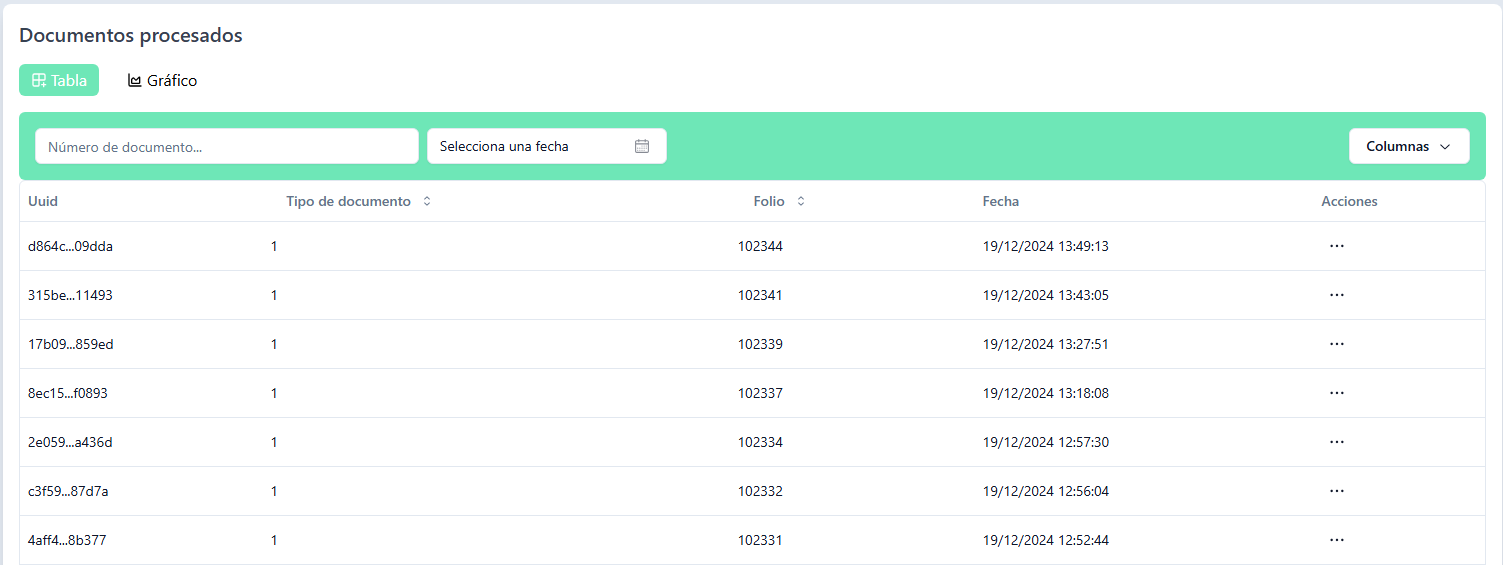
Available submodules
- Processed documents: documents processed correctly, with access to the generated output XML files.
- Contingencies: documents processed during a contingency, with access to the generated output XML files.
- Failed documents: documents that had an error, either during processing or due to rejection by the tax authority.
- Summaries 🇵🇪: Peru only, since version 2.7.1. See the Peru sheet.
Information table
| Field | Description |
|---|---|
| UUID | Unique internal ID generated by xPOS. |
| Document type | Invoice, receipt, credit note, etc. |
| Folio | Folio number of the document. |
| PartnerFolio | Folio number assigned by the tax authority or the PAC. Only enabled for Guatemala. |
| Date | Document creation date. |
| Status at the tax authority | Status of the document at the tax authority. See Tax authority statuses. |
| Status in Inbox | Synchronization status with the Gosocket/Inbox portal: Pending or Synchronized. |
| Status in Kiosk | Synchronization status with the Kiosk product: Pending, Synchronized or Rejected. |
Tax authority statuses
The Status at the tax authority column is shown as colored text, with the same criteria in tables, filters and detail:
| Status | Meaning |
|---|---|
| Accepted | The tax authority accepted it. |
| Conditionally accepted | Accepted with observations. Applies to the Dominican Republic and, since version 2.7.1, to Peru (observations in the CDR). |
| Rejected | Rejected by the tax authority. In Peru it includes the deadline rejection. |
| In process | Sent, awaiting the tax authority's response. |
| Queued for submission | 🇵🇪 Peru only, since version 2.7.1: awaiting its submission or its response from the contingency queue. |
Sorting and filters
Up to the previous version, sorting and some filters operated only on the rows already loaded on screen. From 2.7.0 they apply to the full set of documents, resolved on the server.
- Sort by column: date, document type, document number, folio, partner folio and error stage. The header indicates which column is active and in which direction (ascending → descending → unsorted).
- Filters: document type, status before the authority (Accepted / Rejected / In process, plus Conditionally accepted in the Dominican Republic and Peru), error stage (only in Failed documents) and date range with presets (Today, 3 days, 7 days, custom range).
- Search by document number: also searches by transaction identifier.
- Active filters are shown as individually removable chips, with a Clear filters button.
Status columns are not sortable, because they are derived fields; to narrow them down, use the corresponding filter.
The status with the tax entity is displayed with the same criteria across the whole interface (tables, filters and detail), and date filters are interpreted in the device's local time.
Export to Excel
The Processed documents, Contingencies and Erroneous documents submodules include the Export to Excel action.
The export respects the applied filters (dates, document type, status, folio) and operates on the full set of documents resulting from those filters, not just the visible page.
Available actions
- Copy ID: copies the document's UUID (transaction ID) in xPOS.
- View document: displays the tax XML or JSON, with a download option.
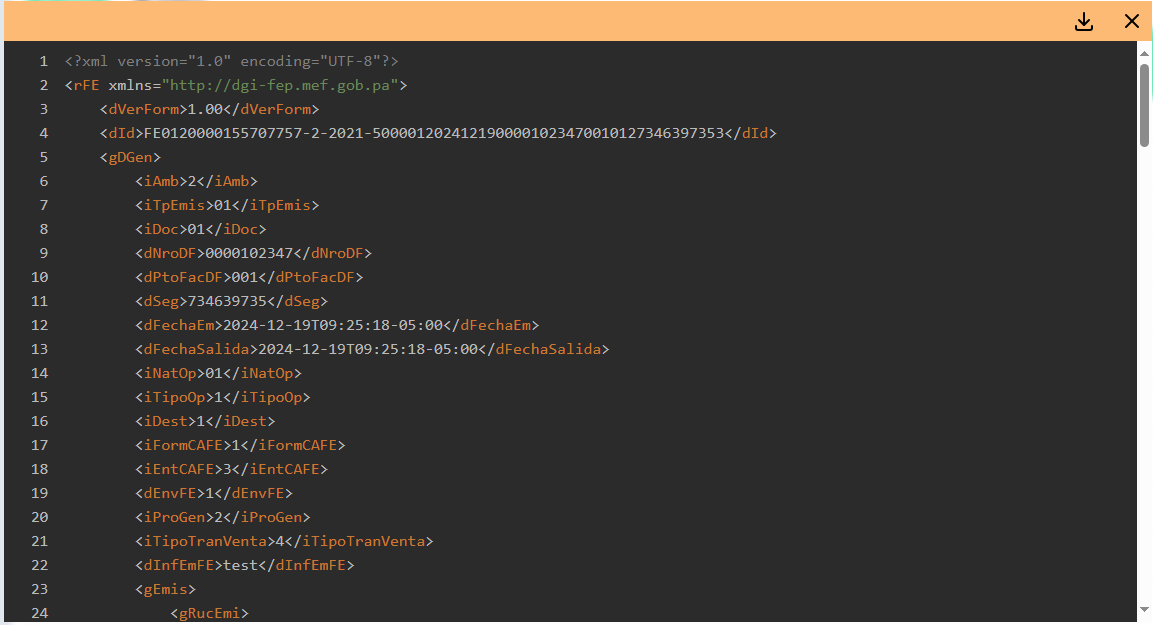
Available only in versions 1.XX.X.
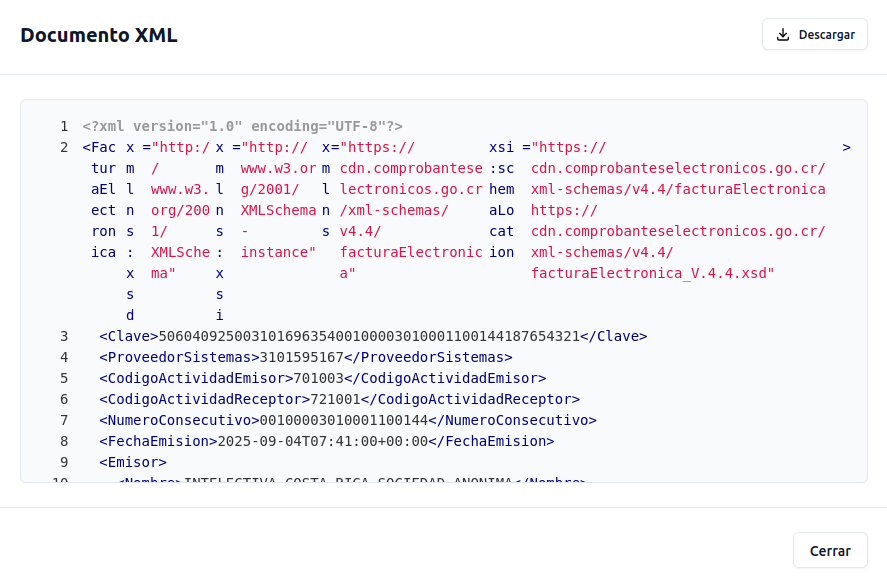
Available from versions 2.1.X onwards.
- View tax authority response: displays the XML or JSON of the tax authority's response, with a download option.
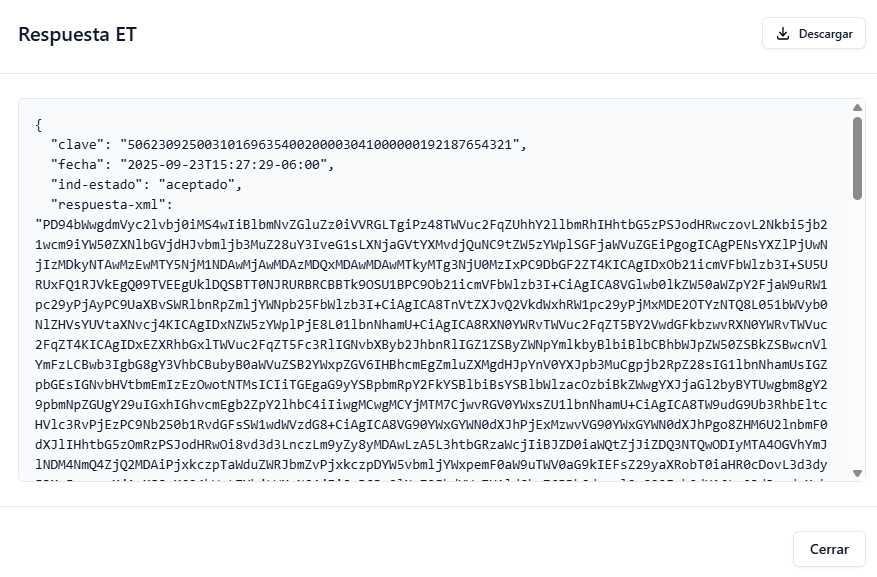
Available from versions 2.1.X onwards.
Peru adds to these views the Queued for submission status, the Summary column in Contingencies and the Summaries menu. They are documented in the Peru sheet.
🧾 Folios module
Displays the available folios and the subranges assigned by Folio Manager 3.0.
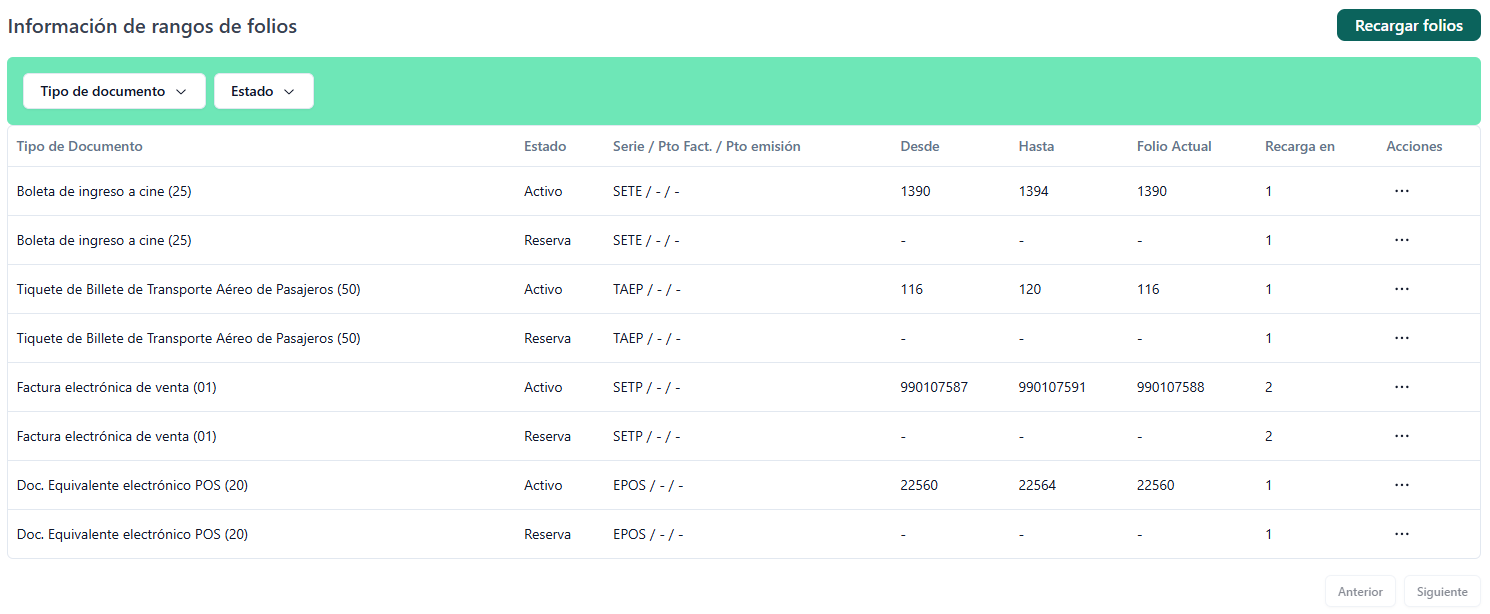
General actions
- Reload folios: requests folio subranges from FM 3.0 for all xPOS documents.
Actions at folio range level
- Release folios: releases the range from the current folio up to the established limit.
From version 2.7.0 onwards, both actions operate on the selected issuer and report the actual result of the operation, including the case where the reload threshold was not reached.
⚙️ Configurations module
Lets you run technical and administrative tasks on the xPOS.
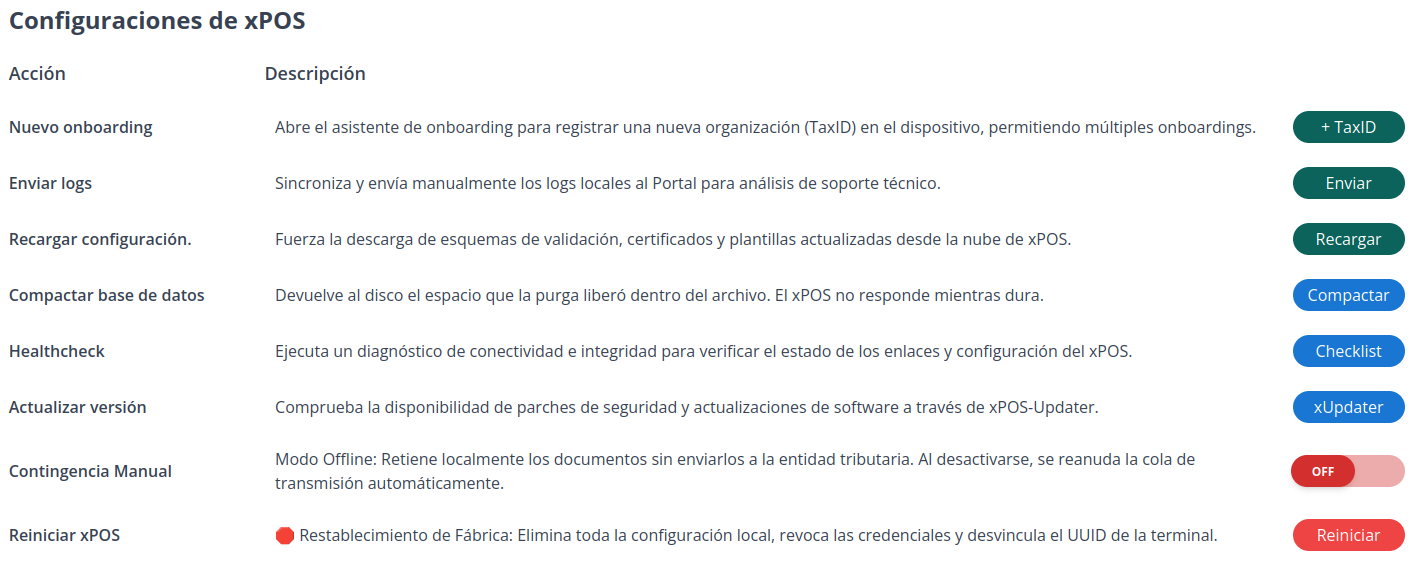
Available actions
| Action | Button | What it does |
|---|---|---|
| New onboarding 🆕 | + TaxID | Opens the onboarding wizard to register a new organization (TaxID) on the device, allowing multiple onboardings. |
| Send logs | Enviar | Manually syncs and sends the local logs to the Portal for technical support analysis. |
| Reload configuration | Recargar | Forces the download of updated validation schemas, certificates and templates from the xPOS cloud. |
| Compact database 🆕 | Compactar | Returns to disk the space that the purge freed inside the file. The xPOS does not respond while it runs. |
| Healthcheck | Checklist | Runs a connectivity and integrity diagnostic to verify the state of the xPOS links and configuration. |
| Update version 🆕 | xUpdater | Checks the availability of security patches and software updates through xPOS-Updater. |
| Manual contingency | ON / OFF | Offline mode: holds documents locally without sending them to the tax authority. When deactivated, the automatic transmission queue resumes. |
| Reset xPOS | Reiniciar | Factory reset: removes all local configuration, revokes the credentials and unlinks the terminal's UUID. |
🆕 = available from version 2.7.0.
New onboarding (+ TaxID)
Registers another issuer on the same device, without uninstalling or affecting the ones already installed. It opens the onboarding wizard for the new tax-id, including its verification step.
Compact database
The nightly purge deletes old rows, but the space it frees stays inside the database file: the file does not shrink on its own. Compacting is what returns that space to disk.
When it finishes, the action reports the size before and after the operation and how long it took. Compaction can also be executed remotely and centrally, coordinated with the Gosocket team.
Each run of the automatic nightly cleanup is recorded, with a queryable history, and the device's disk space is monitored as part of the service's observability.
While compaction is running the xPOS does not respond: it does not process documents. Run it outside the store's operating hours. That is why the action reports how long it took — it helps size the window needed for subsequent runs.
Compacting reclaims space. It does not repair a damaged database. If you suspect an integrity problem, escalate to Gosocket instead of compacting.
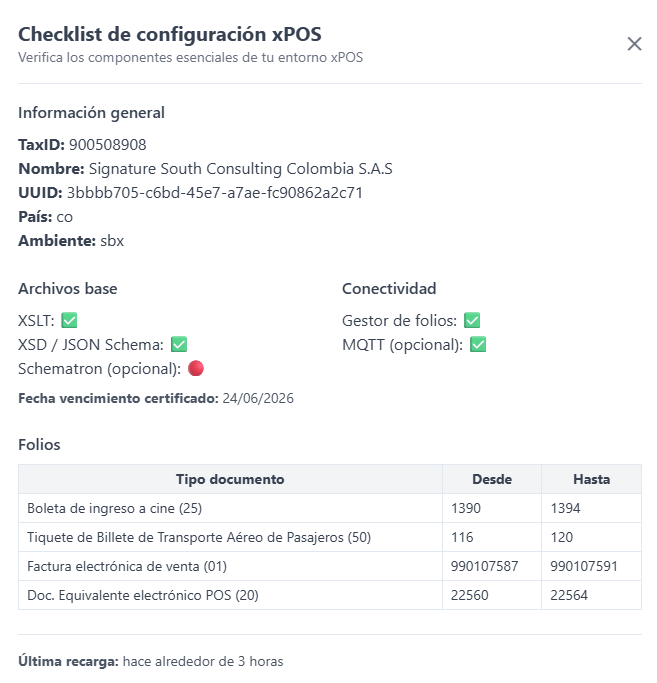
Healthcheck
It is the same verification that runs as a mandatory step during installation — see Installation verification. From the dashboard it can be re-run at any time to diagnose an already operational device.
Update version (xUpdater)
Checks whether security patches or new versions are available, and opens the Updater dashboard without having to start the service manually on the machine.
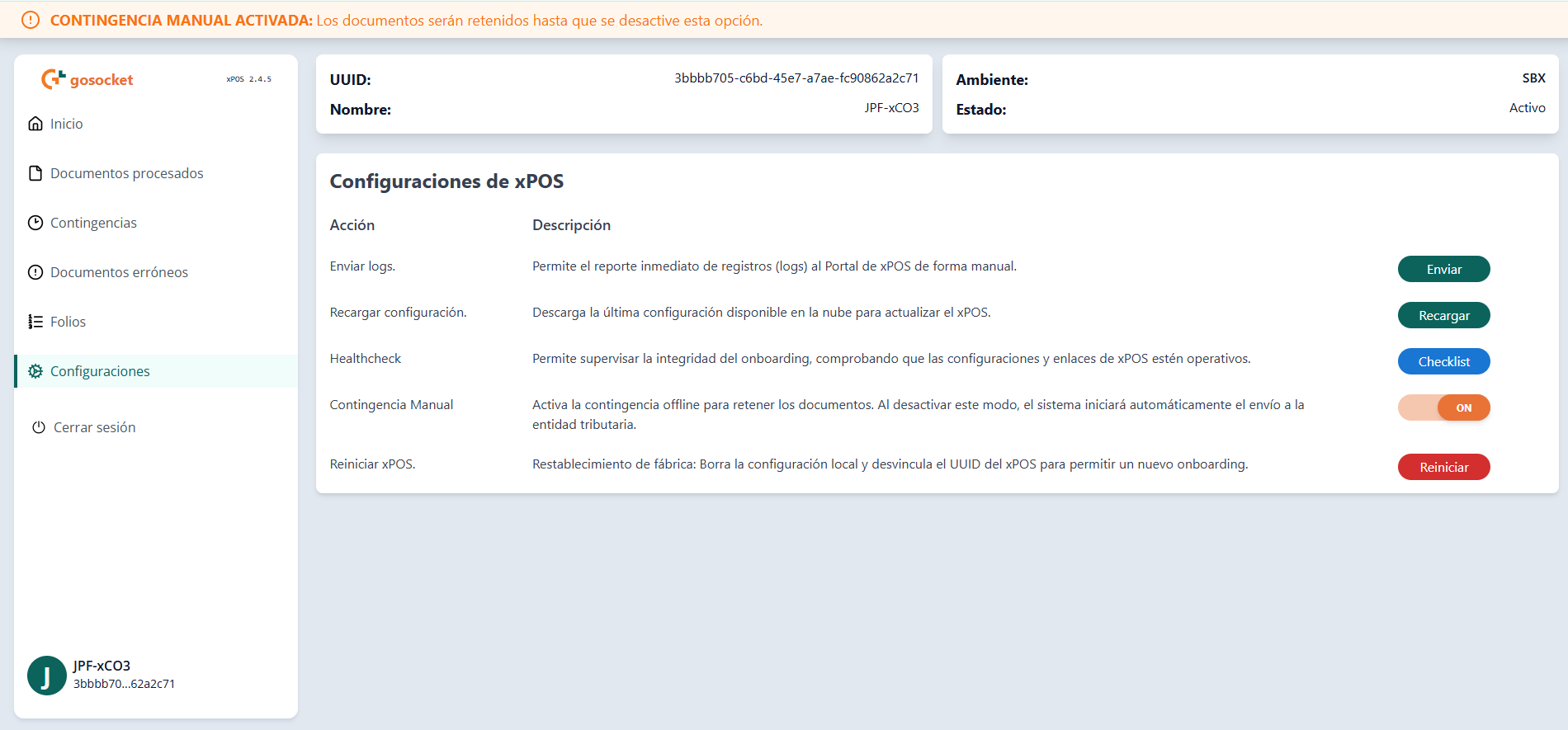
Manual contingency
A switch that activates offline mode on the device: documents are issued and held locally, without being sent to the tax authority. When switched off, the automatic transmission queue resumes and the held documents are sent.
On activation, mandatory data for the responsible person and the reason is requested, and while it is active a warning banner is displayed on screen.
Manual contingency emulates an internet outage: documents go out with each country's automatic no-connection contingency code. It is unrelated to the manual contingencies defined by the tax authority — see Contingency codes by country.
Reset xPOS
Factory reset: removes all local configuration, releases the folios to FM 3.0 (if applicable), revokes the credentials, restores the local database with no data and unlinks the terminal's UUID, leaving it in "inactive" state.
Resetting the xPOS deletes the installation's local data. On a device with several issuers, verify which one you are operating on before running it.